Stroke Order

· 2 min read
Gloria Kristiani
Kanjiverse

Each kanji card in the app now includes a dynamic stroke order diagram that visually demonstrates each stroke in the correct order. This allows learners to follow along and practice writing the character on their own. Size and drawing speed can also be customized in the settings.

Key Benefits:​
  1. Enhanced Memorization: Learning the stroke order helps solidify the structure of kanji in a learner’s memory, making it easier to recall and reproduce the character later on.
  2. Improved Handwriting: Practicing with the correct stroke order improves handwriting skills, which is crucial for those studying Japanese for academic tests, professional use, or personal improvement.
  3. Deeper Understanding: Understanding the components that make up each kanji—such as radicals and how they combine—can enhance a student’s ability to recognize and learn new characters.
  4. Interactive Learning: The interactive nature of the Stroke Order tool makes learning more engaging and visually appealing, which can boost motivation and enjoyment in studying Japanese.
Experience It Yourself!​

The Stroke Order feature is now available for all kanji in our comprehensive database. Whether you are a beginner or an advanced learner, this tool will support and enhance your Japanese writing skills.

We invite all our users to try out this new feature and see how it transforms your learning journey. Your feedback is invaluable to us, and we look forward to hearing about your experiences with this new tool.

Happy learning!

Pitch Accent

· 3 min read
Gloria Kristiani
Kanjiverse

We are thrilled to announce the latest feature that has joined the Kanjiverse family: Pitch Accent! This new addition is designed to transform the way you learn and pronounce Japanese by integrating the subtleties of pitch accent directly into our learning platform.

What is Pitch Accent?​

Pitch accent in Japanese refers to the variations in pitch (high or low) across the syllables of a word. Unlike in English where stress accent (emphasis on one syllable over others) is common, Japanese uses pitch variations to differentiate meanings between otherwise identical words. This aspect of pronunciation can affect the nuance and meaning of words, making it essential for clear and accurate communication in Japanese.

How Does Pitch Accent Work?​

Each Japanese word has a specific pitch pattern, which can typically be described in terms of which syllable is high or low. Here’s a quick breakdown:

  • High and Low Pitches: In Japanese, each mora (a unit of sound duration, roughly equivalent to a syllable) can either be pronounced with a high pitch or a low pitch. The transition between high and low pitches within a word can change the meaning of the word.
  • Heiban, Atamadaka, Nakadaka, Odaka: These are the types of pitch accent patterns in Japanese.
  • Heiban (Flat): The first mora is low, and the rest are high.
  • Atamadaka (High-Low): The first mora is high followed immediately by low.
  • Nakadaka (Mid-High-Low): One of the moras in the middle is high, and the pitch drops after that.
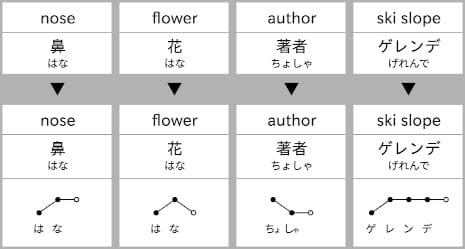
  • Odaka (Low-High-Continue): Starts low, rises at a point, and the high pitch continues if there’s a particle attached. Example of the four pitch accent patterns.

Why is Pitch Accent Important?​

Understanding and using pitch accent correctly is vital for a few reasons:

  • Clarity: Correct pitch accent helps in distinguishing between words that have the same spelling but different meanings, like 'はし' (hashi) which can mean bridge (はし, low-high) or chopsticks (はし, high-low).
  • Comprehension: Native speakers use pitch patterns to understand spoken Japanese quickly and naturally.
  • Pronunciation: Mastering pitch accent improves your Japanese pronunciation, making your speech more natural and easier for native speakers to understand.

Tips for Learning Pitch Accent​

  1. Listen and Imitate: Listen to native speakers and try to imitate their pitch patterns. Tools like language learning apps, songs, and dramas can be beneficial.
  2. Use Learning Materials: Some textbooks and resources specifically highlight pitch accents. Use these as a guide.
  3. Practice Regularly: Regular speaking practice with focus on pitch will help you internalize the patterns.
  4. Use Technological Aids: Apps that visualize pitch accent patterns can help you see and hear the difference in real time.

How Does Kanjiverse's Pitch Accent Feature Work?​

Kanjiverse’s Pitch Accent feature comes with a variety of tools designed to help you master pronunciation nuances:

  • Visual Accent Marks: Words come with visual indicators showing the pitch pattern, helping you see the rise and fall in intonation.
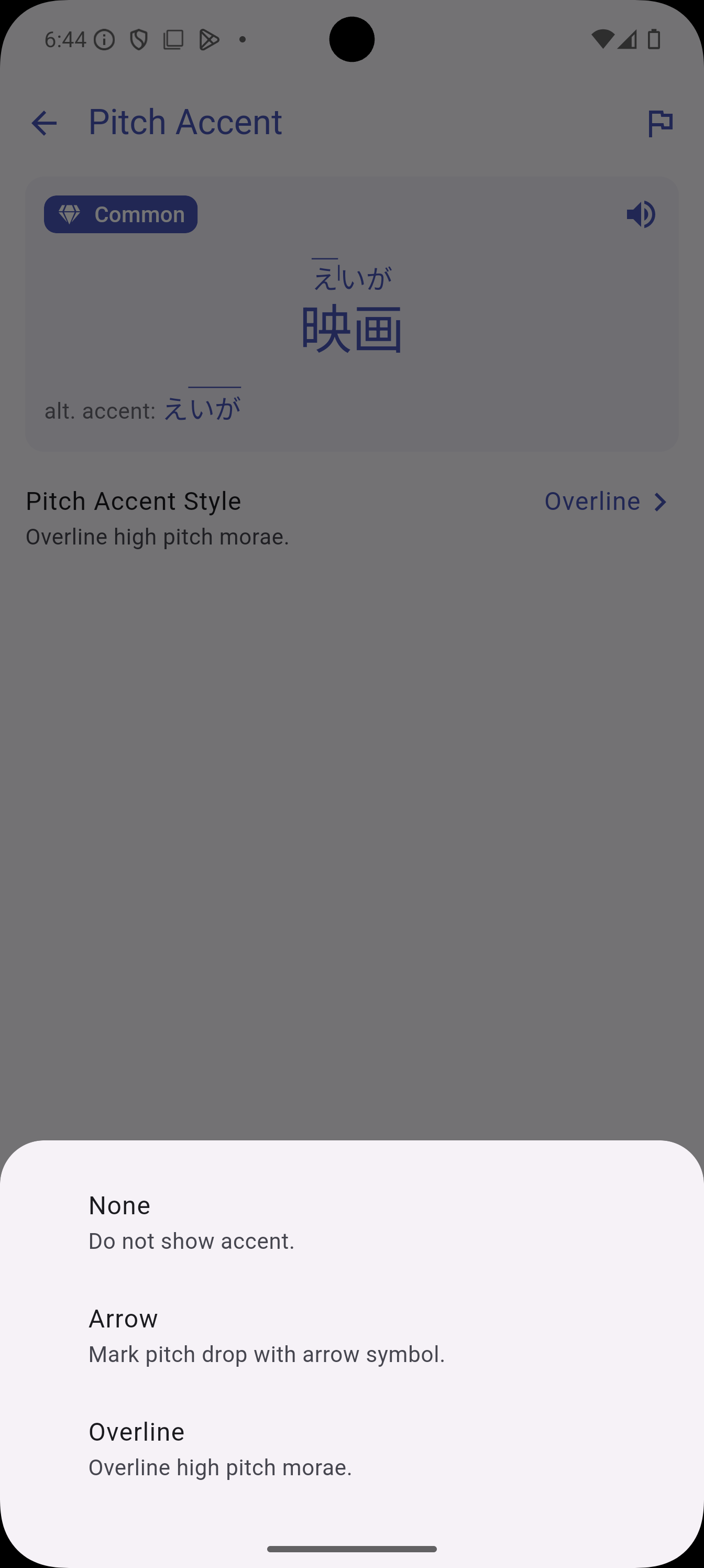
  • Customizable Settings: Choose how you see pitch accent markings—whether as lines, dots, or color-coded indications—to best suit your learning style.

Get Started with Pitch Accent​

To start using the Pitch Accent feature, simply update your Kanjiverse app. It’s available to all users and can be found integrated into our existing suite of learning tools. Dive into the settings to customize how pitch accents are displayed and begin your journey towards flawless Japanese pronunciation.

Import and Better Organize Your Stuff

· 10 min read
Kanjiverse
Kanjiverse

The latest release brings tons of quality of life improvements to manage your bookmarks, sentences and lists! Import kanji, words, and sentences from files to new or existing lists, toggle bookmark on any item, anywhere, batch delete or make public all items in a list at once, and more!

Import Features​

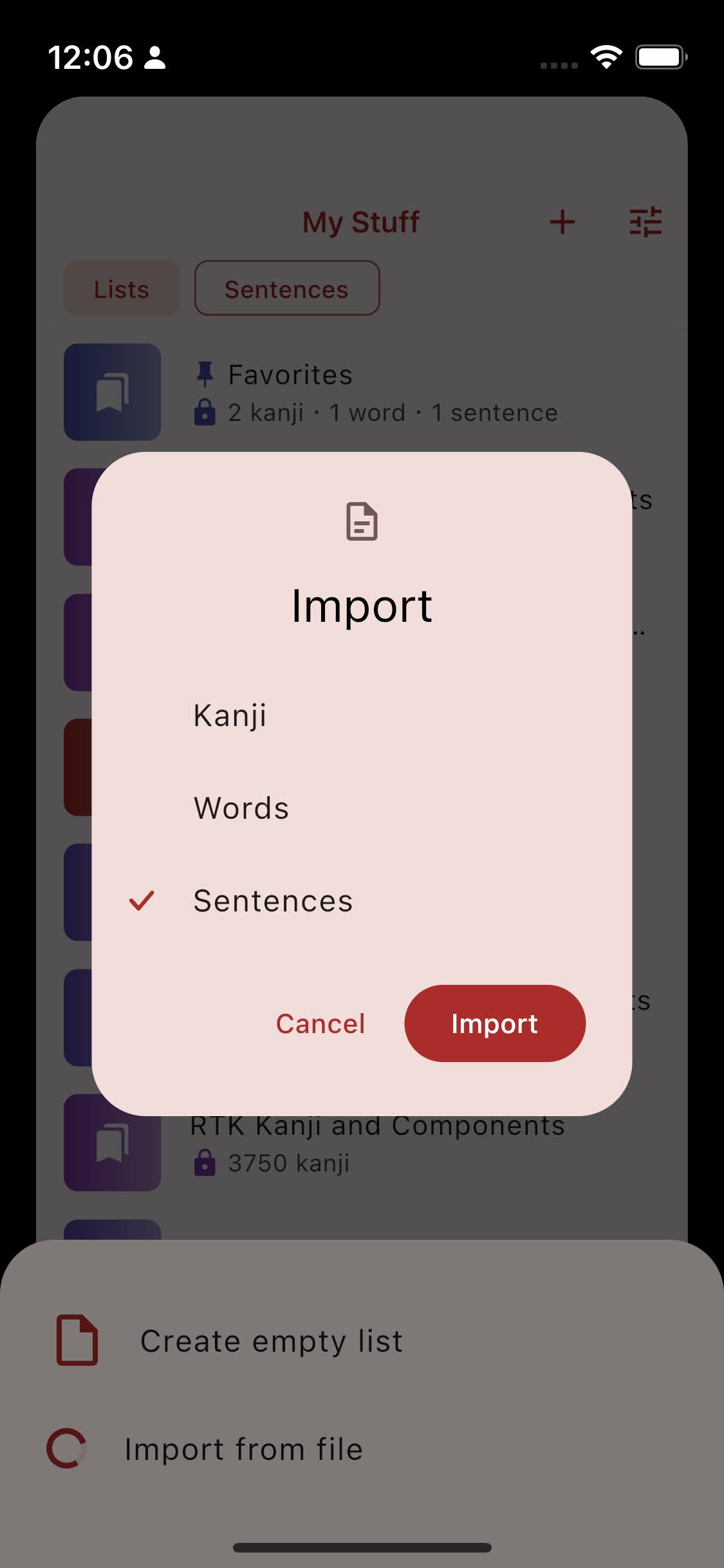
No need to painstakingly bookmark kanji and words one by one anymore, you can now import them all at once to existing or new lists! Same goes for sentences, skip the search bar sentence analyzer and parse a whole file at once!

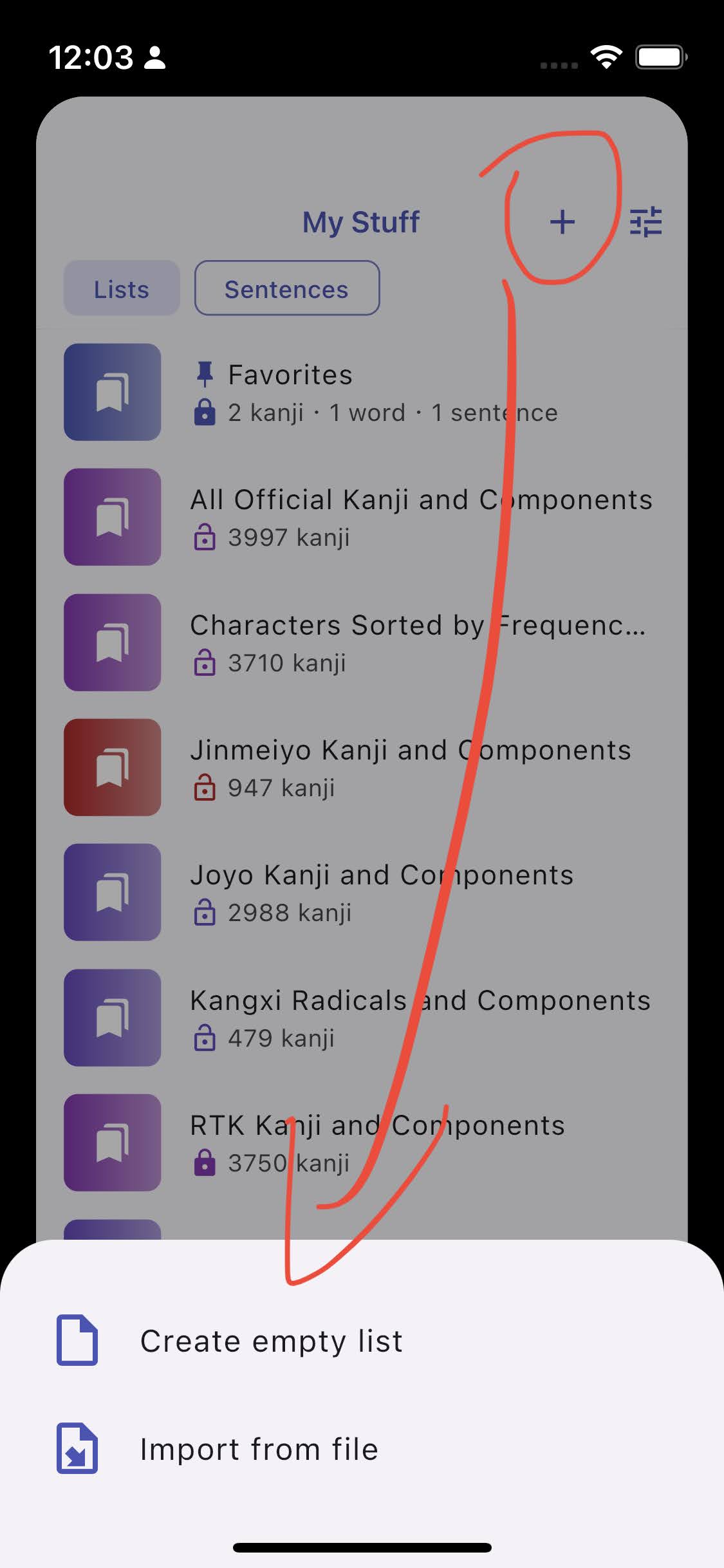
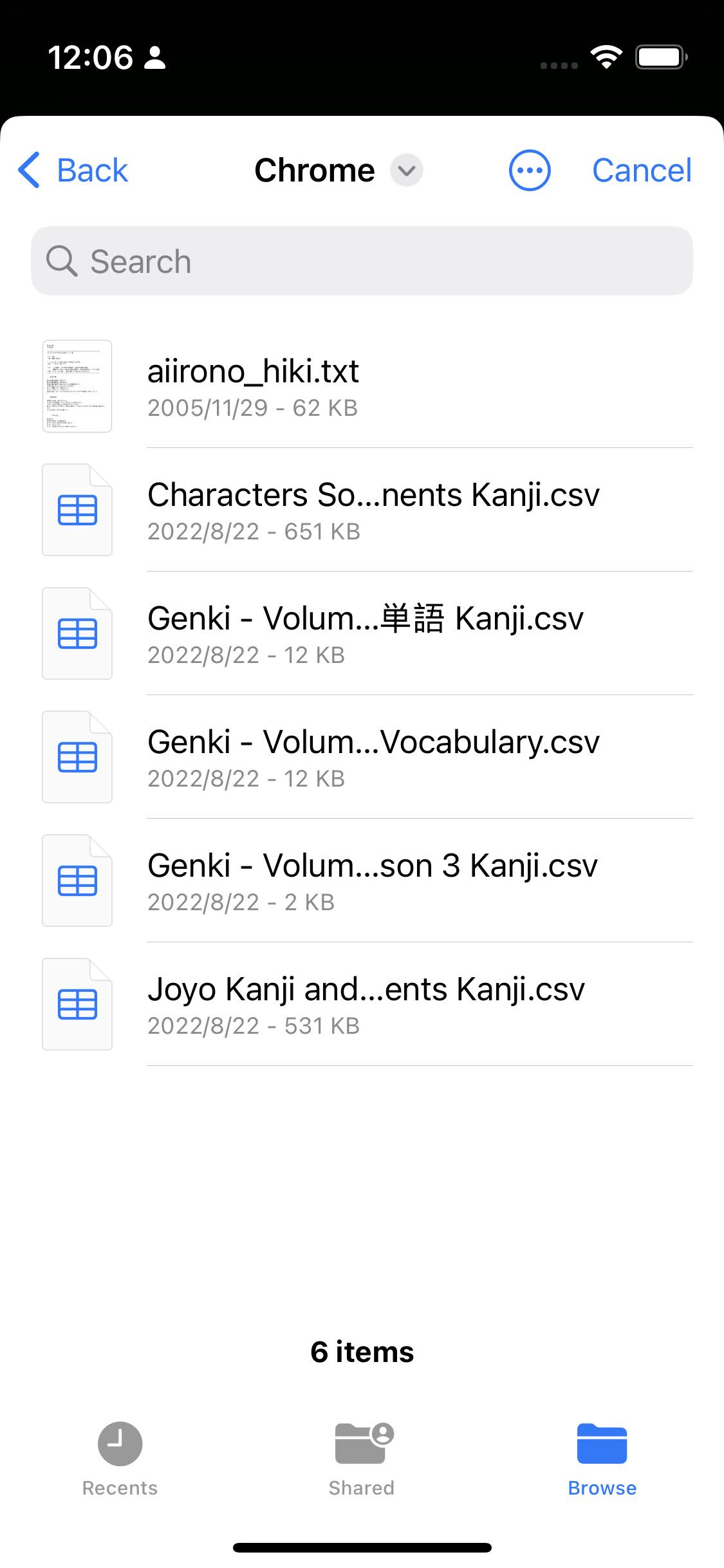
Get started by importing to a new list, press the + button in My Stuff and choose Import from file. Select a .csv, .tsv or .txt file (more formats will be added in future releases).

Import kanji and words from plain text​

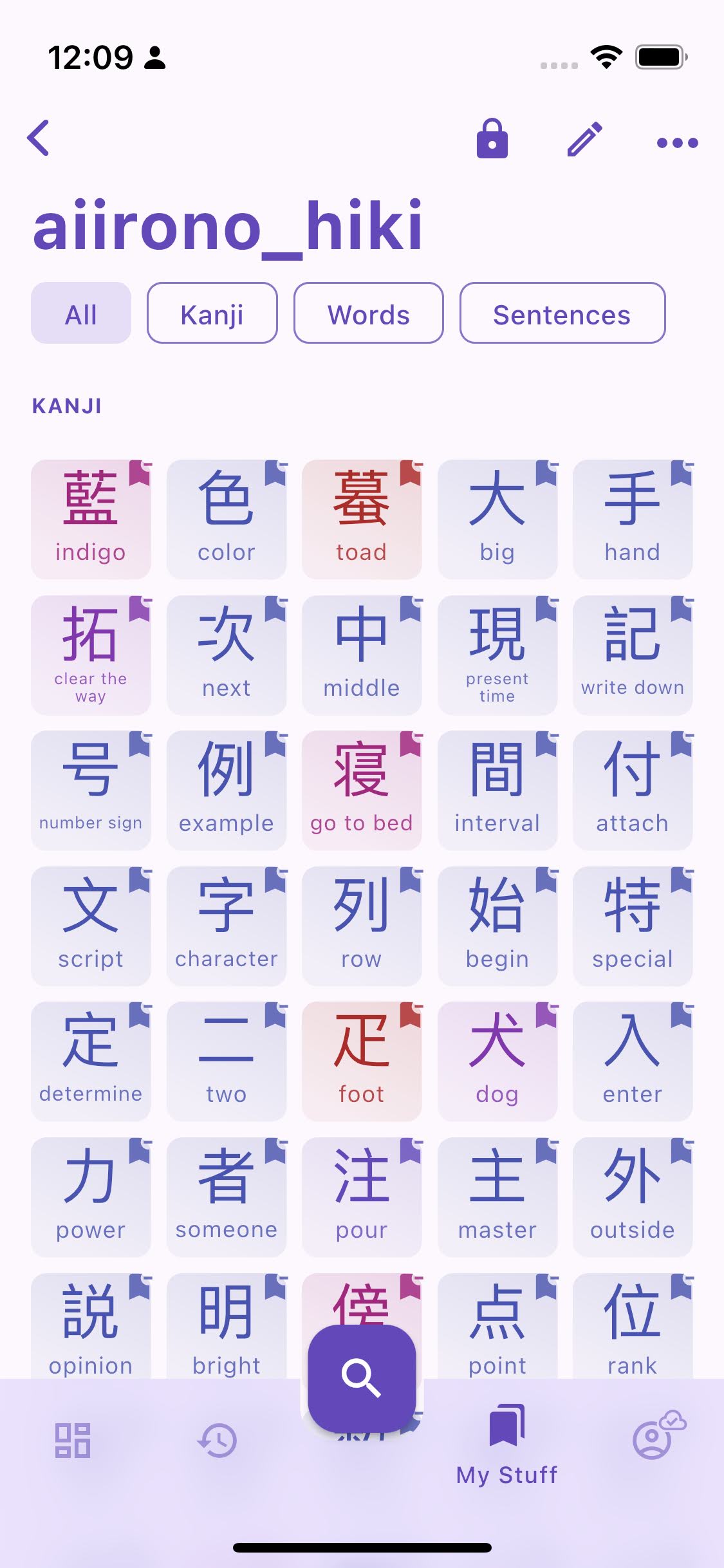
  • When selecting a plain text file (.txt), all individual kanji or words found in the file will be imported.
  • If you need to import from other text formats such as html, rename the file extension to .txt to be able to select it. Direct import from URL will be added in a coming release.

Import kanji and words from CSV file​

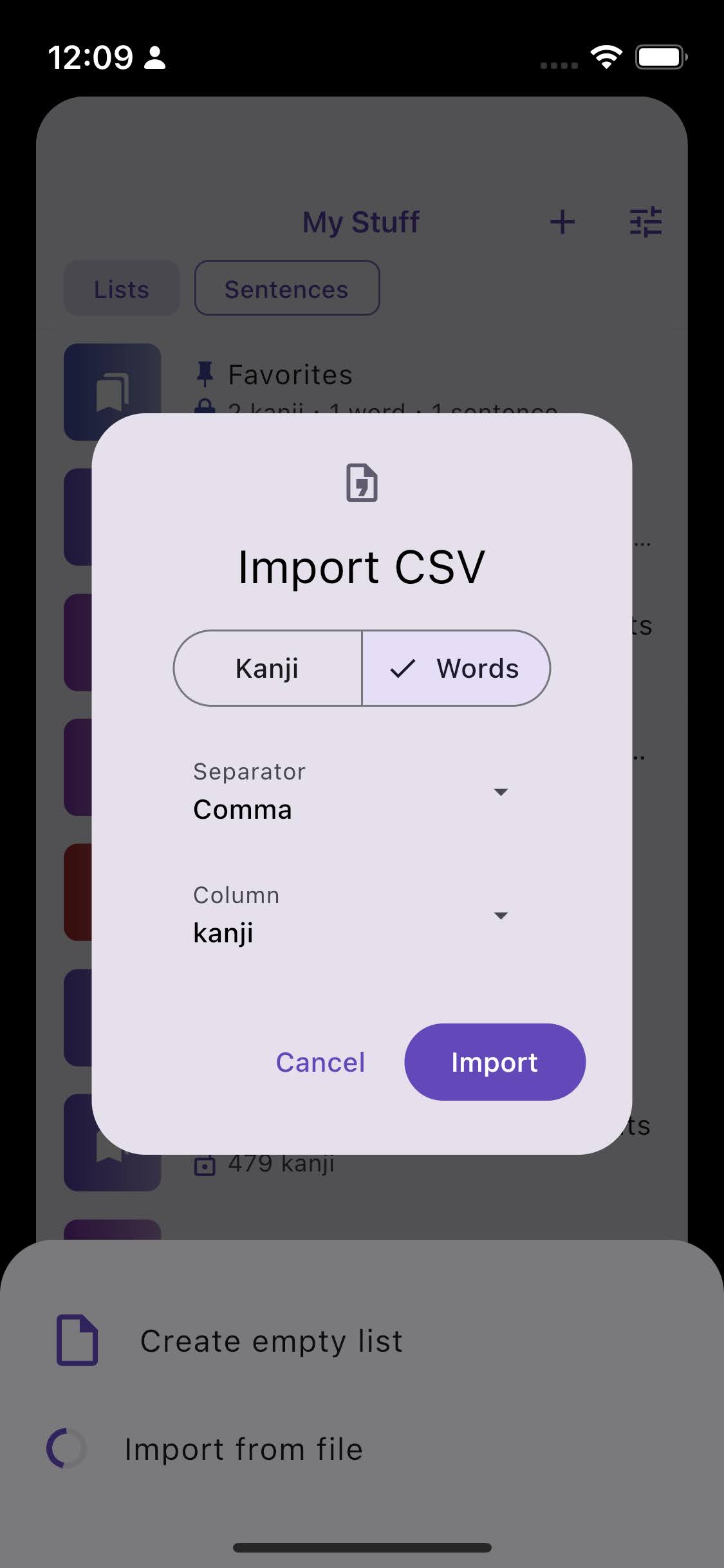
  • When importing from a tabular data file (.csv and .tsv) you need to select from which column to import the items. There must be only one kanji or word per cell. If you need less restrictions, change the file extension to .txt and import it as a plain text.
  • If not detected properly, you can change the column separator symbol (comma, semicolon, tab, etc.).

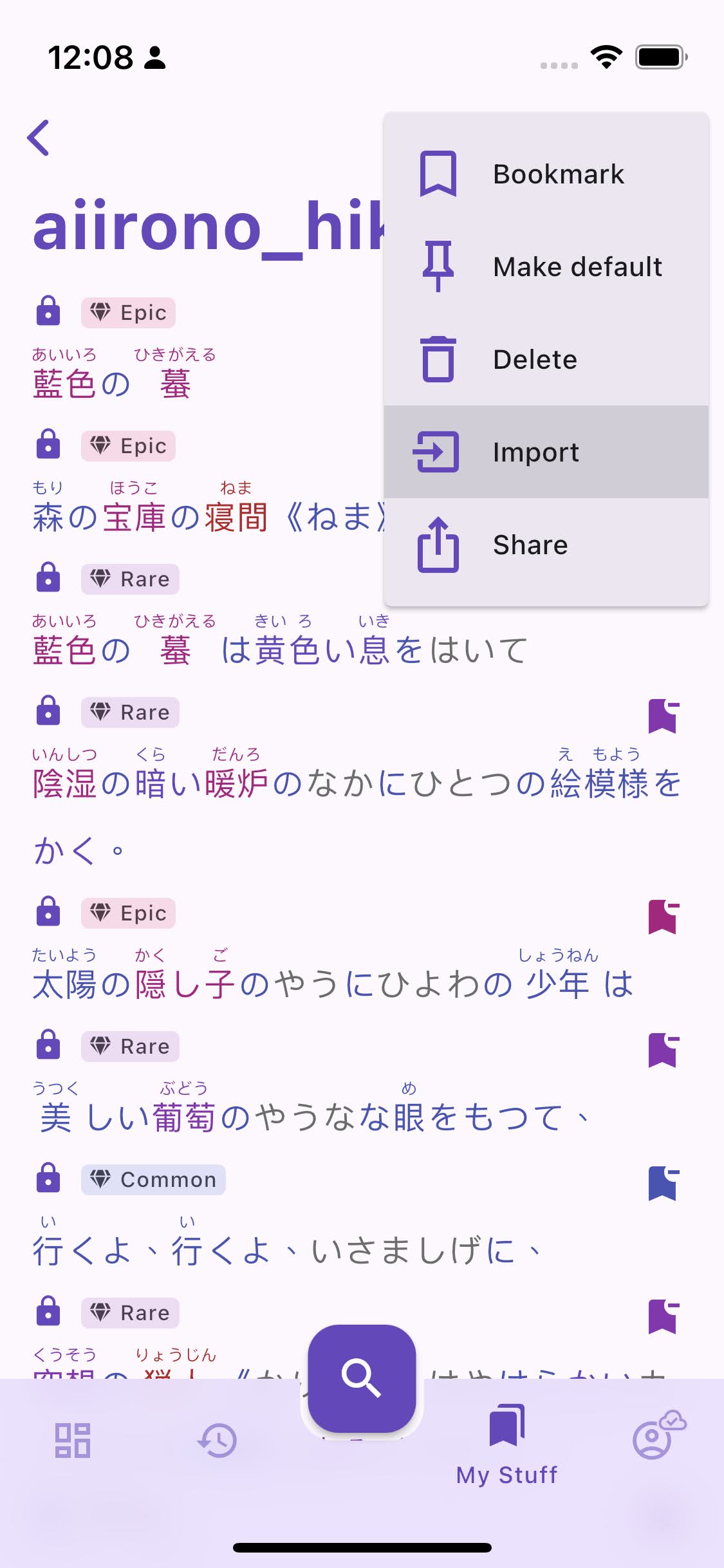
Note that you can generate a CSV or TSV file from your favorite spreadsheet software :) All the content is added to the list, without duplicates. To import to an existing list, select Import from its menu.

Extract sentences from a text​

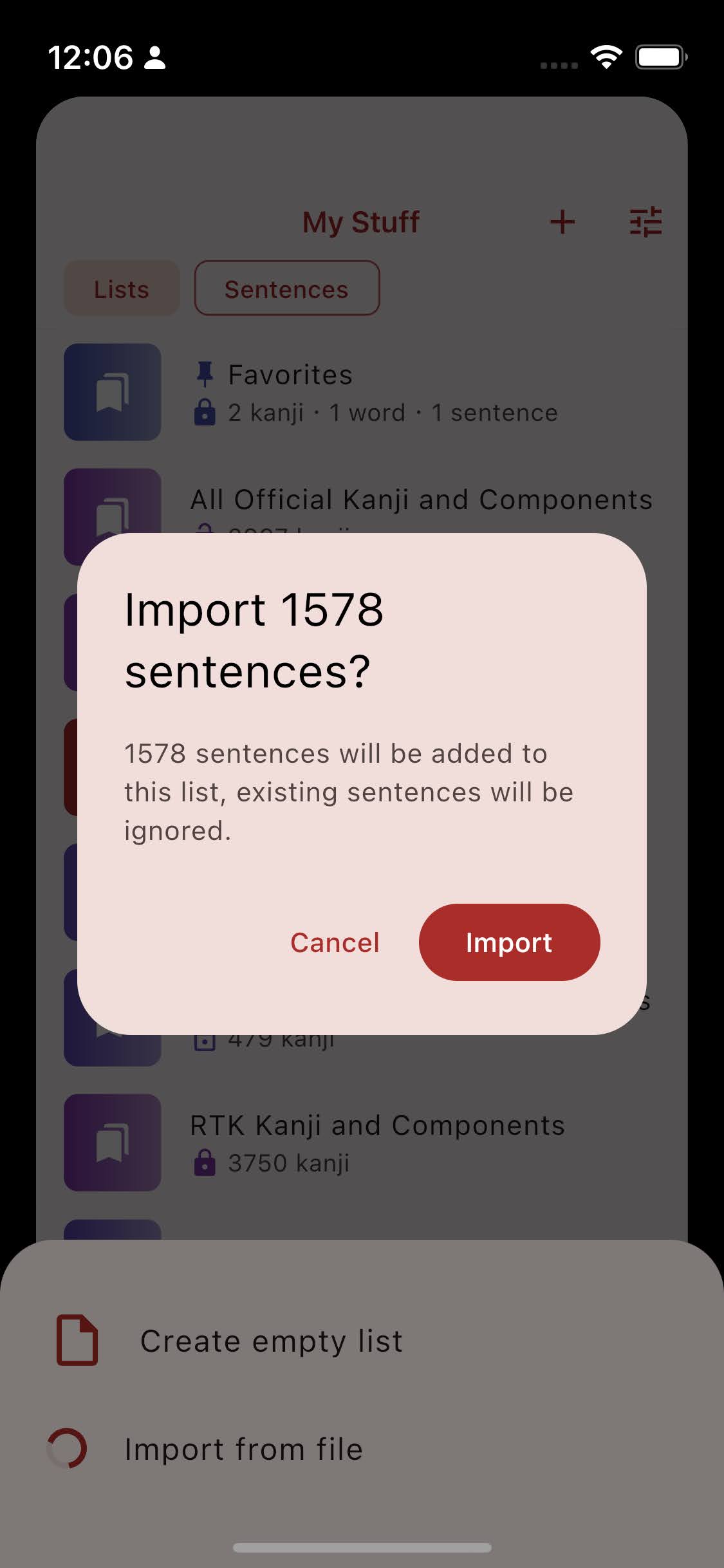
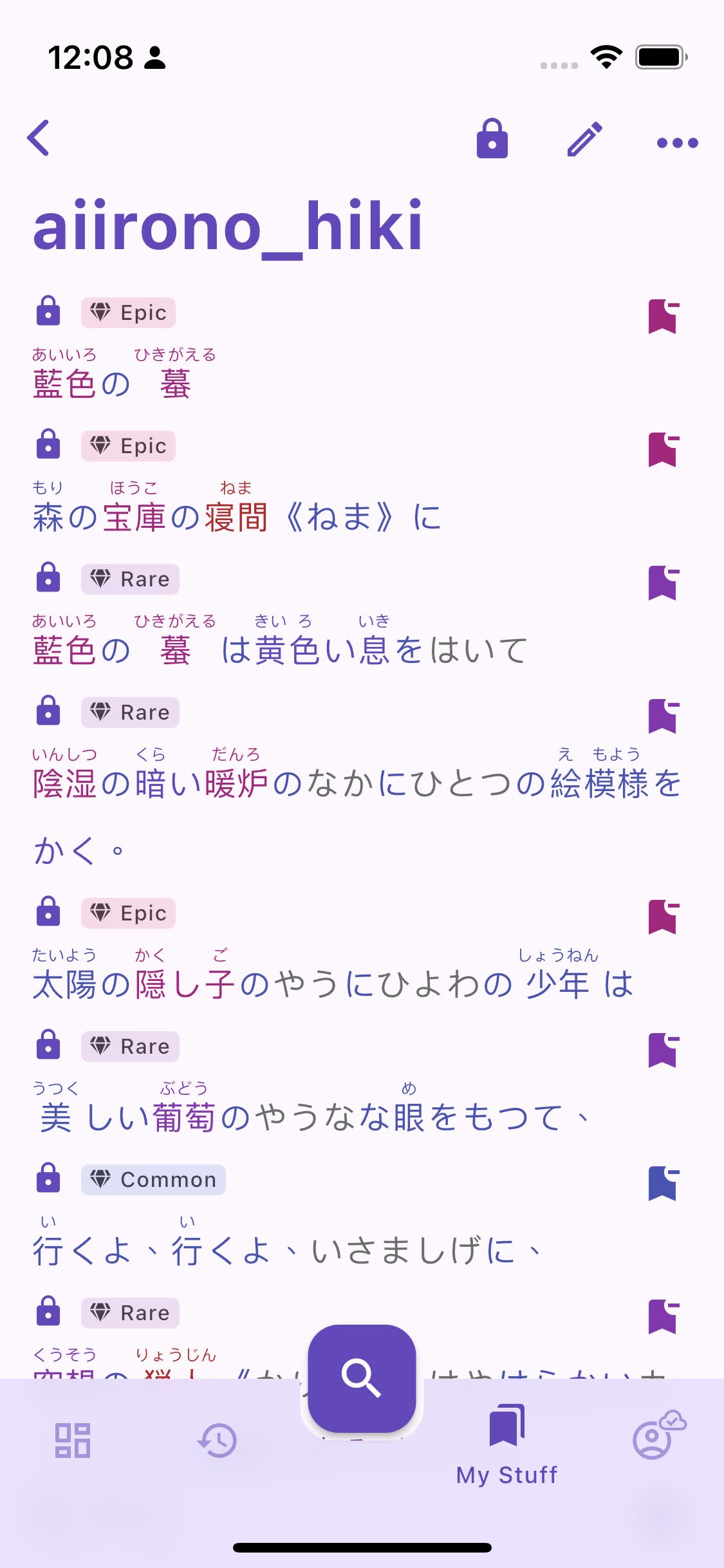
Sentence mining with Kanjiverse just got a lot easier. You can now parse a whole file, extract individual sentences and group them in a list all at once!

Manage sentences​

All imported sentences are automatically added to My Sentences and will stay there even if removed from the list. They can of course be individually deleted or made public one by one by there is a better way:

Batch deletion​

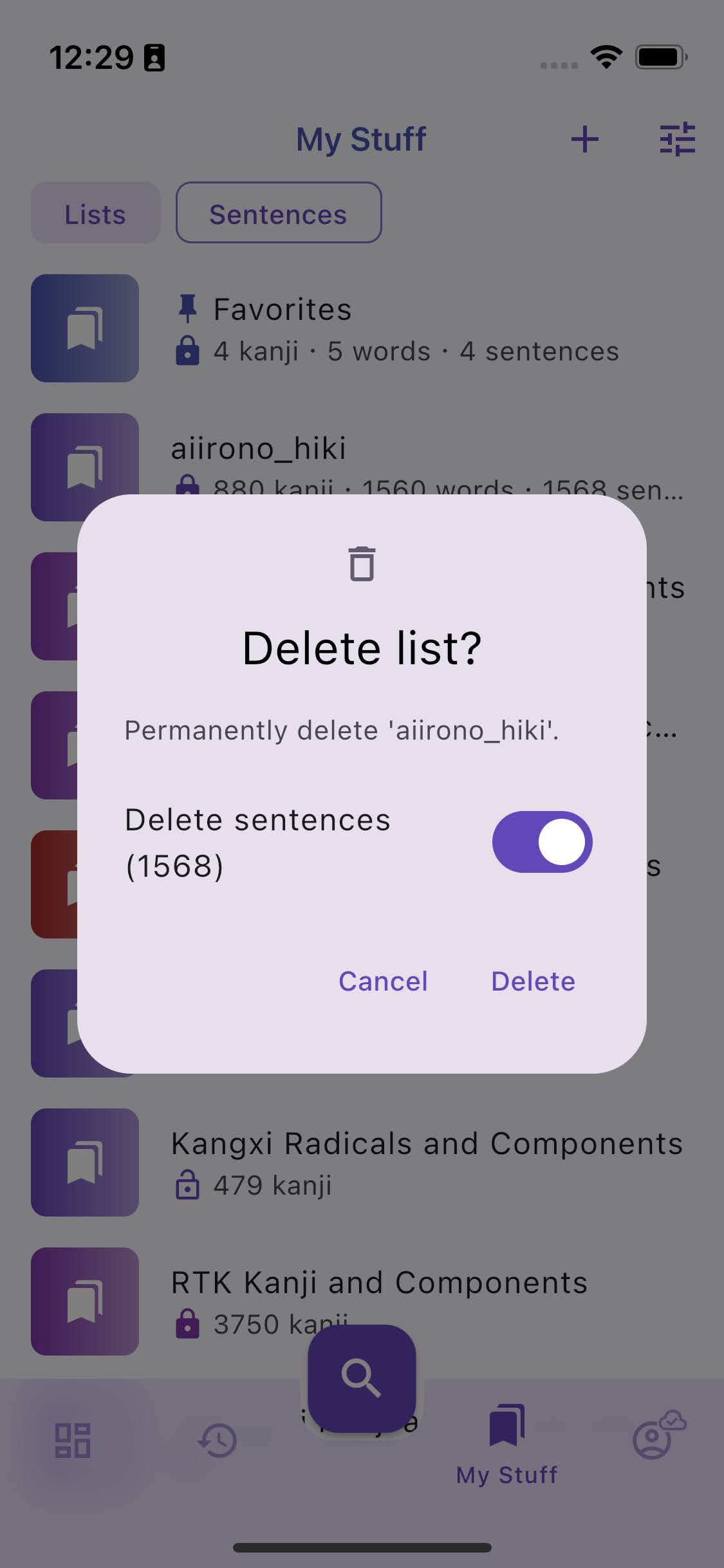
When deleting a list, the confirmation dialog will let you opt in to delete all the sentences it contains and remove them from My Sentences too.

Batch sharing​

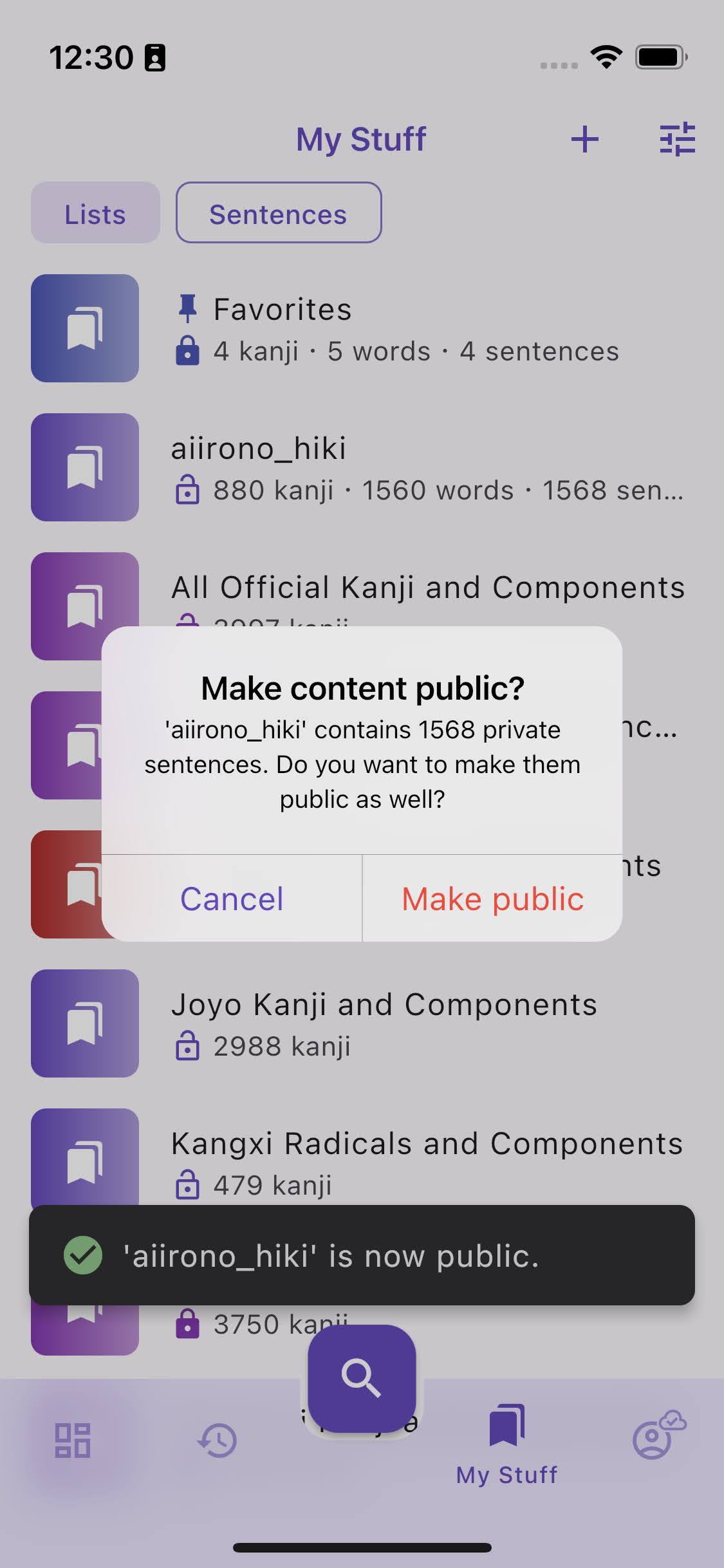
When making a list public (by pressing its lock icon), you will be prompted if you want to make all its content public too.

Other users cannot see private items in a list even if that list is public!

Uniform bookmark system​

To make bookmarking less confusing, the whole system has been revamped to be consistent across all screens and item types:

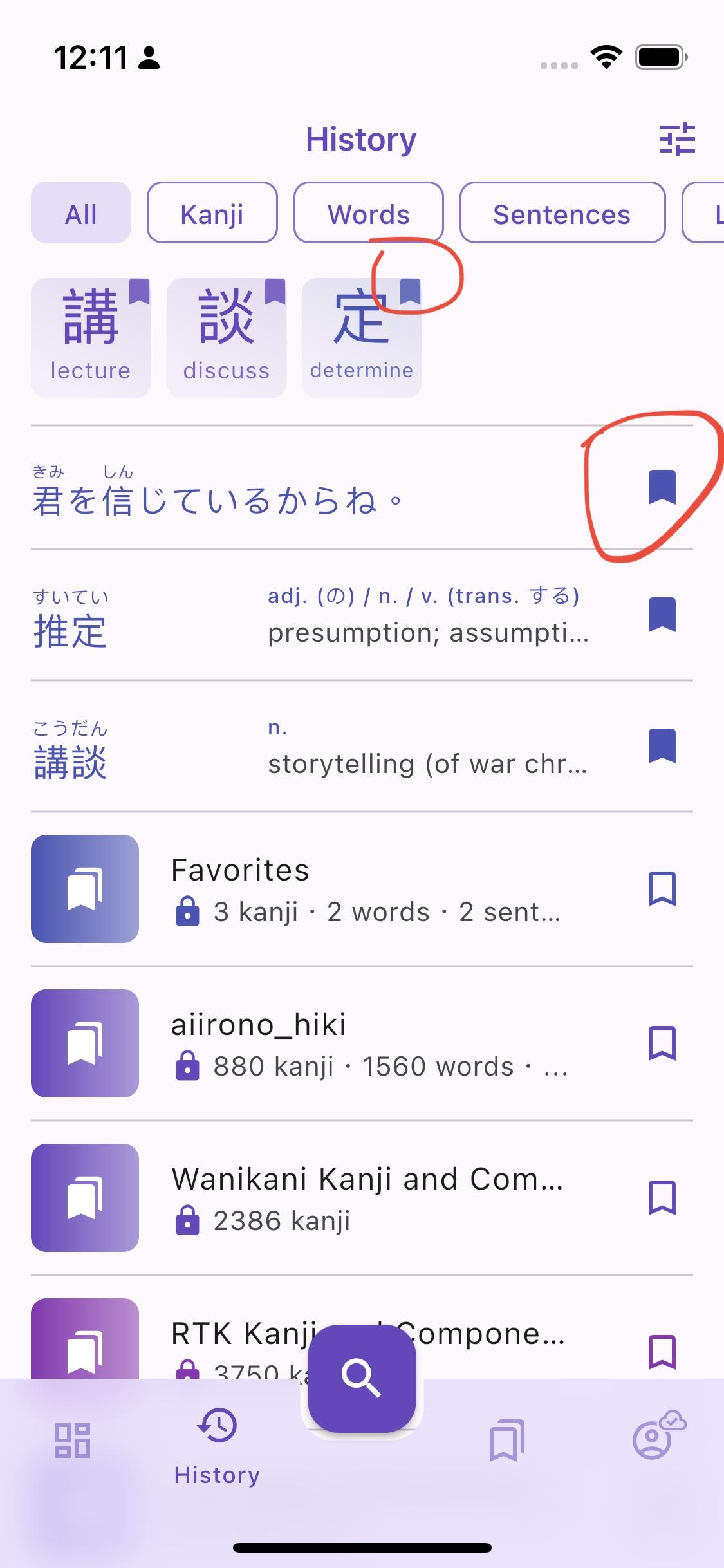
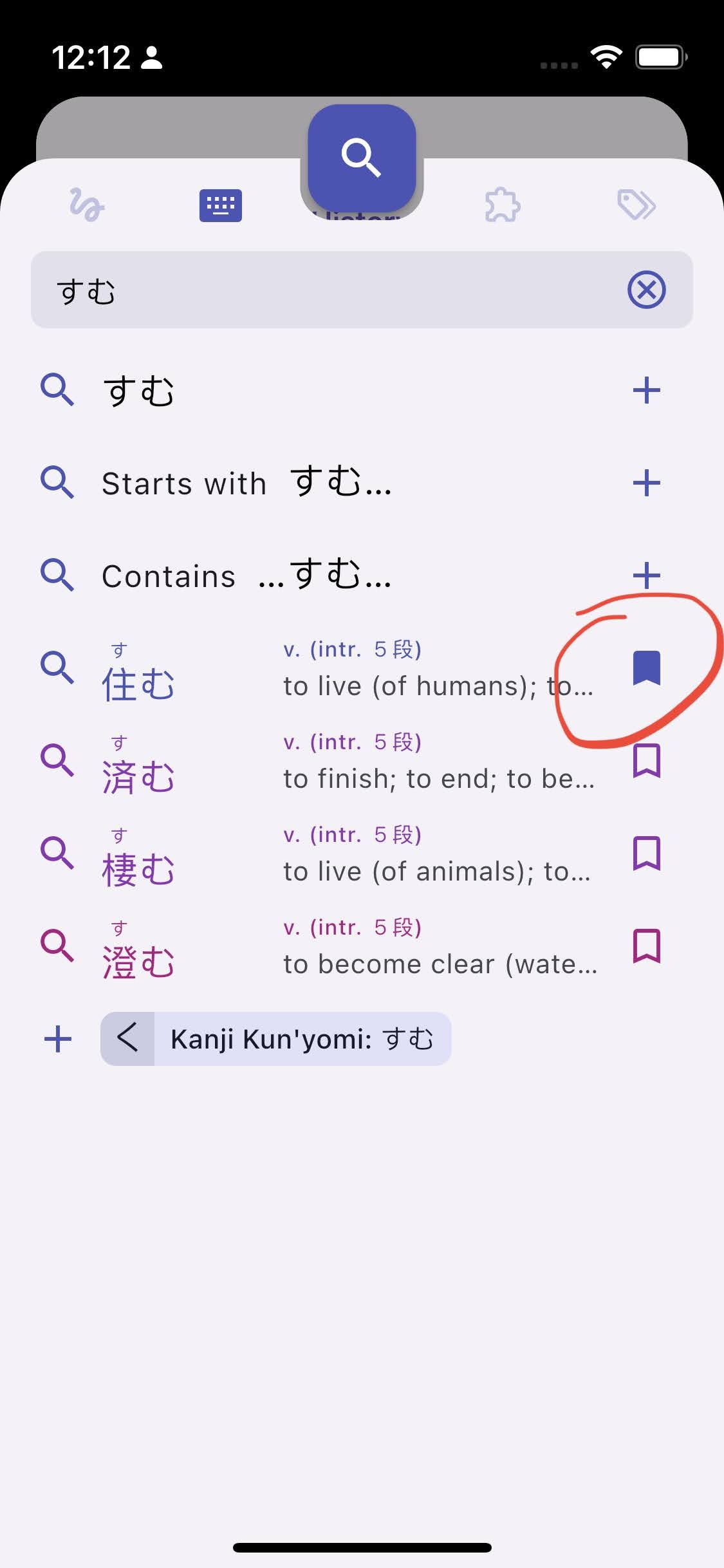
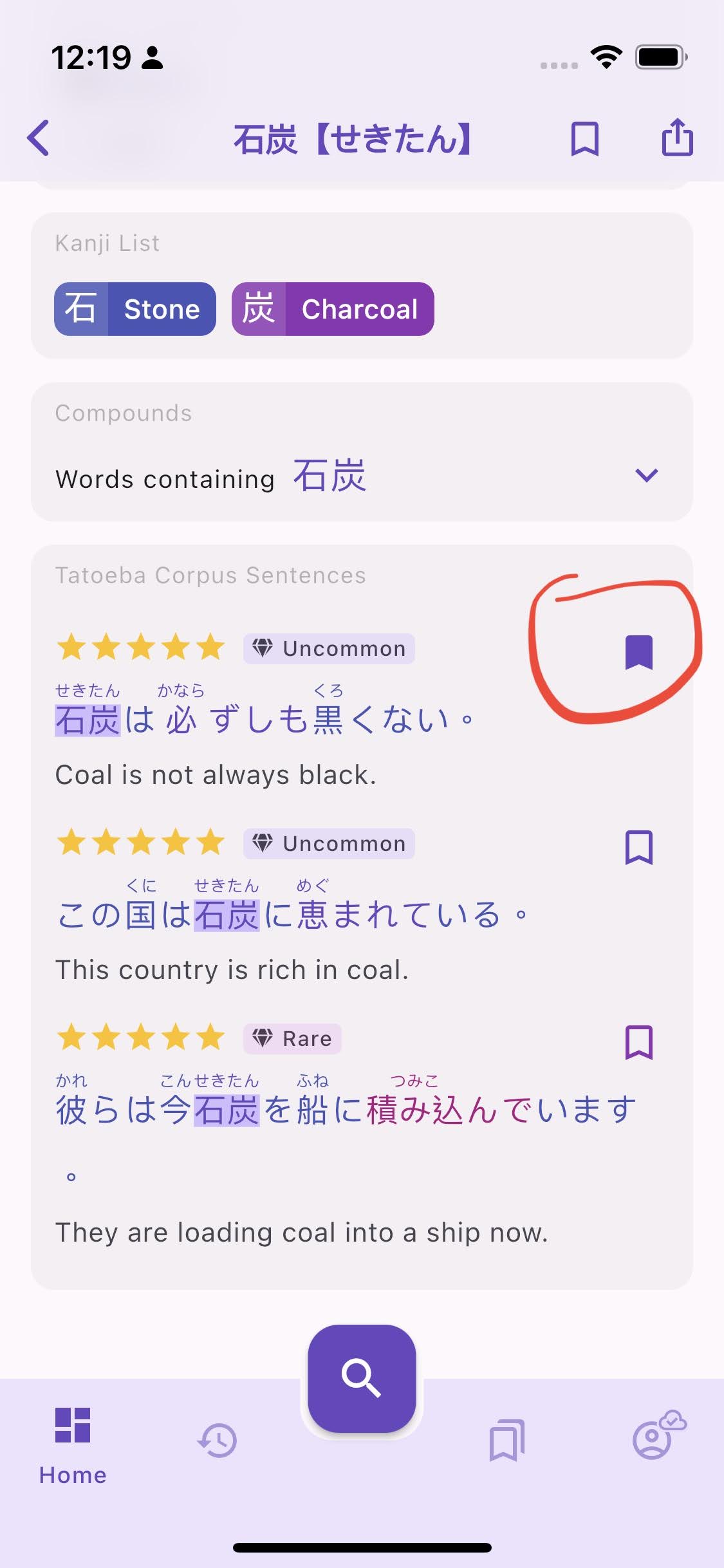
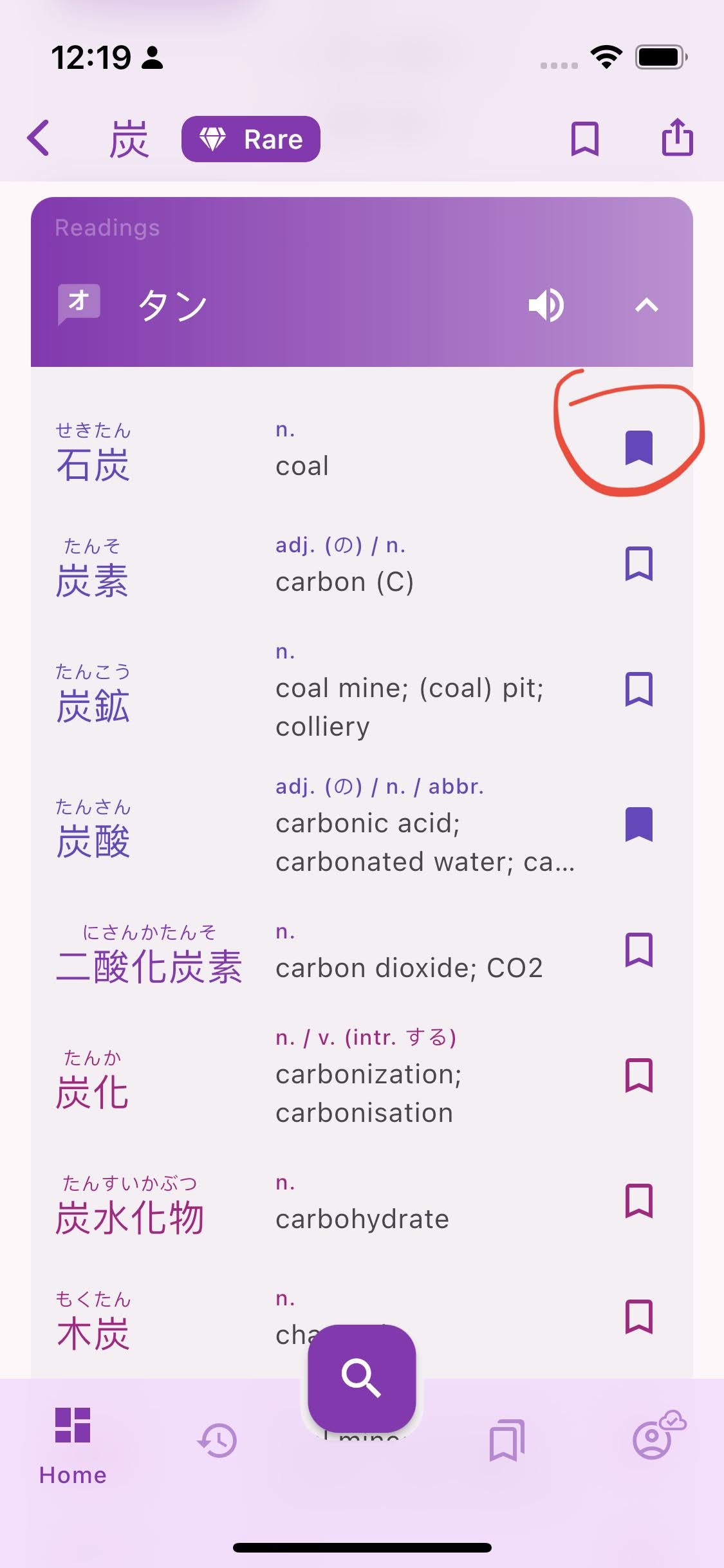
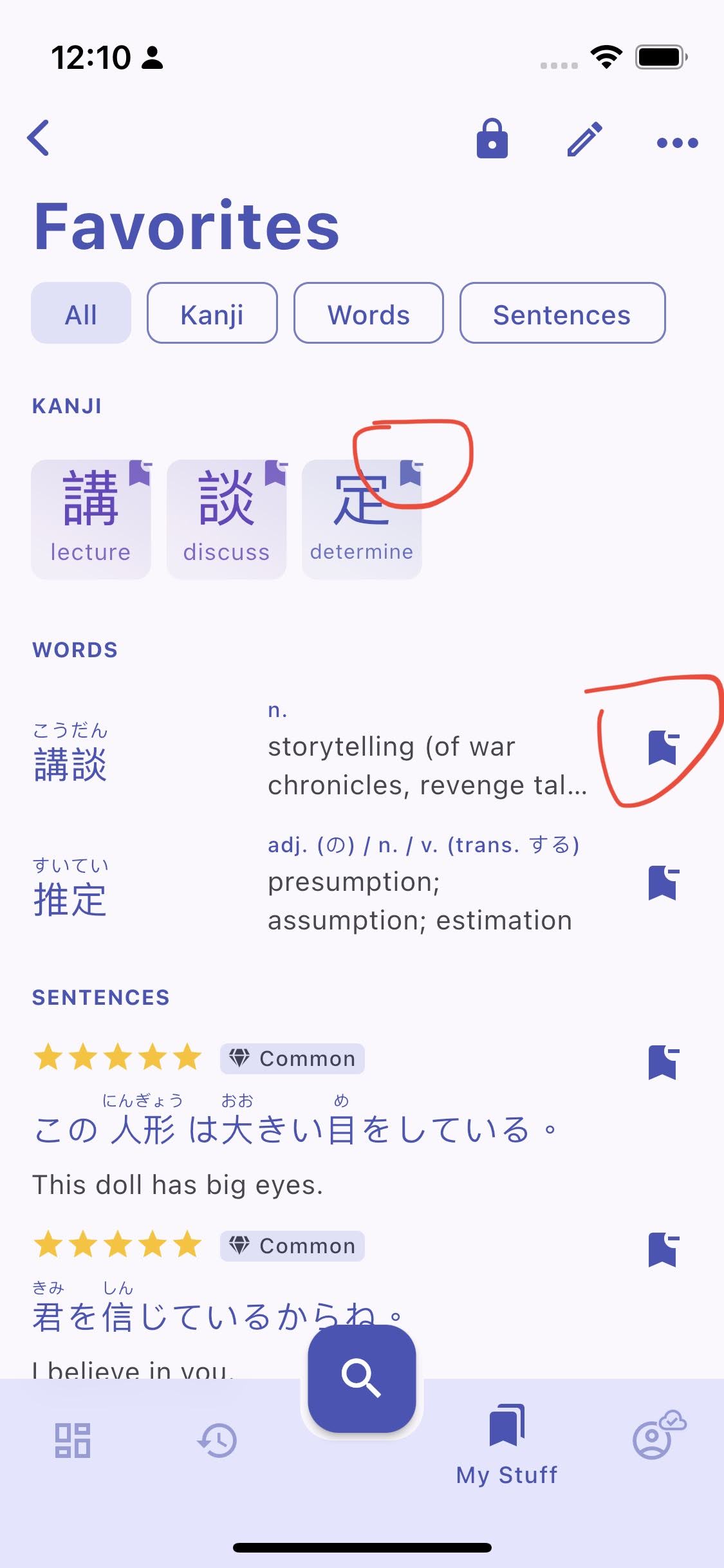
  • The bookmark icon is always on the right end side of bookmarkable items (now even on kanji tiles!), anywhere they appear (in History, Search Results, search bar suggestions, My Sentences, list content, random word/sentence in the Dashboard, sentences card, kanji readings list, etc.).
  • The icon shape is a simple bookmark that reflects if the item is in the Default List (the list pinned in My Stuff): outlined when not bookmarked, filled when bookmarked. This applies to all item types, no more exception for lists (which used to show a multi-bookmark icon) and the lock/privacy icon on owned lists and sentences was moved outside the bookmark icon.
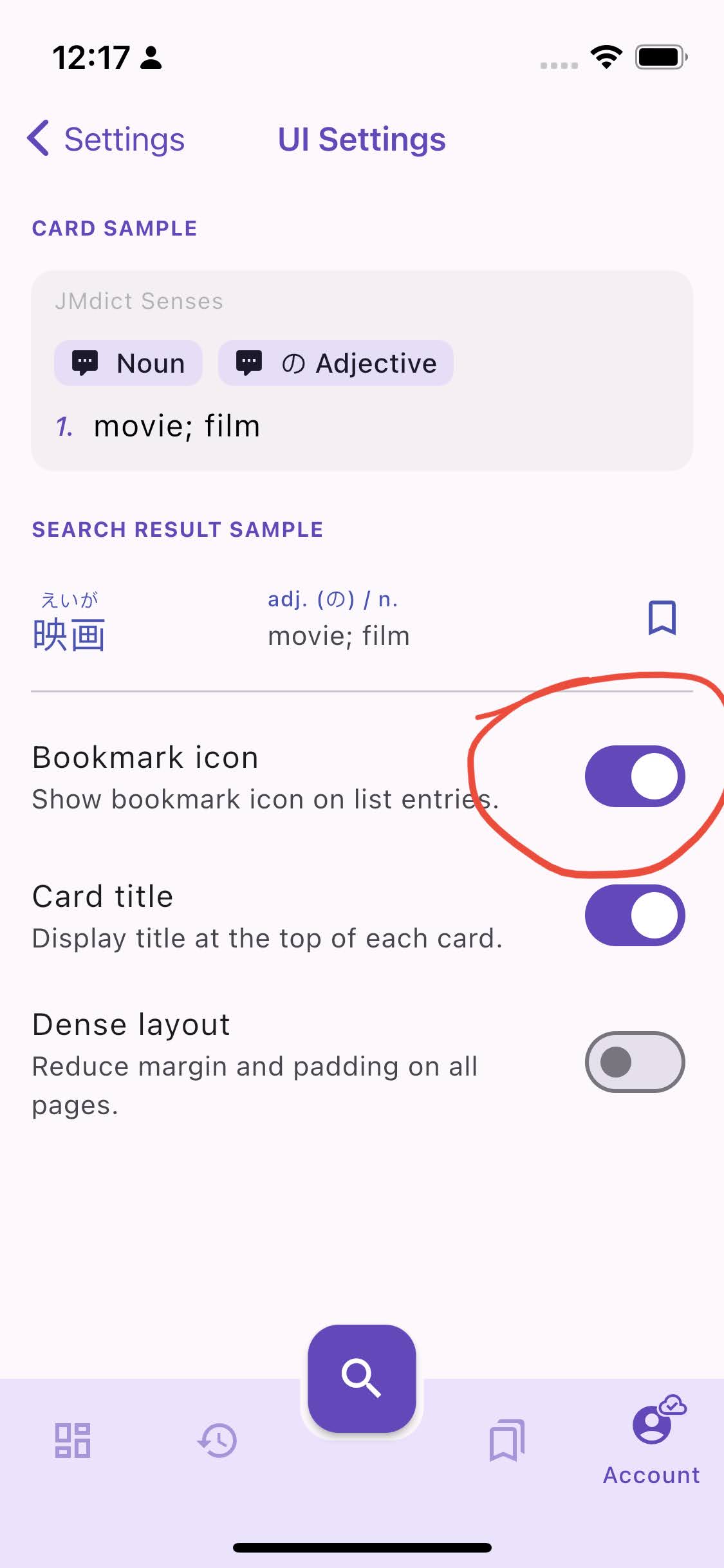
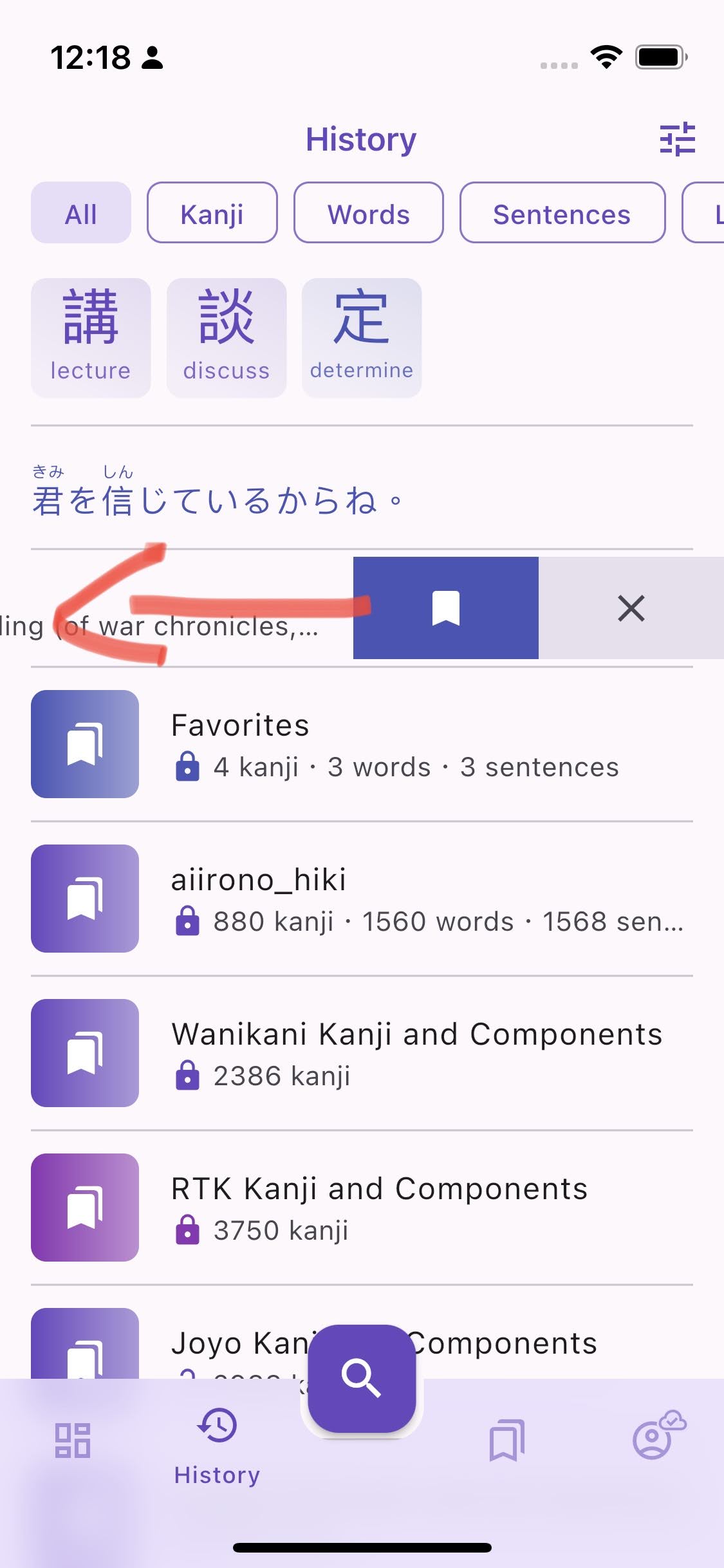
  • The behavior is the same everywhere, **tap to add/remove the item to/from the *Default List, or long press to open the multi list selection menu. **The only exception is within a user-owned list, the icon shows a minus sign to indicate the item will be removed from the list when tapped. You can opt out of this new layout by hiding all bookmark icons in Account > Settings > UI Settings > Bookmark icon. *When bookmark icons are hidden, some items can be slid to reveal the Bookmark action instead.

Bookmarked and Shared Filters​

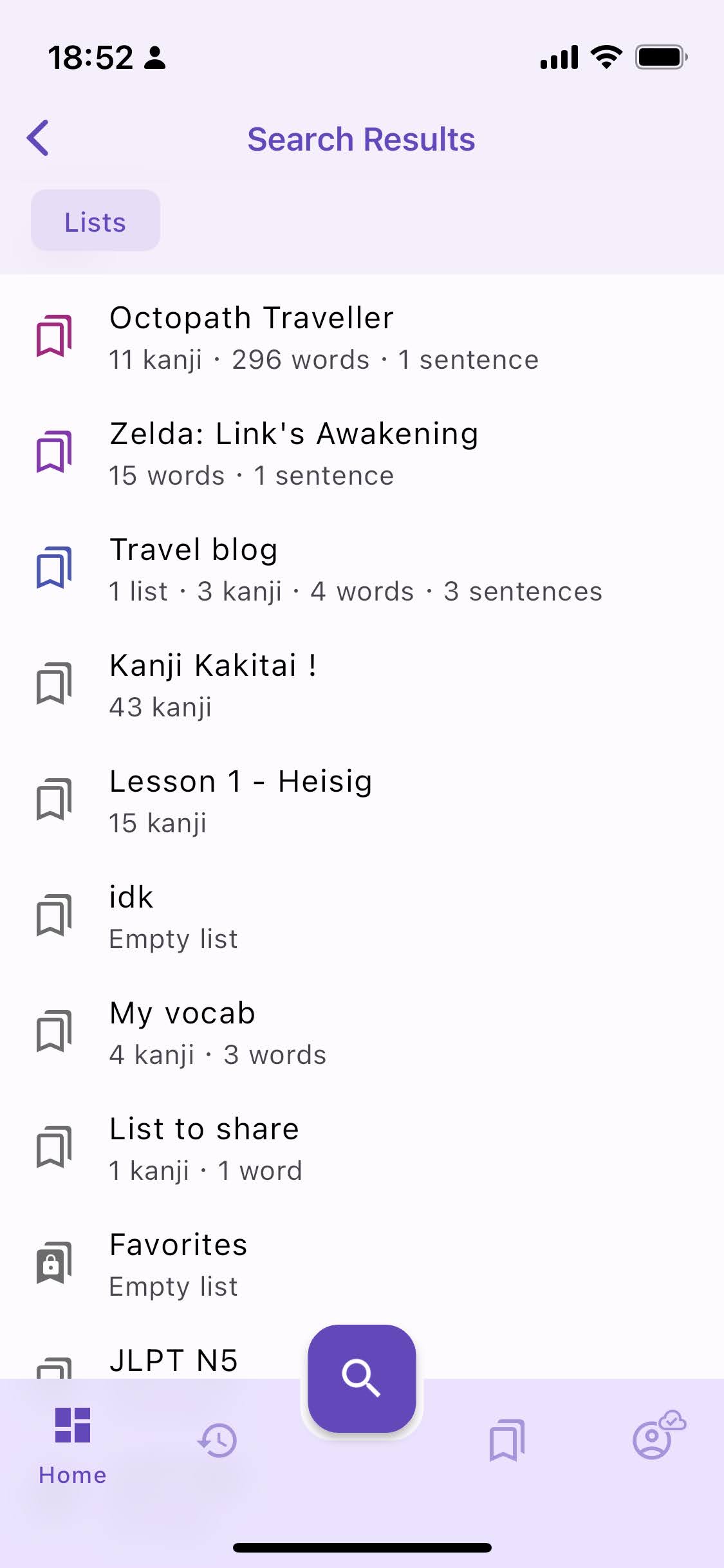
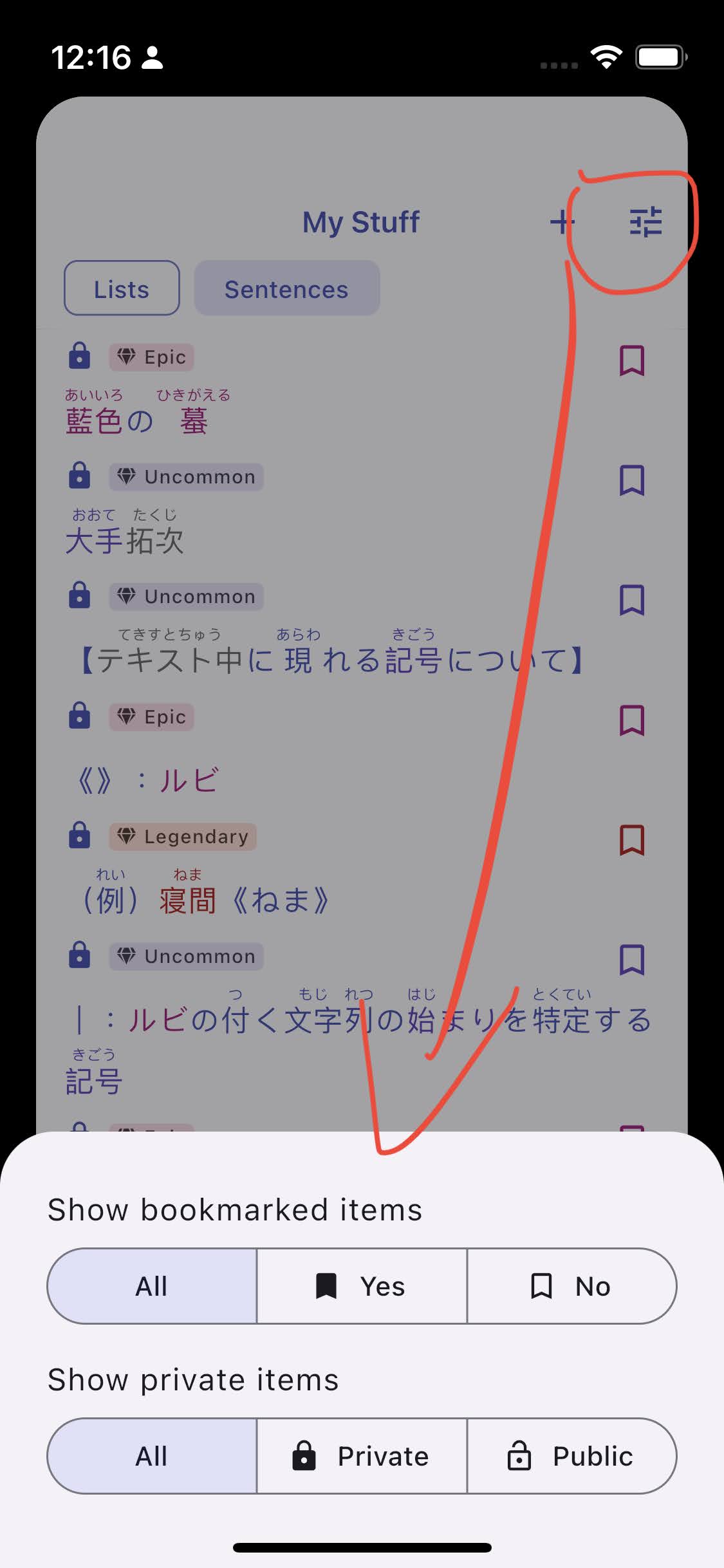
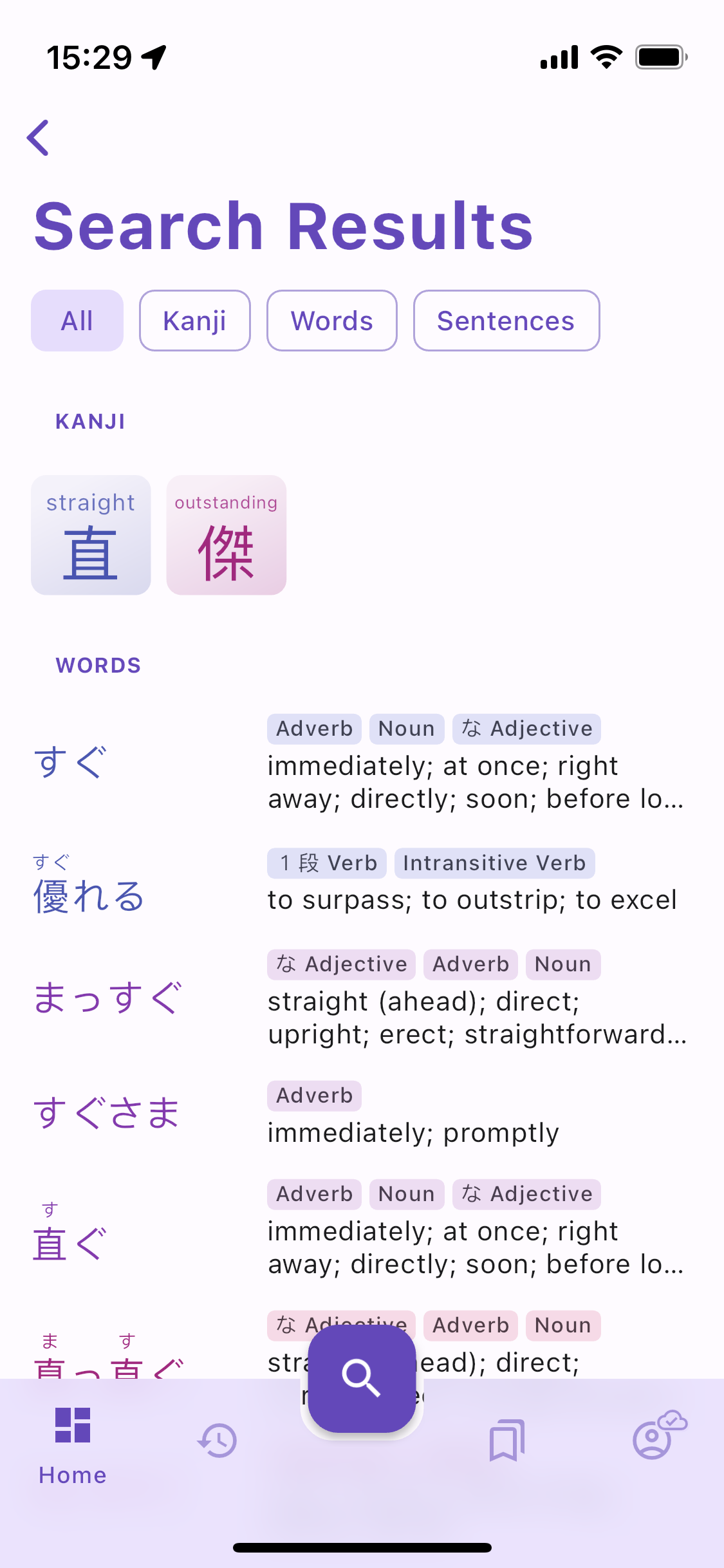
Want to only see words you haven't bookmarked yet? Or only show your shared sentences? You can now do that with the filter button located in the app bar in History, My Stuff, and Search Results. Two filters are available for now:

  • filter bookmarked items: show only bookmarked, non bookmarked, or all
  • filter private items: show private, public, or all

More quick actions​

Beside all bookmark icons being interactive, there a few other shortcuts available.

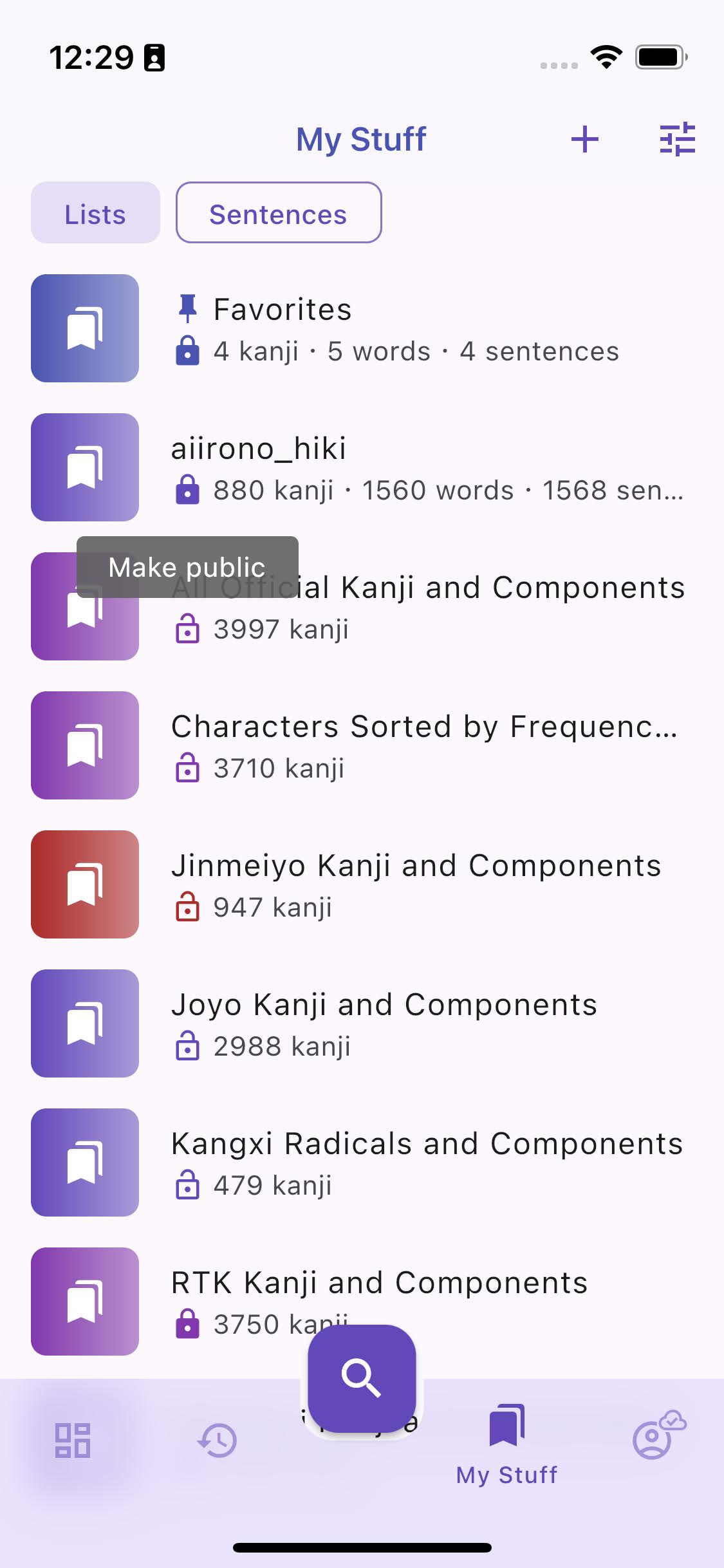
  • Interactive share icon: you can toggle lists and sentences public/private status directly by tapping on their lock icon.
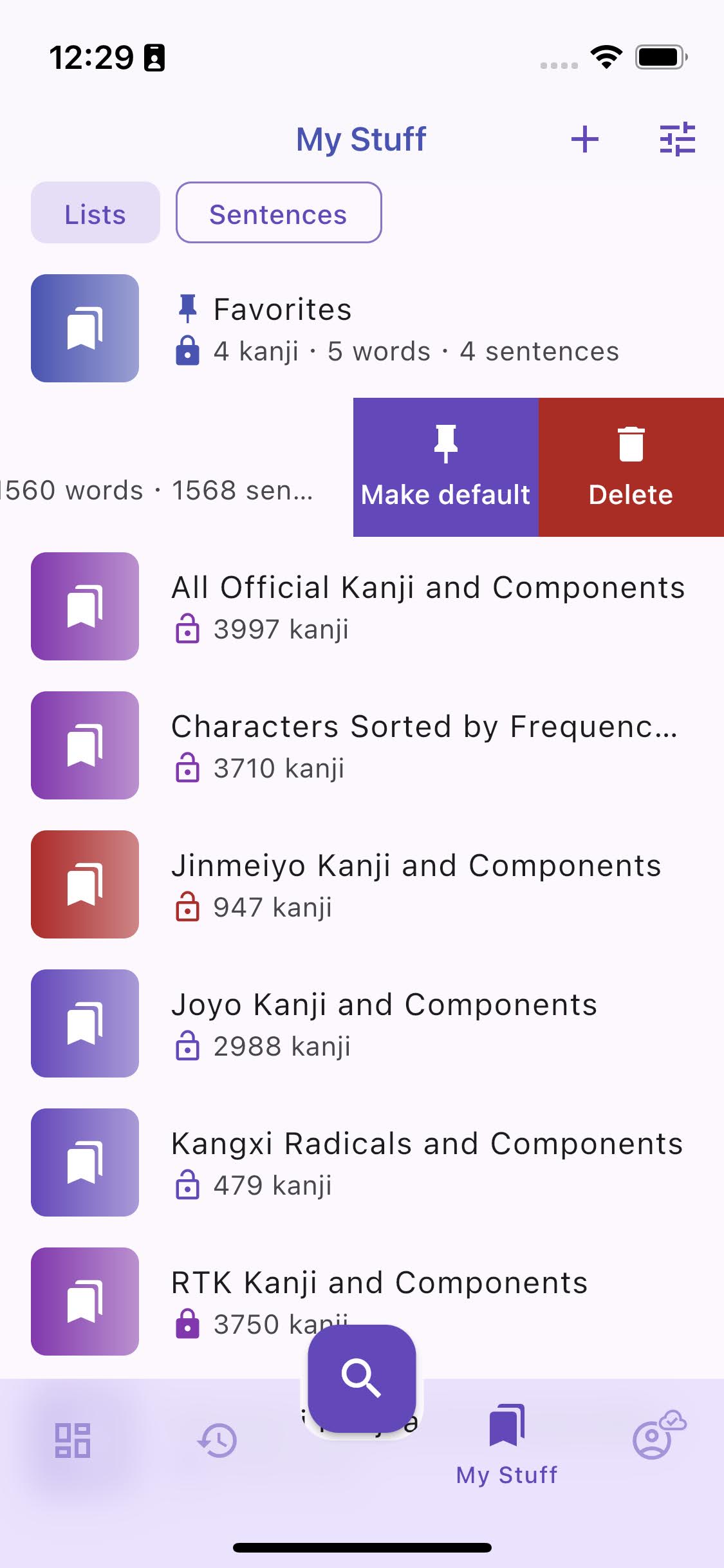
  • Slidable list items reveal more actions such as Make default or Delete.

Wrapping up​

That's all regarding the main features of this release, I hope it will make studying with Kanjiverse a more pleasant experience. It should be now quite fast and easy to create vocabulary lists and sentences so please try it out and share them with the community ;)

Check out the changelog below if you want to learn more about all the other bug fixes and minor enhancements. Worth mentioning is the new background syncing system on mobile that saves your data to the cloud without blocking the UI.

Changelog for version 0.20.0 to 0.20.6​

Import Features​
  • Import menu action let you add kanji, words, and sentences from a file to a list
  • Create List button let you import its content from a file, or create an empty one
  • importing CSV/TSV file let you specify column separator symbol (space, comma, tab, etc.) and
    column index of kanji/words to import
  • importing TXT file let you import all its kanji, words, or sentences
  • importing kanji/words add all unique kanji/words found in the file to the list
  • importing sentences extract all Japanese sentences from the text, split them by punctuation
    symbols (。!?.!?, create individual sentences in My Sentences, and add them to the list
  • importing sentences will suggest to download the Japanese Index Dictionary to speed up the parsing
  • deleting an imported list will also ask if all its sentences should be deleted too
Bookmark Improvements​
  • show interactive bookmark icon on kanji tiles, tap to toggle bookmark without opening kanji page
  • hide all bookmark icons in Account > Settings > UI Settings > Bookmark icon
  • when bookmark icons are hidden, slide the item to reveal Bookmark action
  • uniformize bookmark icon position to always be on the right end of all bookmarkable items (kanji,
    word, sentence, list), anywhere they appear (in History, Search Results, Search Suggestions, My
    Sentences, List content, Random Word/Sentence in Dashboard, Sentences card, Kanji Readings list,
    etc.)
  • uniformize bookmark icon shape (simple bookmark, outlined when not bookmarked, filled when
    bookmarked) for all item types; lists do not show multi-bookmark icon and lists/sentences do not
    have lock icon inside the bookmark icon anymore
  • uniformize bookmark icon behavior, tap to add/remove the item to/from the Default List; the only
    exception is within a user's list, the icon will show a minus sign to indicate the item will
    removed from the list when tapping it
Privacy and Bookmark Filters​
  • add filters button to app bar in History, My Stuff, and Search Results
  • filter bookmarked items: show only bookmarked, only non bookmarked, or all
  • filter private items: show private, public, or all
My Lists UI/UX Changes​
  • leading bookmark icon is replaced by a thumbnail (that will be customizable in the future)
  • bookmark icon is moved to the right end and looks and behave just like any other bookmark icons
  • bookmark icons of items in an owned list have a minus sign to indicate they will be removed from
    the list when tapped
  • lock/privacy icon is shown separately and can be interacted with to toggle the private/public
    status of the list
  • Default List pinned icon is moved next to the list title
  • list tiles can slide to reveal Make Default and Delete actions
  • when deleting a list, prompt user to delete all its sentences and nested lists
  • when making a list public, prompt user to make all its sentences and nested lists public
Other UI Fixes​
  • keyboard appears faster when opening Search Sheet
  • show dividers between items in History
  • history tiles can slide to reveal Dismiss and Bookmark actions
  • display kanji keyword below the glyph instead of above
  • improve slow display of long sentences in History
  • make all screen titles small except for Lists
  • limit Sentence to 2 lines in My Sentences
  • separate buttons for update and clear/delete caches/dictionaries in Downloads
  • show other caches in Downloads
  • show Stop All Downloads button while downloading all dictionaries
  • show success (or error) toast messages when bookmarking or deleting items
  • minor color scheme tweaks to have a less saturated background
  • remove username live suggestions when typing in the search bar
  • remove UI Settings card shadow option
  • fix list flickering shimmer after transition animation
  • fix Android reporting the app as unresponsive when opening Downloads the first time
  • fix missing word translations when Japanese Index is downloaded but not JMDict
  • fix History scroll-to-top animation when changing filter
  • fix copy/paste toolbar not showing up when long pressing on the search bar
  • fix auto removal of deleted Sentences from History
  • fix sentence analyzer crash when not signed in
  • fix sentence analyzer to skip invalid tokens
  • fix sentence analyzer freezing the UI while parsing
  • fix crash due to invalid frequency when removing the last item from a list
  • fix crash when cancelling downloads
  • fix iOS dialog app bar and checkmark colors, refresh spinner location
  • fix shadow white glitch on some devices
  • fix popping up the current page when deleting its content
  • fix Android system navigation bar color to match bottom sheet color when opened
  • fix sentences overflow ellipsis
Data Syncing Improvements​
  • fix View Public Profile deleting the content of the user's lists
  • fix auto creation of Favorites list overriding existing list after manually clearing the cache
  • fix race condition when concurrently writing items too fast to the server
  • fix sync/import freezing the UI by moving the process to a separate thread
  • fix special case of cache not being updated when server is offline
  • fix special case of server overriding items changed while syncing
  • fix Profile screen fetching deleted items and loading shimmer never stopping
  • fix syncing and dirty cache status icon
  • optimize server read/write access with streaming instead of pagination
  • optimize write to server of large payload by saving locally first, then syncing
  • optimize cache monitoring by not updating identical items
  • allow resurrecting deleted items
  • migrate settings and user cache to Realm database on mobile

Sentence Sharing, One-tap Bookmark, User Profiles, and more

· 8 min read
Kanjiverse
Kanjiverse

This release is packed with new features and bug fixes, bringing convenient tools to edit and share sentences and lists:

  • Sentence editor: create and share your own sentences.
  • One-tap bookmark: quickly add items to a selected list with a single tap, anywhere you see a bookmark icon.
  • User profile: browse the public lists and sentences of other users.

And dozen of convenience features and bug fixes such as:

  • swipe to delete history entries
  • display word definitions in search autocomplete
  • fix missing kanji parts not supported by the font
  • fix text selection omitting the last word
  • allow nested lists
  • less cluttered layout of word, list and sentence tiles

Sentence Editor​

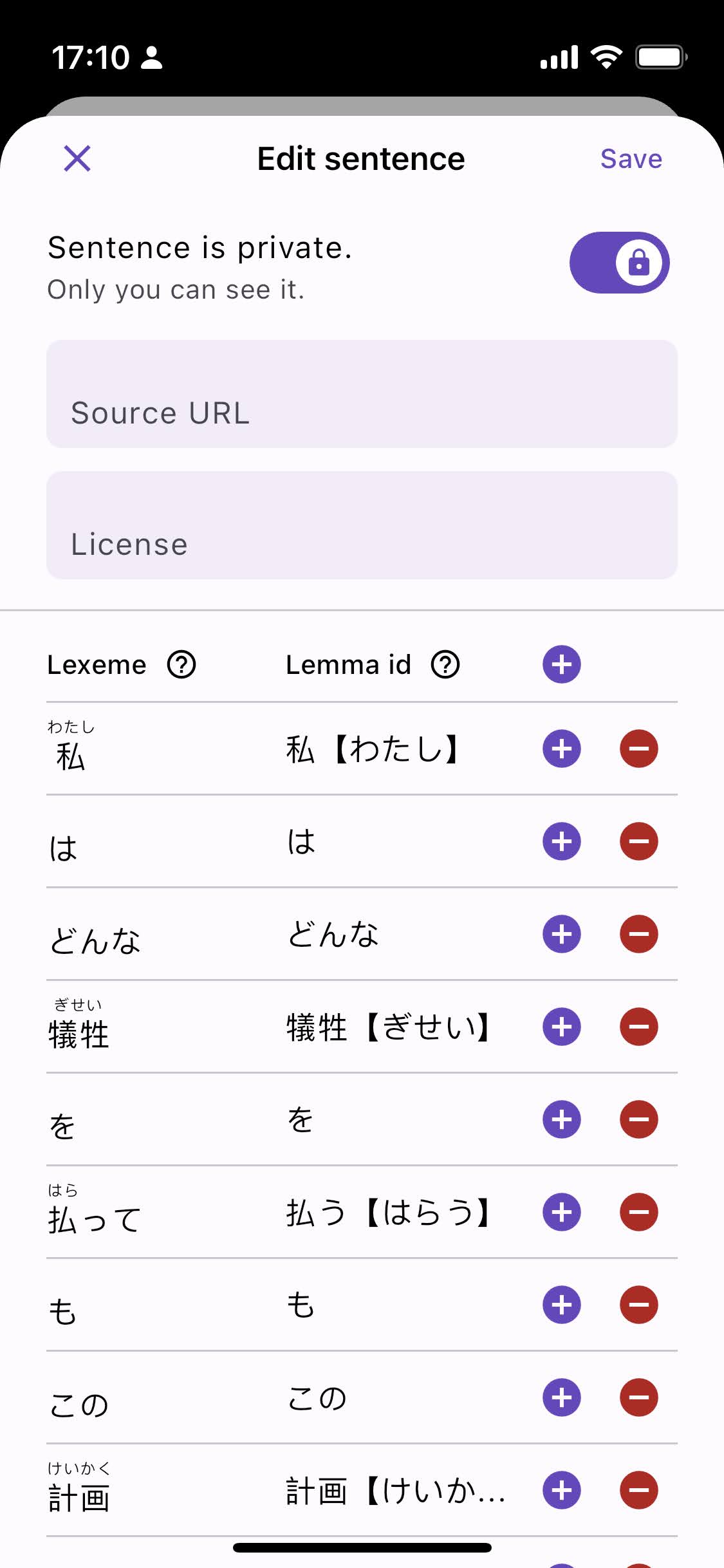
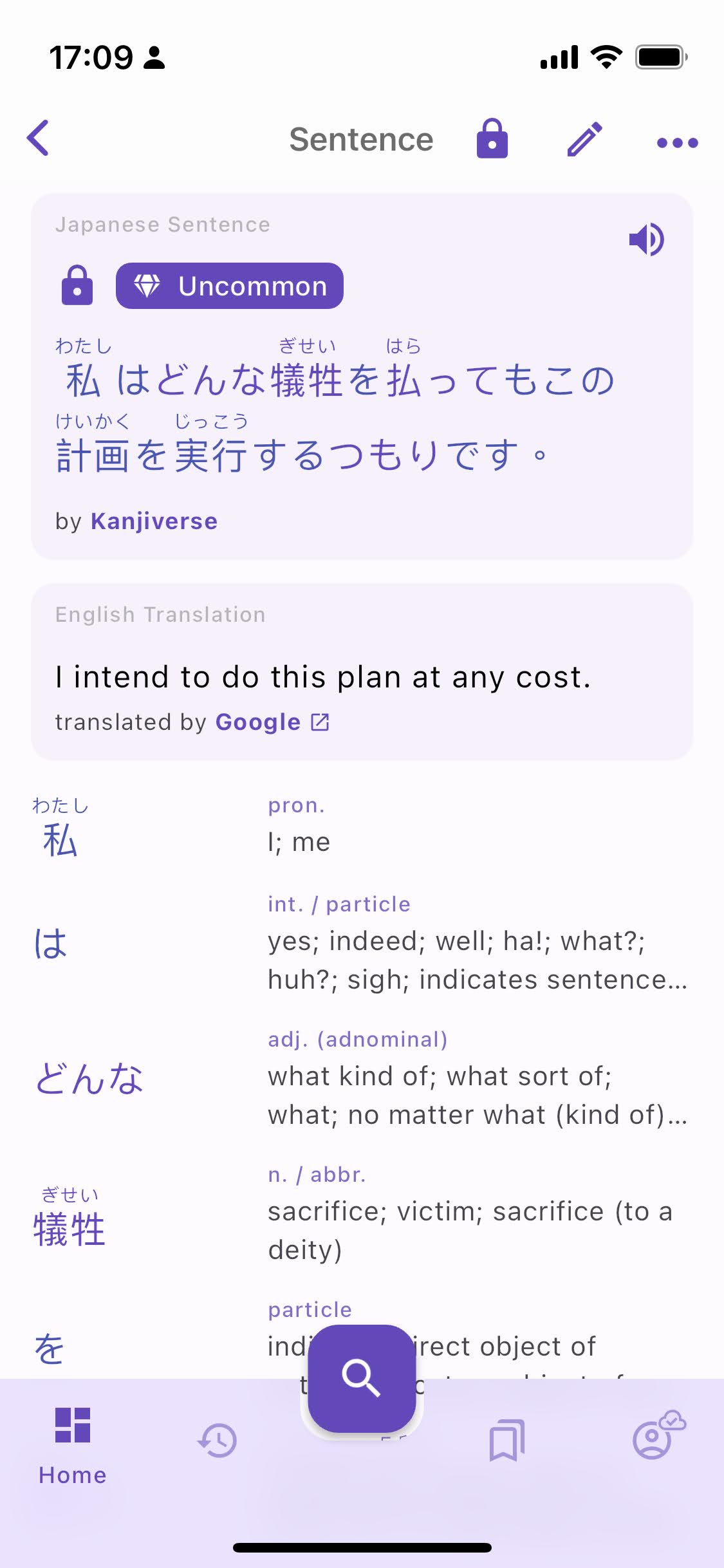
Any sentence analyzed (from the search bar) is automatically added to your sentences in the new My Stuff page (replacing My Lists).

Your sentences can now be edited, shared (by making them public), and added to your custom lists.

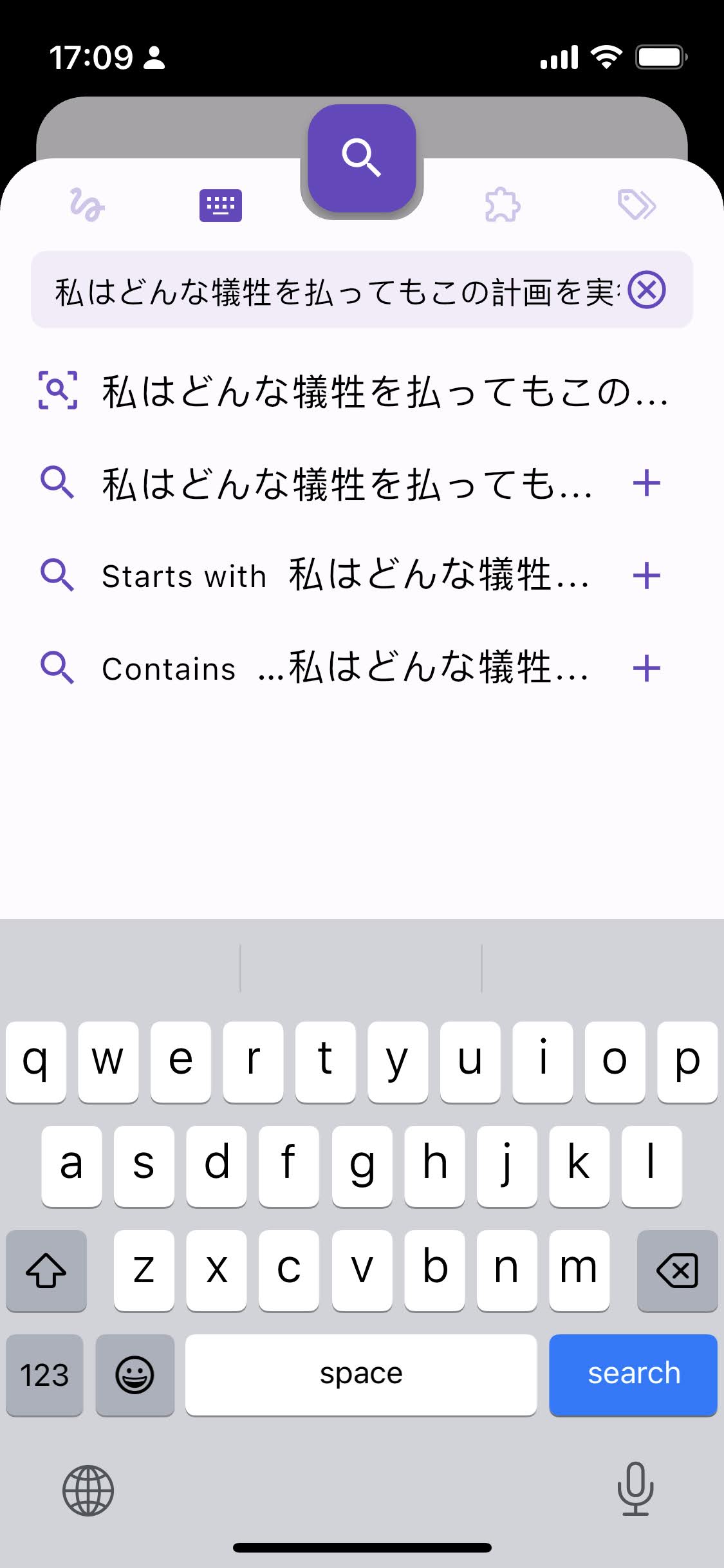
The sentence editing screen lays out the sentence in column, split by lexemes, one per row, with its corresponding lemma.

A lexeme is a symbol or word with its inflection (conjugation), e.g. 払って.

A lemma is the dictionary form of the word without inflection, e.g. 払う. This is optional but is used to create the link to the corresponding dictionary page and color the word with the proper frequency.

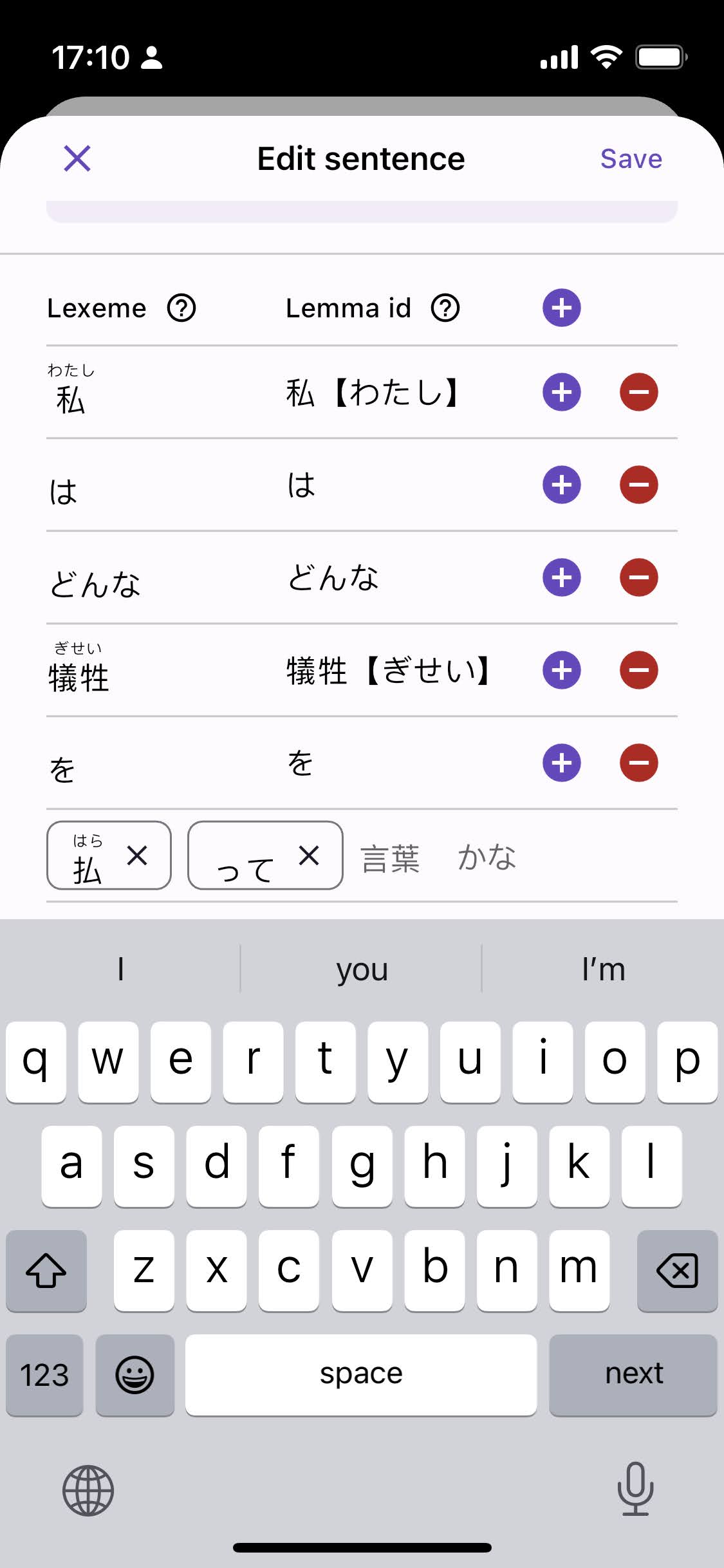
Add or remove a lexeme/lemma pair (a row) with the + and - buttons.

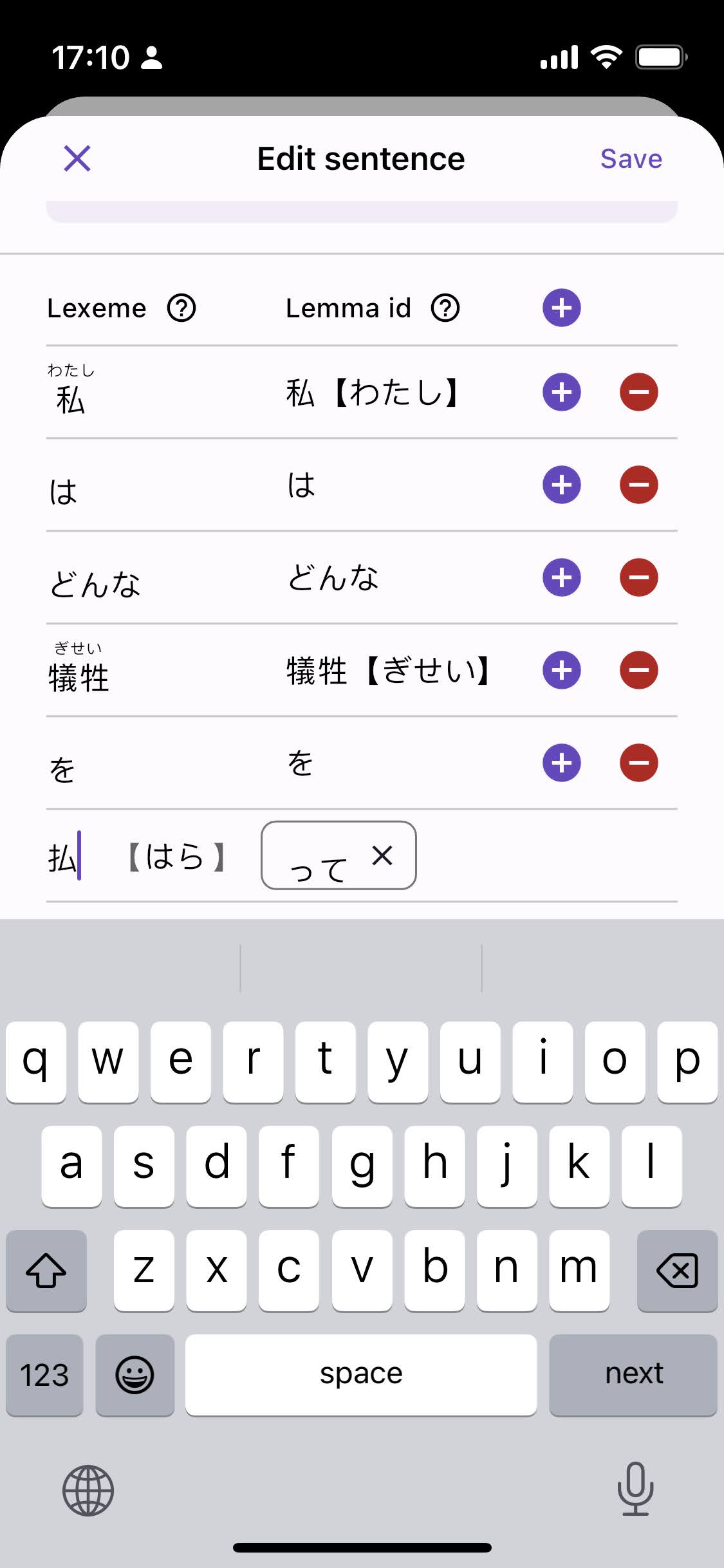
Tap on a lexeme or lemma to edit it. A lexeme may be composed of multiple word/furigana pairs, for instance 払って is made of 払[はら] and って. Each pair can be edited, or deleted with the X button. When editing a pair, the furigana are placed inside【】.
One-tap Bookmark​

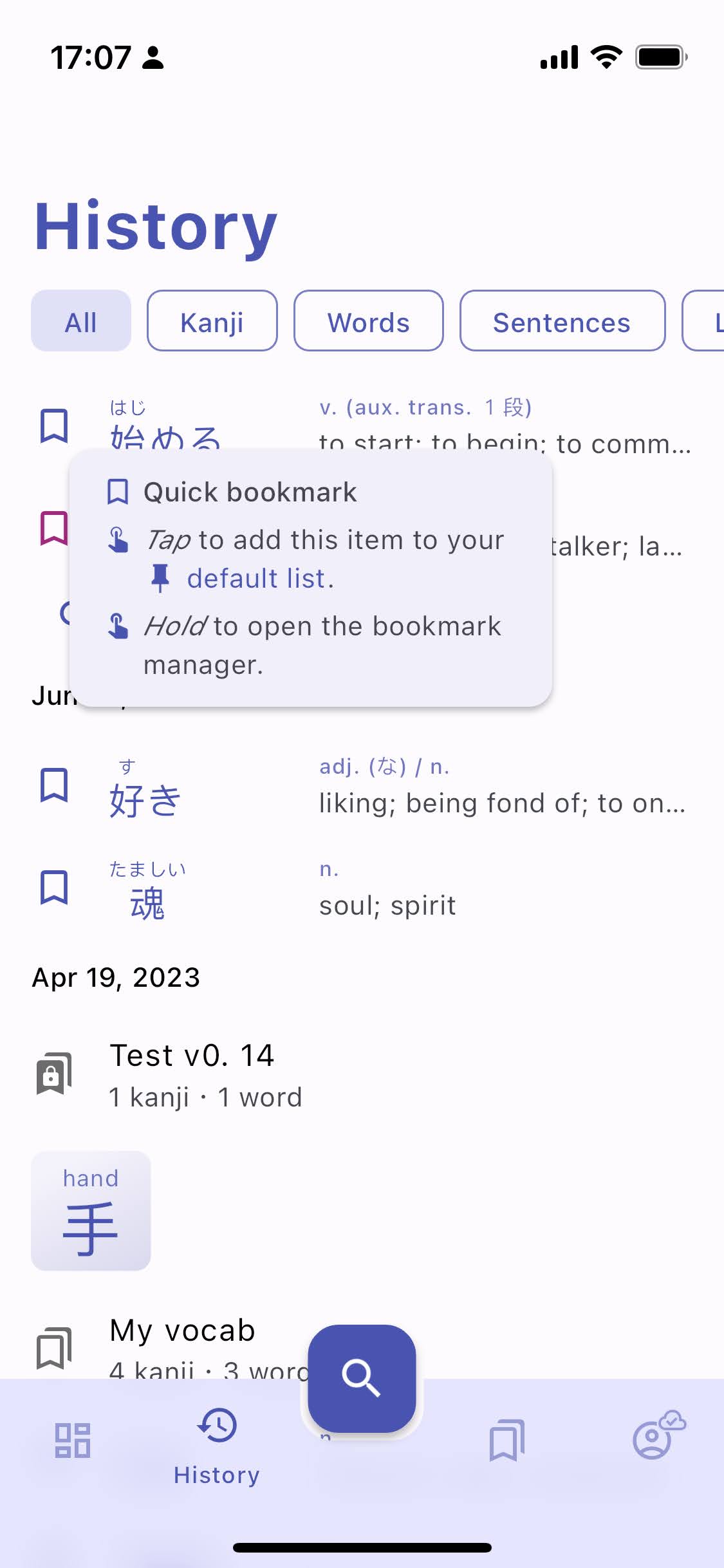
The bookmark icon has a new behavior:

  • a simple tap will directly add the item to your Default List (initially set to a new list named Favorites).
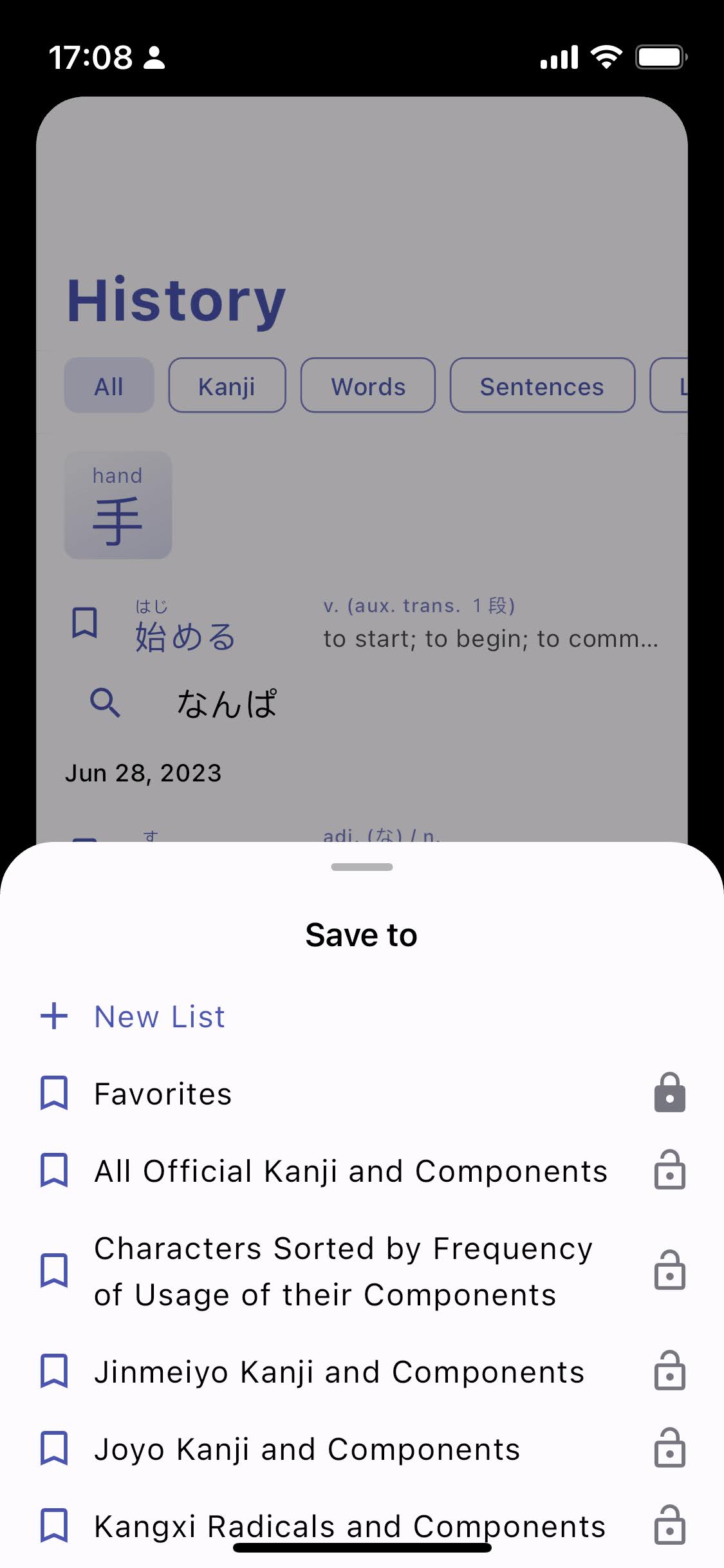
  • a long press will trigger the previous behavior: opening the Bookmark Sheet to let you select multiple lists. This gesture also works on kanji tiles.

All bookmark icons are now interactive, even in the search suggestions!
Default List​

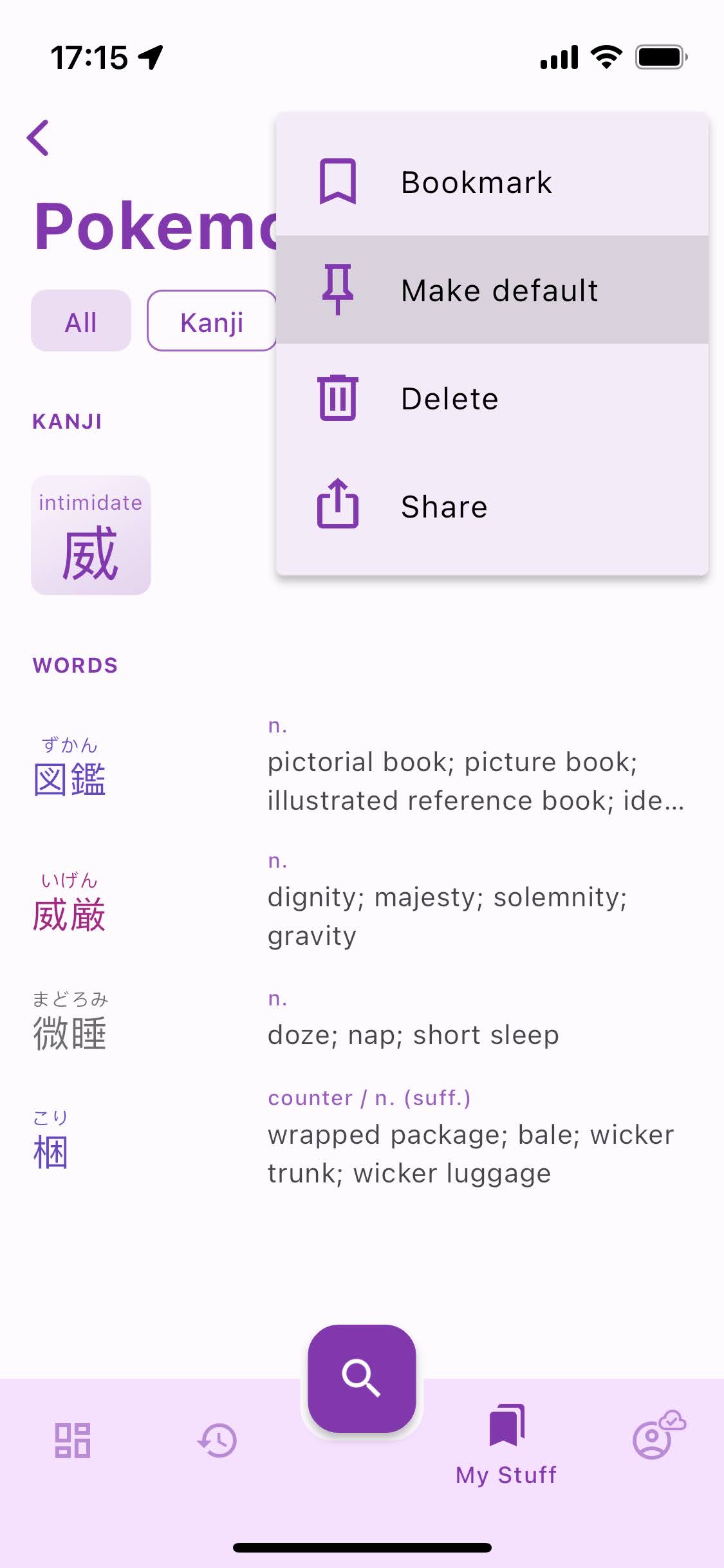
Tapping a bookmark icon adds its item to the currently selected list (the Default List), which is pinned at the top of the My Stuff page.
A new list called Favorites is automatically created the first time you open the app. Your previously bookmarked lists have been moved there.

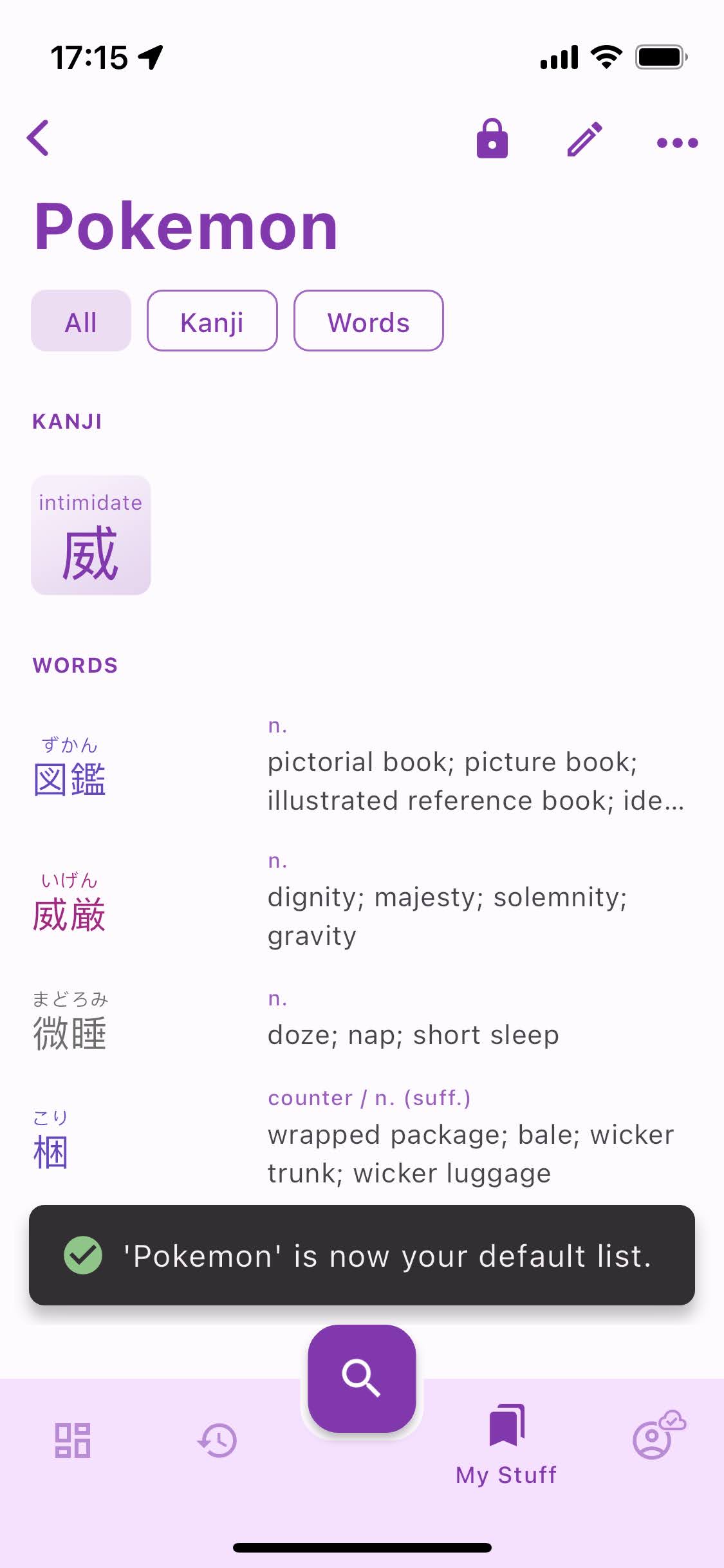
My Lists page has been renamed My Stuff. It now contains both your lists and sentences. You can change the Default List by opening another list and selecting Make Default from the app bar menu. That way you can quickly create a new list with kanji, words, and sentences without having to open the Bookmark Sheet every time!
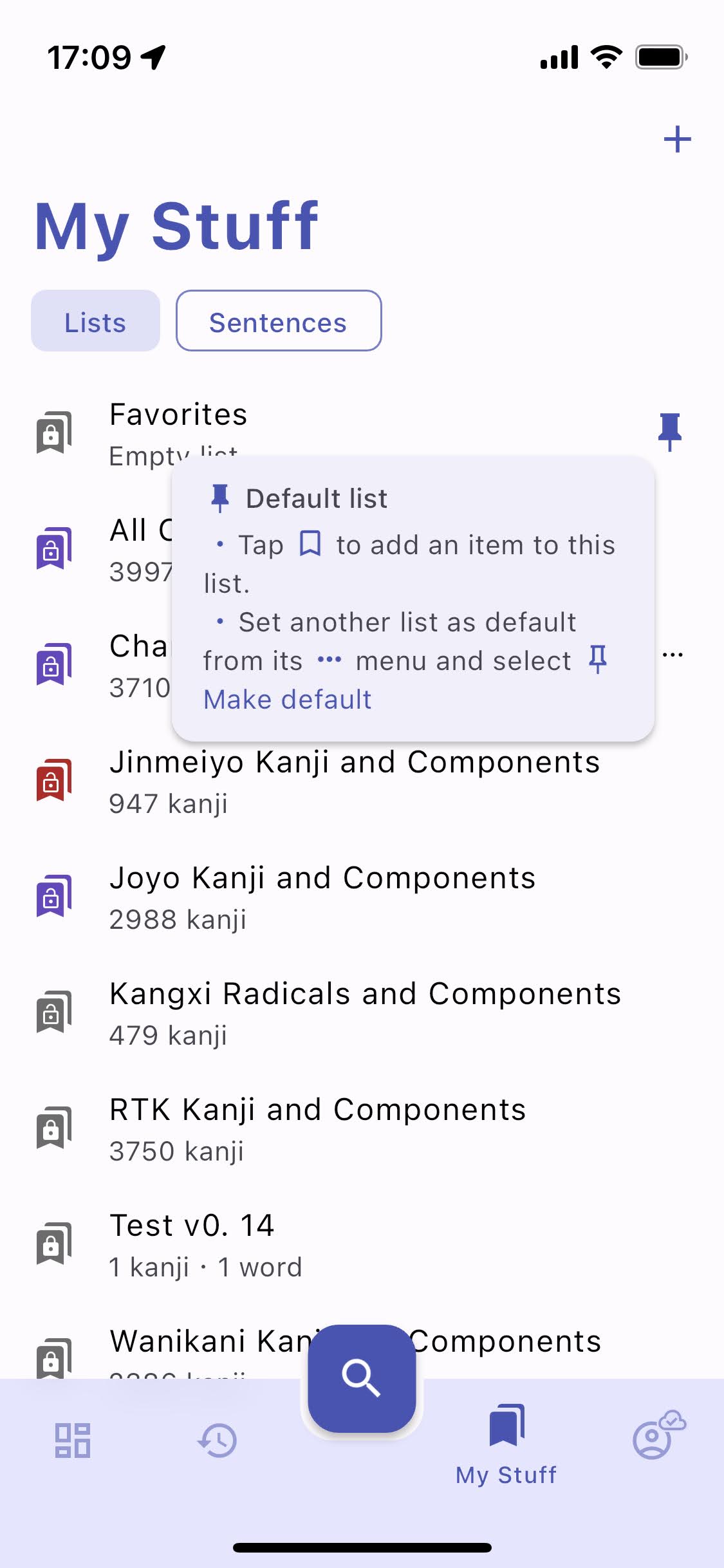
A filled bookmark icon indicates that this item is in the currently selected Default List, not in all of your lists as per the previous behavior.
User Profiles​

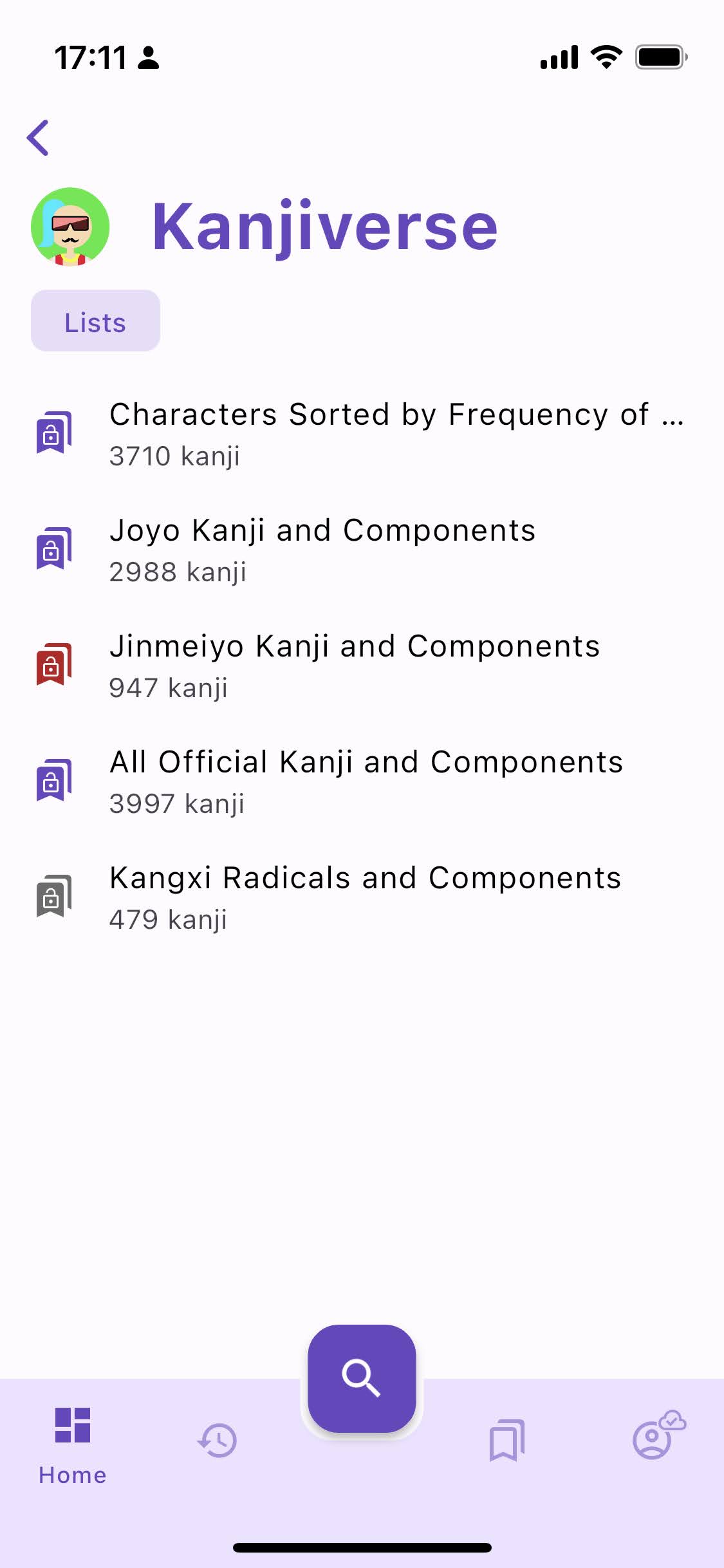
All public content created by a user is displayed in their public profile. You can open a user's profile by taping on its username shown below a sentence or list description.

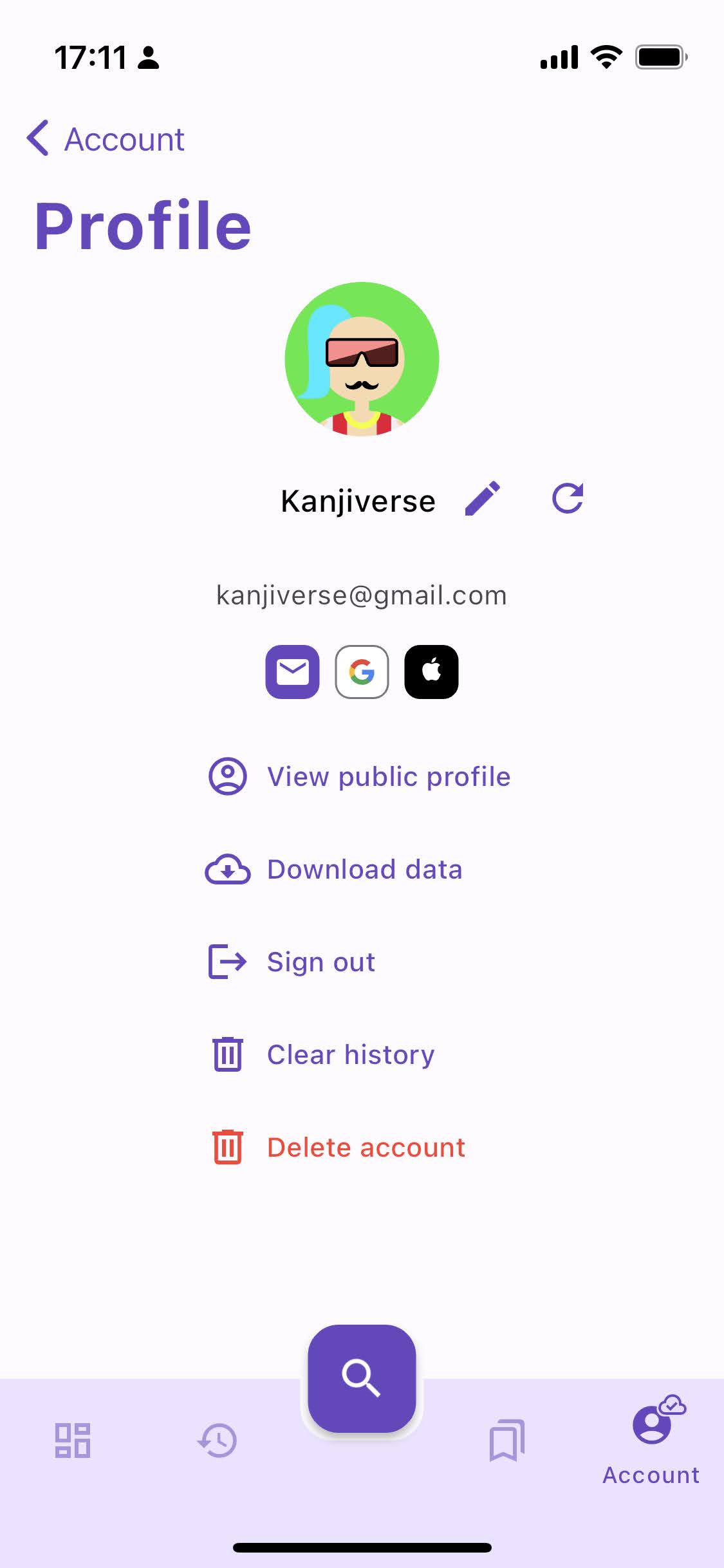
You can see how your own public profile looks like from Account > View profile > View public profile.
Other Features​

Nested lists​

Lists can now be added to other lists, useful for instance to group together all the lessons of a textbook in the same place.

My Stuff screen only displays your own lists, if you bookmark someone else's list, it has to be added to one of your list instead of showing up directly on the My List screen as per the previous behavior.
Swipe to delete history entries​

You can delete entries in your local history (does not sync with the server for now) by swiping them. Swipe to delete history entries.
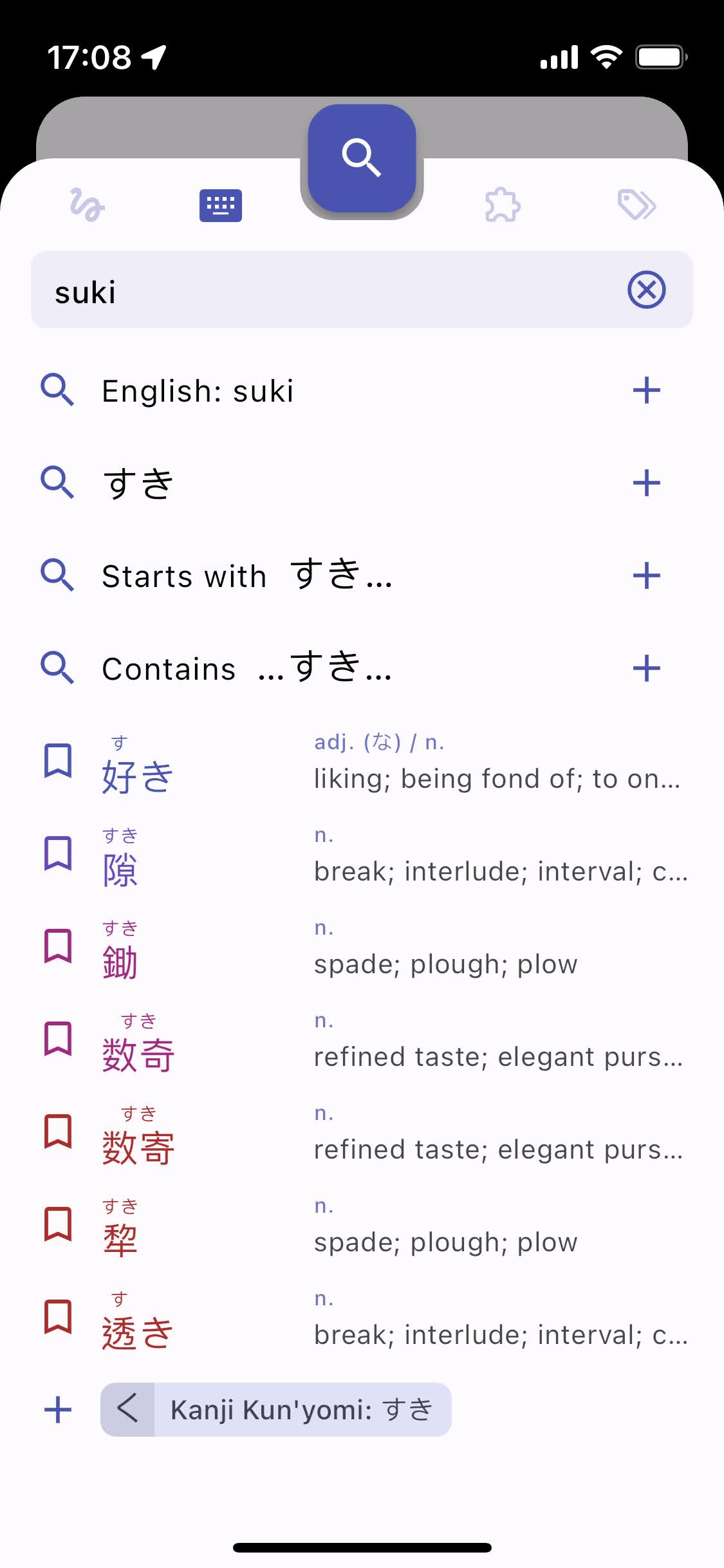
Definitions in search suggestions​

For a quick reference, definitions of words are now also displayed when auto completing suggestions under the search bar. Word definitions in Search Sheet.
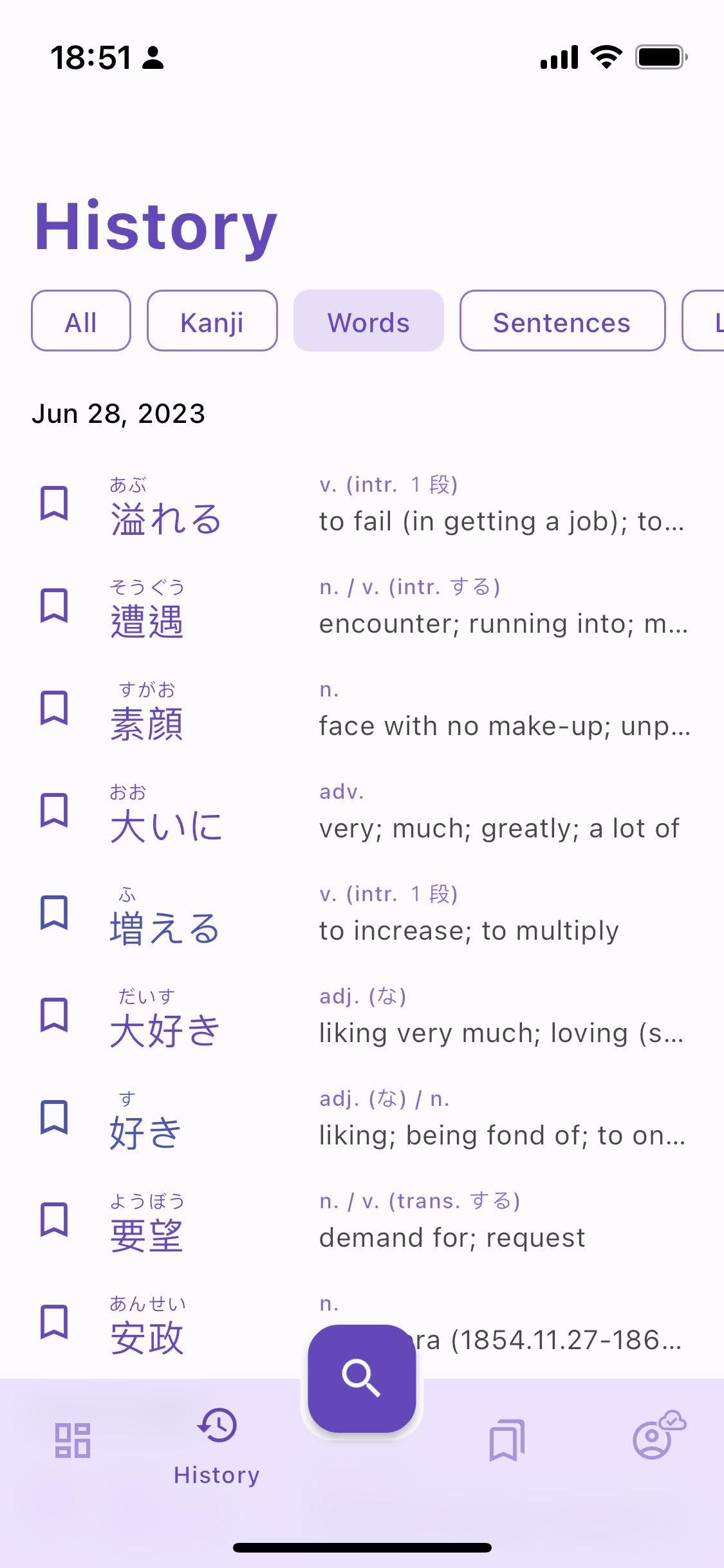
Redesign of word, list, and sentence tiles​

Word overline tags have been replaced by abbreviated text labels (n. for noun, v. for verb, etc.) for a less cluttered design.
List underline tags have been replaced by text too.
Sentence indices are hidden and each one is separated by a divider. Less cluttered design of word and list tags.
Missing kanji (fixed)​

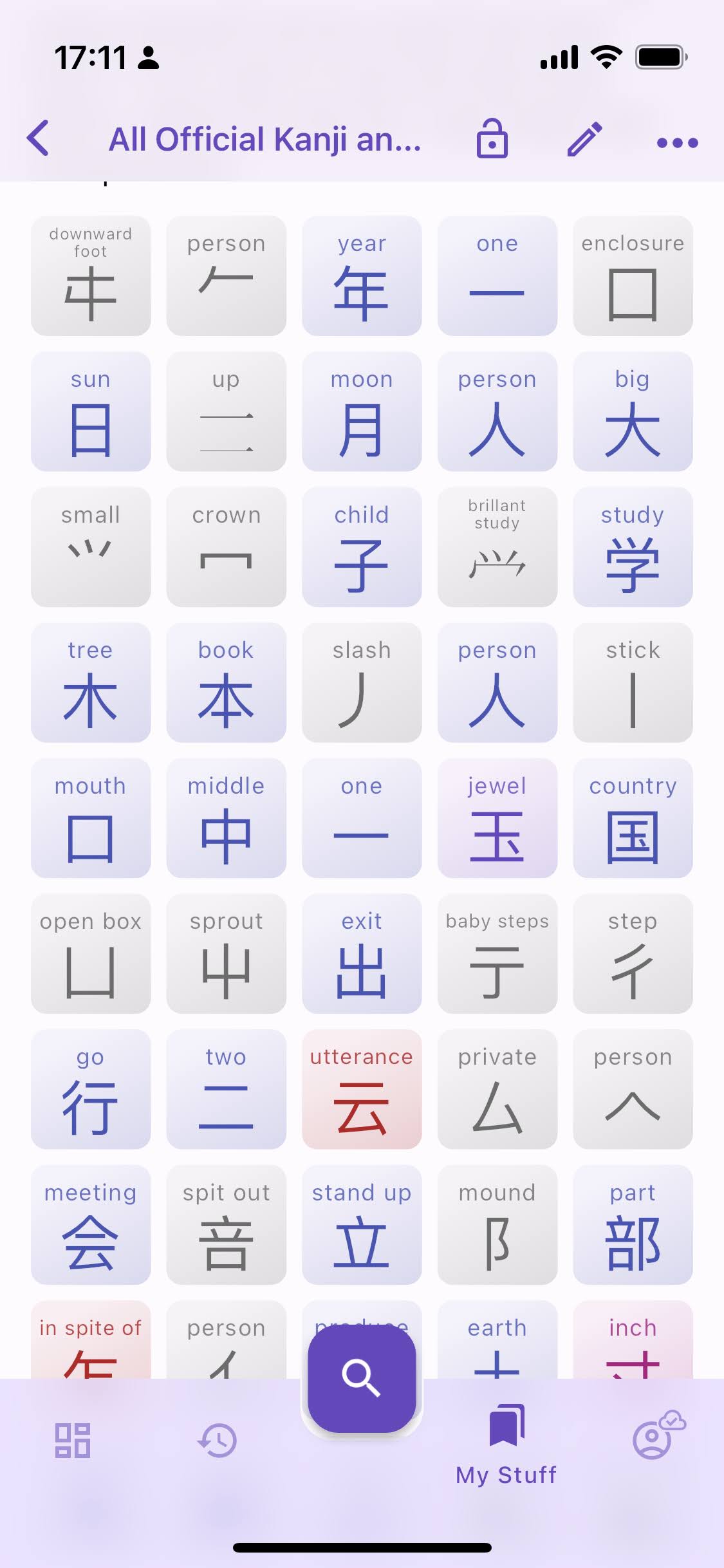
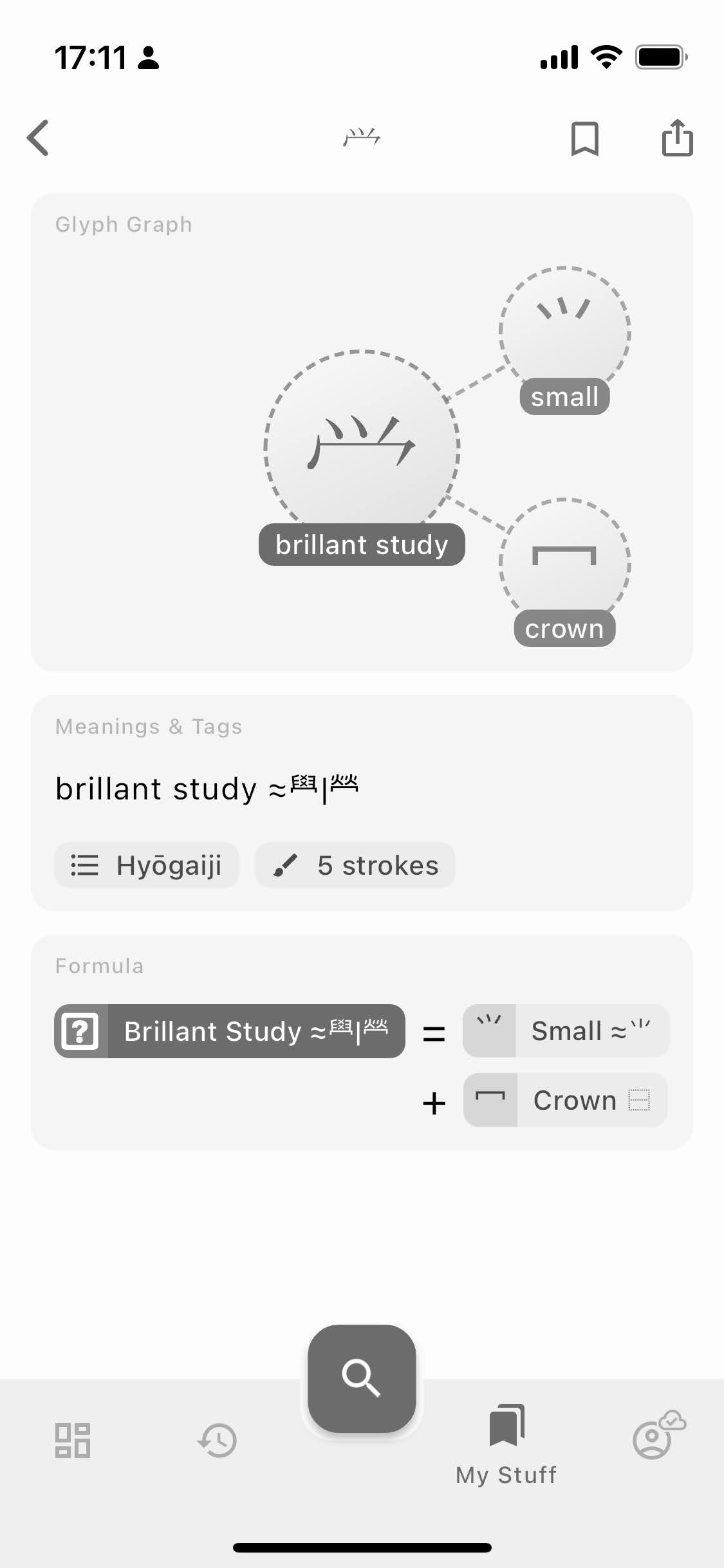
Bye bye square boxes and question marks, now when a rare kanji component is not available in the font, an image of the glyph is fetched instead.
Changelog for version 0.19​

There are many other bug fixes and small changes, see details below.

  • add Edit Sentence button and dialog to edit user generated sentences (source, license, lexemes and lemma)
  • scanned sentences are automatically added to the user's sentences, private by default
  • add lock icon next to user generated sentences to indicate they are private
  • added Private button in app bar to make private user sentences and list
  • replaced Private switch in list and sentence edit dialog with a more explicit switch
  • added Delete button for user sentences and remove the sentence from all list when confirmed
  • make Bookmark icon interactive everywhere it's displayed (in History and Search suggestions)
  • changed the bookmark icon behavior, single tap add the item to the default list, long press opens the bookmark sheet (previous behavior)
  • show tooltip to explain the new behavior
  • resetting Settings also reset the hints/feature discoveries
  • long press on a Kanji tile opens the bookmark sheet
  • allow nested lists (lists can be added to other lists) and prevent a list to be added to itself
  • show toast message when (un)bookmarking an item with the quick bookmark action
  • prevent accidental user list deletion with quick bookmark action
  • create a default list called Favorites the first time, move all existing bookmarked lists to this list
  • pin Default List to the top of My Stuff and Bookmark Sheet, tapping the pin icon show a tooltip to explain the behavior
  • add a Make Default menu item to make the current list the default list
  • show user's avatar in user tag chip
  • added user attribution to list and sentences
  • added User Profile page to display their public sentences and lists
  • added View Public Profile in Account > Profile page
  • added Users to History Filter
  • added User Profile tile in History with a redirect to the user's profile page
  • added Private icon on Bookmark Sheet
  • swipe to dismiss history entries
  • replace My Lists page with My Stuff and show Lists and Sentences tabs
  • order lists by default (pinned) > public > private and by alphabetical order
  • deleted sentences and lists are automatically removed from history
  • redesigned word tiles with abbreviated text labels (noun -> n., verb -> v., etc.) instead of tag chips
  • redesigned list tiles with text labels instead of tag chips
  • show word definition directly in the Search Sheet
  • optimized screen rebuilds when keyboard is shown/hidden
  • optimized list loading and storage
  • hide filters and section title when there is only one type of item in a list
  • remove indices and separate sentences with dividers on the Sentences Card
  • fixed undisplayable kanji part by fetching an image if the font doesn't support it
  • fixed crash when signing out
  • fixed crash when removing the last item of a list
  • fixed history last sync timestamp
  • fixed sentence/list tiles not updating when changed elsewhere
  • fixed list frequency not updating when adding/removing items
  • fixed new list not private by default
  • fixed Japanese text selection skipping the last characters
  • fixed empty furigana highlighting when selecting text
  • fixed crash on invalid route
  • fixed auto selection of search text on web
  • fixed auto conversion to lowercase when searching sentence and username
  • fixed syntax analyzer concatenating words followed by ni
  • fixed error when translation empty sentence
  • fixed translated by Google attribution text
  • fixed sentence difficulty metric to only consider unique words
  • fixed infinite list unnecessary refresh
  • fixed invalid/unknown words in sentences being interactive
  • fixed Kanji screen app bar frequency tag
  • fixed Japanese word page transition
  • fixed cache concurrent update to prioritize local changes over server answers
  • fixed crash when a list is deleted while it's open elsewhere
  • fixed page not popping after deleting a list/sentence
  • fixed infinite list not loading more items when some are missing
Infinite Scroll, Lazy Loading, Filter Toolbar and More

· 2 min read
Kanjiverse
Kanjiverse

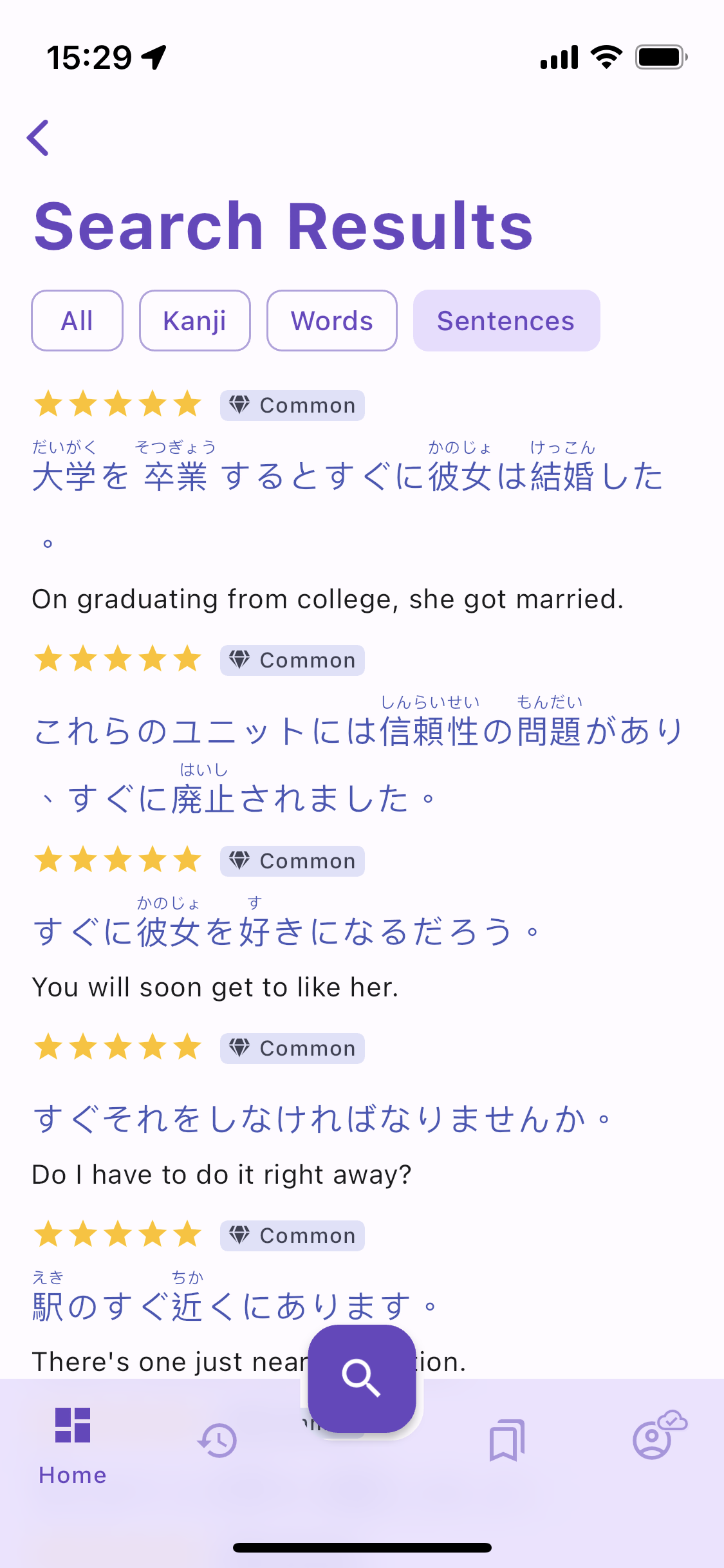
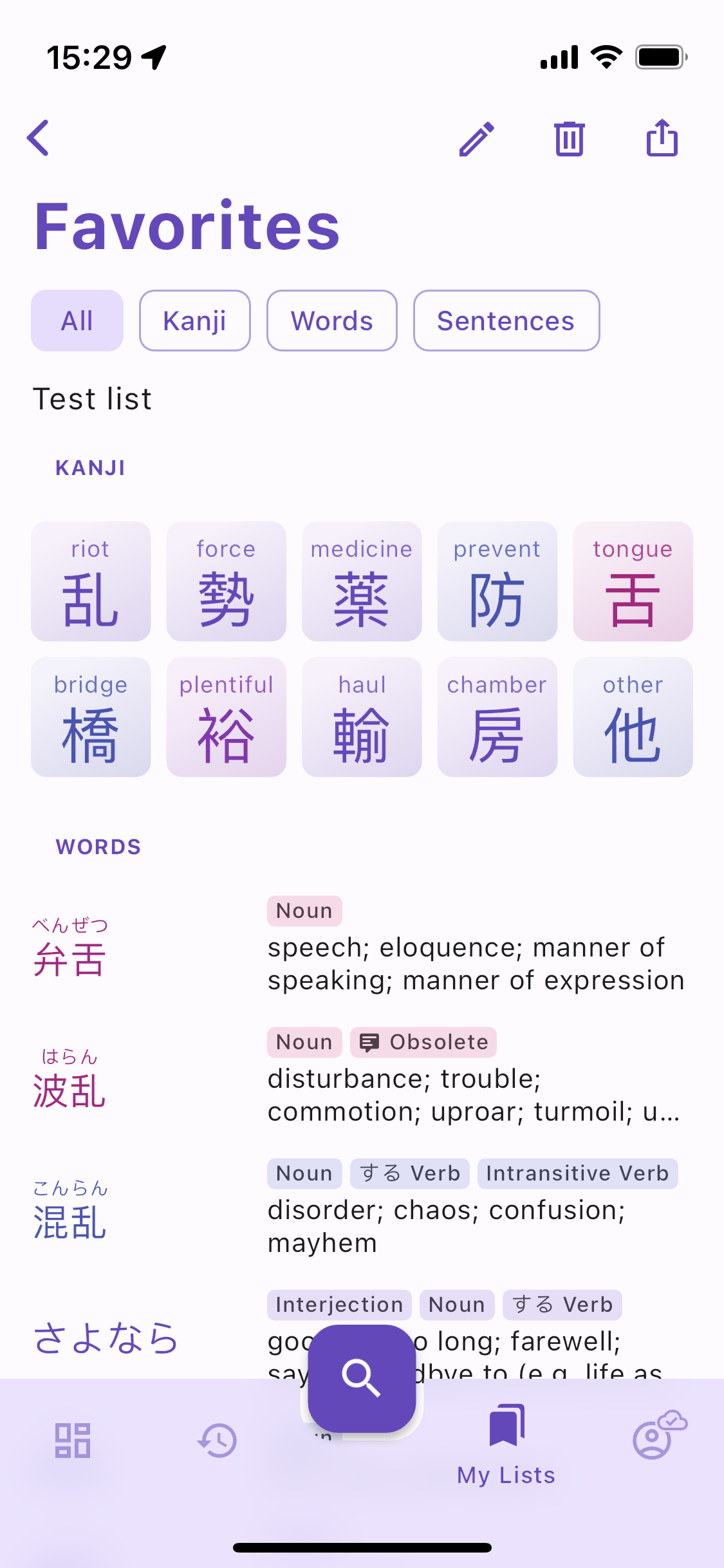
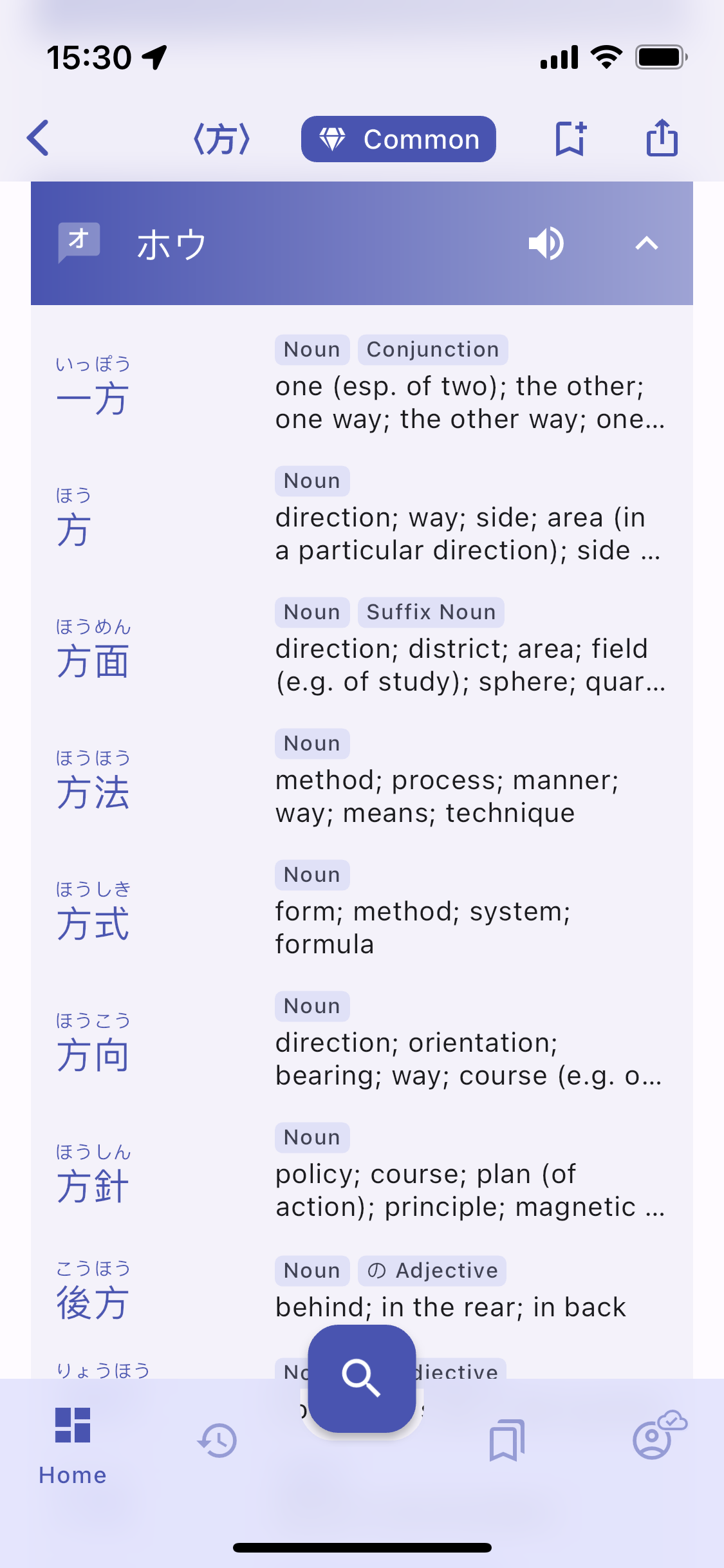
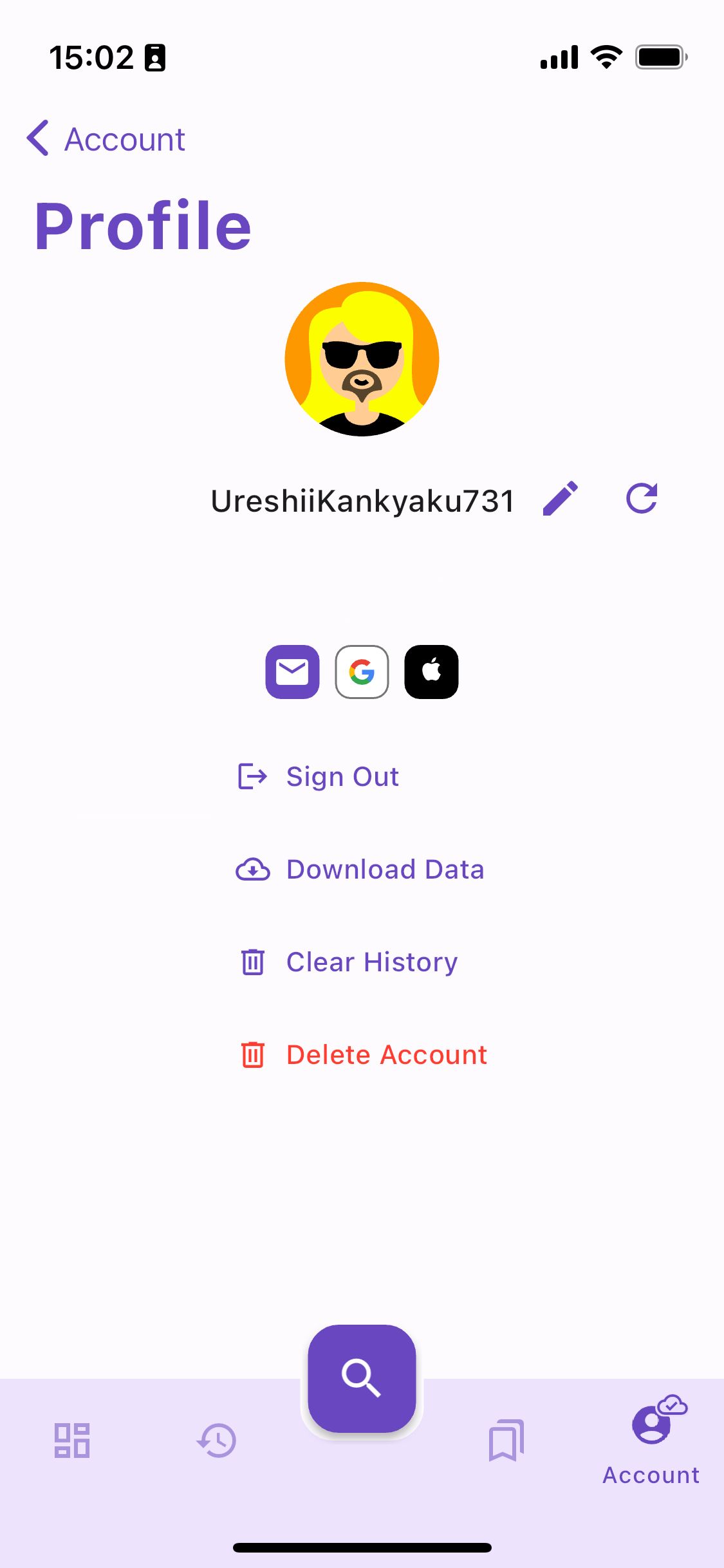
This release brings significant improvements to the loading time of long list of items by loading the content as you scroll, improves navigation with a filter toolbar to search results and lists, and a big performance boost to the web app! Search Results have the same filter bar as History to quickly navigate between category of items.Sentences directly show up in the Search Results when you search a Japanese word.The filter toolbar is also available inside your custom lists!Kanji Reading headers are sticky so you don't get lost as you scroll!
All changes in v0.18.0​

  • faster loading of kanji grid, word list, sentence list, etc. with lazy loading and infinite scroll
  • improved loading time of list with many items
  • removed limit to number of items in search results
  • add filter bar to Search Results and List Page similar to the one in History tab
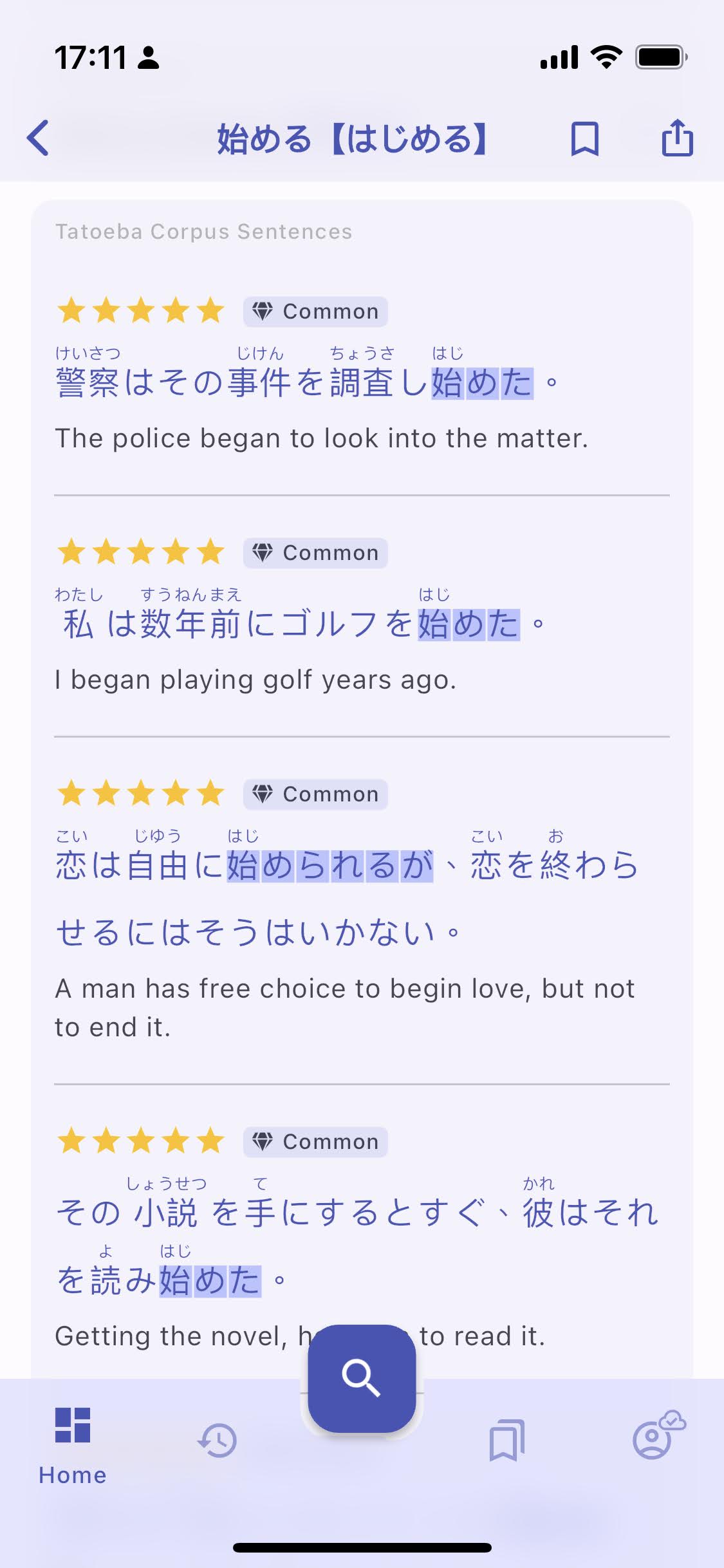
  • add sentences to Search Results
  • add section title to Search Results
  • pin header when scrolling content of Kanji Readings card
  • IOS: faster render engine with Impeller
  • WEB: native-like rendering on mobile with canvaskit
  • WEB: faster loading time with smaller initial payload
  • WEB: fixed auto selection of empty text in search bar
  • WEB: fixed open in app bar dark mode style
  • fixed search tag issues
  • fixed sentences card hero animation
  • fixed button press animation

Profile Update

· 5 min read
Kanjiverse
Kanjiverse

The migration to the new API was completed successfully! Although the impact should appear minimal on your side, this was a huge architectural change and will facilitate the implementation of large scale features that would not have been possible otherwise. Be ready for new updates in the coming months that will change the way you learn, create, and share with Kanjiverse!

Regarding the migration​

First of all, to avoid any data loss, please update your app to the latest version (check in Account > About that it is at least 0.17) and do not mix up older and new versions if you are using multiple devices, or the web app. You will also need to redownload all dictionaries since their format has changed too.

Note that the new API is not fully backward compatible so you won't be able to sign in with an older version of the app, nor will you be able to bookmark new items, or see shared sentences and upcoming content.
If you encounter any issue after the migration, contact me via the usual channels, the best way is on our Discord server, search for Siri.

Meet your new profile​

Once you have updated the app, you will be notified that your account has been migrated. Head over to the Account tab to sign in again. You will notice that your name and profile pic are gone and replaced with a randomly generated username and avatar such as: Profile Page showing a randomly generated username and avatar. The username is a randomly generated combination of a Japanese adjective + noun + number. The avatar is auto generated, based on the username. Changing the username will automatically update the avatar to a unique combination.
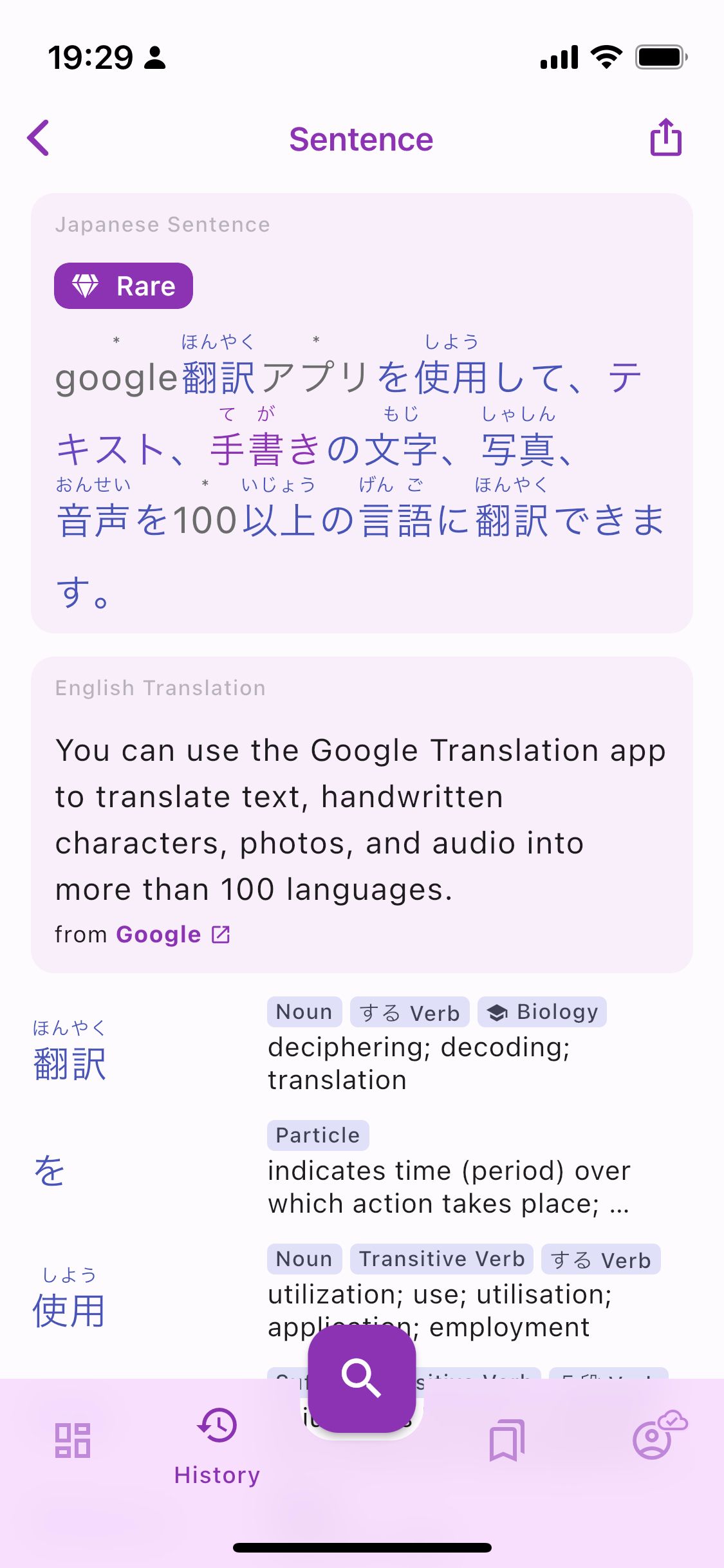
You** can generate random username by pressing the refresh icon next to the username, or your can input your own. It must be a combination of 4 to 32 letters (a-z, A-Z), numbers (0-9) and underscores (_).
Your
**username should be unique, respect our Term of Services (no offensive language), and not impersonate someone else or a company. We reserve the right to reset your username if it violates those terms.

In upcoming releases, your username and avatar will be displayed as attribution on all your shared contributions (sentences, lists, etc.). Other users will also be able to search by username, see your public profile (displaying all your shared content) and follow you. Of course none of this is mandatory and you can simply keep your content private which is set by default when creating a list or sentence.

Protecting your privacy​

The following changes have been made to improve the privacy and security of your data:

  • When Signing in with Google you will no longer be required to share your name and profile, only your email address (which we do not share with third parties).
  • Any previously shared name and photo URL have already been deleted from our servers.
  • Your username and profile pic have been replaced by a randomly generated username and avatar so you can share content and remain anonymous.
  • Your sensitive data (API tokens and profile information) are encrypted on your device.
  • Custom Lists and Sentences are set to private by default. You can opt-in later if you want to share them.
  • As before, you can delete your whole account from the Profile screen and we'll make sure to scrap any piece of data from our servers.
  • And of course, if you never had an account, this does not even concern you ;)

Custom sentence bookmark​

You can now bookmark your own sentences, just like that:

Few things to note:

  • User sentences are private by default, you will have the option to share them in the next release.
  • Bookmarked or not, sentences are saved in your history for faster and offline lookup.
  • Downloading your user data from Profile will also download all your sentences.

Other fixes in version v0.17​

  • fixed non Japanese characters not allowed in sentence analyzer
  • fixed text selection to ignore furigana
  • fixed search list not returning owned lists
  • fixed sheet background scrim color, chip border and text field background
  • fixed list updates not being synced everywhere in the app
  • fixed search by kanji readings not returning results when there is an okurigana dot
  • fixed sort by JMDict POS, dialect, field, misc
  • fixed double tap on navigation bar icon not going back to the root page
  • fixed Go to Downloads button not going to the Downloads page
  • fixed Download tile status and icon not updated correctly when the download is complete
  • fixed race condition when toggling bookmark too quickly
  • fixed delete list button error message when list was already (partially) deleted
  • fixed frequency filter of word search results
  • fixed error messages when going offline or attempting a refresh while offline
  • fixed first navigated item not being added to your History when opening the app
  • fixed Search Sheet not remembering the last tab open (opens on keyboard tab the first time)
  • changed all downloadable dictionaries to more compact format
  • suggests references and strokes tag when typing digits in the search bar
  • improved search capabilities on offline dictionaries
  • improved latency when fetching data from server
  • preload user settings, history and lists when opening the app
  • Reset all Settings also resets Theme Mode and History Filter
  • IOS: fixed animation jank
  • WEB: show Downloads & Cache page to give access to Clear Caches button
  • WEB: fixed ink sparkle when pressing buttons and tiles
  • WEB: disable handwritting tab (not available)

Upcoming Changes to Your Account

· 2 min read
Kanjiverse
Kanjiverse

Big changes are coming to Kanjiverse! Despite the lack of releases the past few months, I've been working hard behind the scenes to rewrite core parts of the app to facilitate the development of upcoming community features. To prepare for those changes, your account will be migrated to a new database. Only those of you who are signed in will be affected, so here's what you can expect:

In the coming days the database will be migrated and a new version of the app will be released. The server will be down for a few minutes during the migration, so expect some minor disruptions. After updating the app, you will be asked to sign in again to complete the migration of your account.

On top of making your data more secure by encrypting them on your device, your privacy will be improved. No need to share your name and profile picture anymore when Signing in with Google, those data will also be deleted from our servers. Instead, a new username will be randomly generated for you, which you can change later in your profile. This username will be visible along with any content you choose to make public. This way, you can keep your privacy and enjoy sharing sentences, lists and mnemonics with other users!

The migration should be transparent for you but in case you notice that some of your data is missing after the migration, don't panic! Everything is backed up, so just reach out to me via email or Discord, and I'll help you get it all back.

I'm committed to make Kanjiverse the best it can be, so thank you for your patience and understanding during this transition, and I can't wait for you to enjoy all the new features that will be rolled out in the coming months!

If you have any questions or concerns, don't hesitate to hit me up via the usual channels, the best way is via our Discord server, search for Siri.

Cheers

Text-to-Speech

· One min read
Kanjiverse
Kanjiverse

Get ready to improve your pronunciation and listening skills, audio is now available for all content! Just press the speaker icon next to a sentence, word or kanji reading to hear it.

It uses the voice pack from your OS:

  • Android: should redirect you to the system settings to install the Japanese voice if missing.
  • iOS: should work by default but I highly recommend to install the enhanced model: open the Settings app* > Accessibility > Spoken Content > Voices > Japanese > Kyoko*, then download and select Kyoko (Enhanced).

Changelog for v0.14.0​

  • added speak button to all sentences, words and kanji readings (uses the OS TTS voice)
  • fixed Japanese word autocomplete when dictionary is downloaded
  • fixed handwriting accuracy and lag
  • added delete and backspace button on the drawing pad
  • added dismissible download suggestion cards

Handwriting Recognition

· One min read
Kanjiverse
Kanjiverse

You can now input kanji and kana by drawing them directly in the app! Open the search sheet, download the model and start drawing, it will dynamically suggest color-coded kanji, components and kana!

Android users, no need to install the Gboard Japanese keyboard anymore.

iOS users, no more Chinese keyboard workaround, you can now enjoy full support of Japanese character recognition, including hiragana and katakana!

Changelog for v0.13.0​

  • added Handwriting Recognition input method to the Search Sheet
  • added Handwriting Recognition model to the Downloads & Caches page
  • added Suggestion List to the Handwriting Tab
  • fixed autocompletion and word suggestion missing when inputing romaji

On-device Translation

· 2 min read
Kanjiverse
Kanjiverse

Let Google translate your sentences directly in the app! This new feature will automatically translate your searched sentences as well as any missing translations for Tatoeba sentences. And the best part is that it works completely on-device, so you don't even need an internet connection once you've downloaded the language model.

Note that the model is the same as the one used by the Google Translate app in offline mode. The quality of the translations is not as good as the online version so take it with a pinch of salt. Below the sentence you can see a "from Google" link, that will redirect you to the online app, which usually provides a better quality translation.

Hope you will find this new feature convenient. This the first integration of Google ML Kit to Kanjiverse, the rest of the toolkit, such as handwritten character recognition and text scanning, will be added in the near future, so stay tuned for more updates!

Changelog v0.12.0​

  • integrates Google ML Kit Translate to translate sentences on-device
  • adds a Translation card under the Japanese Sentence card for all user generated sentences and Tatoeba sentences missing a translation
  • translates the sentence from Japanese to the language set in Settings > Tatoeba Sentence Page > Translation language
  • prompt the user before downloading the language model, can be also managed in Account > Downloads & Cache
  • displays a link to open the sentence in the Google Translate web app
  • fixed app freezing when typing unknown Japanese words in the search bar