15 posts tagged with "app"

View All Tags

Search UX Redesign

· 7 min read
Kanjiverse
Kanjiverse

After reading through your feedbacks and suggestions in the Beta Test Survey I realized how confusing the search experience could be. As many of you have pointed out, most of the time you just want to search one word rather than create a complex query of tags, and the current UX requires too much taps to get to the point.

I've heard you and decided to take the time to completely redesign the search sheet with the following in mind:

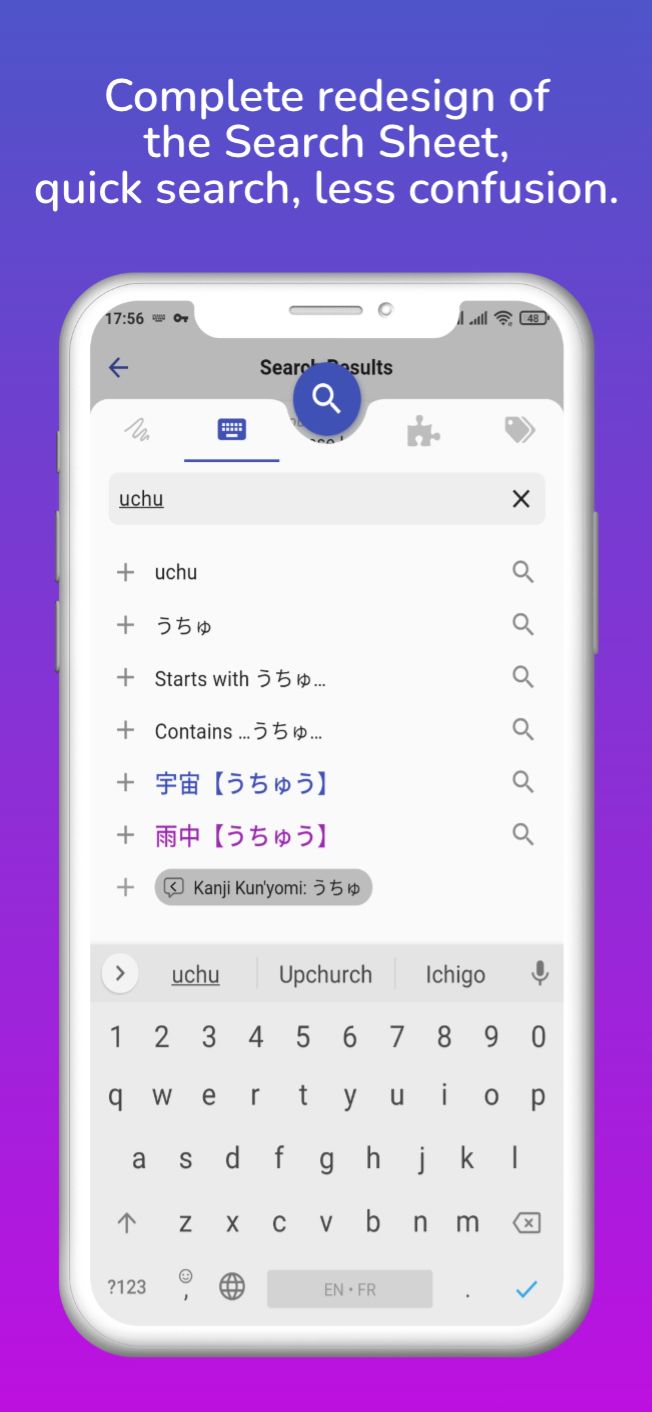
  • It should look more like a familiar auto-completion form, with the suggestions below the text input.
  • It should facilitate the most common actions to be executed faster (like searching a word) while still allowing the creation of complex tag queries, but only as a secondary action.

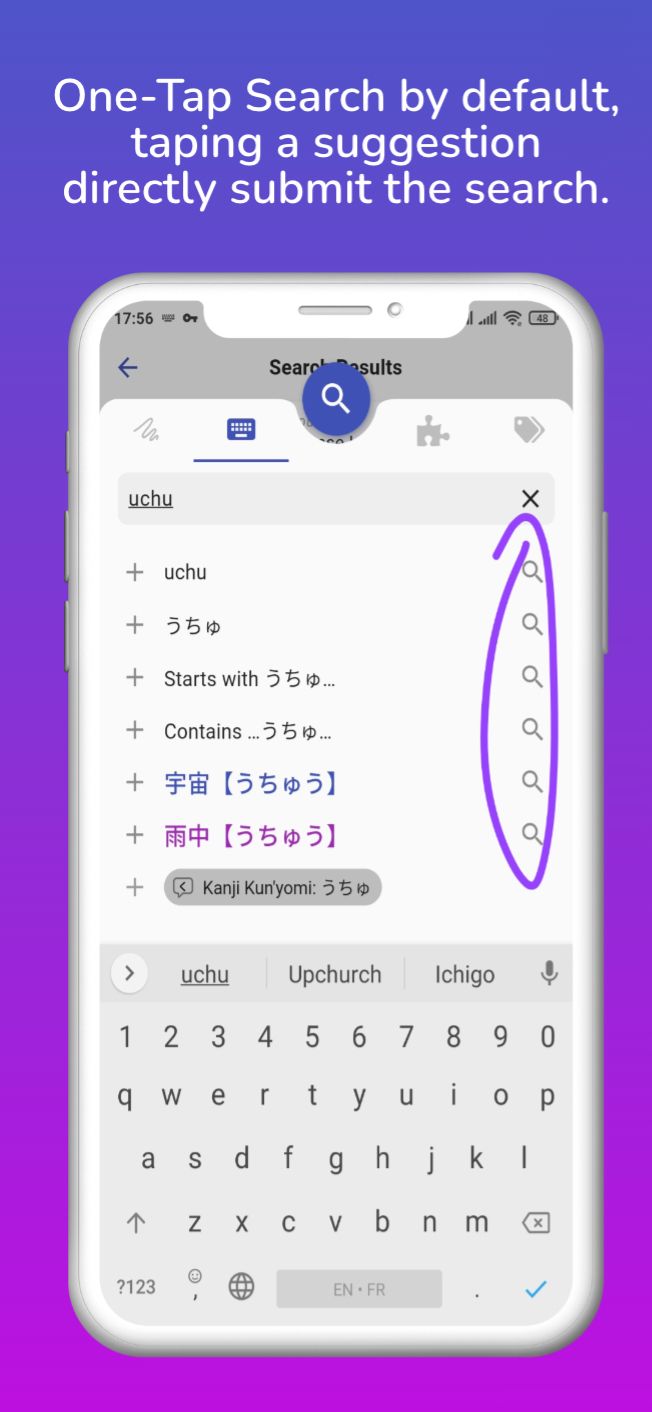
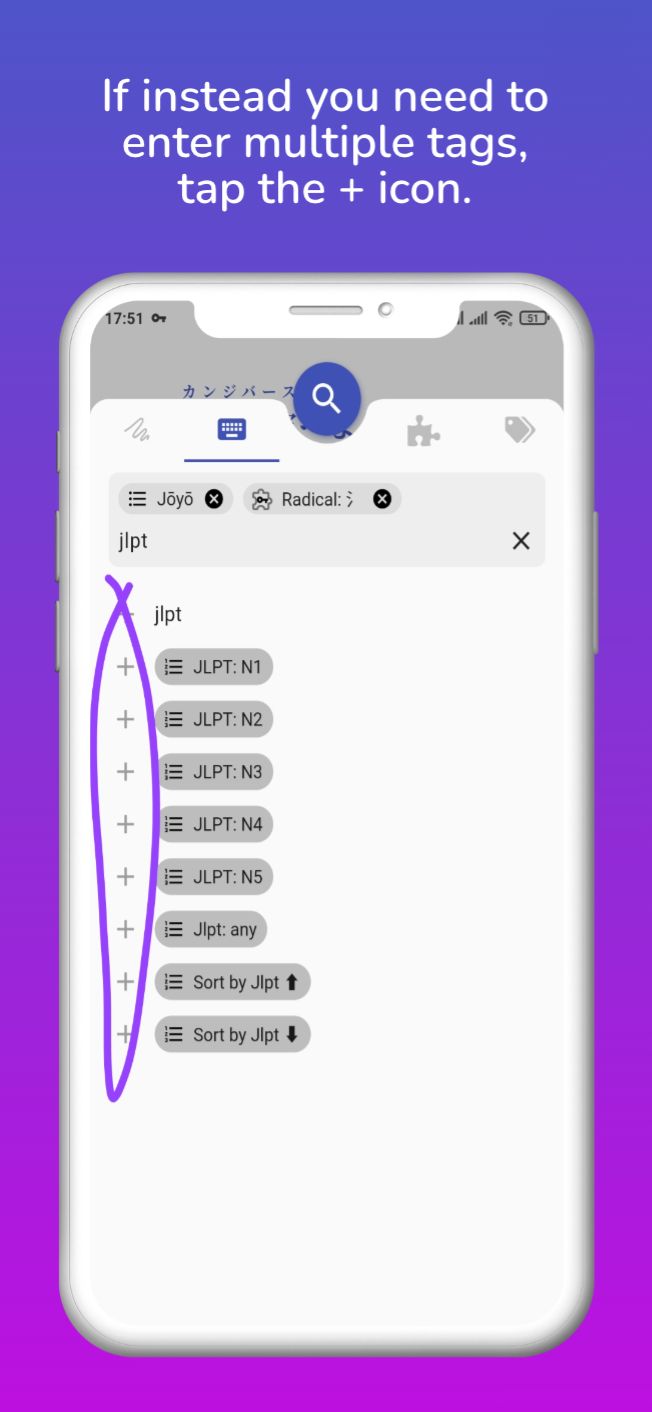
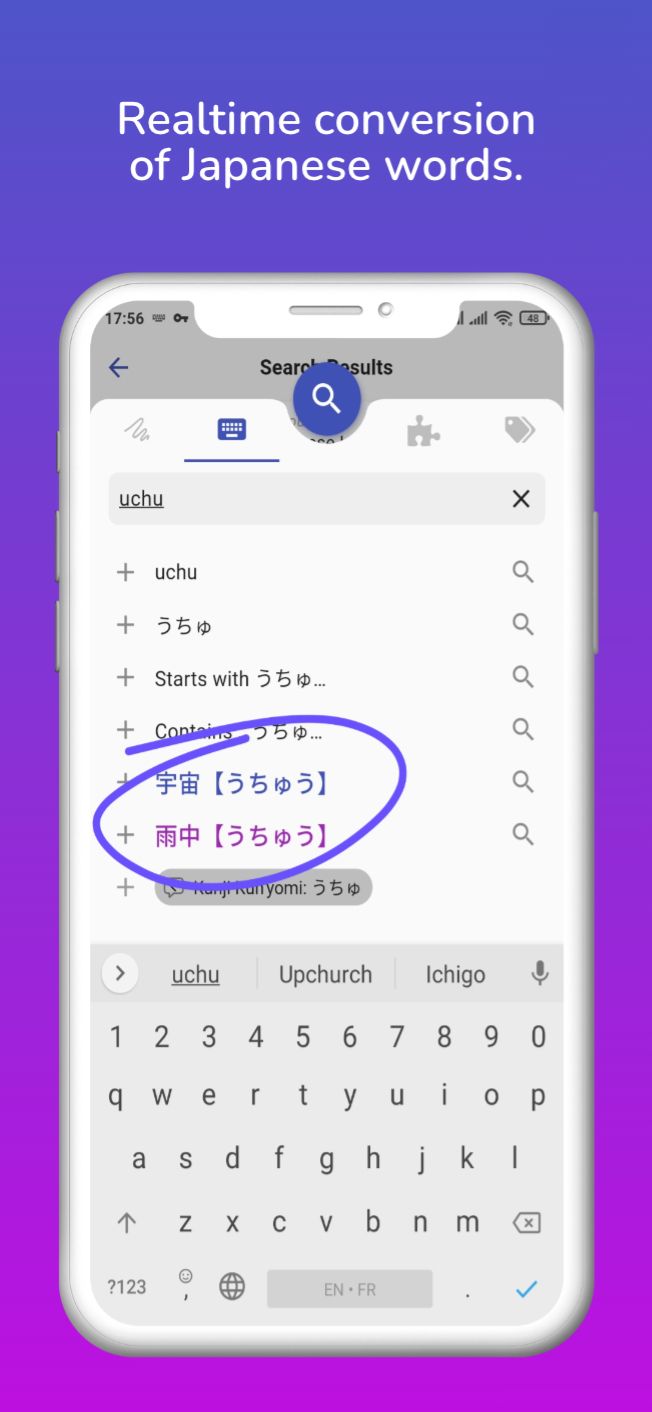
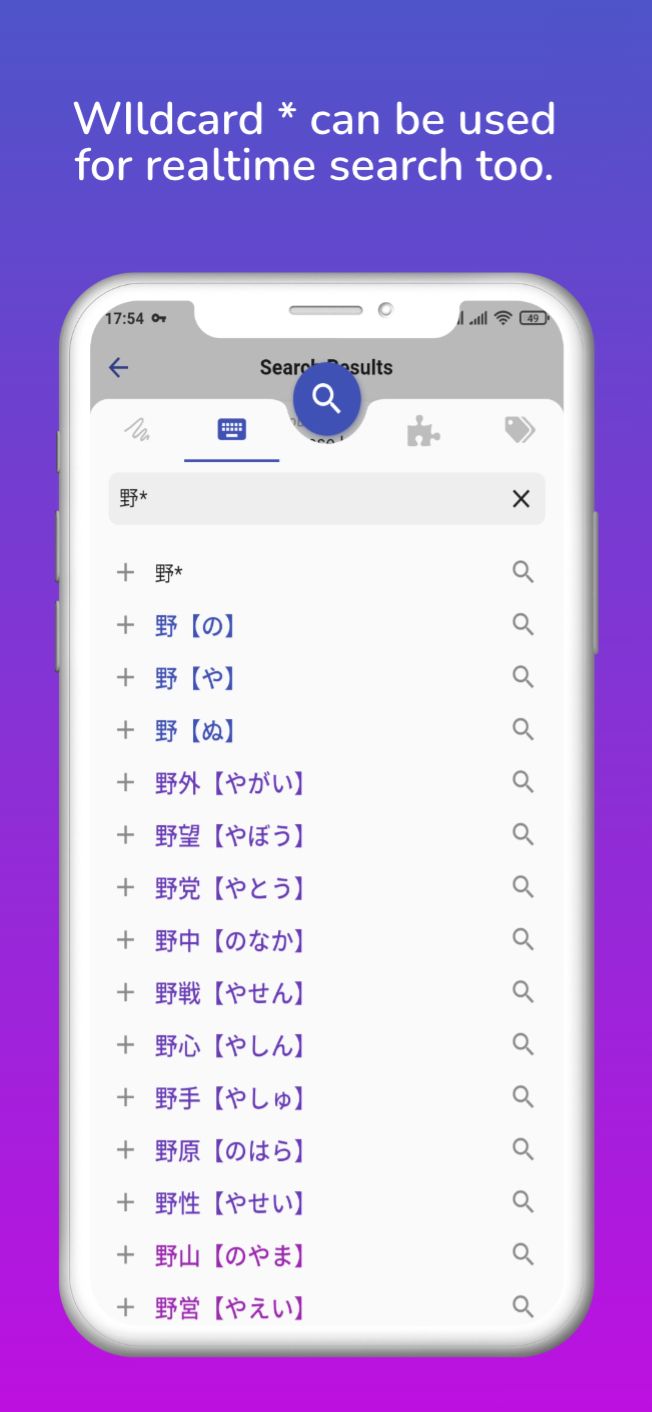
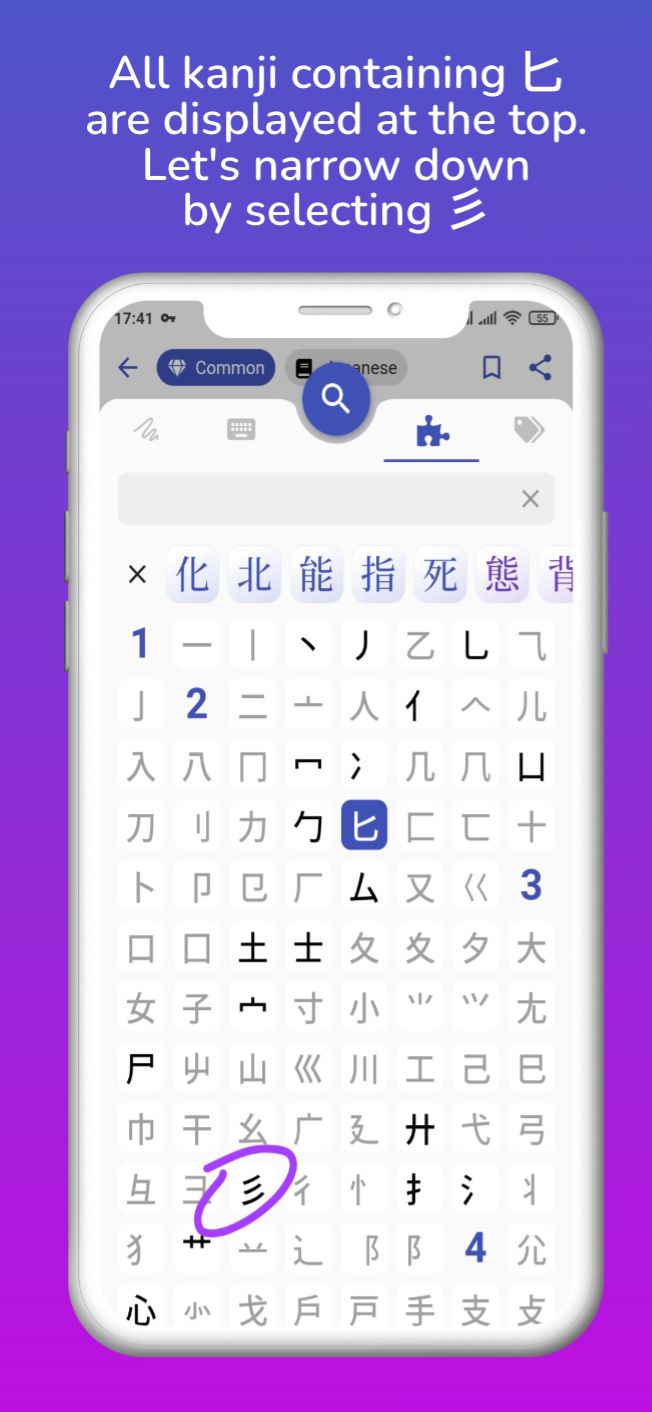
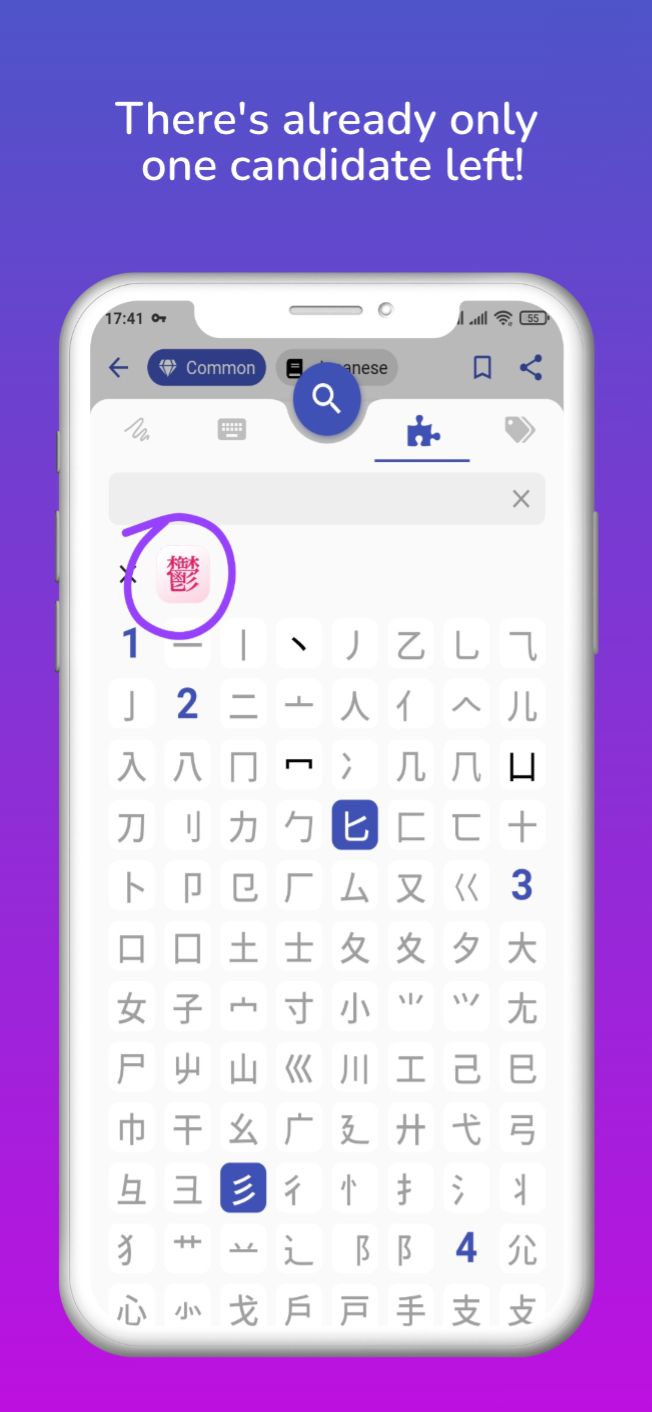
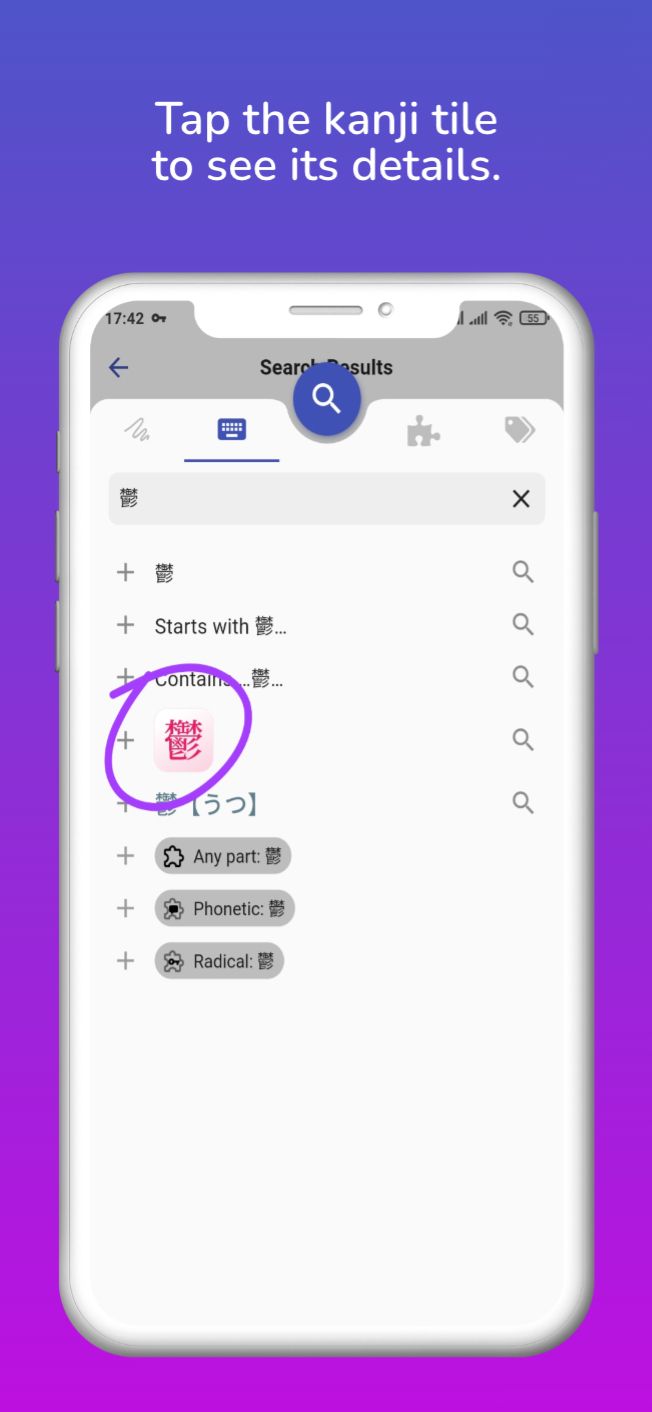
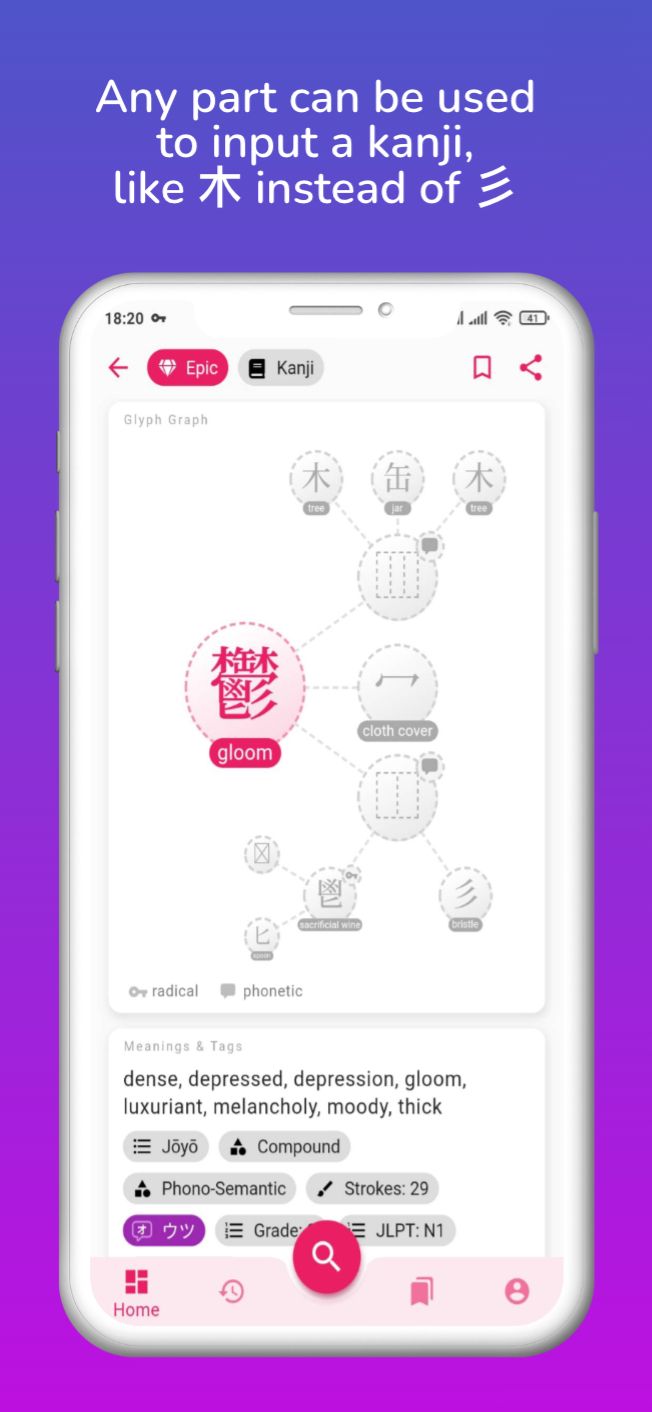
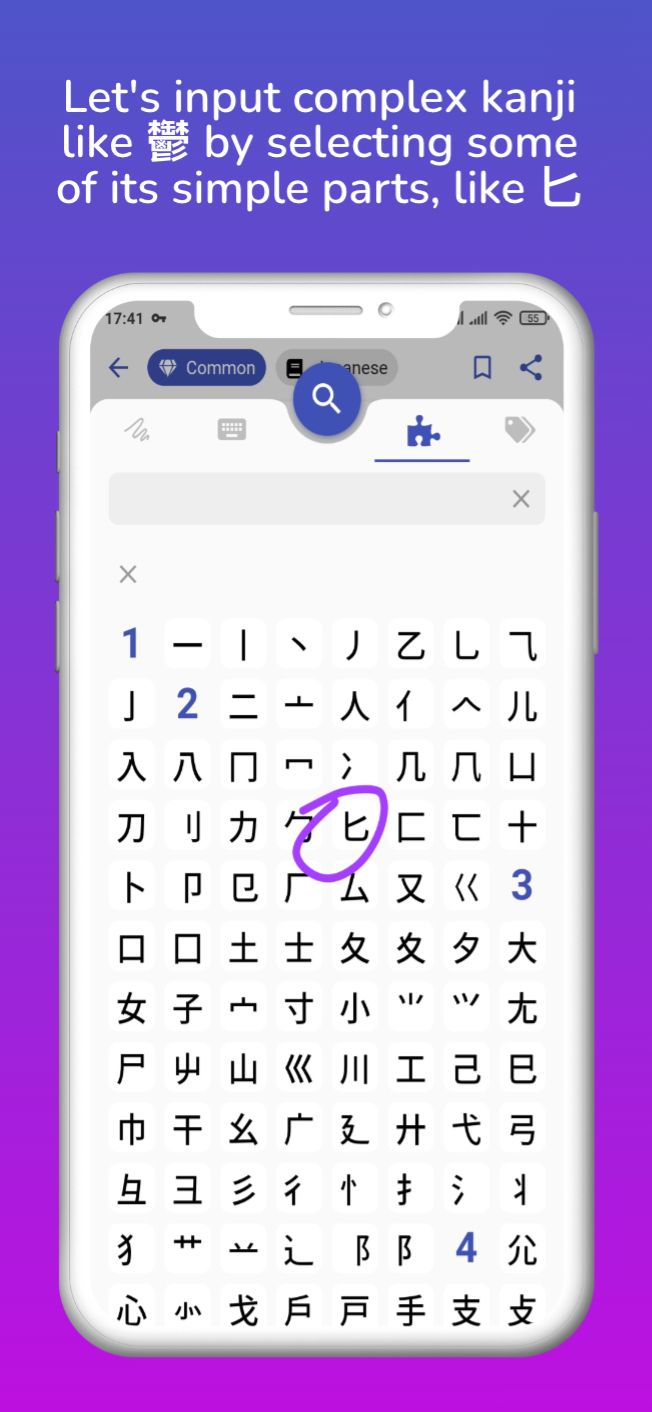
Meet the new search sheet, with one-tap search as default behavior, realtime auto completion/conversion of all Japanese words, and a few other conveniences to help you input Japanese with more ease and search faster: Made with Previewed https://previewed.app/template/6942AF31 The Search by Radicals/Parts/Components has also been completely redesigned to be used like an input method, with suggestions displayed in realtime as you narrow down your search by selecting kanji parts. This example shows how you can input complex kanji like 鬱 in just 3 taps! Made with Previewed https://previewed.app/template/6942AF31 I have to admit, this release took much more time than I have anticipated, in part due to a painful migration to Flutter 2 and infrastructure changes, so in the end I had to combine multiple releases into one. The schedule for the next releases should be much shorter, I'm still targeting once every 2 weeks.
Detailed list of changes in v0.2.0​

General Fixes
- fixes share button not working and broken dynamic links
- fixes Google sign-in crashing on iOS
- fixes feedback-on-shake not working on Android
- allows anonymous feedback on Android, no need to enter email address
- transition animations between tabs are smoother
- fixes app bar tags appearing on top of each other on small screens
- renames 'Word of the Day' to 'Random <Your Level> Word'
- adds kanji official list tag (joyo, etc.) to Kanji Page
Search Sheet
- complete redesign into a quasi fullscreen sheet, with tabs at the top, search bar and suggestions list below, the floating action button is attached to it instead of staying on the main navigation bar
- suggestions are displayed under the search bar like a standard auto completion form, english/japanese word suggestions are displayed as text instead of tags
- Search button is replaced by the same "magnifying glass" button used to open the search sheet
- Clear button is replaced by an X button inside the search bar
- cancelling can be done by taping in the greyed area above the sheet, sliding the sheet down, with the hardware button or OS gesture
- removes katakana suggestion, searching by hiragana will always search for the equivalent katakana (and vice versa)
- adds "Contains" and "Starts with" suggestions, same can be achieve with * wildcards
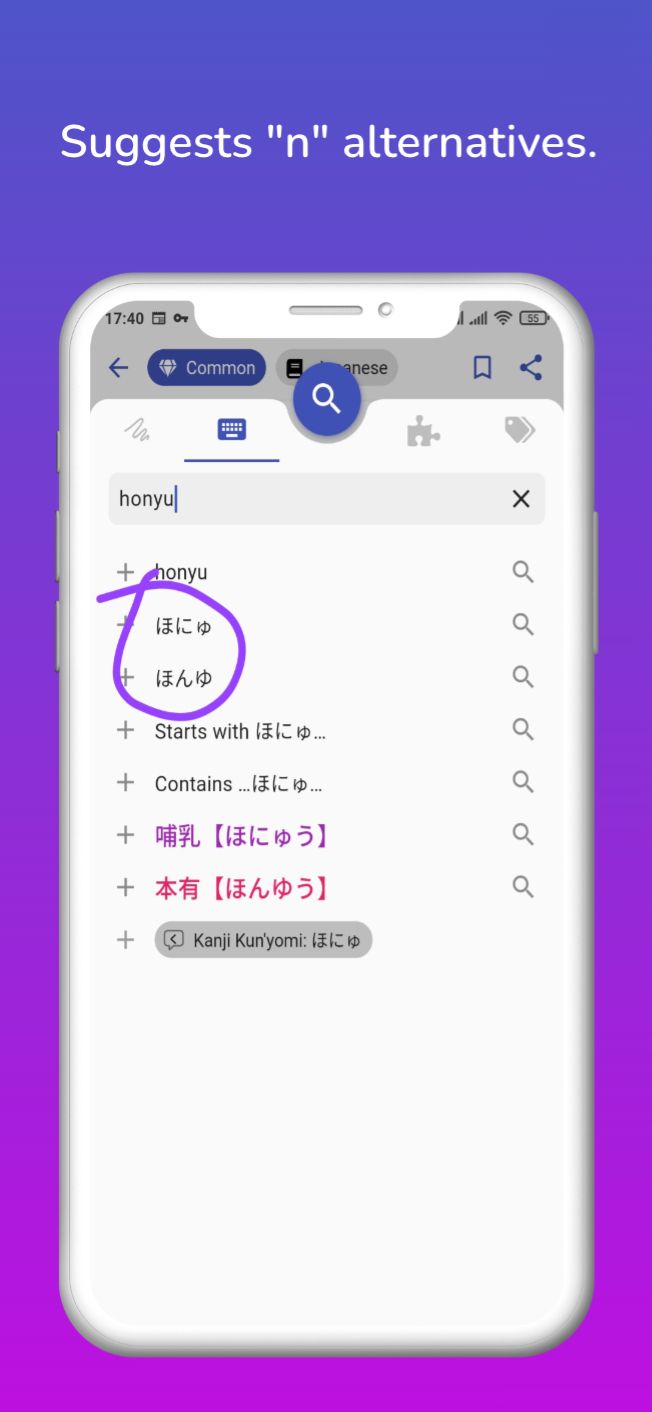
- suggests both alternative for "n" romaji, for instance typing honyu will propose ほんゆう and ほにゅう, forcing ん can be achieve with an apostrophe after the n according to Hepburn standard, for instance on'yomi converts to おんよみ
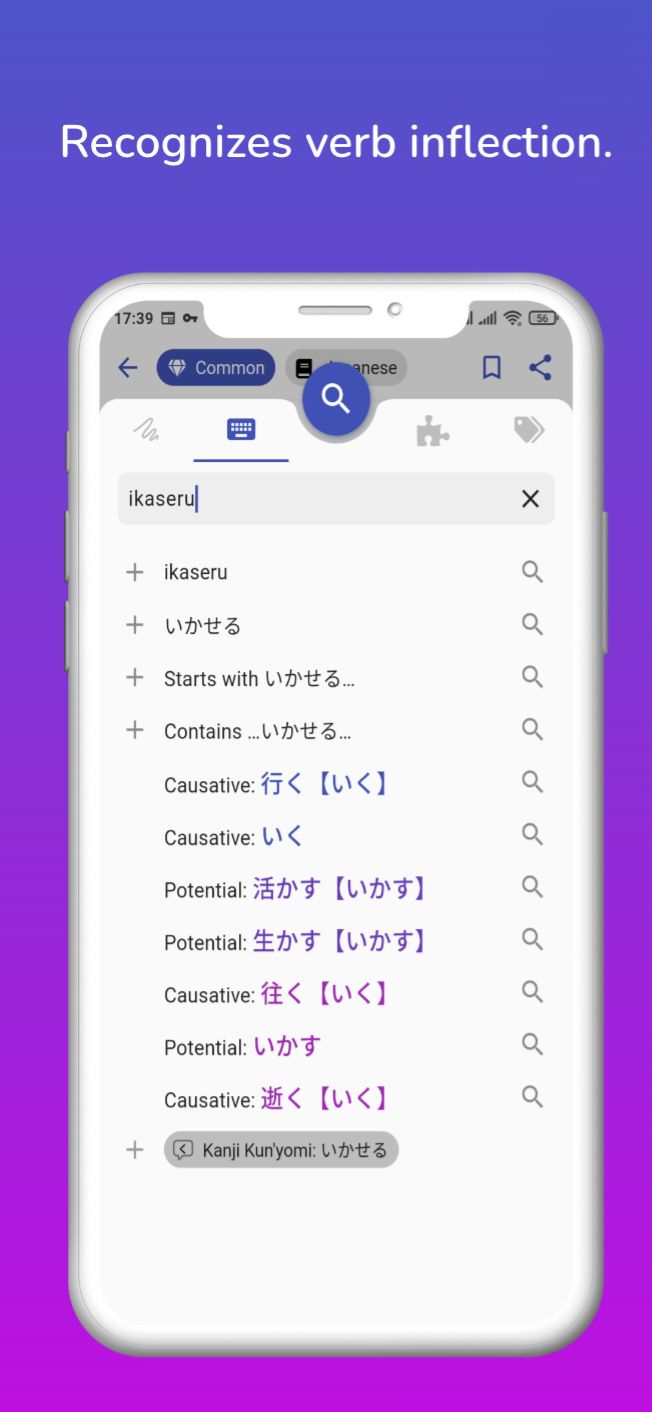
- suggests "deinflected" verb form (dictionary form is inferred from its conjugated form) and display the name of the form (passive, causative, etc.)
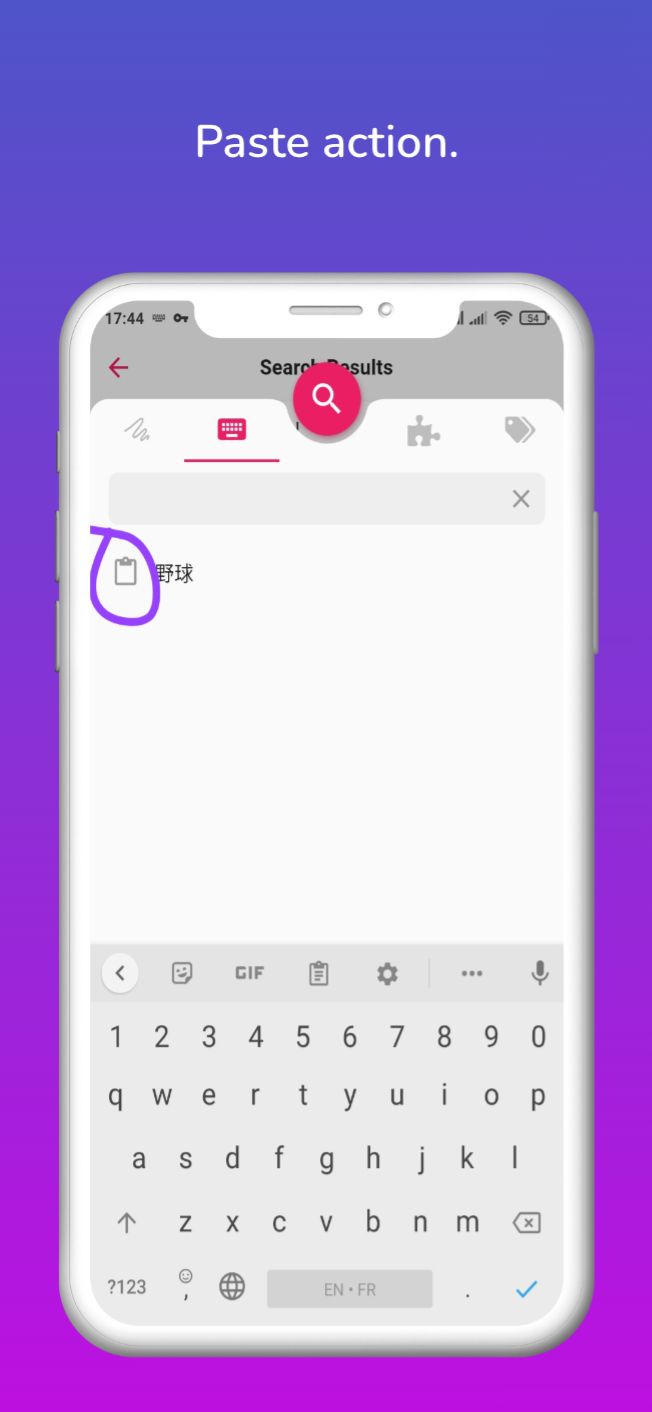
- suggests "Paste clipboard" action when nothing is typed (the clipboard content is only shown on Android)
- multiple instances of the same category of tags are combined with OR (e.g. tags JLPT:N1 and JLPT:N2 will fetch all kanji that are EITHER in JLPT N1 OR N2), the only exception is for kanji parts (any part, radical, phonetic) that are always combined with AND (e.g. tags 'any part':口 and 'any part':言 will fetch kanji that have BOTH 口 AND 言), different categories of tag are always combined with AND (e.g. JLPT:N1 and radical:言 will only fetch kanji that are at the same time in JLPT N1 AND have 言 as radical)
- fixes backspace to erase the previous tag with the keyboard
- kanji/word tags are colored by their frequency
- does not clear the search text when switching between tabs
Realtime Completion
- suggests Japanese words in realtime (skeleton displayed when fetching, paused while typing)
- if there are exact matches (including romaji/hiragana/katakana variants) only those will be displayed
- if no exact match is found, it will try to deinflect the verbs (remove conjugation), needs to be at least 2 characters long
- if no match is found, it will search for words "starting with" the search term, this behavior can be forced with * wildcards
- results are filtered by the user setting's frequency limit (hides unclassified words), if no match is found it will display rarer words (if any)
- all words are colored by frequency and displayed in kanji with their reading in parenthesis
One-Tap Search™
- tapping a suggestion with a "magnifying glass" icon will directly trigger a search, if instead you want to add the suggestion as a tag, press the + icon
- one-tap search directly opens the page of word/kanji that have color (those retrieved by the realtime autocompletion) unless the same word (exact same kana/kanji and reading) appears on more than one page
- one-tap search is disabled when there is at least one tag in the search query (excluding Collection tags such as Kanji/Japanese/Lists)
- pressing the sheet's main Search button when there is only one word in the search bar as the same effect as pressing the top suggestion in the list
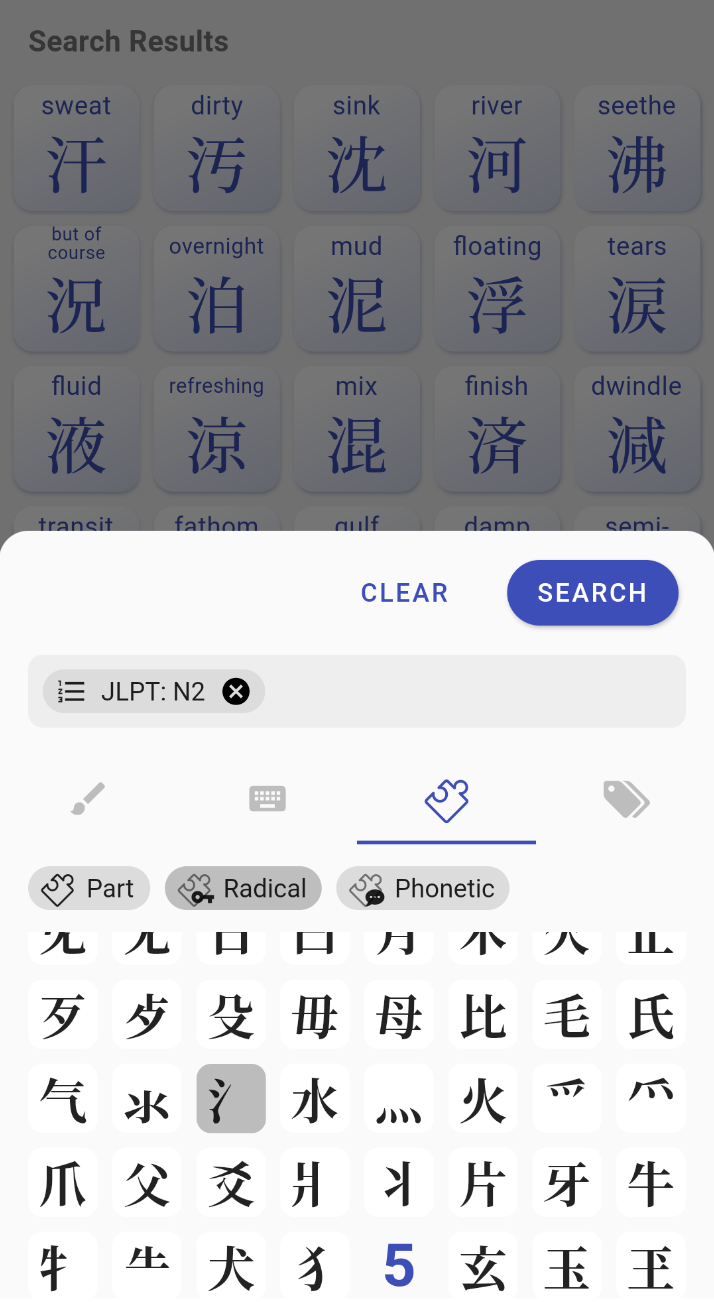
Search by Parts/Radicals/Components (tab with "puzzle piece" icon)
- now acts like a real input method that helps finding a kanji without leaving the page
- kanji parts can be selected/unselected by pressing on them
- kanji "candidates" that contain the selected parts are displayed in realtime in a row at the top of page, sorted and colored by frequency
- parts that are in none of the candidates are greyed out to facilitate narrowing down the search
- pressing one of those candidates will add it to the search bar and bring you back to the suggestion list where you can directly open the page of that kanji or continue inputting your search query
- X button clears the candidate list and unselect all selected parts
Japanese Word Page
- hides the kanji tag list card when there are no kanji
- groups together identical notes (stop displaying multiple times stuff like "contains rare kana")
- fixes JMDict Variants' tiny font size when there are many variants
- fixes missing words in Compound & Affixes card
Search Results Page
- Japanese words are filtered by search term according to the search method used ("exact"/"contains"/"starts with")
- displays one card per word variant even if those words are on the same page (e.g. even if the words 暑い and 熱い are on the same dictionary page, searching for あつい will show two separate cards in the search results)
My Lists
- adds a pull-to-refresh gesture (currently lists are not automatically sync'ed between your devices)
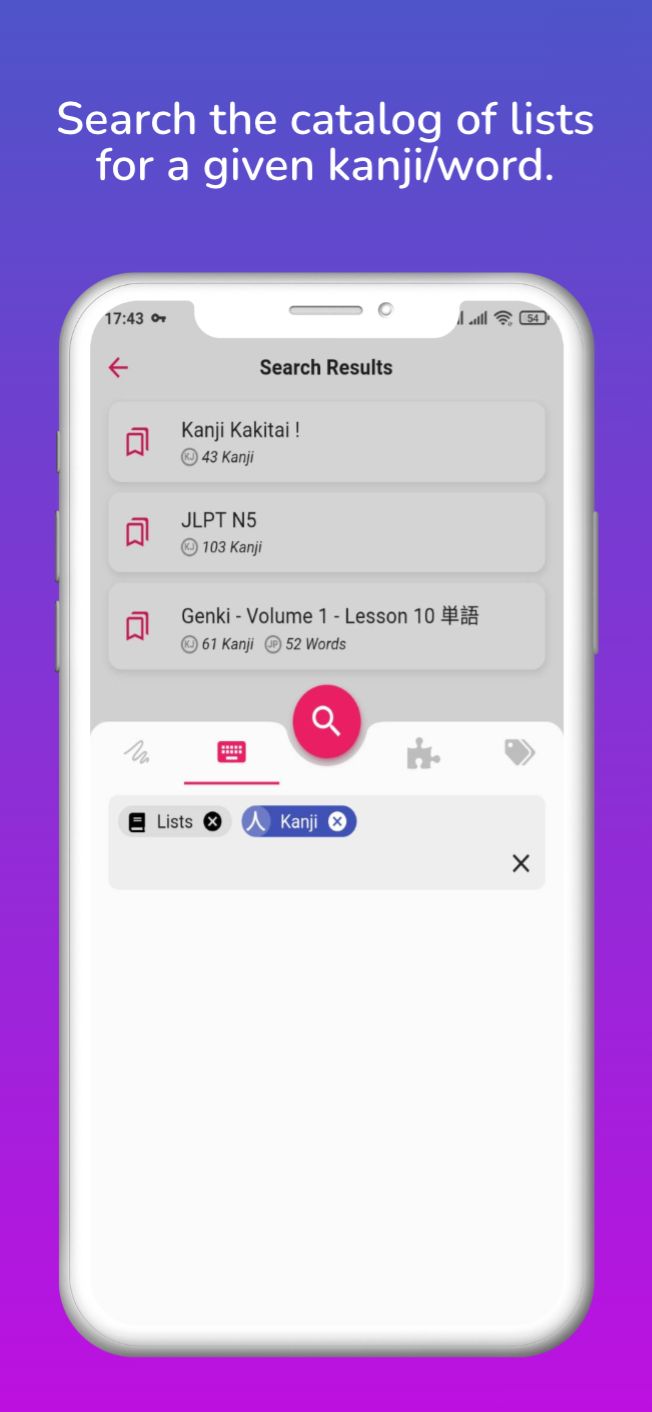
- searching the Lists Catalog now uses the same UI as the kanji/word Search
- searching English words, kanji and (colored) Japanese words will also show the corresponding Lists in the search results along with kanji and words
- adds a Lists tag to restrict a search to the Lists Catalog
Sharing is Caring

· 2 min read
Kanjiverse
Kanjiverse

*Kanjiverse *beta version 0.1.15 introduces shareable content. Tap the share button on any page or custom list to share it with the world!

Try it out​

Share links to any content (kanji, word, list) with your friends, students or blog readers. They will be taken straight to the right place in the app, or to the app store if they don't have Kanjiverse installed yet.

Use cases​

Those dynamic links have many usages, for instance:

  • Student: share a page with your friends or classmates to invite them to try out Kanjiverse. If they don't have the app installed yet, the link will take them to the app store first.
  • Teacher: create a custom list with words and kanji from today's lesson and share it with your students.
  • Blogger: add a link to individual vocabulary word and kanji in your post to let your readers see their details in Kanjiverse at the press of a button.
  • Vlogger: create a custom list with the words used in your video and paste its link in the description to let your audience get all the vocabulary at once.

Under the hood​

Deep links, app links, universal links, dynamic links... they come in many names depending on which OS you are but they all do more or less the same:

  • Deep Link: a URL that takes you directly to a specific content in the app. The user will be prompted to choose with which app they want to open the link.
  • App Link: improved version of Deep Link on Android, it lets an app be the default handler of a specific URL scheme.
  • Universal Link: iOS's version of Deep/App Link.
  • Dynamic Link: Firebase's all-in-one link. The link behave like a deep/app link on Android, a universal link on iOS, a standard html link on your computer, and even opens the App/Play store if the app isn't installed yet. This is what Kanjiverse is using.

iOS Beta is Live!

· 3 min read
Kanjiverse
Kanjiverse

It's finally here! This new version is the first one to be released on both Android and iOS at the same time. Invites will be sent by email to anyone enrolled. If you haven't already, you can still enroll on the site.

Version 0.1.12 also adds a bunch of fixes and improvements:

  • long press to copy kanji, words and sentences
  • tap the Home icon to go back to the Dashboard
  • easier to read Sans Serif font for large Japanese text, set by default for Novice/Beginner, can also be set in Account > Preferences > Japanese Collection > Font, Furigana and Limits

Happy testing :)

Detailed Changelog of Version 0.1.12

  • Copy kanji, Japanese word or sentences with a long press
    - Displays large Kanji and Japanese text with an easier to read Sans Serif font
    - Sans Serif font is set by default for Novice/Beginner level
    - Sans Serif font can be set in Preferences > Japanese Collection > Font, Furigana and Limits
    - Go back to Dashboard by tapping on the Home button when already on the Home tab
    - Bookmarking a page without being signed in will first prompt the user to Sign In
    - Removed edit/delete buttons on the List cards, the buttons are now on the app bar when a List is opened
    - Edit List dialog is replaced with a bottom sheet
    - Removed shake bug reporting on ios, use the native testflight screenshot method instead
    - Dashboard shows a Latest News card (triggered remotely with Firebase Remote Config)
    - Dashboard shows an Update Available card when a new version is available
    - Fixed Kanji Readings listing words that do not match the reading
    - Fixed characters spacing in words that have furigana wider than the word itself
    - Fixed keyboard navigation in the Sign In dialog and the Search sheet
    - Fixed background becoming transparent when pressing back on Search Results pages
    - Fixed Bookmark button not working after signing in on pages that were opened before signing in
    - Fixed missing app bar and back button on Search Results pages that have no results
    - Stops automatically opening kanji/word of a List when there is only one item
    - Refreshes the page after updating a List's details
    - Notifies that the Sign In is successful
    - Improves look of navigation bar with color tint and blurred opacity on ios
    - Improves look of Search by Radical Input screen with an ios-style Sliding Segment instead of multiple chips
    - Improves shadows softness
    - Improves toast bar notifications look
    - Adds a scrollbar
    - Makes Search Bottom Sheet taller on Radical and Tag Input tabs
    - Adds gradient on Welcome page's title
    - Adds Firebase crashlytics and performance

Autocomplete Fixes and Sort By Filters

· 2 min read
Kanjiverse
Kanjiverse

A new version is available to beta testers on the play store! This release fixes (all?) issues with the autocompletion's suggestion lists (it won't hide outside the screen anymore) and adds a bunch of new filters including the convenient Sort By filters.

Sort By filter autocompletion​

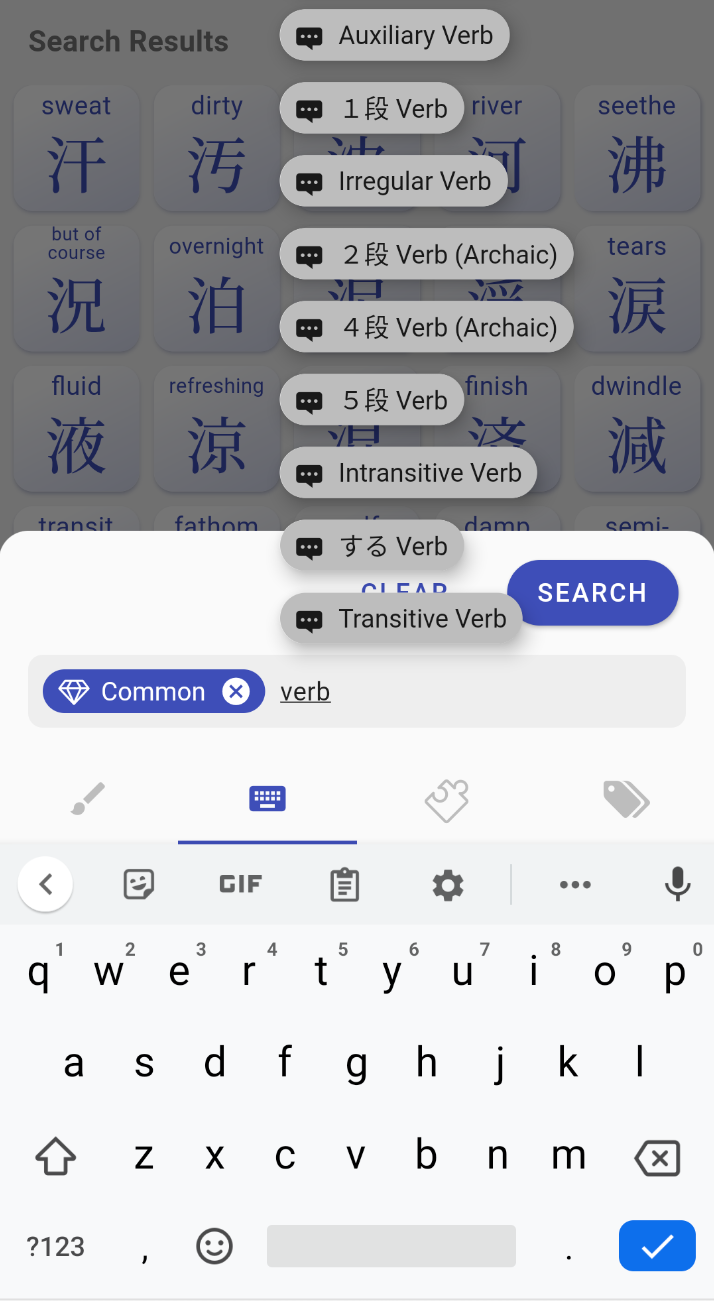
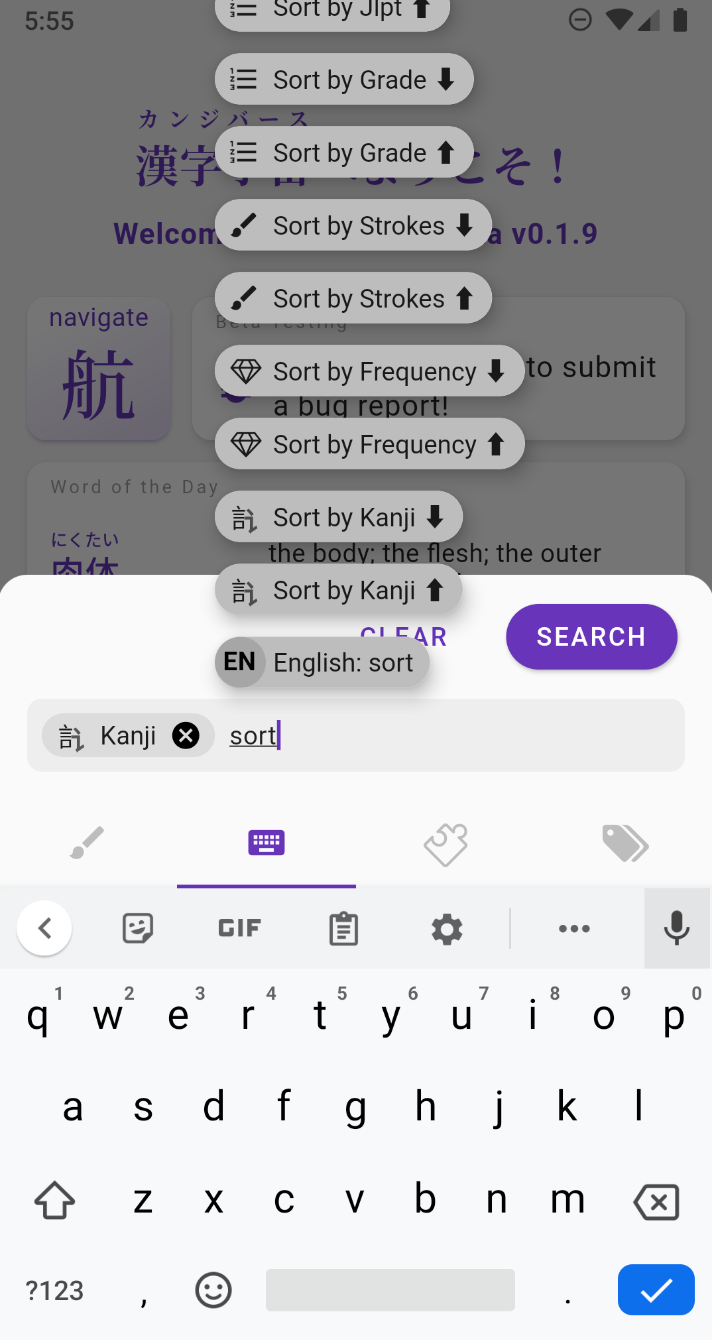
The Sort By filters can be autocompleted when you type "sort" or the name of what you want to sort:

  • sort kanji by character, #strokes, frequency, grade/JLPT/kanken level, glyph composition, glyph formation, references (e.g. RTK index)
  • sort words by Japanese variant, English definition, frequency, part-of-speech (aka grammar), field, dialect, misc
  • sort results in ascending or descending order
  • they can also be chained, in the order you typed them

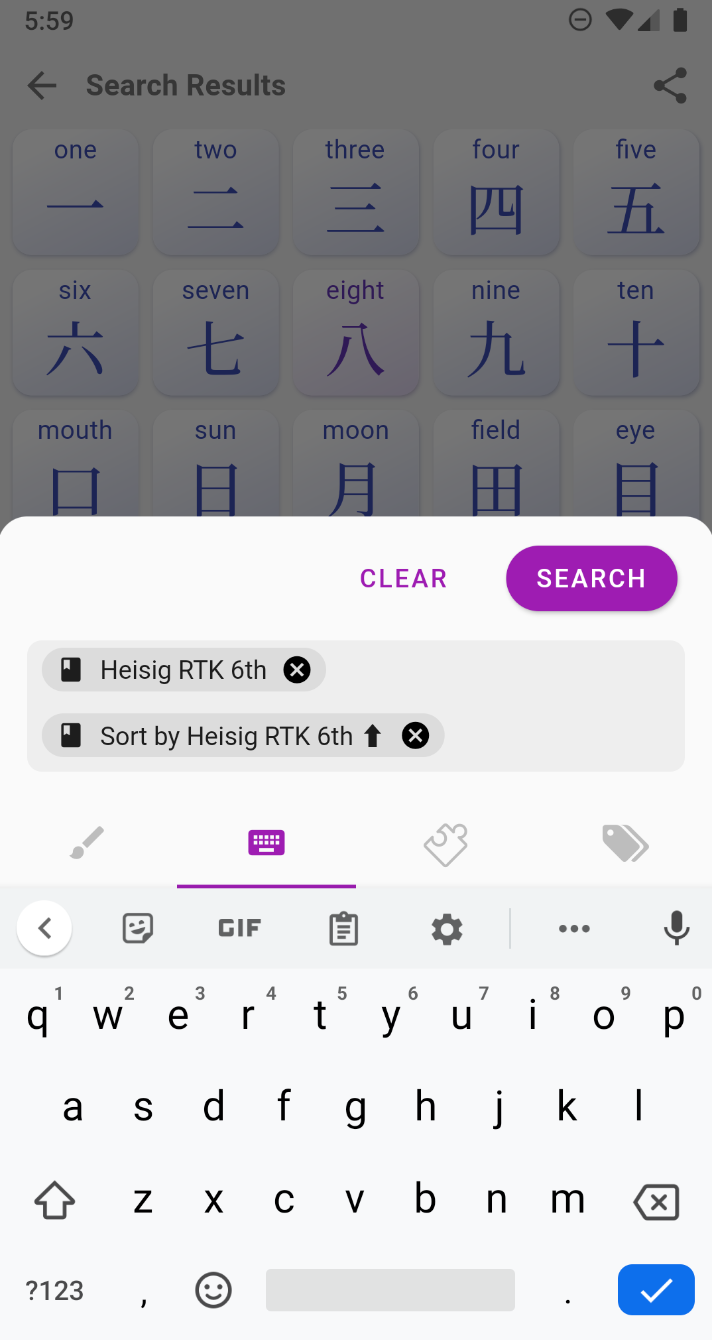
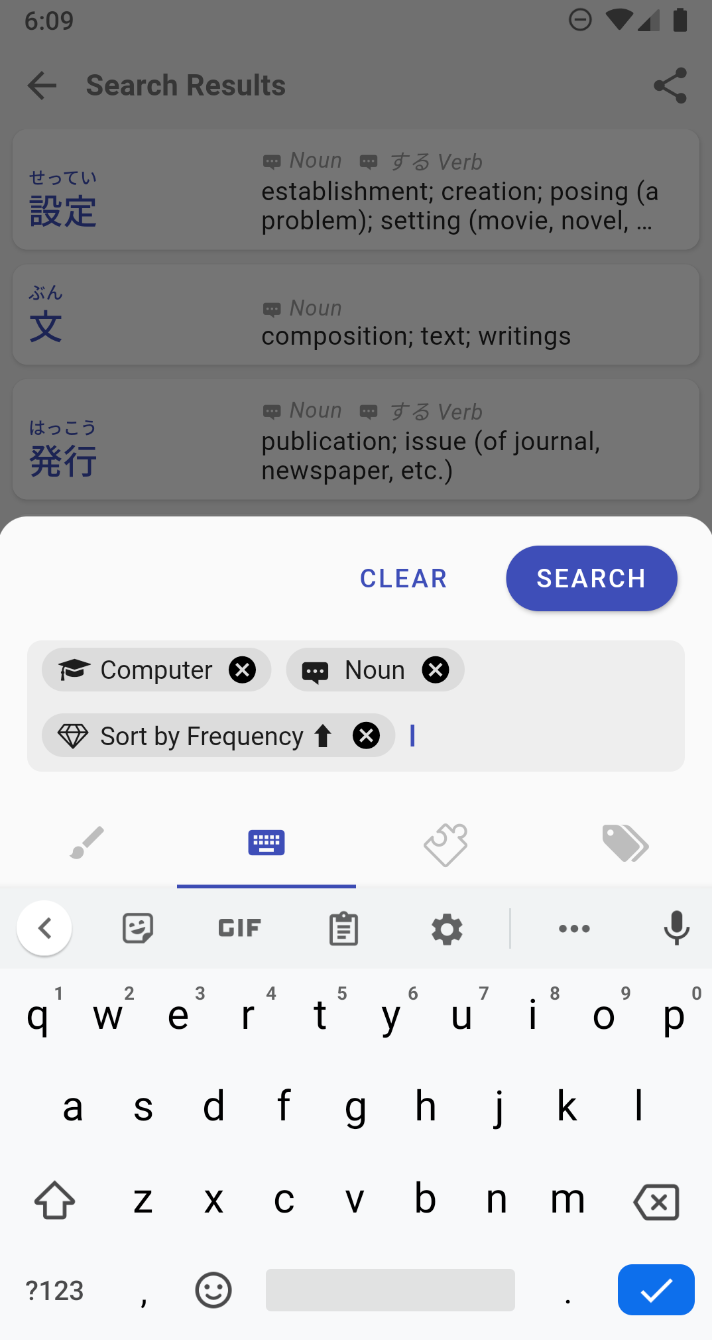
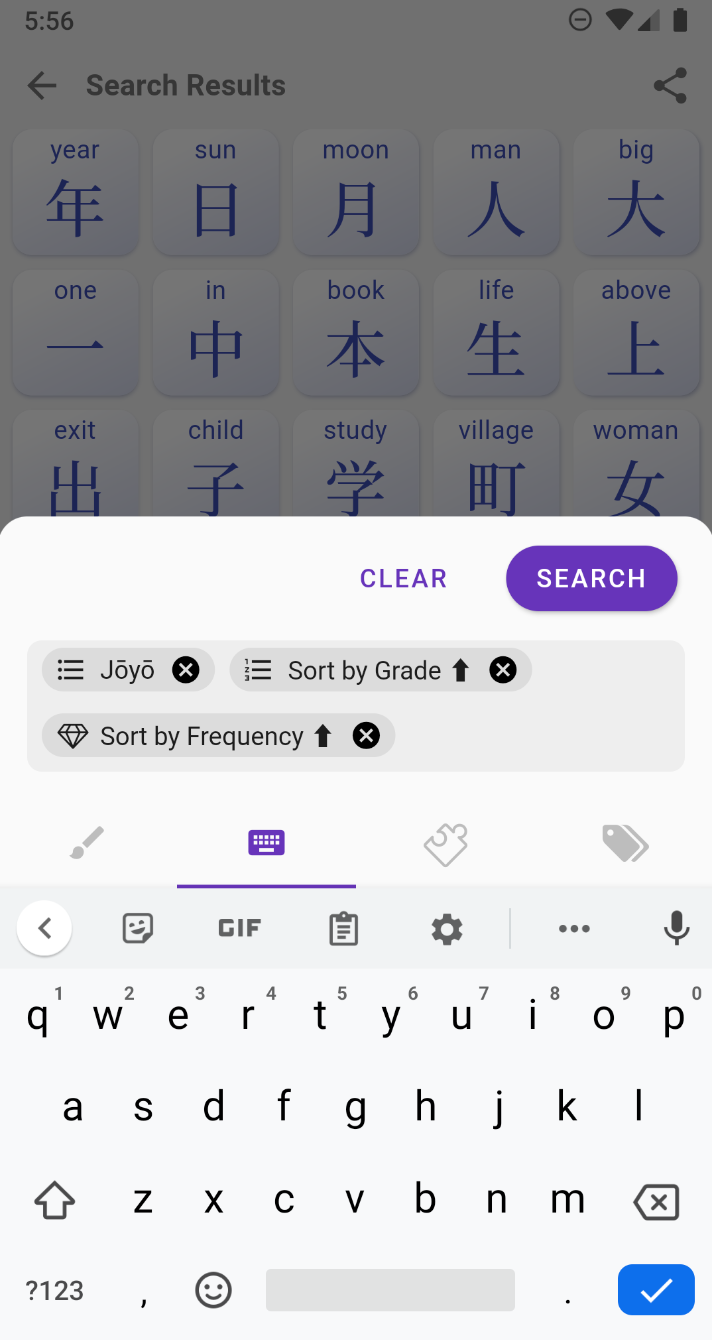
Here are a few examples of what you can do with them (from left to right):

  • sort joyo kanji by grade then frequency
  • sort kanji in their RTK order
  • sort all computer related nouns by frequency

All the other fixes in version 0.1.10:​

  • adds autocomplete for more filters such as Katakana, Collection, Kanji Readings, References (i.e. RTK, dictionary indices, etc.)
  • fixed search bottom sheet being hidden behind the navigation bar
  • fixed suggestion list overflowing on the right of the screen
  • fixed pressing filter in the search bar make the dialog move behind the navigation bar
  • fixed crash when Kanji has no meanings and no keyword
  • fixed some unrecognized radicals/subcomponents
  • fixes parenthesis and comma issues in kanji meanings
  • fixed * wildcard not working in english words
  • fixed 'any' value not returning anything when searching by level (grade, jlpt, kanken) or references (RTK, wanikani, etc.)
  • fixed suggestion list height overflowing on the top of the screen
  • fixed radicals not being ordered correctly in the radical input method tab
  • changes the font of radicals input to sans serif
  • forces a update of all pages when user switch their level

Sneak Peek Inside the Private Beta

· 6 min read
Kanjiverse
Kanjiverse

Android users will finally be able to get their hands on the first Private Beta! Here is what you can expect.

Collections and Dictionaries​

Kanjiverse currently supports two types of collection: Kanji and Japanese (words and expressions). Each page of a collection is a series of customizable cards. New cards will added in the future, here is what's available now.

Kanji Collection​

The Kanji Collection contains 13,108 kanji with the following cards:

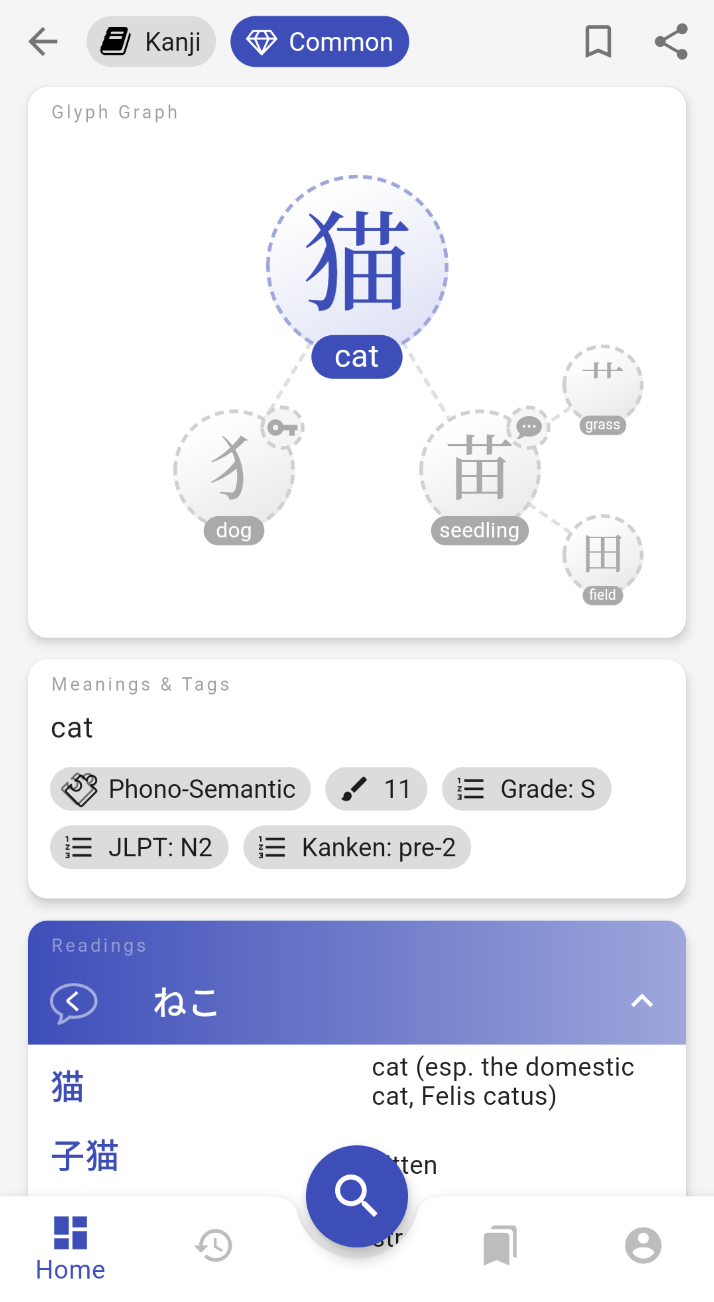
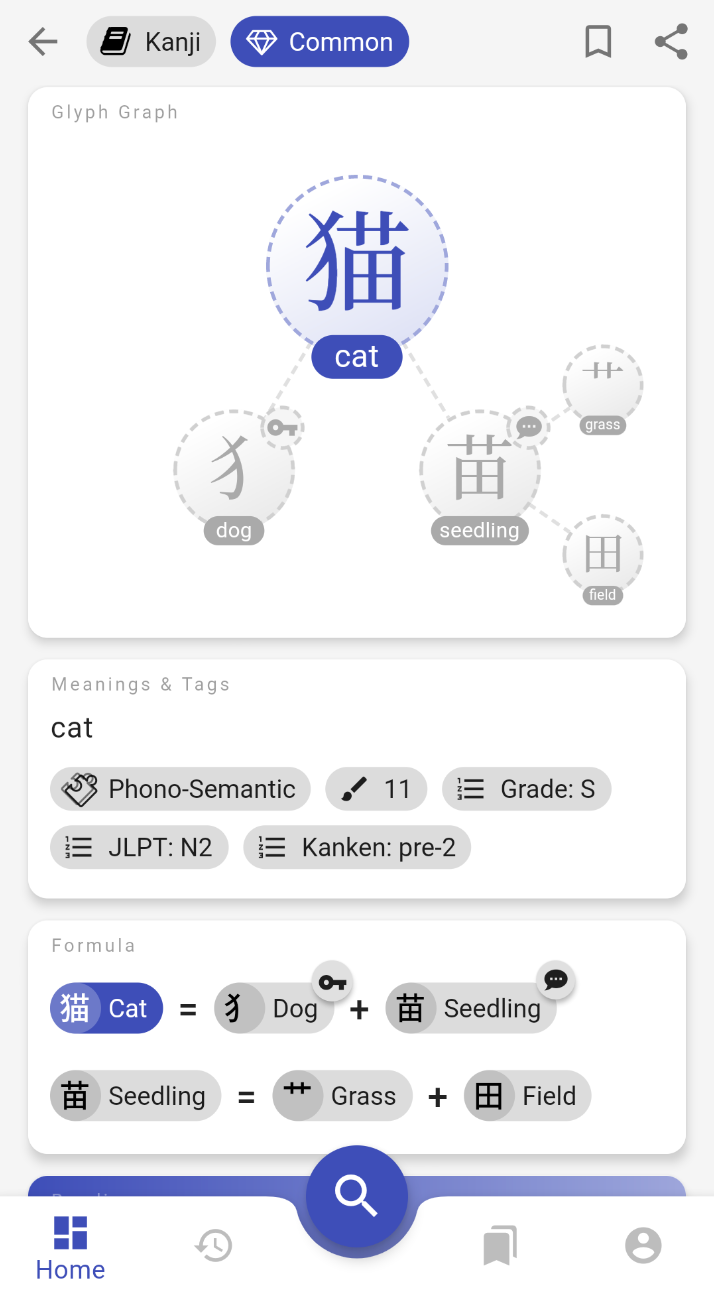
  • Glyph Graph: everyone's favorite, decomposes a kanji into its components and sub-components, tap one of them to zoom in.
  • Formula: a flat version of the Glyph Graph, shows Heisig's Remembering The Kanji (RTK) keyword for each component.
  • Meanings & Tags: various informations about the kanji such as JLPT level, is it a pictogram, is it a joyo, etc. All those tags can be used as filters when doing a search.
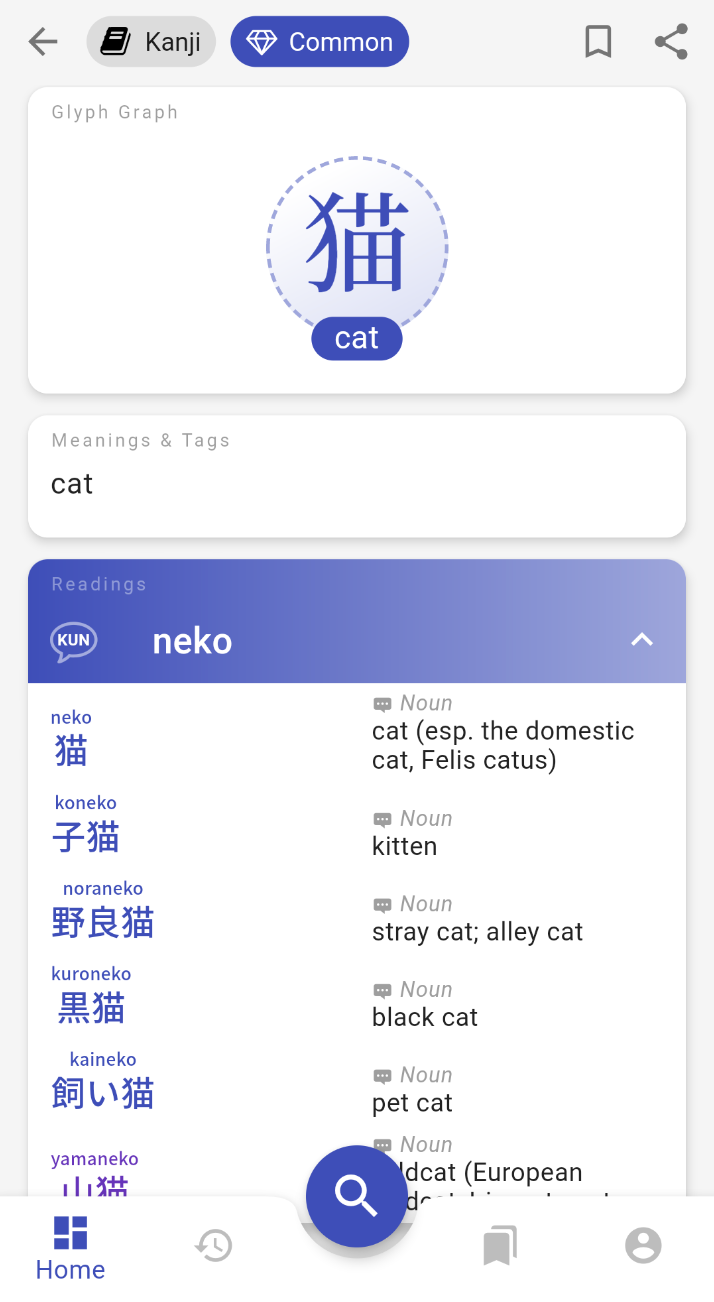
  • Readings: each possible reading of the kanji, sorted and colored by frequency of usage, lists all words that use this reading.

Japanese Collection​

The Japanese Words and Expressions Collection contains* 180,429 entries* with the following cards:

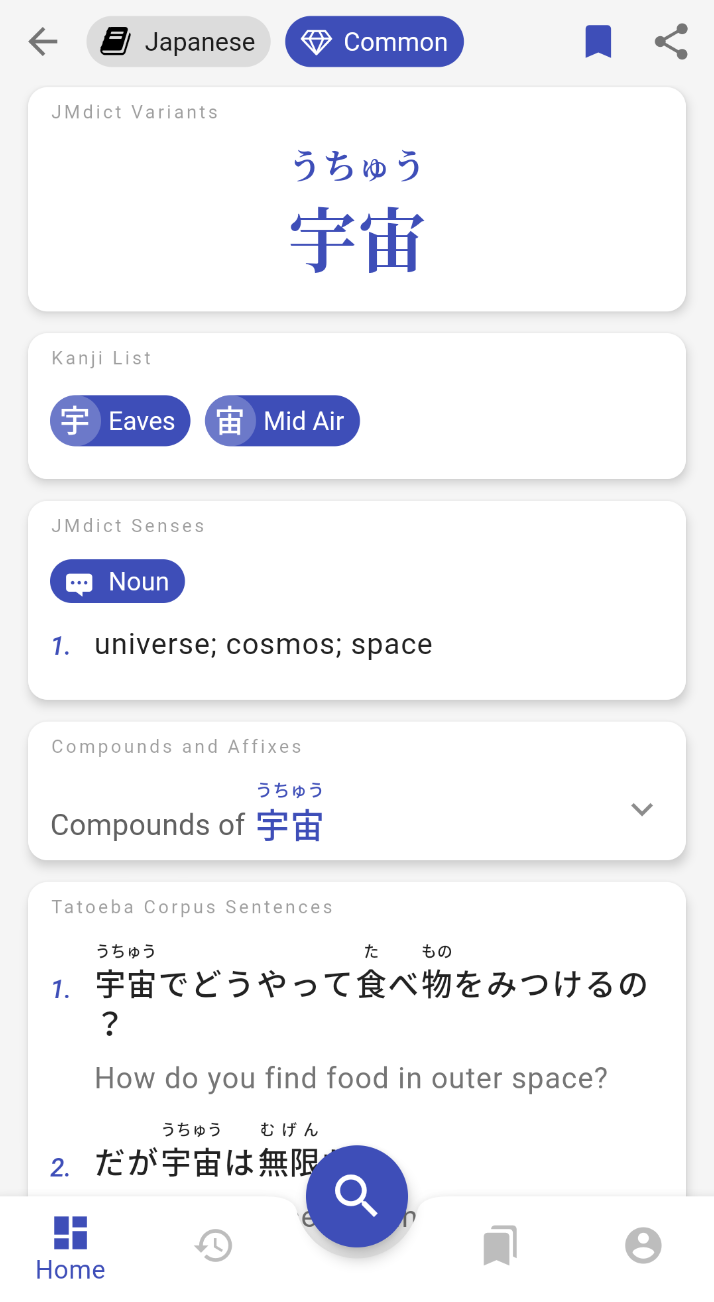
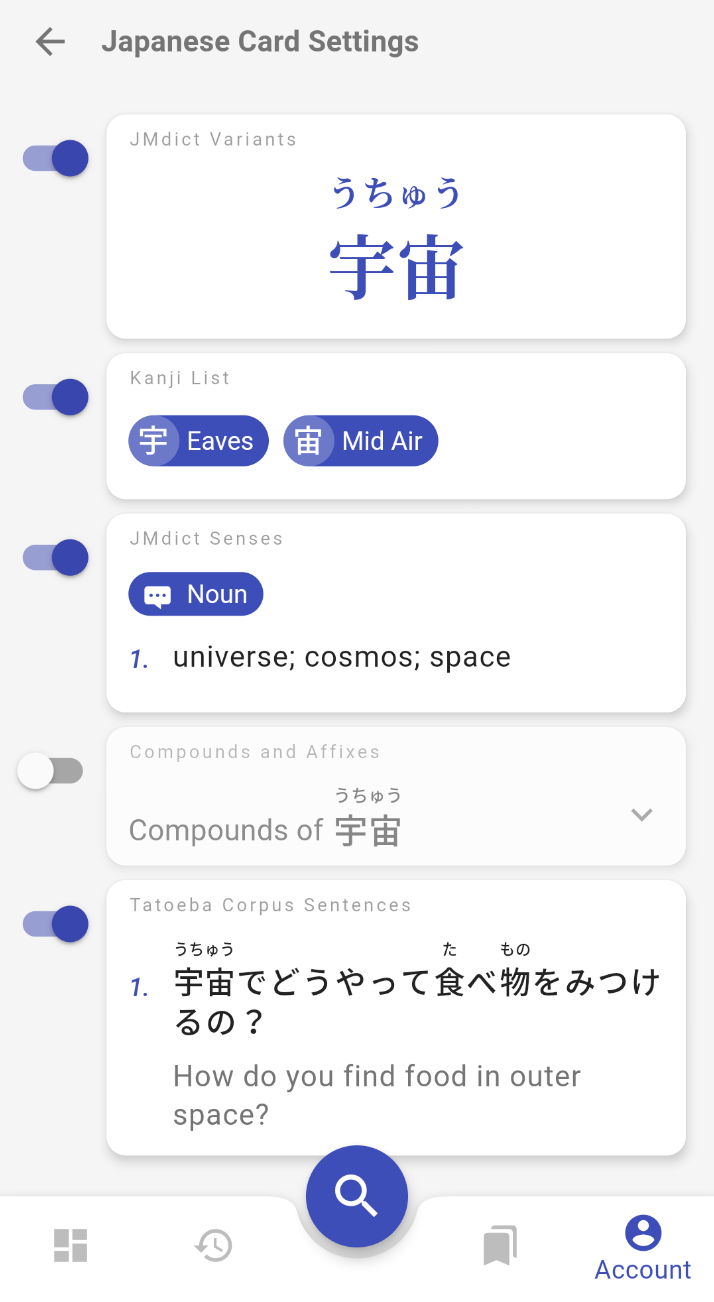
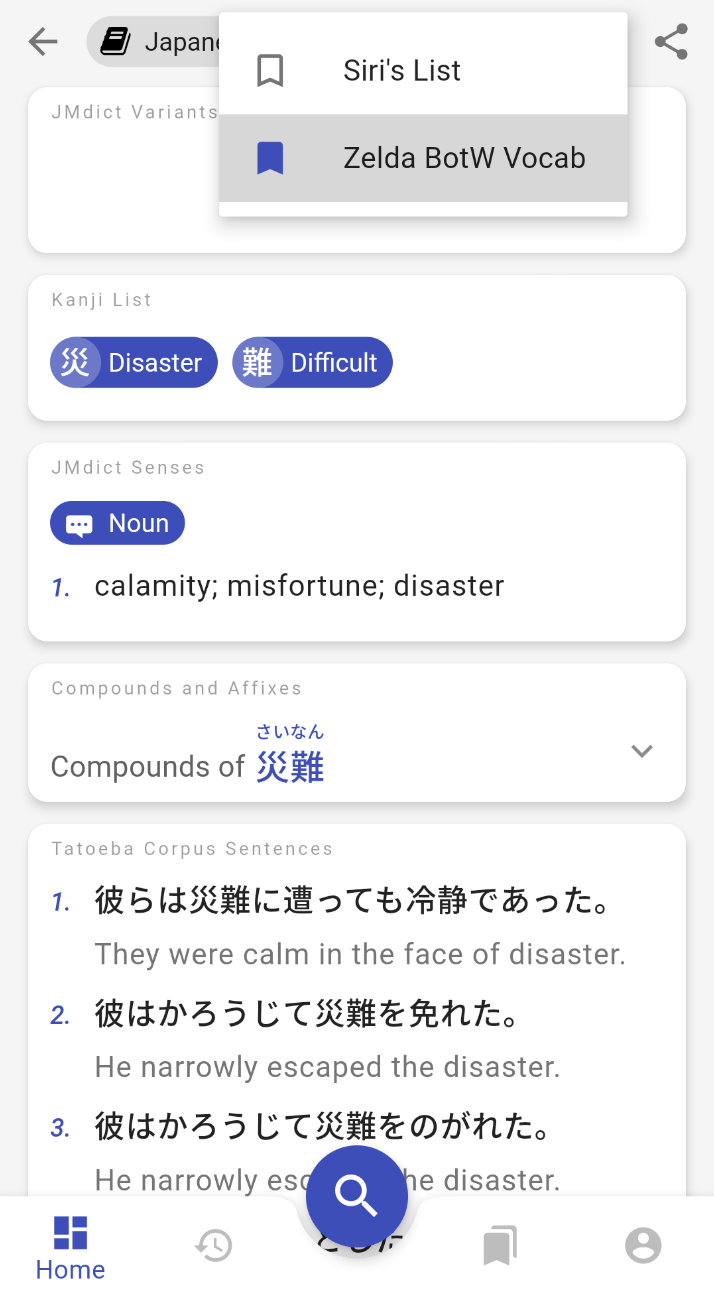
  • JMdict Variants: some Japanese words can be written with different kanji, kana or have different pronunciations, this card shows them all, courtesy of JMdict/Edict.
  • Kanji List: links to Kanji Collection pages for each kanji present in the word/expression.
  • JMdict Senses: list of definitions with tags that can also be used as search filters.
  • Compounds and Affixes: Japanese is an agglutinative language, words can often be part of other longer words.
  • Tatoeba Corpus Sentences: sample sentences with English translations from the Tateoba Corpus.

User Level and Preferences​

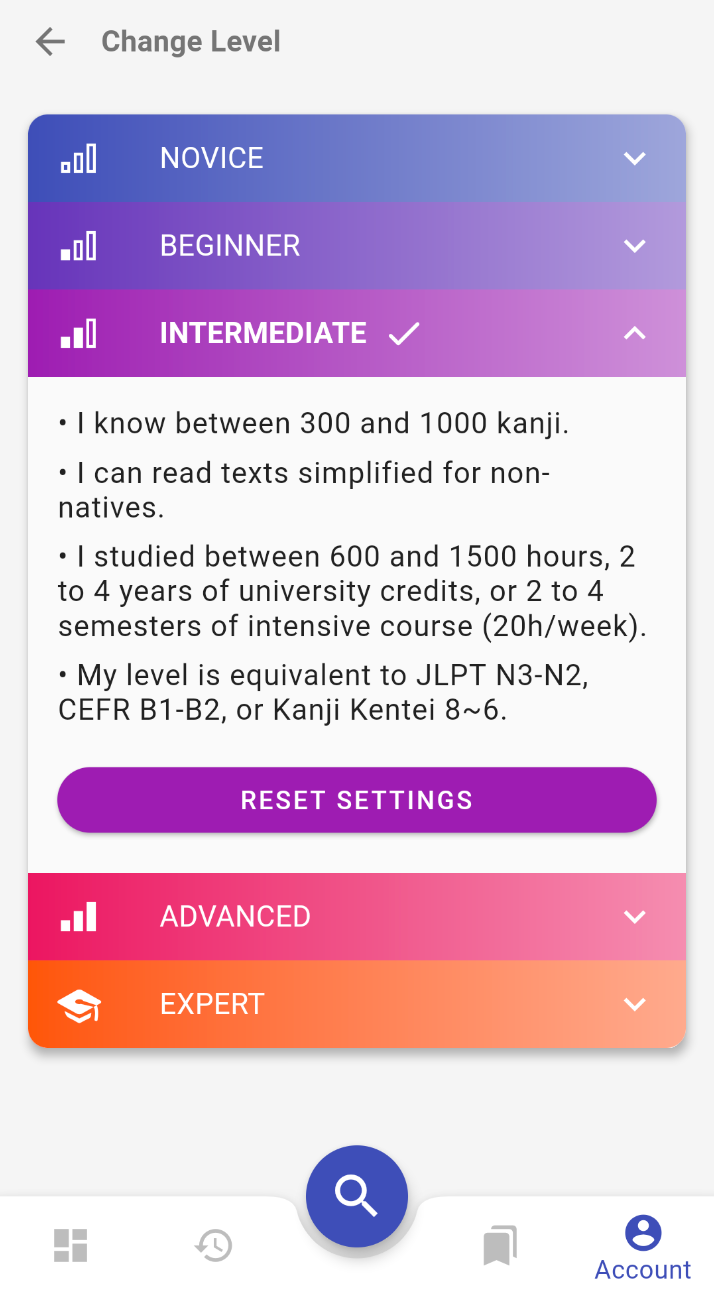
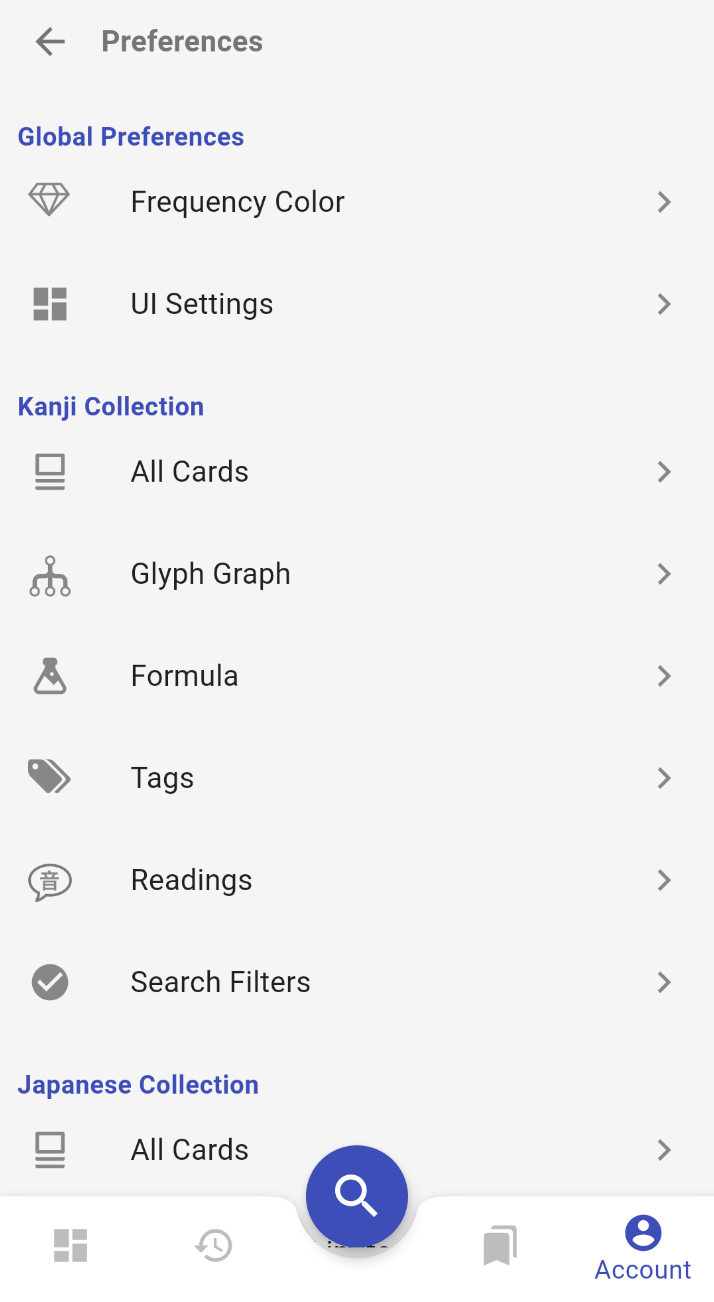
Kanjiverse comes with 5 recommended profiles based on the user's level. You choose the one that matches your level and the interface and content displayed will be adapted to fit your needs.

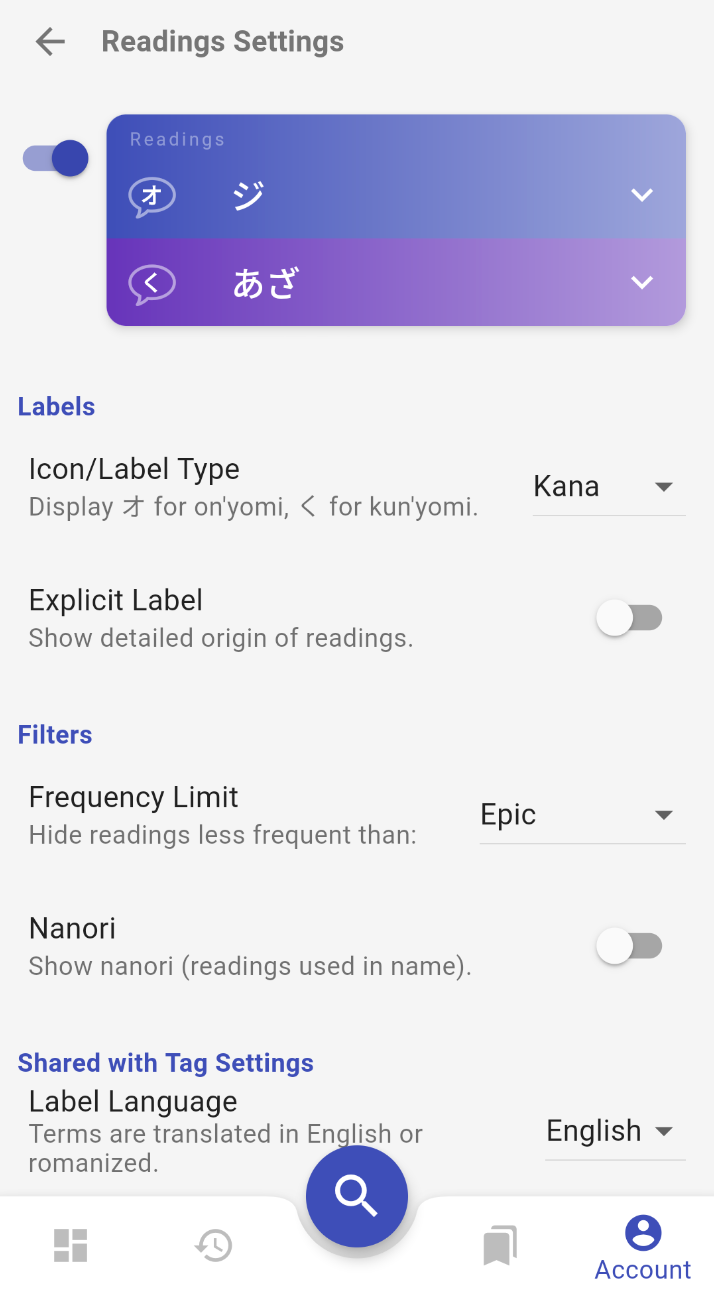
Things that change based on the selected profile: types of card displayed, tag details, furigana, romaji or kana, English or Japanese labels, hiding rare kanji/words, etc.

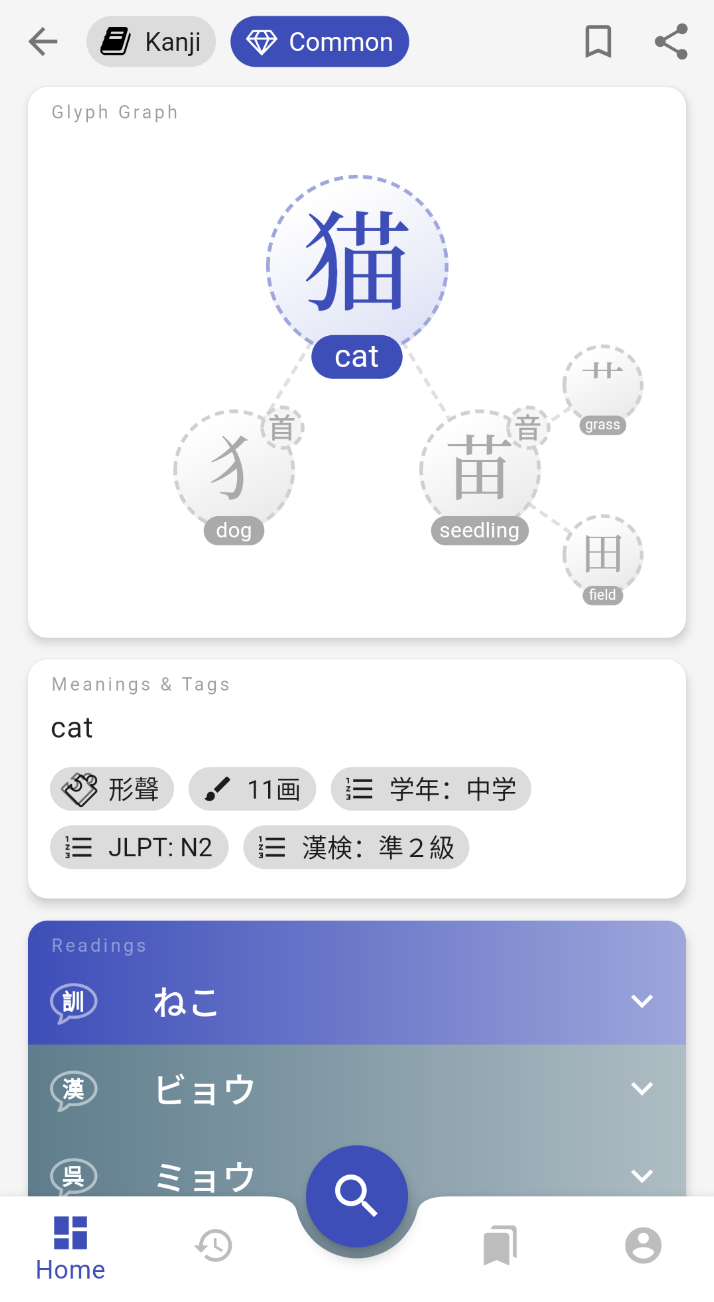
Example of the same page displayed for Novice, Intermediate, and Expert levels: The same page displayed for Novice, Intermediate, and Expert levels. All the settings used in these default profiles can also be fine tuned individually: Some of the Preference screens.
The search bar helps you query all collections at once with different input methods:

  • Keyboard Input: provides suggestions as you type, converts romaji to hiragana and autocompletes all filter tags.
  • Kanji Component Input: search by radical, phonetic component or any part of a character.
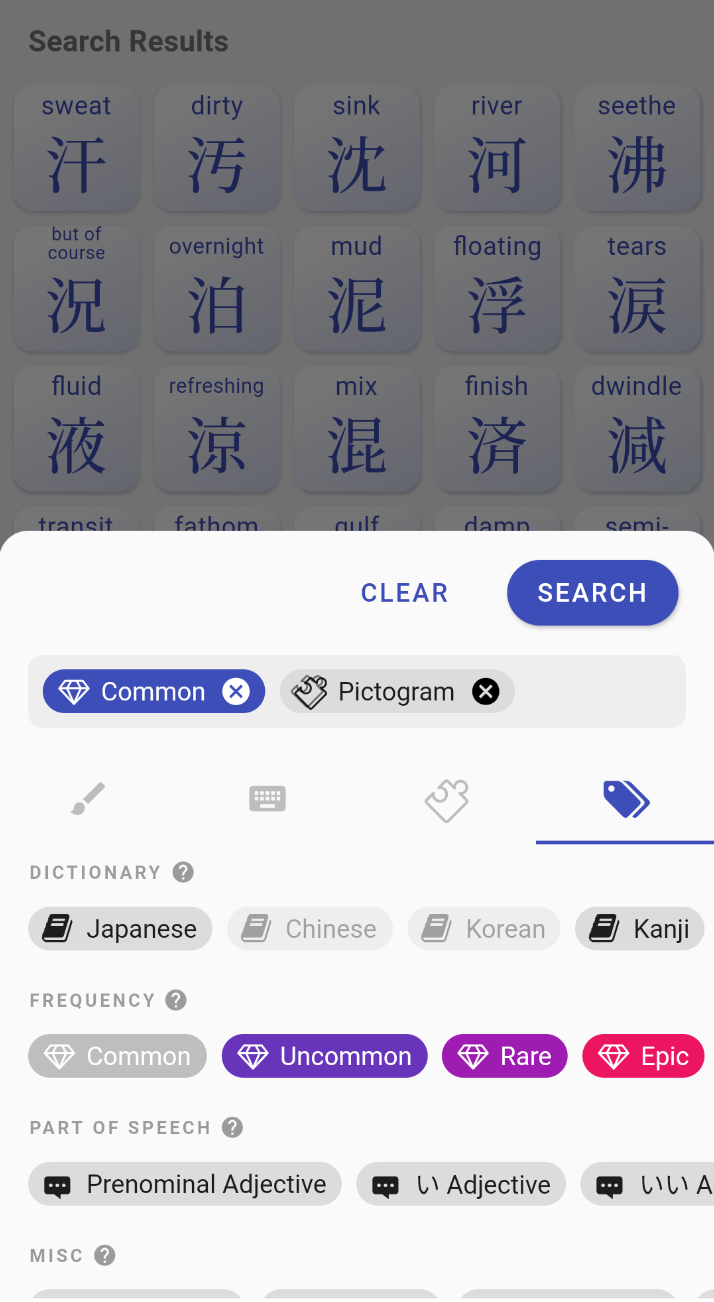
  • Filter Tag Input: every tag present on kanji/word pages can be used as filter. More than a hundred are available such as kanji composition, grammar element, frequency of usage, JLPT levels, etc. Search with different Input Methods.
Vocabulary Lists and Catalog​

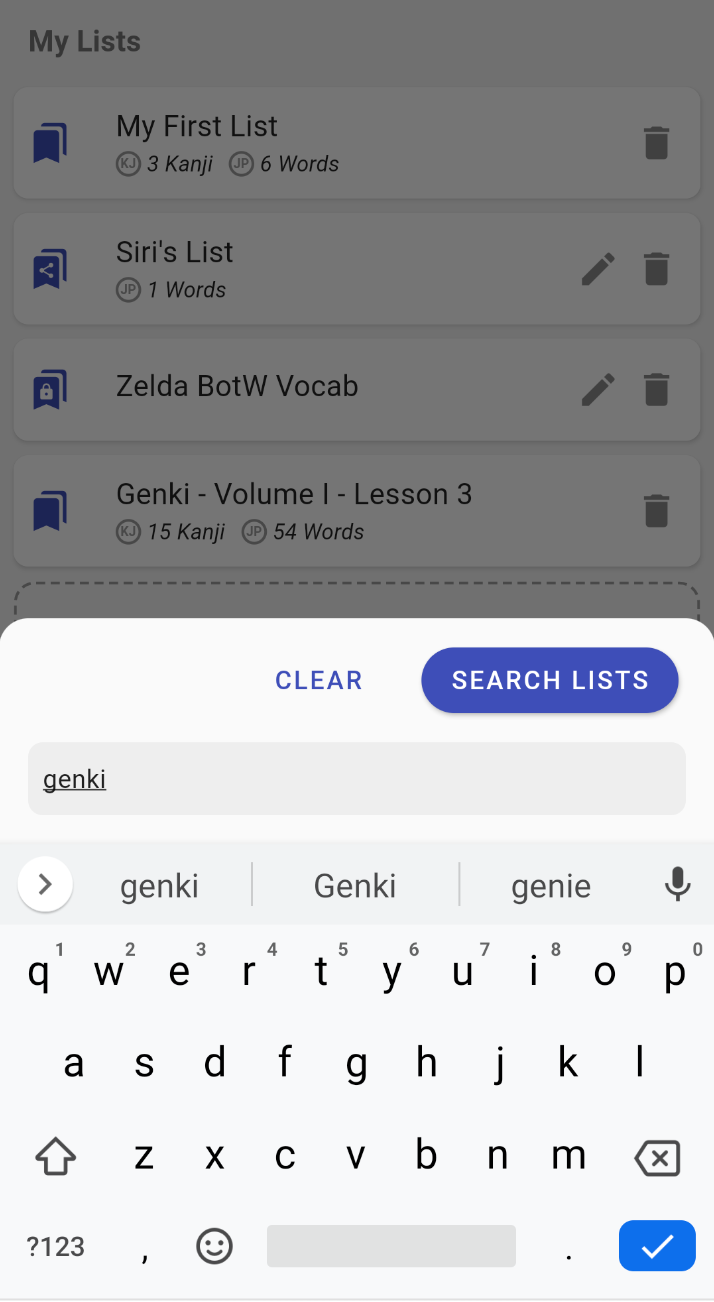
You can create your own lists of kanji/words and share them with others. You can also browse the catalog and bookmark any list that others have shared!

To create your own list:​

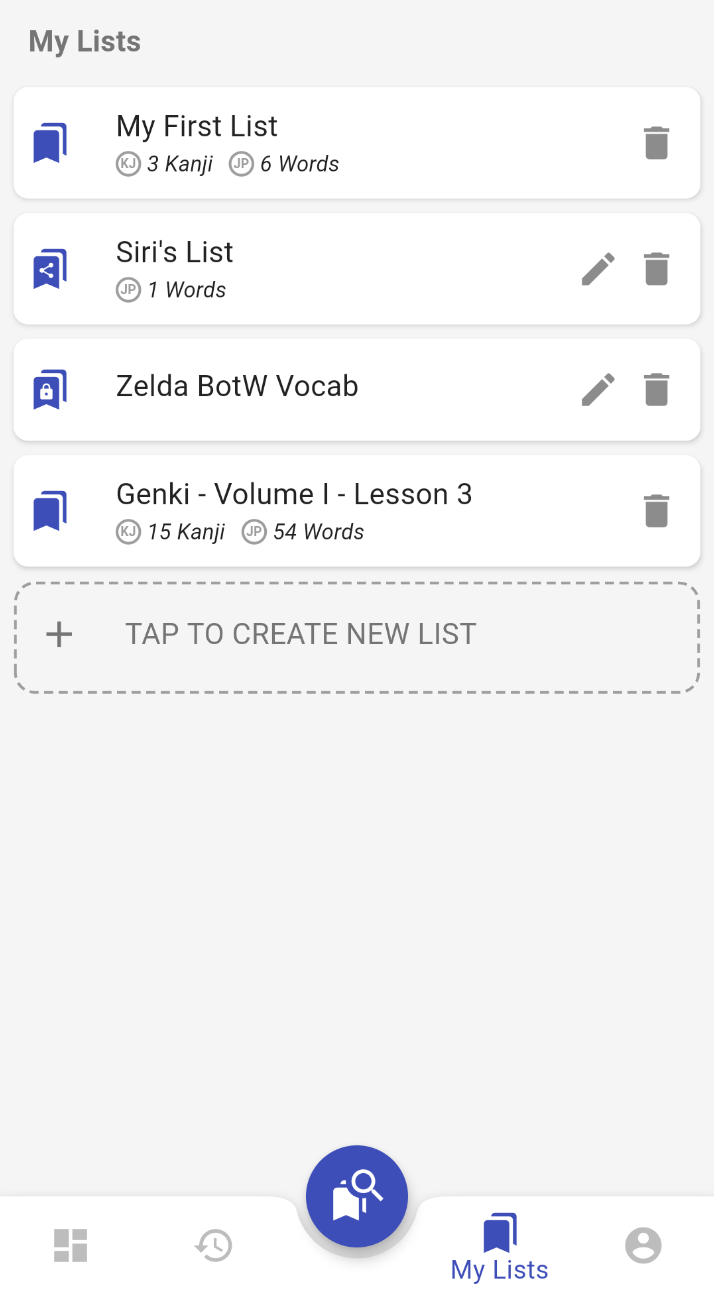
  1. Go to My Lists (tab in the bottom navigation).
  2. Sign In is required (only email sign in is available for now, careful not to forget your password, account reset isn't implemented yet!).
  3. Tap CREATE NEW LIST.
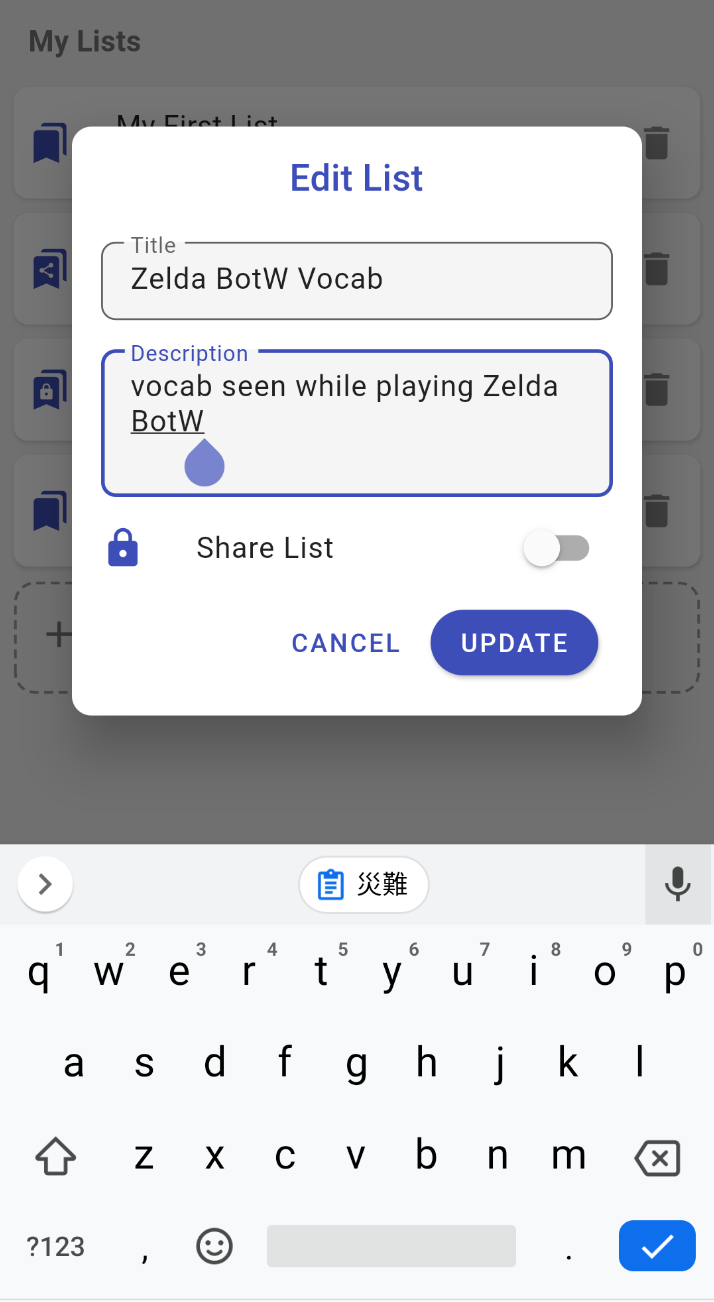
  4. Enter at least a title, description is optional, and check Share List if you want to let other users search and bookmark this list (of course they won't be able to modify its content).
  5. To add a kanji/words to this list, press the bookmark icon on any page, then select the list. Steps to create a custom list and bookmark pages.
To find shared lists:​

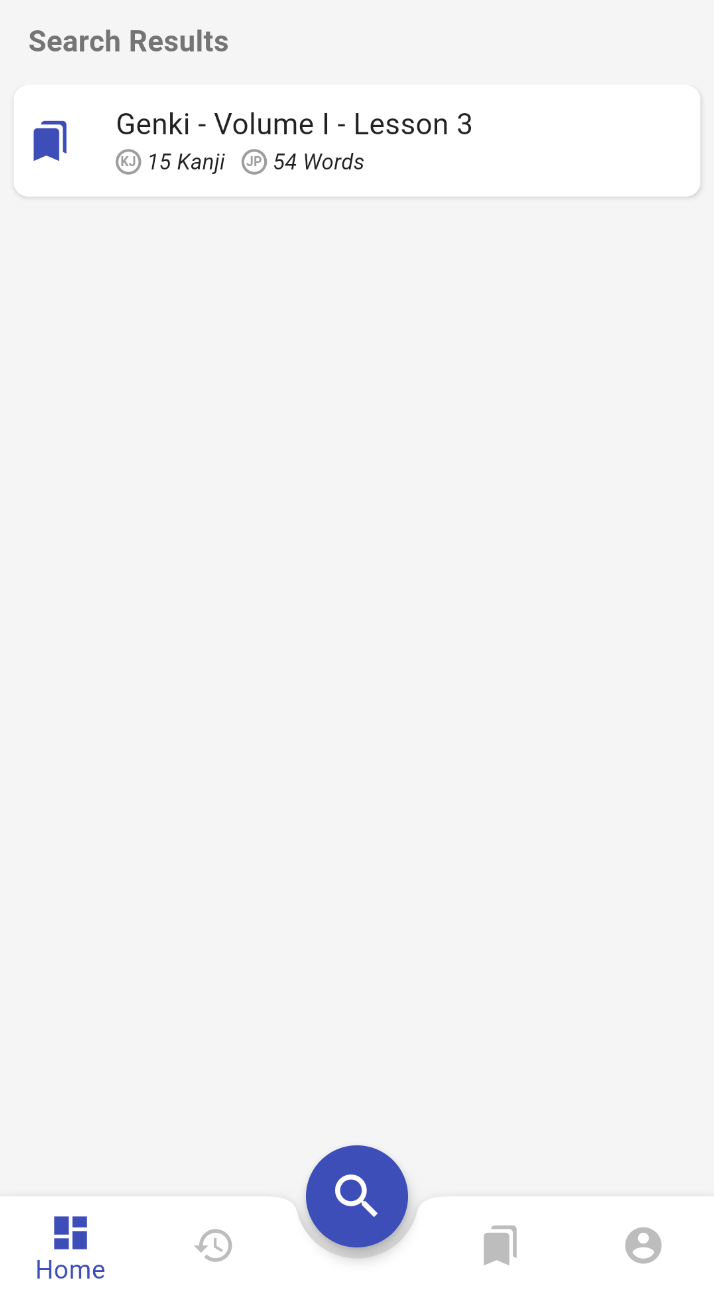
Instead of creating a list from scratch, you can search if someone has already shared a list for your textbook or favorite anime:

  1. Go to My Lists tab.
  2. Press the Search button (on this tab it is an icon of a magnifying glass hovering bookmarks).
  3. Type the title you are looking for and press SEARCH.
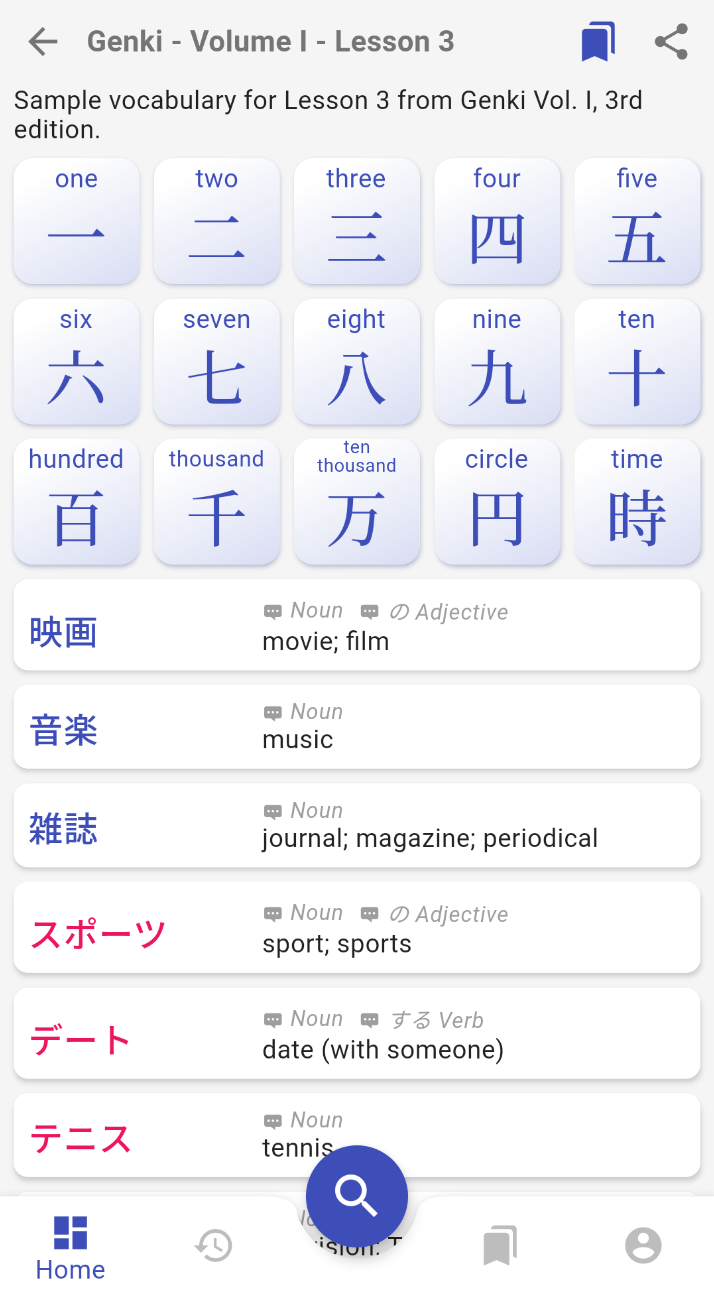
  4. Tap on one of the results to open the list's details.
  5. Press the bookmarks icon to add it to My Lists. Steps to search the catalog of vocabulary lists.

Is that all?​

You might have noticed that not all features announced on the landing page are present in this first beta version, notably:

  • Kanjiverse Corpus (sentences from the real world extracted from anime, drama, etc.): development will continue when the app is stable, for now only Tatoeba Corpus is available.
  • Mnemonic Card: writing and sharing mnemonics to remember kanji will be added soon, meanwhile you can use the Formula Card to see Heisig's Remembering the Kanji (RTK) keywords for each component of a kanji.
  • Share translation and votes: community features are currently limited to creating and sharing vocabulary lists, there is no feature to add content, vote or report either.
  • Handwriting Input: the recommended workaround is to install Gboard.
  • Web app: the quality of the web version isn't good enough yet to provide a satisfying user experience so it will be delayed until it stabilizes.
  • **iPhone version: **the iOS version is ready to meet its beta testers, I am now at the mercy of Apple to allow its distribution... this might take weeks.

Don't be disappointed if a feature you were looking forward to isn't there yet, the development of Kanjiverse is far from over. In order not to delay the access to the private beta any further, I've decided to release a first version with only the features presented on this page. It should already provide beta testers with a usable experience. Further developments will then be prioritized based on the feedback from the community.

If you haven't register yet, go there and enter your email address to receive your invite link. Looking forward to seeing you in the private beta :)