5 posts tagged with "indiedev"

View All Tags

The Web App is in Open Beta!

· 4 min read
Kanjiverse
Kanjiverse

You can now access Kanjiverse in your browser for a desktop-like experience. Try it for yourself with the link below or keep reading to learn more about the differences with the mobile app and some FAQ. Kanjiverse: Japanese Learner’s DictionaryMulti-platform ecosystem for Japanese learners. Learn kanji, build your vocabulary, read real Japanese.Kanjiverse

Why a web app when there is already a mobile app?​

One of the main goals of Kanjiverse is to be multi-platform to provide a seamless experience whether you prefer to use it on mobile, on desktop, or both. Some benefits of the web app compared to the mobile version:

  • Try it out before installing it (especially convenient on iOS where you need to install Testflight first during the beta).
  • Use it as a desktop app with mouse and keyboard, it will be easier for creating vocabulary lists, etc. It's a PWA so it can even be installed on your computer (the install icon should appear in the address bar on Chrome browser).
  • Updates automatically to the latest version and is will receive more frequent updates than the mobile app.
  • Will be searchable with Google (still working on this).

What are the differences with the mobile app?​

They are almost the same in terms of look and features, except some changes required to adapt to a browser:

  • Navigation: use the browser's back button instead of gesture, share pages by directly copying the URL instead of the Share button, mouse support should work as expected.
  • Layout: depending on the size of your window it will look like the phone app or the tablet app. Bottom sheets are replaced with fullscreen dialog on phone and floating dialog on desktop.
  • Animation: when running on a phone, transition animations are disabled to improve speed and battery life.
  • Fonts: system fonts are used by default so depending on the platform, texts might look different.

Are there any limitations compared to the mobile app?​

Dictionaries cannot be pre-downloaded, but previously seen data are cached and can still be seen offline.

Why does the web app feel different on a desktop browser?​

The app is using a different renderer (how things are drawn on the screen) optimized to your device performance and internet connection, here are the tradeoffs of each version:

  • Size: 1.3Mb on mobile, 5.5Mb on desktop.
  • First loading time: ~3s on mobile, ~10s on desktop.
  • Subsequent loading time: ~1s on both.
  • Fidelity: on desktop it looks and behaves just like the native app, while on mobile it feels less reactive, texts might be misaligned, no transparency, no shadow, no transition animations.
  • Renderer: html on mobile, canvaskit (skia) on desktop.

How to speed up the loading time?​

Loading time can range from 0.5s to 10s depending on the following factors:

  • First time access: loading the app will take longer the first time but subsequent access will be much faster since the app will be already cached in your browser and even update in the background when you use it!
  • Phone or desktop: the app detects if you are using a phone or desktop and serves a different version: the phone version is much lighter (1.3Mb) than the desktop version (5.5Mb), so depending on your internet connection it might be faster on phone or desktop.
  • First user in your area: the app is distributed worldwide through a CDN but might only be cached in your nearest server if someone has already accessed it.

Can I sign in with the same account on the mobile and web app?​

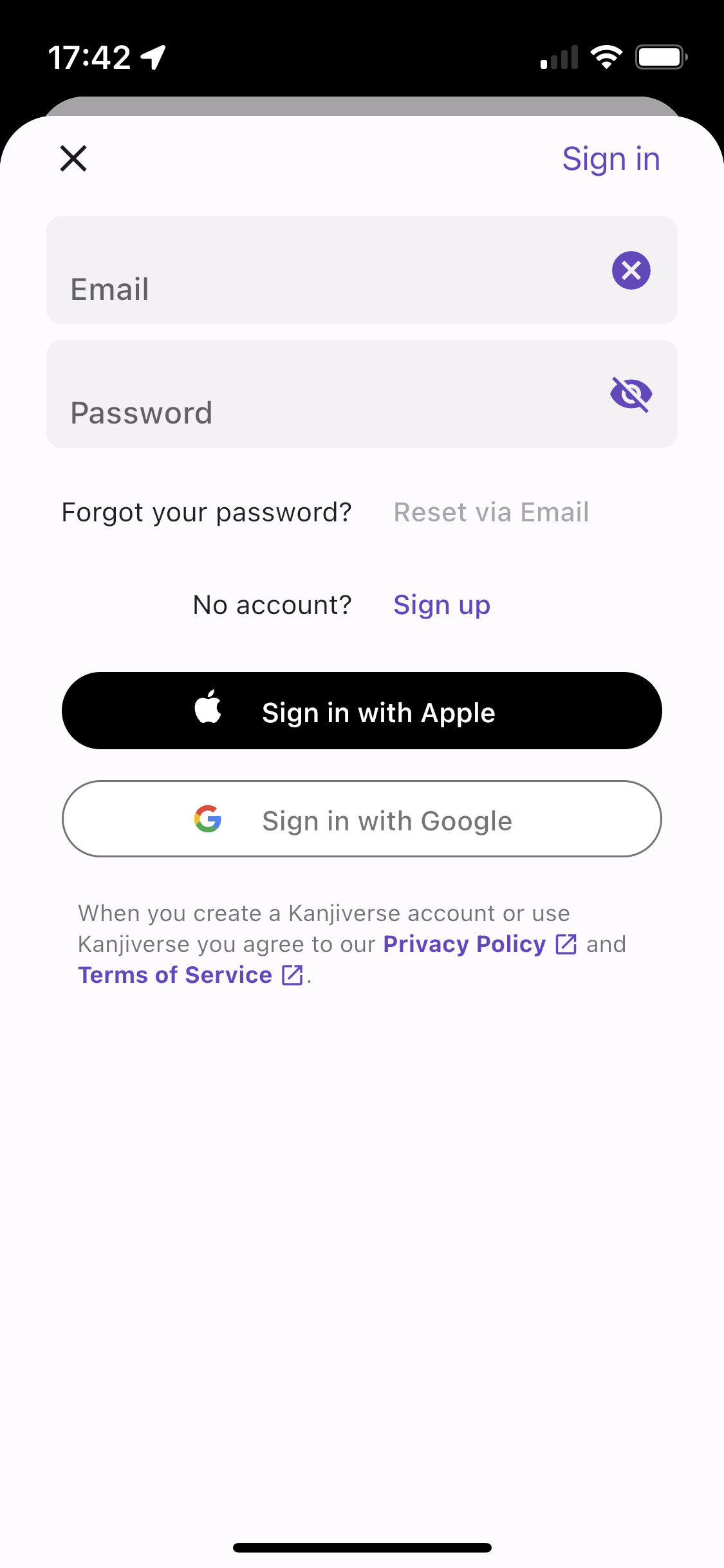
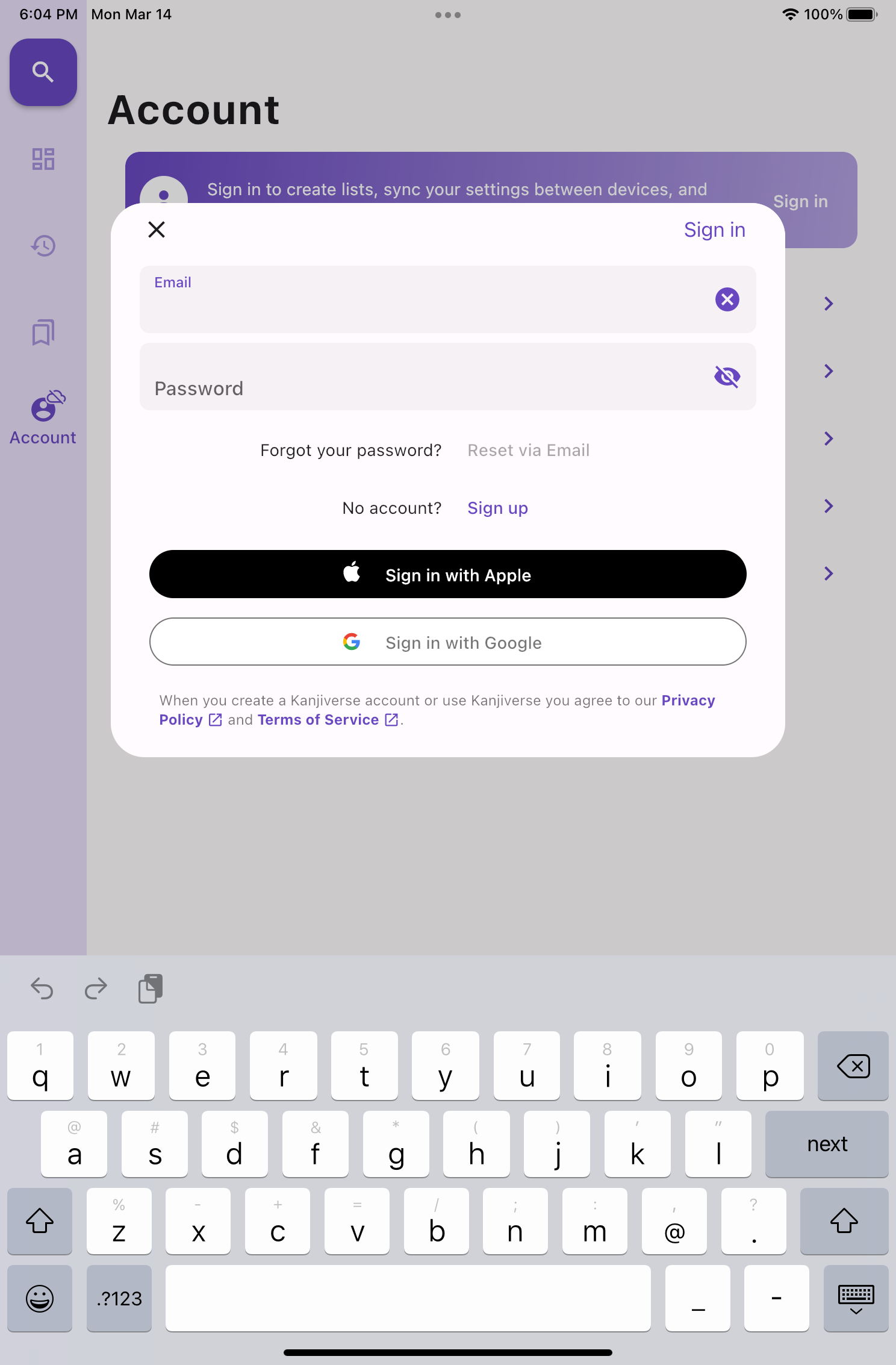
Yes! You can sign in with Apple, Google or email on the web app too. As long as the linked email address is the same, you will access to the same account on both platforms.

I'm signed in with the same account on web and mobile but the changes I made in one place aren't reflected in the other.​

Syncing between devices/platforms isn't automatic for now so you need to refresh the app manually if you make changes somewhere else by reloading the page in the browser, or doing a pull-to-refresh gesture in the mobile app.

Some characters are missing or replaced with "?".​

  • On mobile the app uses your browser's default font so some rare characters might not be available. It can be fixed by selecting a custom font in Account > Settings > Fonts.
  • On desktop the app will try to download the missing fonts but this will not be instantaneous, wait a bit or reload the page.

How can I submit a bug report on the web app?​

Shaking gesture (Android) and Screenshot (iOS) doesn't work in the browser but you can send me a message via all social media channels listed in Account > About.
Now available on iPad and Android tablets

· 5 min read
Kanjiverse
Kanjiverse

New UX/UI for tablets​

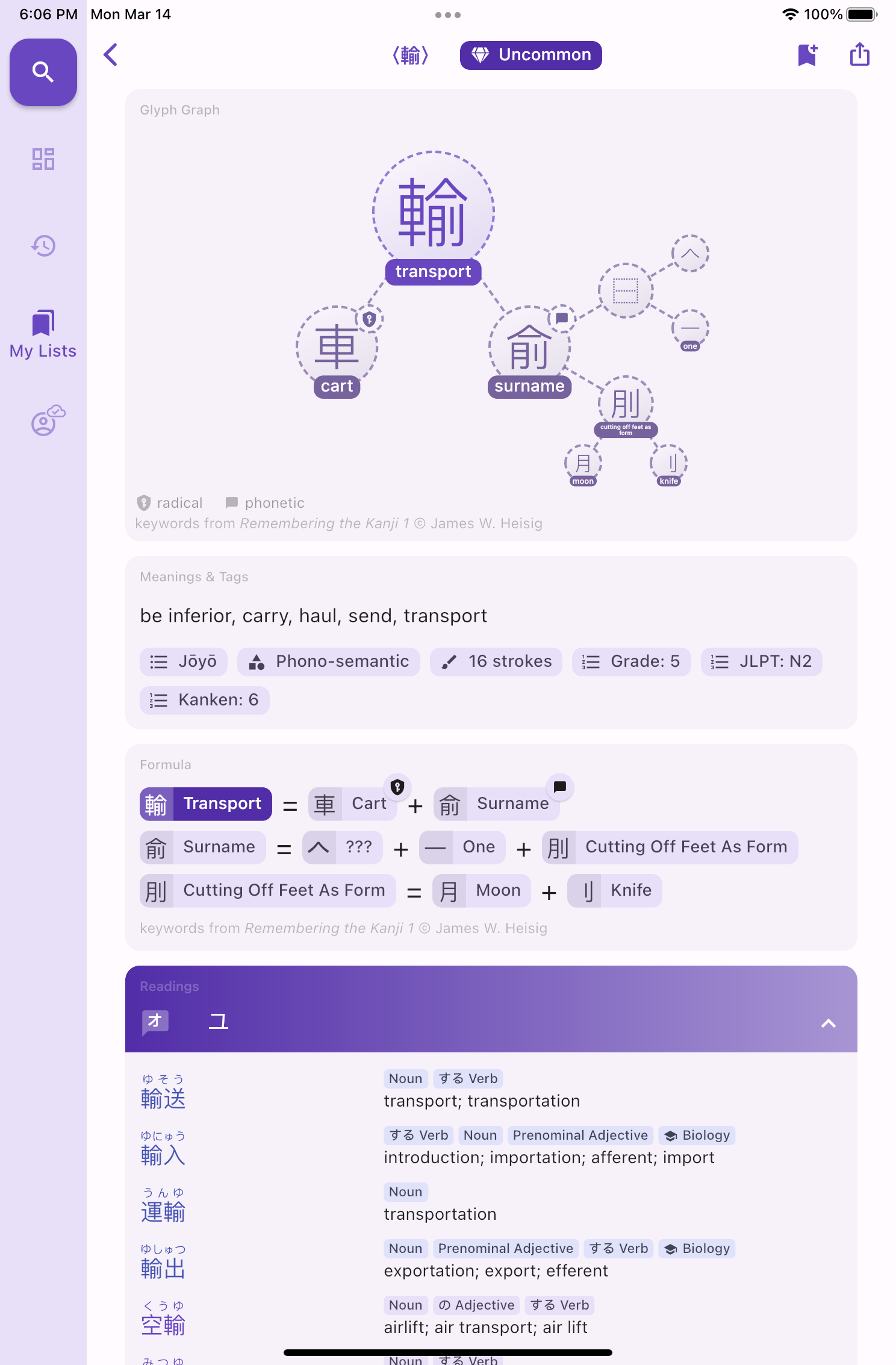
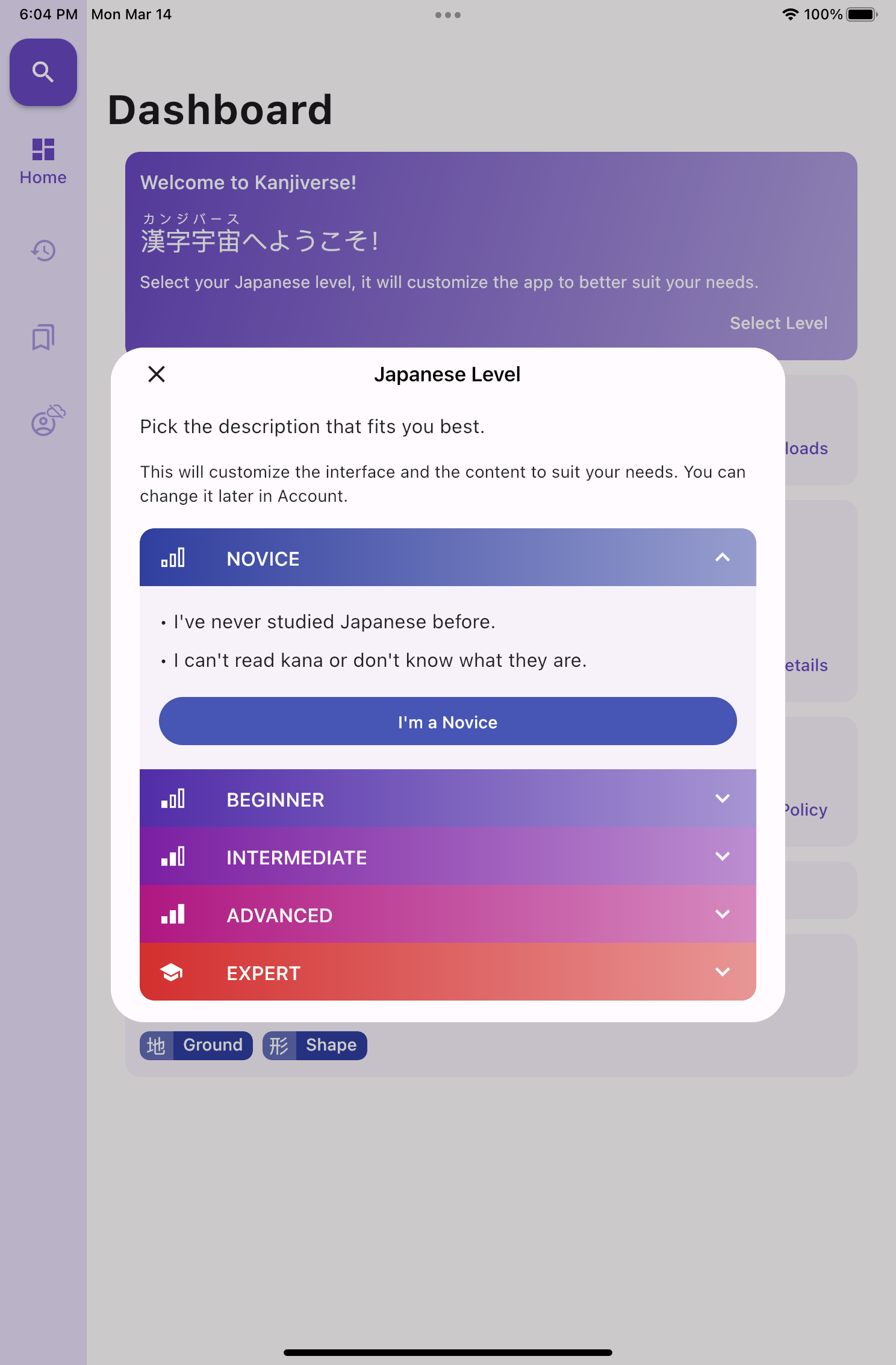
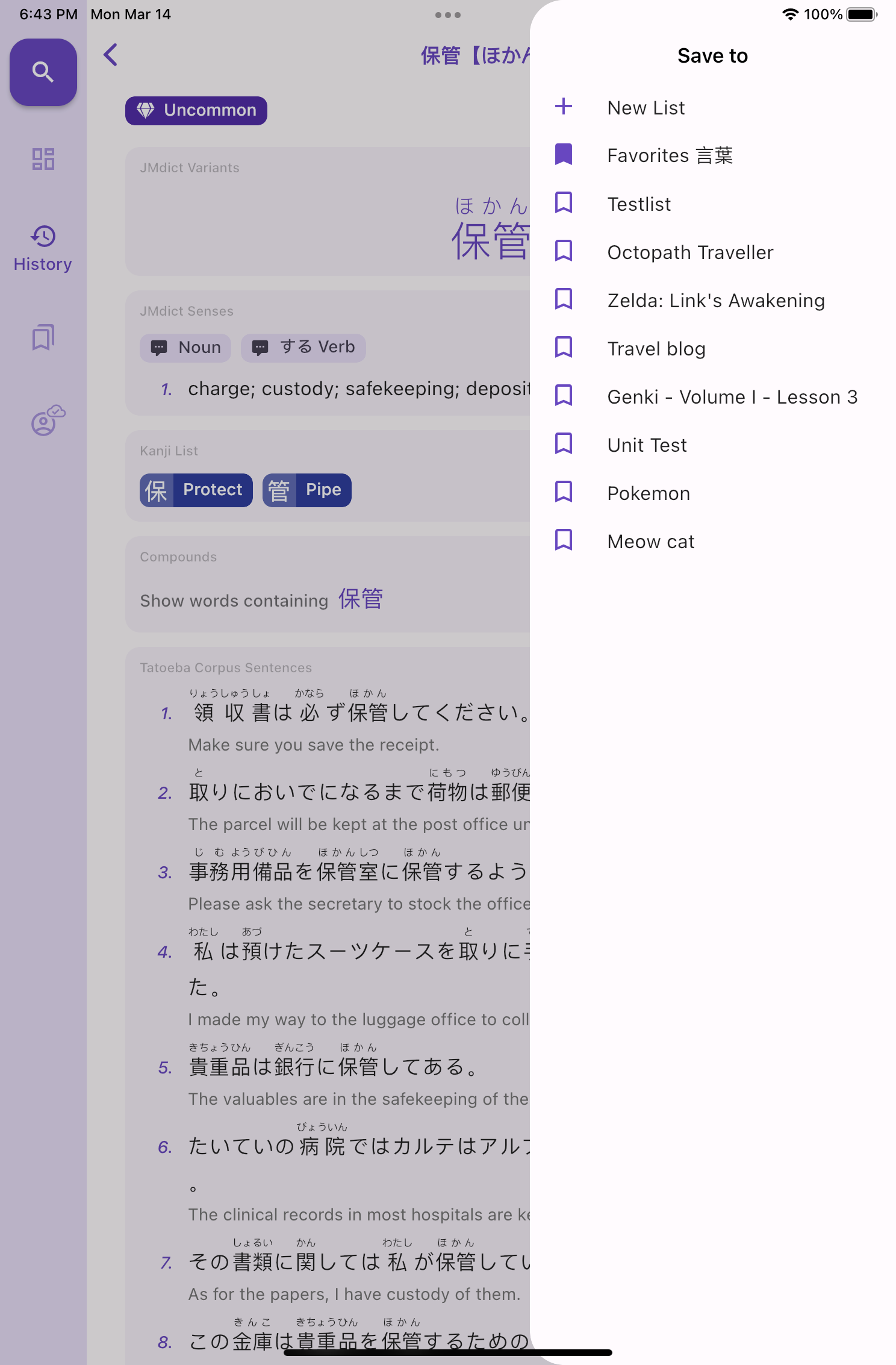
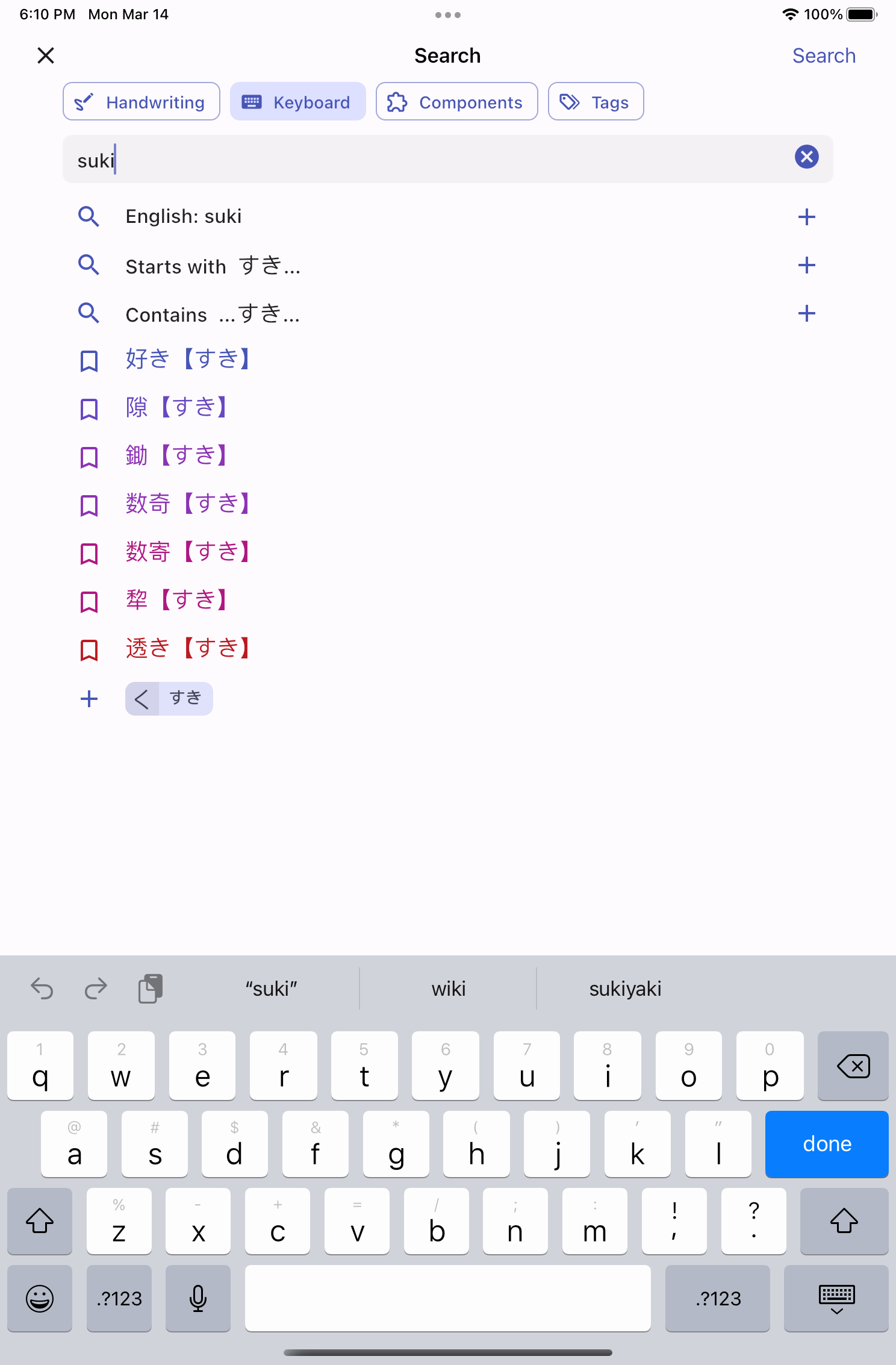
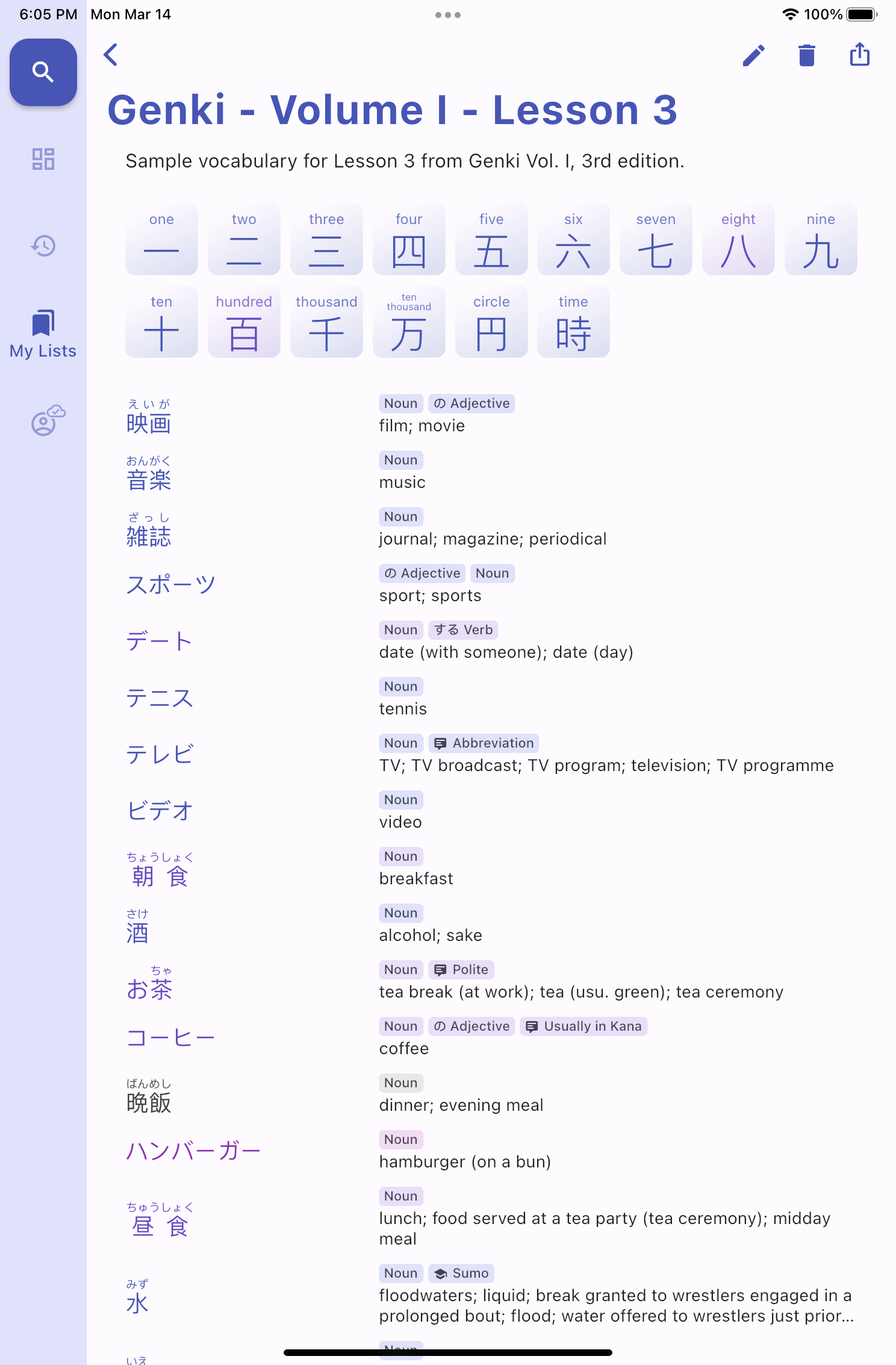
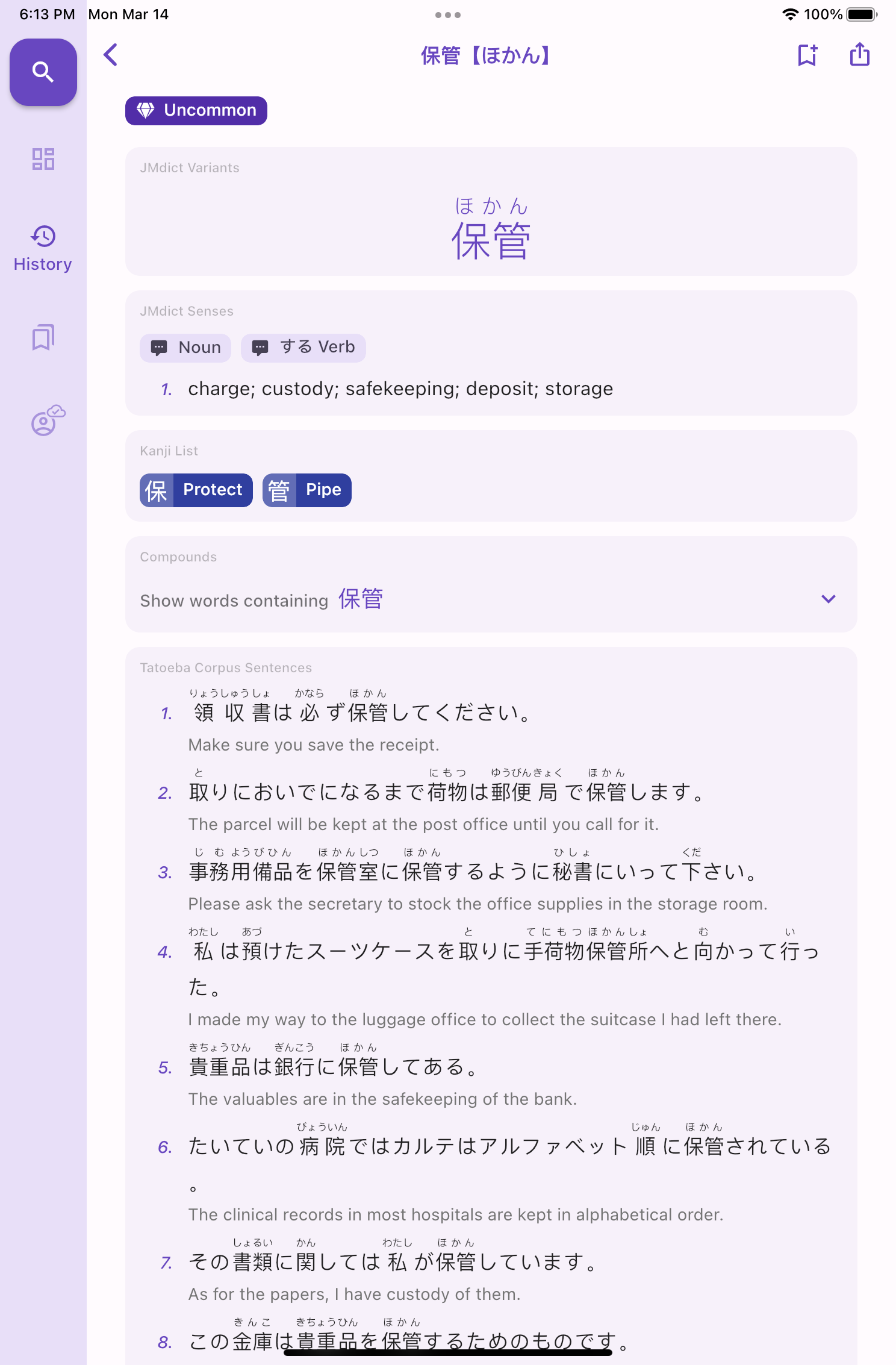
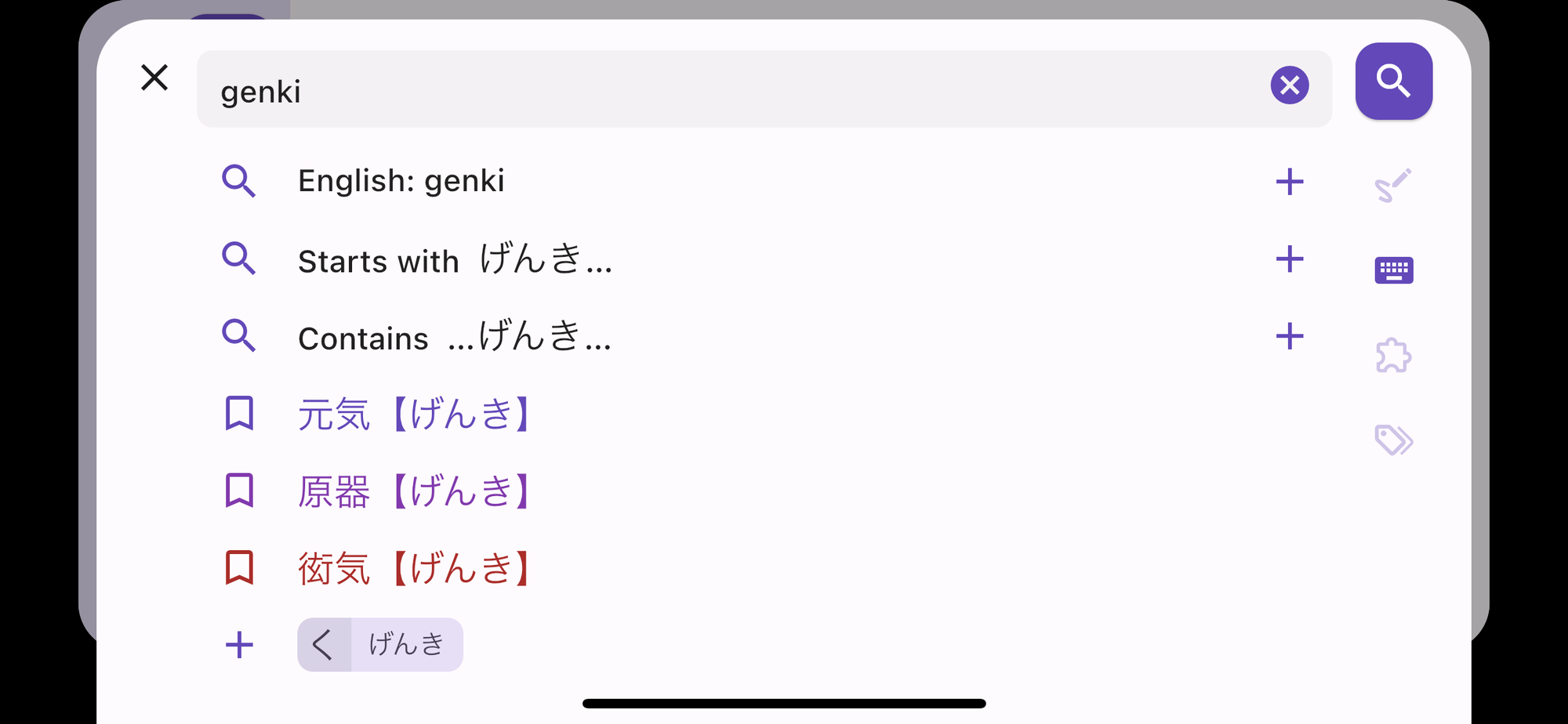
The bottom navigation bar is replaced by a vertical rail navigation.Fullscreen dialogs are replaced by modals while the Bookmark bottom sheet is replaced by a drawer.The Search bottom sheet is replaced by a fullscreen page with tabs shown has button chips.
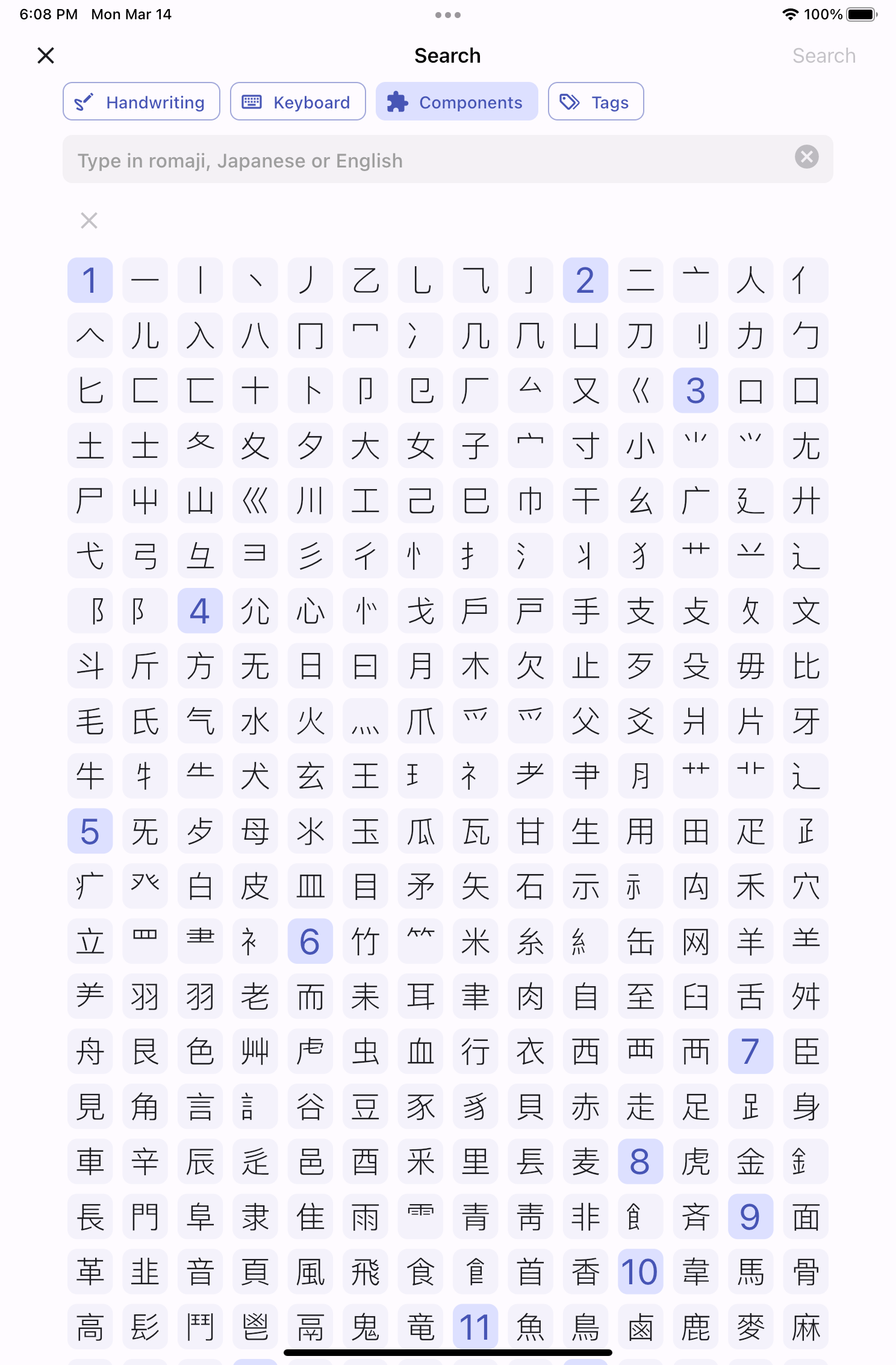
Other UX/UI Improvements​

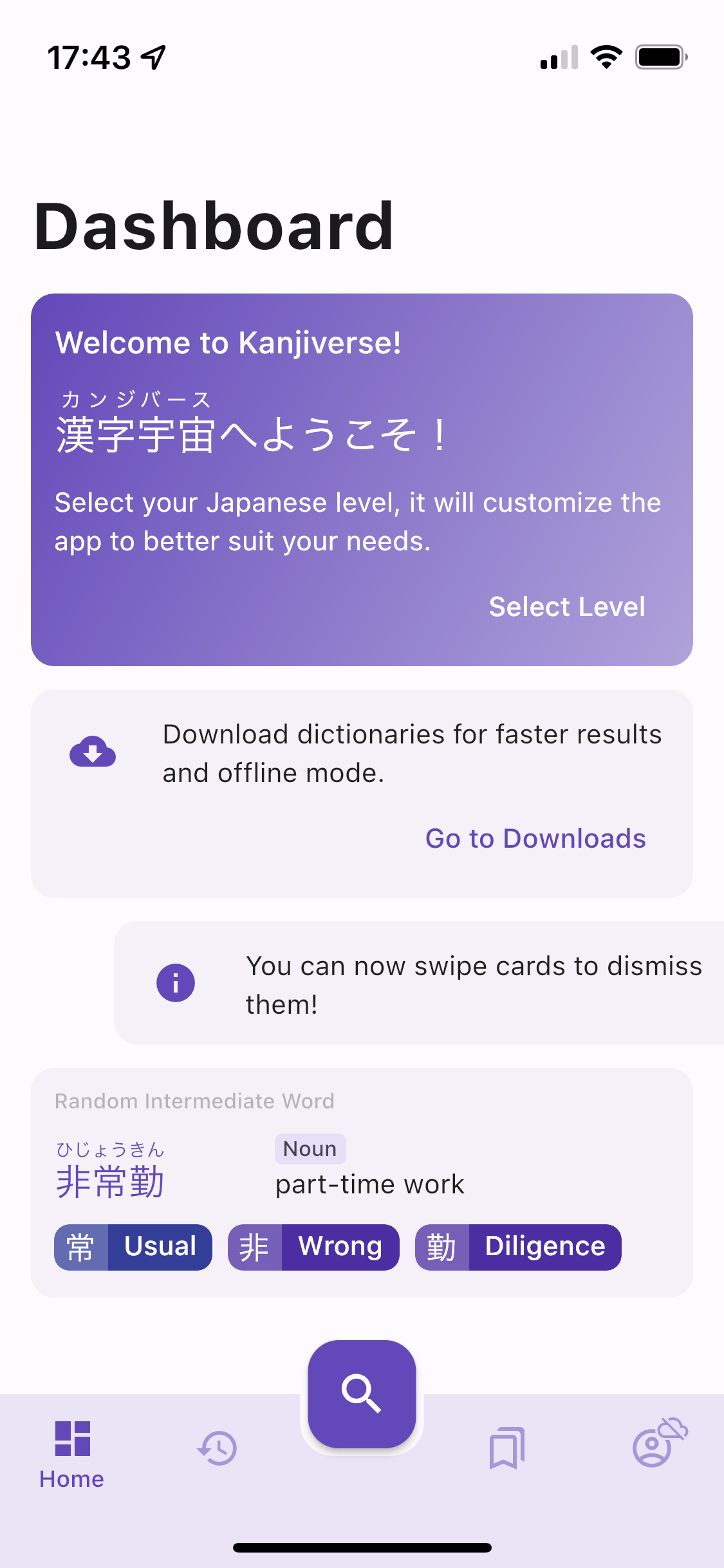
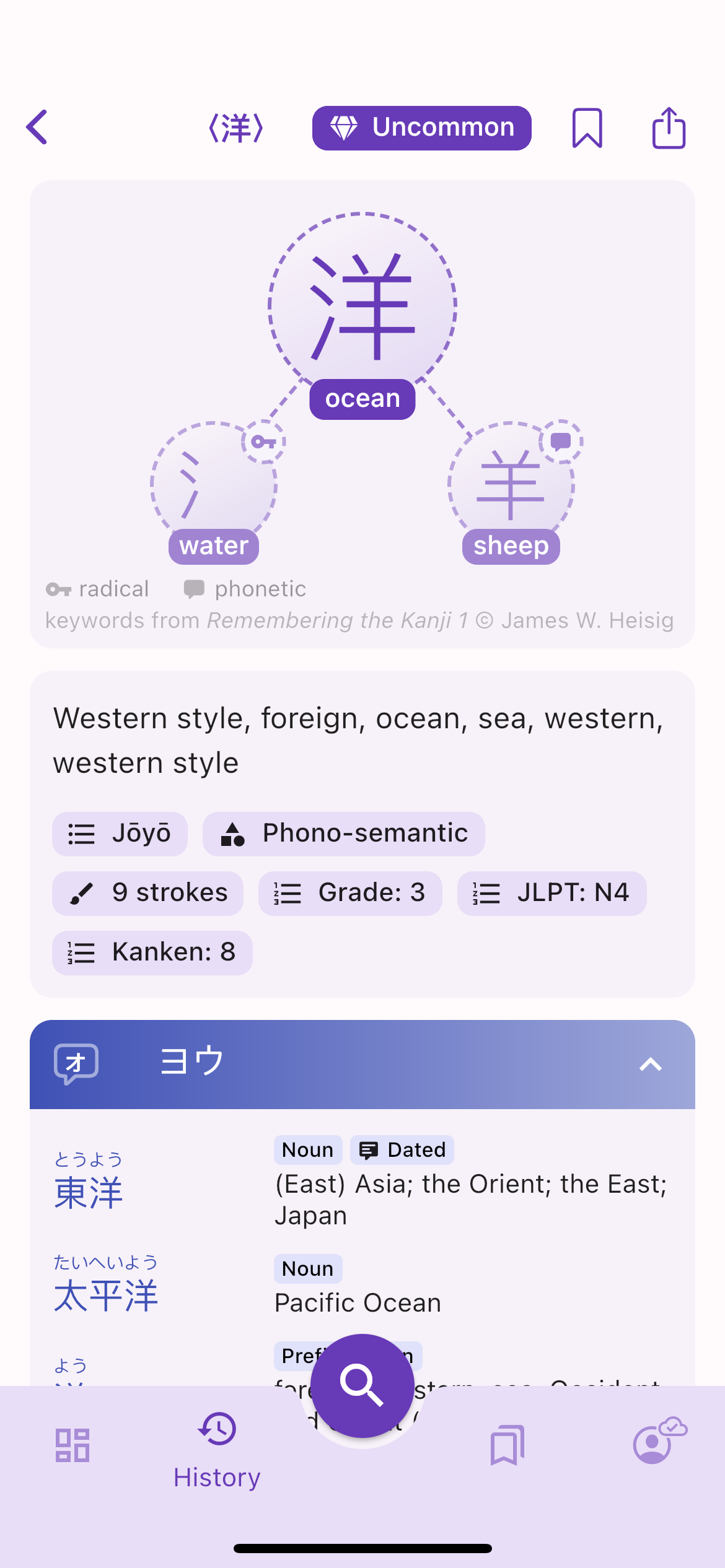
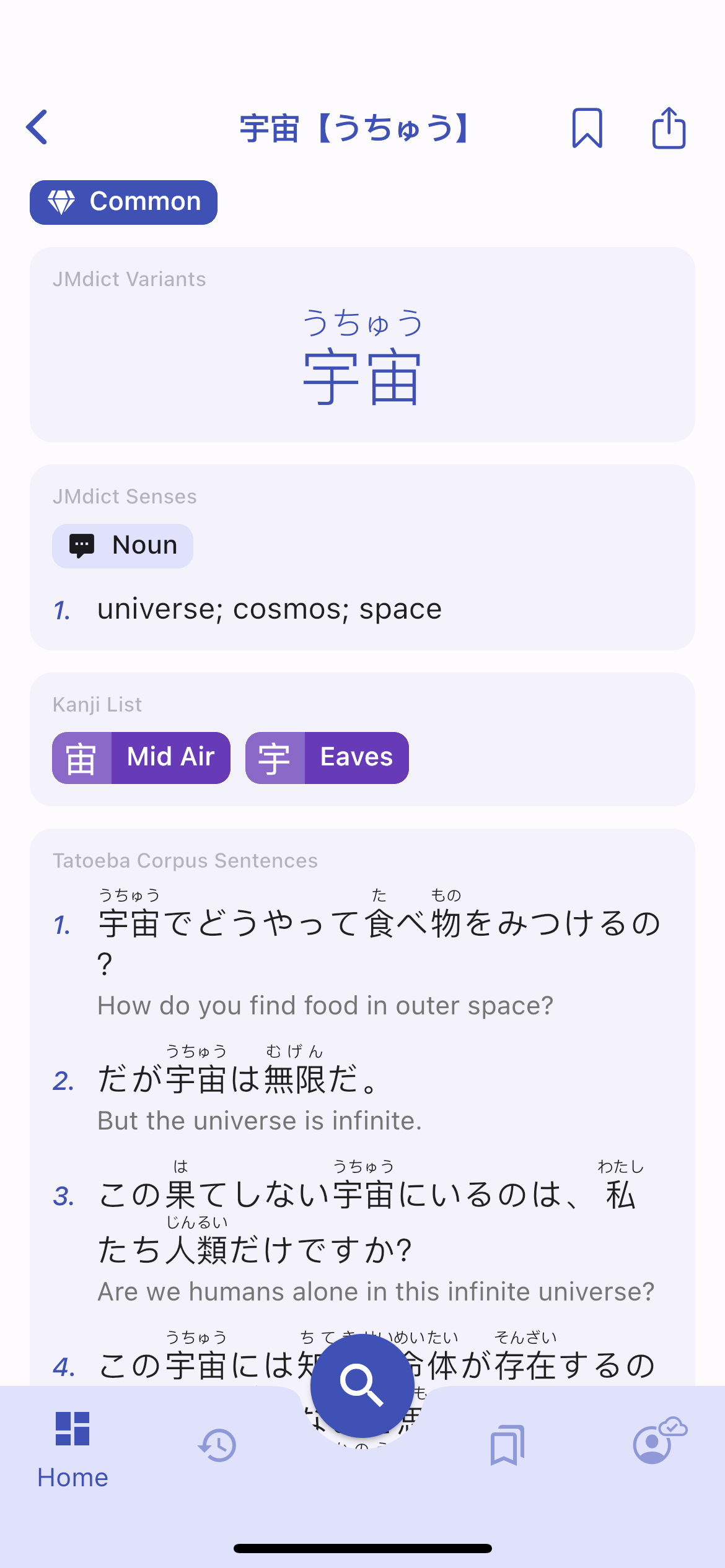
The color palette has been adjusted to improve readability so that bright colors have enough contrast.Fullscreen dialogs on iPhone look more native with the previous screen being pushed behind.The search sheet in landscape mode has all tabs and search button vertically aligned on the right side.Notification cards can be dismissed by swiping them.
Details of all changes and bug fixes in v0.7.0​

  • fixed cloud sync stopping to work without notifying the user when the refresh token expires: the refresh token is now also updated everytime the access token is refreshed (every 24 hours) and valid for 90 days, therefore the user will remain signed in as long as they open the app once during the 90 days period, each daily access will renew the refresh token for 90 days
  • displays dismissible error message card at the top of the screen when there is a critical issue with user data sync
  • sends report of non critical errors to crashlytics to detect "silent errors"
  • History Word cards are denser with definition on 1 line instead of 2
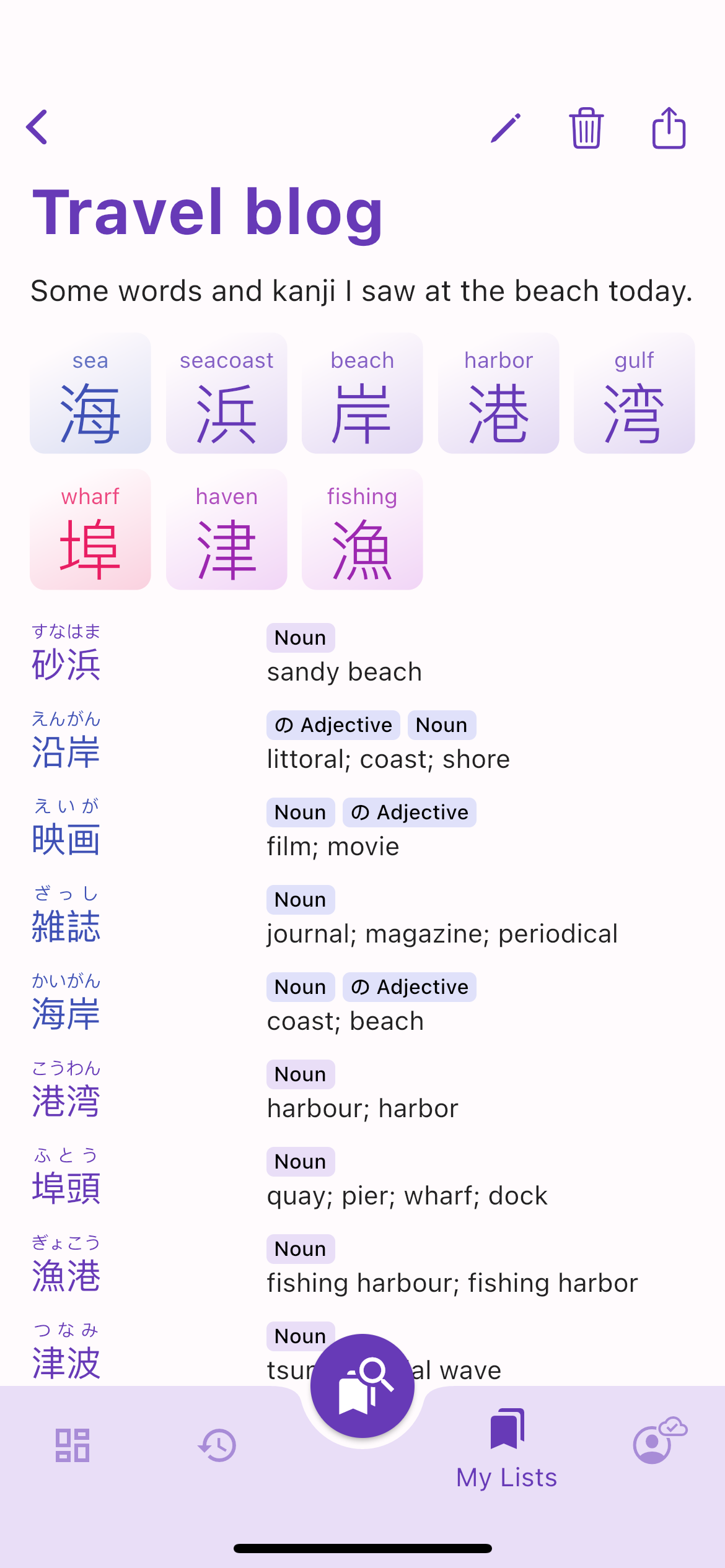
  • Vocabulary List cards are denser and show the number of kanji and word has standard overline chips
  • Bookmark Bottom Sheet becomes an end drawer on landscape mode
  • Search button is disabled when the search text field is empty or invalid
  • Sample Vocabulary List Card is removed from Dashboard and replaced by "Browse all vocabulary lists" suggestion to the search sheet and My Lists tab
  • Sign In card and button in My Lists / Account are replaced by the same gradient card
  • Sign In large button is moved to the app bar action
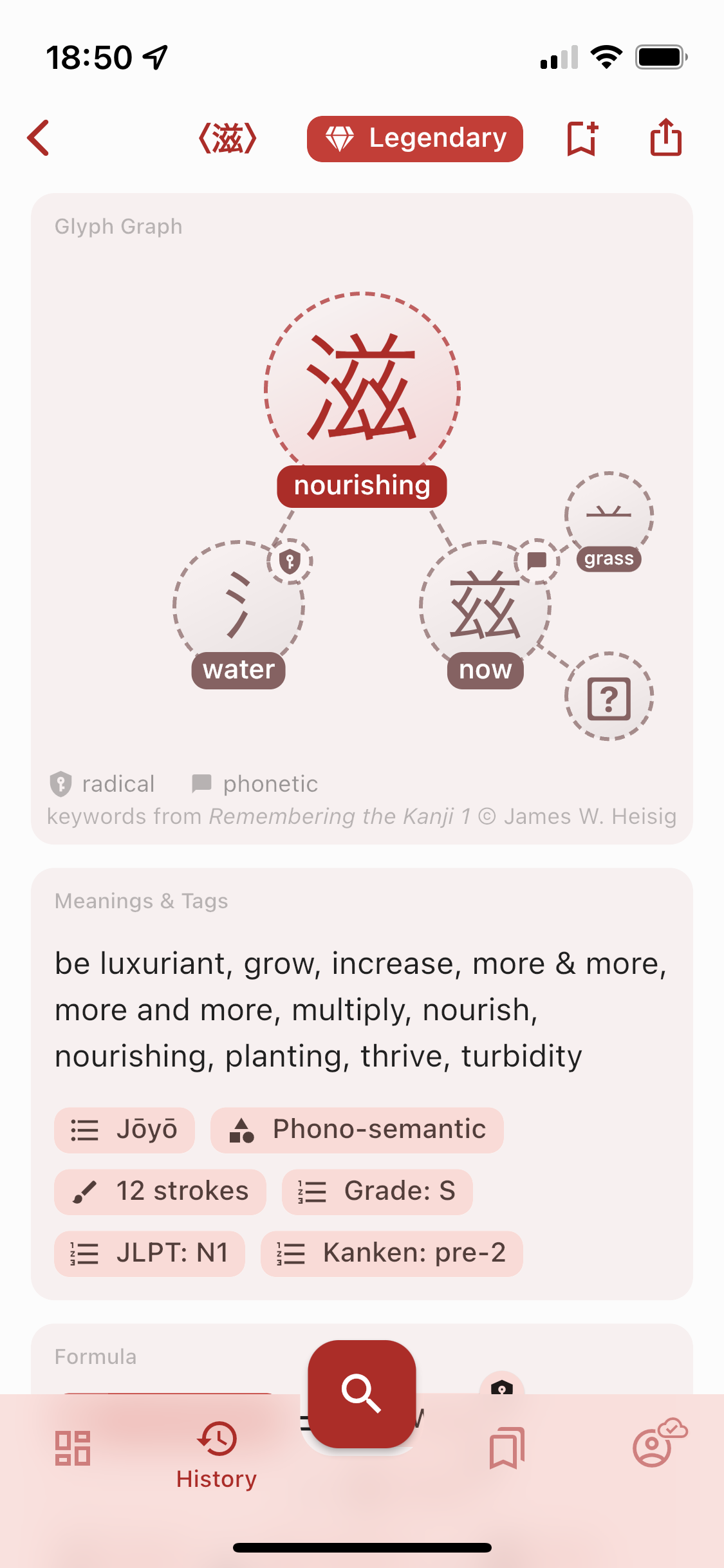
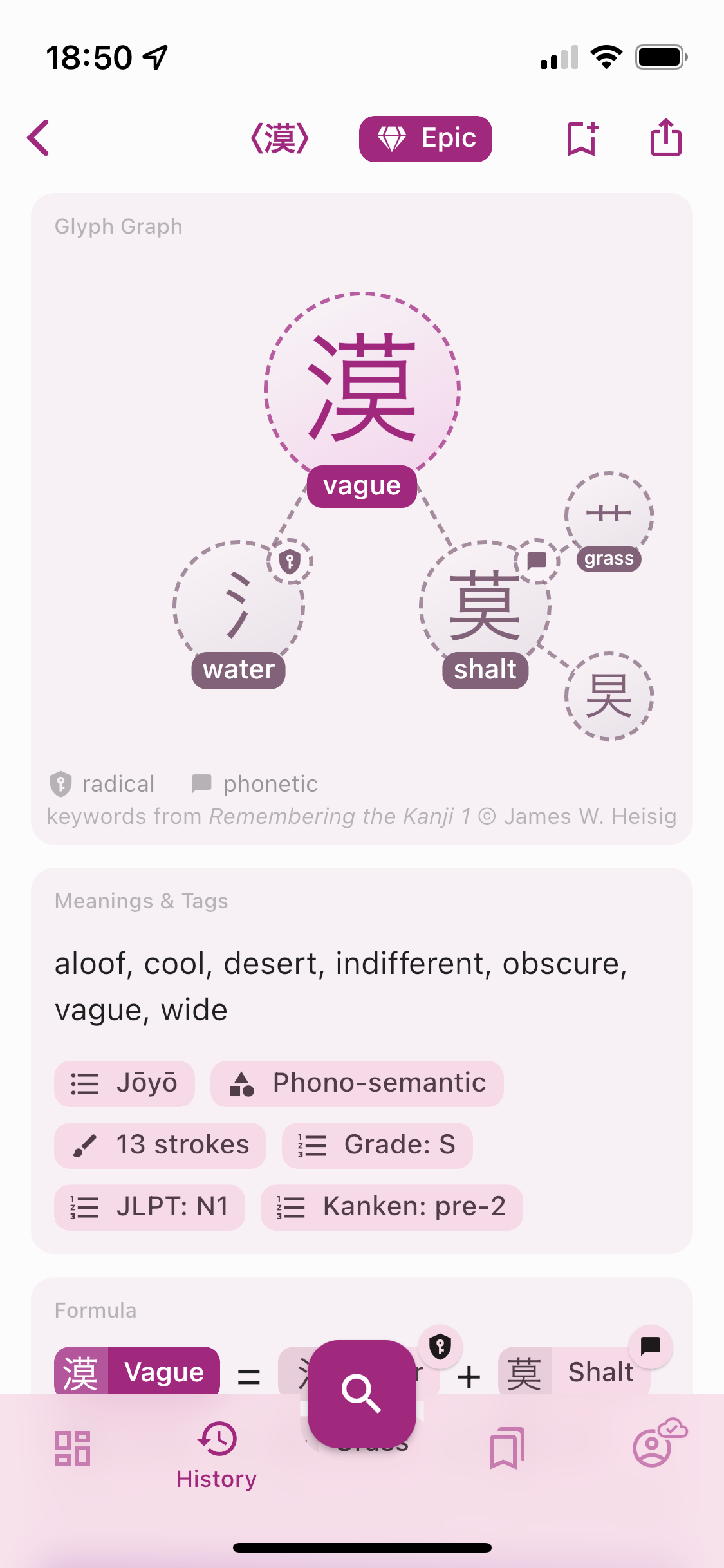
  • fixed color palette readability by making "epic" and "legendary" colors darker and "unclassified" as black, sub components in the Glyph Graph as a darker and saturated version of the primary color
  • dialogs are shown as fullscreen on phone and floating on tablet, same for the Search bottom sheet
  • fixed navigation rail Account icon's Sync Status badge
  • improved layout of Search sheet in landscape with a Search button on the right and all tab icons vertically below it
  • improved the UI with an MD3 inspired style with a square Seach Floating Action Button, scrim/barrier color, shadowless dialog, faster horizontal transition for pages and z-axis transition for dialogs
  • fixed History Filter chips to react like buttons
  • fixed keyboard hiding when rotating phone and not being to regain focus by taping in the search bar
  • clears Search bar tags and text when opening the Search sheet
  • fixed Japanese word not being searched in Vocab List titles
  • iOS fullscreen dialogs have a native iOS 15 3d look
  • fixed kanji and word cards moving around when transitioning between pages where the same kanji/word appear on both pages
  • fixed bottom sheets / fullscreen dialogs not being draggable from anywhere on their content
  • uses the same style of thicker icons on both Android and iOS
  • fixed loading shimmer animation colors
  • adds new notification cards in the Dashboard and makes them all dismissible by swiping them
  • replaced random kanji and word by one single card that combine a word and its list of kanji
  • persists in the cloud the state of all dimissed cards and hints
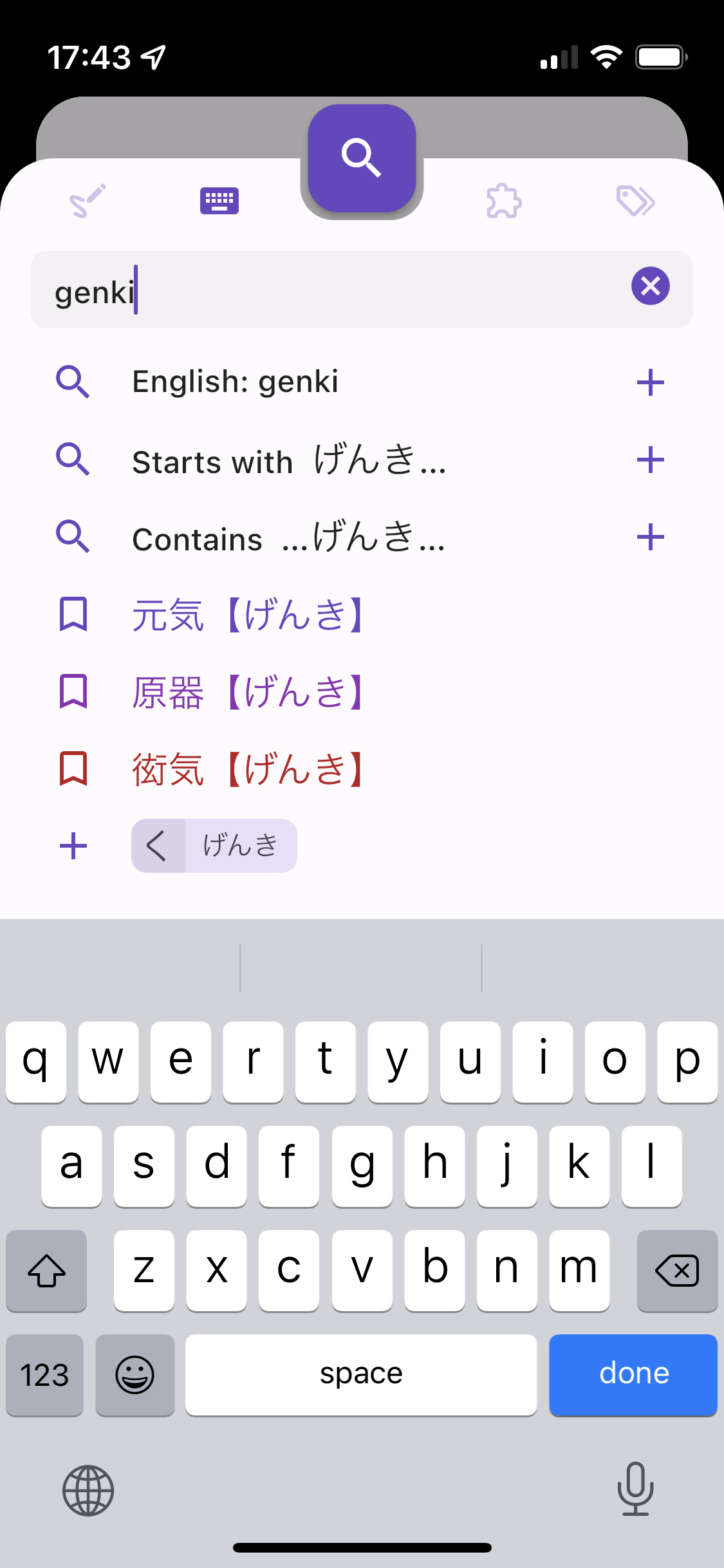
  • clarifies the search suggestion "English: xxx" and "Paste: xxx", displays "Type in romaji, Japanese or English" when the Search Bar is empty
  • fixed Search by Components ignoring the frequency limit when kanji index is not downloaded

New Material You Design

· 2 min read
Kanjiverse
Kanjiverse

v0.6.0 improves the look & feel of the app, adds a detailed About page, and fixes a few bugs.

Detailed changes for v0.6.0​

  • [iOS] fixed dynamic link on app opening
    - [Android] fixed back button disappearing during page transition
    - [Android] fixed Kanji to Kanji page transition fading animation
    - [Android] fixed app icon rounded corners
    - [WEB] fixed ruby text issues
    - [WEB] fixed Sign in with Apple
    - [WEB] fixed default font to system sans serif
    - [WEB] fixed app name and browser title
    - [WEB] added Smart Banner at the top with a link to open the page in the app (or redirect to the store if not installed)
    - [WEB] added feedback icon, fix screenshot file upload
    - [WEB] disabled clipboard suggestion in search sheet
    - [WEB] disabled fading animation between tabs
    - [WEB] disabled shimmer animation on mobile
    - [WEB] removed FontAwesome dependency
    - [WEB] removed overscroll stretch effect on Android
    - added app splash screen
    - added About page in Account with legalease, social media links, complete list of licenses, and data sources with proper attributions
    - replaced app bar's Sync Status icon with badge above navigation bar's Account icon
    - redesigned chips, popup and fullscreen dialogs/sheets with Material You style
    - replaced text tags in Word cards with overline dense chip tags
    - harmonized Glyph card gradient
    - redesigned Glyph Graph leaves to be a lighter variant of the main glyph
    - merged Sign in and Email Sign in sheets into one
    - improved shimmer colors to match the background colors
    - pinned X button on Search-by-Components tab
    - fixed JMdict card shrinking when card titles are disabled
    - fixed Japanese word suggestions sort order
    - added Tatoeba card enable/disable switch in Settings
    - on Kanji page, moved the frequency tag from Meanings & Tags card to the app bar
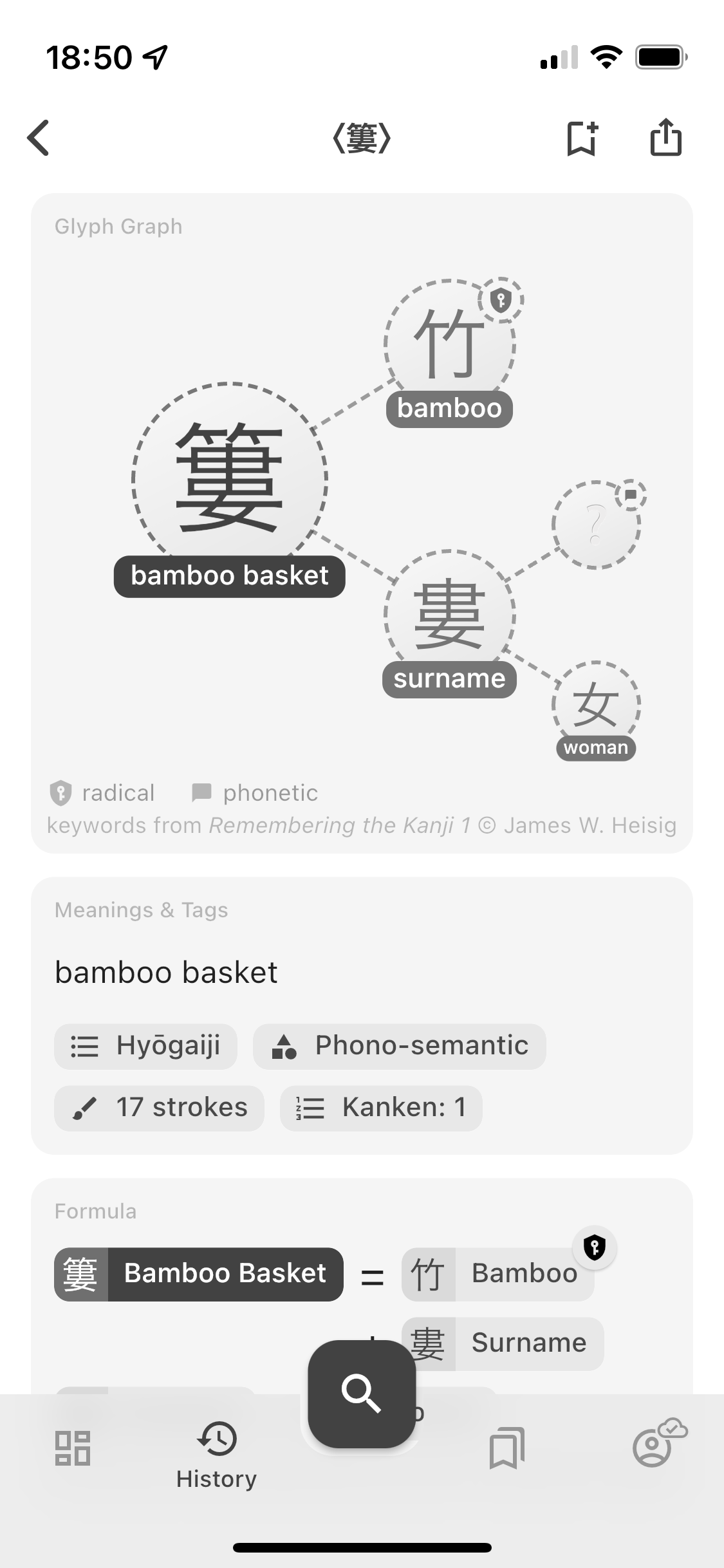
    - added Heisig keywords legalease to the Glyph Graph and Formula cards

Breaking Changes, Cache and Offline Mode

· 5 min read
Kanjiverse
Kanjiverse

Version 0.4.0 is a mandatory upgrade due to a breaking change in the format of the Japanese dictionary. Check the FAQ if you encounter any problem after the migration. This version also considerably improves loading time with cache, offline mode, better navigation, gesture support and other bug fixes.

Cache and Offline Mode​

All previously seen content (kanji, word, lists) is cached on your device to improve (re)load speed and reduce internet data usage. History, My Lists, and Home/Dashboard pages will keep working without internet and every page cached can then be accessed while offline.

  • Each tab maintain its own navigation history, pages will open in the current tab instead of being forced to show up in the Home tab.
  • Tapping the icon of the currently selected tab will bring you back to the first page of that tab (Dashboard, History, My Lists).
  • iOS back gesture (dragging a page from the left side of the screen) has been fixed on kanji and word pages so the page slide away under your finger as expected.
  • Android back button (or gesture) will trigger a popping animation of kanji graph first.
  • The app bar displays the curent page's kanji/word as its title instead of the frequency and collection chips.

FAQ regarding the migration and breaking changes​

Why break things?​

The current format of the Japanese dictionary was too different from JMDict to integrate new updates, and at the same time too bound to JMDict's format to integrate easily with other dictionaries. Therefore a breaking change was the best way to move forward and will allow the development of these coming features:

  • Downloadable dictionary content for a full offline experience.
  • Synchronize with the latest JMDict update.
  • Addition of other dictionaries.

Content won't load, complains about server error.​

It seems you are not using the latest version (0.4.0), please update your app in Testflight or Google Play.

Vocab Lists won't load or show a blank screen.​

Try the following steps:

  1. Go to Account > Preferences, scroll to the bottom and press Clear Caches.
  2. Go to My Lists tab and pull down the screen to sync migrated lists from the cloud.

Syncing fails, complains about token refresh error.​

Signing out then back in should fix the issue.

Some words I've bookmarked in My Lists have changed.​

All words in (My) Lists have been migrated to the new format but since there is not always a one for one match between new and old entries, there might be some cases of substitutions.

Recent changes I've made to my vocab lists have reverted.​

This will happen if you have made changes before upgrading to version 0.4.0, contact me by email or on Discord so I can check if the changes are on the old server.

Why 厚い page has multiple JMDict Variants/Senses cards?​

This is actually how JMDict is structured, one entry can have readings that cannot be used for all its senses, therefore Kanjiverse will group them in separate cards (until now it was in separate pages), the Variants card corresponding to the Senses card right below. https://link.kanjiverse.com/tzRraVEebz6Y3pMXA

Why かける and 掛ける have different pages but similar content?​

A page is not referred by its JMDict entry anymore but a word with a unique writing, and a corresponding unique reading if it has kanji. Therefore かける and 掛ける have their own page, with content unique to their writing, but both also show the same JMDict cards where they are variants of each other.

New dynamic links will point to the new format: https://app.kanjiverse.com/kotoba/厚い%3Aあつい but old links should automatically redirect to the new ones.

Other Bug Fixes and Changes​

  • downgraded minimum ios version from 13 to 10.
    - Lists' kanji/words that cannot be loaded are displayed as "shimmering" cards instead of being hidden.
    - disables + button, etc. when there is no internet connection.
    - cards content on word pages are loaded separately (kanji, jmdict, tatoeba).
    - UI default to flat style (no shadows), can be changed back in Preferences.
    - frequency tag chip is moved from the app bar to the top of the page for words and in the Tags & Meanings card for kanji.
    - opening a List will set the UI color according to the average of the frequency of its kanji and words.
    - fixed History page's app bar not matching iOS style.
    - fixed History list entries appearing multiple time when their name or content is changed.
    - fixed app bar title not updating when changing the name of a List.
    - fixed page content switching from shimmer to final content while in transition animation.
    - fixed Latest News and New Version cards not updating when opening the app.
    - fixed UI color not matching the current page's frequency after popping a page.
    - fixed glyph graph folding animation to look like (a faster) reverse animation of the unfolding animation.
    - fixed iOS back gesture being blocked on kanji/word page.
    - fixed opening the same page multiple times won't stack them up in the navigation.
    - fixed Sync Chip button press not syncing My Lists.
    - fixed bug that prevented Lists with hundreds of words from loading.
    - fixed bug that prevented very long query from running.
    - fixed some animation jank.

Cloud Sync and Custom Fonts

· 5 min read
Kanjiverse
Kanjiverse

New beta version 0.3.2 provides full support to save your Preferences, Lists and History to the cloud and sync between your devices. It also let you customize the Japanese fonts.

Cloud Sync and (Semi) Offline Cache​

If you are signed-in, all your Preferences are synced to the cloud, along with My Lists and History. Syncing is currently only performed when the app starts up, when you sign in, when internet connection is restored after being offline, or when you manually do a "pull-to-refresh". If you haven't signed in yet but made some changes, they will be preserved when you sign in the first time.

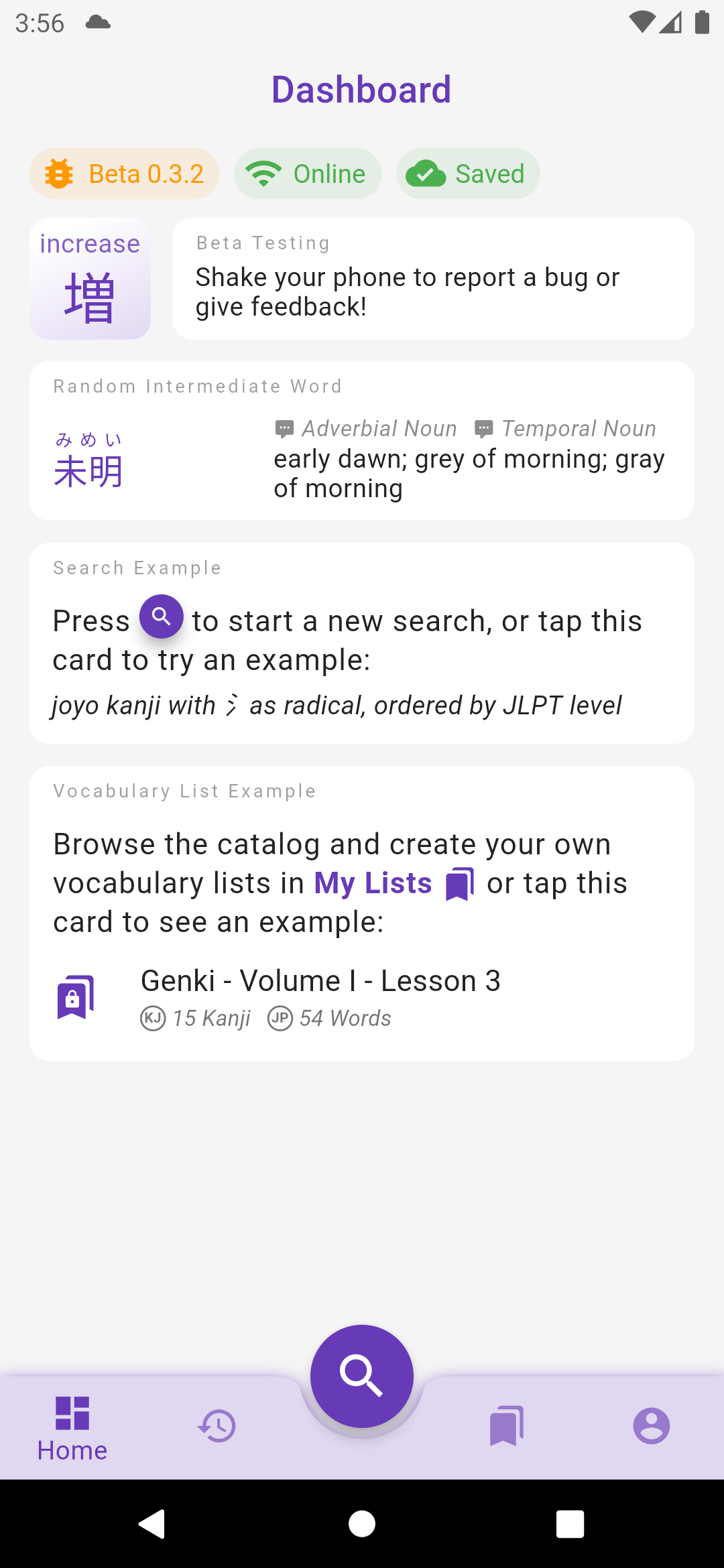
The sync status is displayed at the top of the Dashboard screen:

  • Signed out: you are not signed in, therefore your data are not saved to the cloud.
  • Syncing: your settings/lists are being synced to the cloud.
  • Saved: all your local changes to settings/lists have been saved to the cloud (it doesn't mean that the app is up to date if you have made changes on a different device since syncing is not periodically ran, do a pull-to-refresh manually).
  • Not saved: your local changes to settings/lists have not been saved to the cloud yet, probably because your device is offline.
  • Sync failed: an error occurred when saving local changes to the cloud, long press on the chip to display the reason and error message.

The app can also handle internet disconnections, and changes made to Preferences and Lists while offline are preserved locally (even if the app is restarted) and synced when the app goes back online. Note that the syncing strategy is "last update wins" so for instance if you edit the same List on an offline device A and online device B, the change from B will be saved to the cloud right away but when device A goes back online, it will send its change to the server and override the change from device B.

Custom Japanese Fonts​

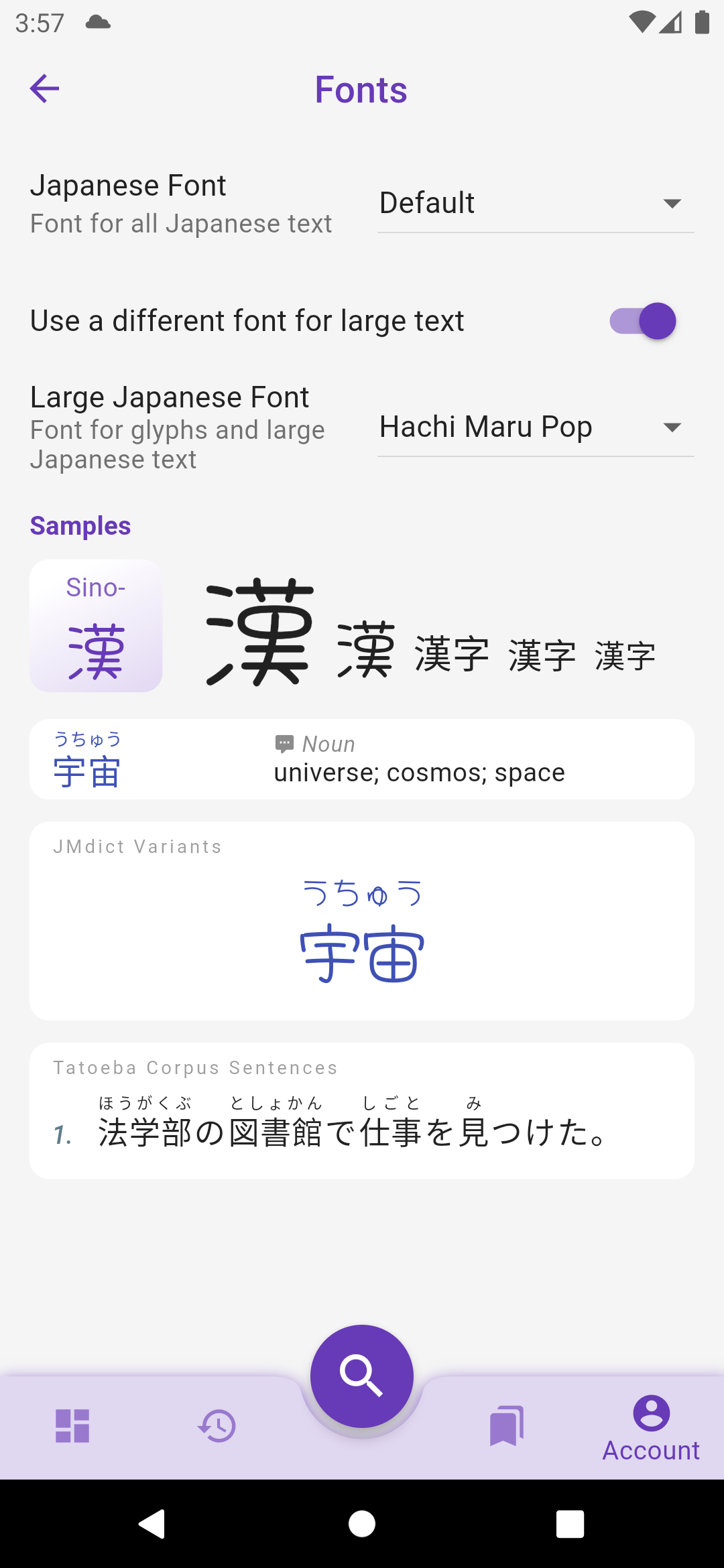
Fonts are not prepackaged within the app anymore (reduced the bundle size by 3!) and will instead be downloaded on demand. They can be changed in Account > Preferences > Fonts. It is possible to use a different font for large and small texts.

The default Serif font in previous versions has been removed from Preferences > Japanese > Serif Font for Large Characters, but the same effect can be obtain by checking Preferences > Fonts > Use a different font for large text and choosing Sawarabi Mincho in the dropdown list.

What's Next?​

The biggest changes in these releases were internal, some work I had to do now to facilitate the development of future features:

  • Grouped all design elements into a central Theme to prepare for the implementation of dark mode.
  • Developed an offline-first syncing cache system to enable full sync of user data between devices and with the coming web and desktop apps.
  • The offline-first cache also enables the app to work even without an internet connection. Currently only Preferences and Lists are cached but the next release should also cache all pages (kanji and words) so they can be consulted offline or without fetching them from the server. The next step will be the option to download the whole dictionaries in advance, and with the implementation of a local search feature, the app will be fully operational offline.

Happy testing :)

Other changes to version 0.3.0 to 0.3.2​

Fonts​

  • removed fonts from the app file to reduce its size from 54mb to 22mb
    - uses OS default font (Roboto on Android, San Francisco on iOS) instead of Noto fonts
    - fixed "wiggling" Japanese text on iOS where kanji without furigana were not aligned with kanji with furigana
    - sets font weight according to their size to be a bit thiner and more readable

Preferences​

  • Switch Level screen has a checkbox to let the user decide if preferences must be wiped out or if manually edited changes must be preserved
    - all settings are synced to the cloud if user is signed in
    - all settings and history are saved to the cloud the first time a user signs in
    - when the user signs out, all settings, lists, etc. are cleared from the local app

My Lists​

  • lists stays visible even with no internet connection
    - lists can be updated, kanji/word added to them, even with no internet connection
    - internet connection is still required to create a new list
    - preferences and list changes made without internet connection are preserved even if the app is restarted
    - preferences and list changes are synced to the cloud when the app goes back online

Dashboard​

  • replaced welcome header by "Dashboard"
    - displays status chips at the top: app version, online state, data sync status (signed-out/syncing/saved/not-saved/error)
    - kanji/word of the day are reloaded when the level is changed (if the dashboard is displayed)
    - kanji/word of the day are now selected from all entries in the user's level (instead of just the first 500 entries)
    - word of the day is now only selected among verbs, nouns, adjectives and adverbs (exclude particles, etc.)

UI​

  • bottom navigation bar has a shadow on Android
    - better fits the keyword on kanji small card, makes it smaller or splits it over two lines
    - missing kanji keyword displays ??? instead of being empty and making the kanji bigger
    - denser word card with reduced vertical padding and vertically centered content
    - History app bar's filter buttons resize to fit in the screen width
    - prettier loading animation that looks like a shimmer
    - removed 'feedback-on-shake' gesture on iOS, use the standard 'feedback-on-screenshot' instead
    - moved all switches in Preferences to the right