Search UX Redesign
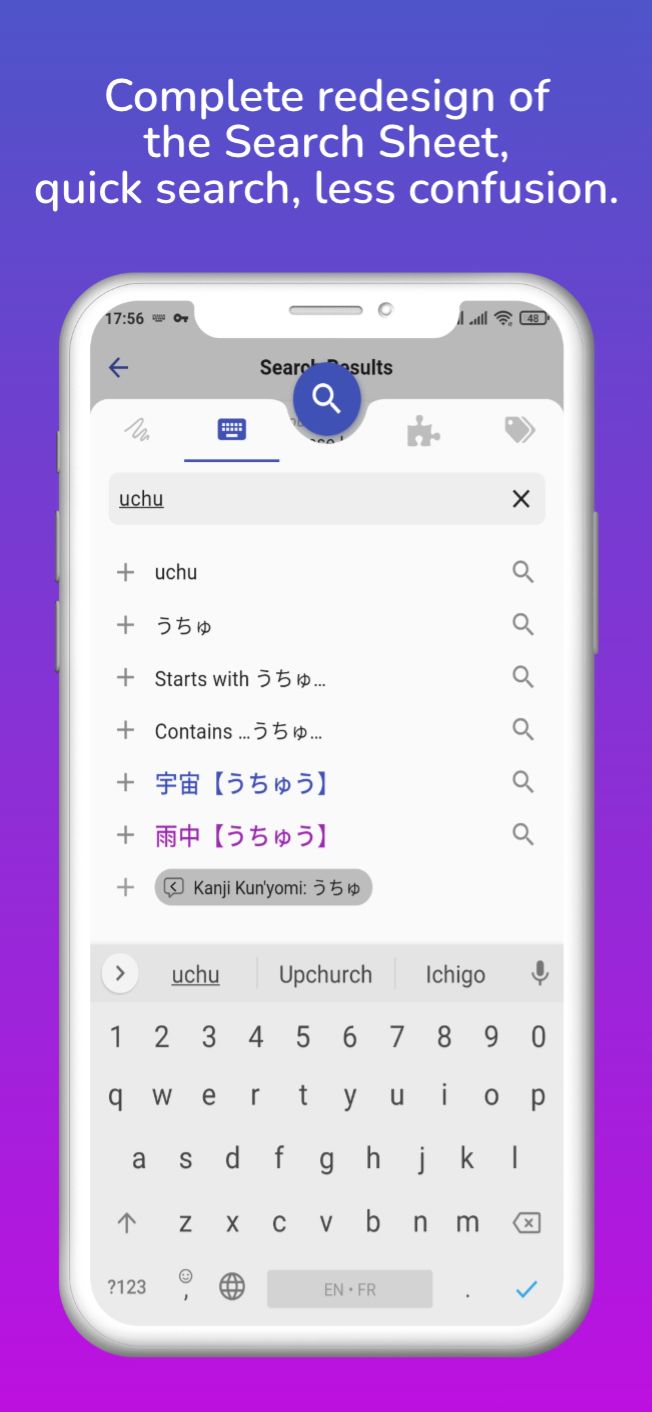
After reading through your feedbacks and suggestions in the Beta Test Survey I realized how confusing the search experience could be. As many of you have pointed out, most of the time you just want to search one word rather than create a complex query of tags, and the current UX requires too much taps to get to the point.
I've heard you and decided to take the time to completely redesign the search sheet with the following in mind:
- It should look more like a familiar auto-completion form, with the suggestions below the text input.
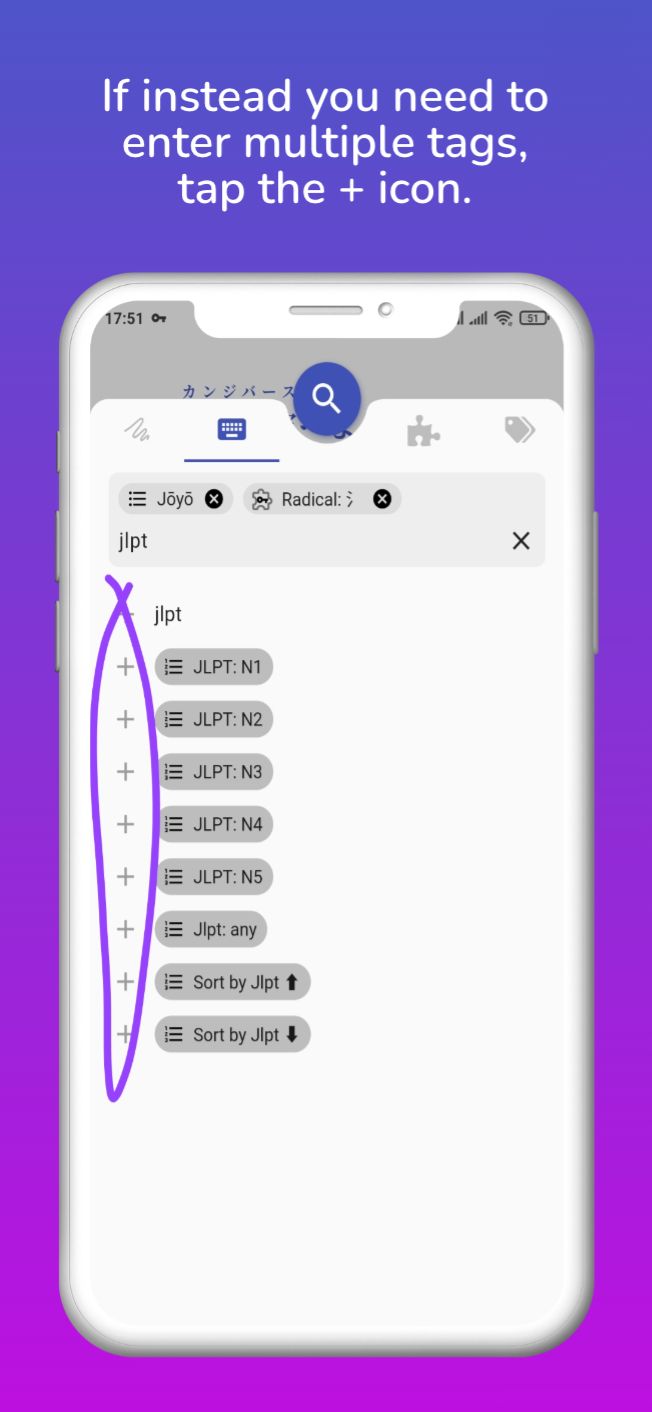
- It should facilitate the most common actions to be executed faster (like searching a word) while still allowing the creation of complex tag queries, but only as a secondary action.
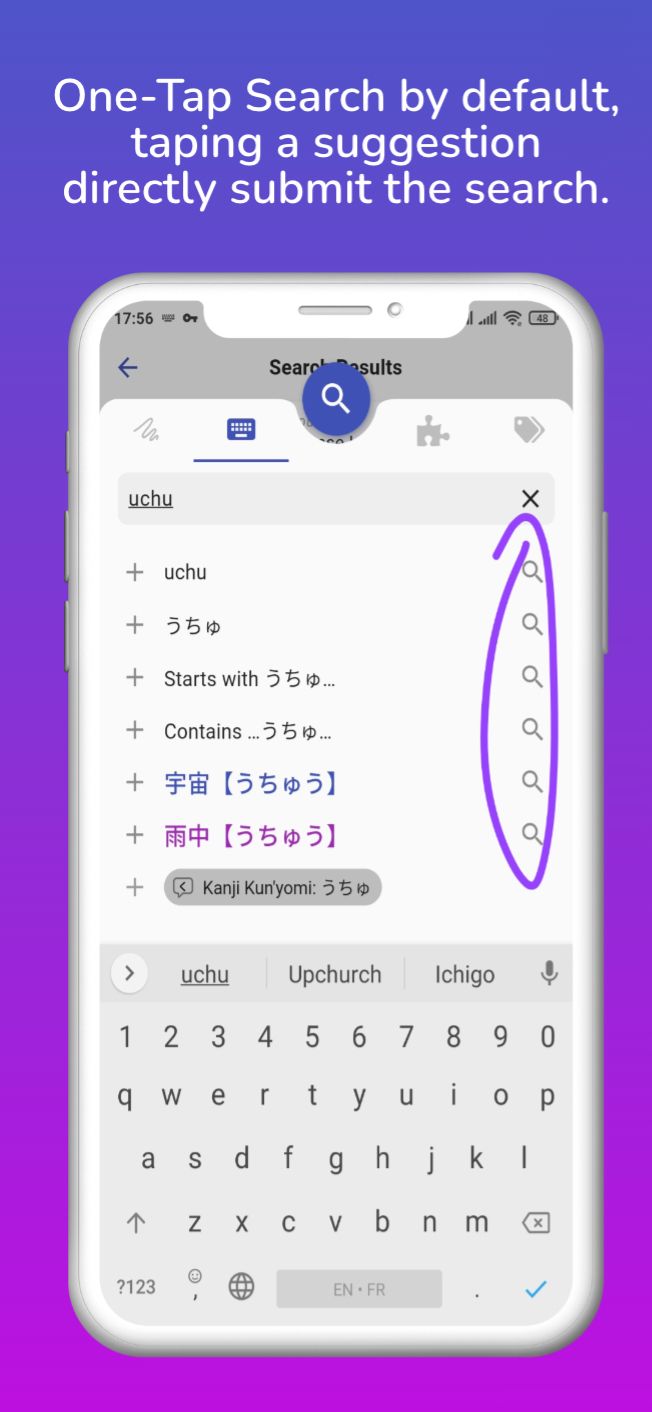
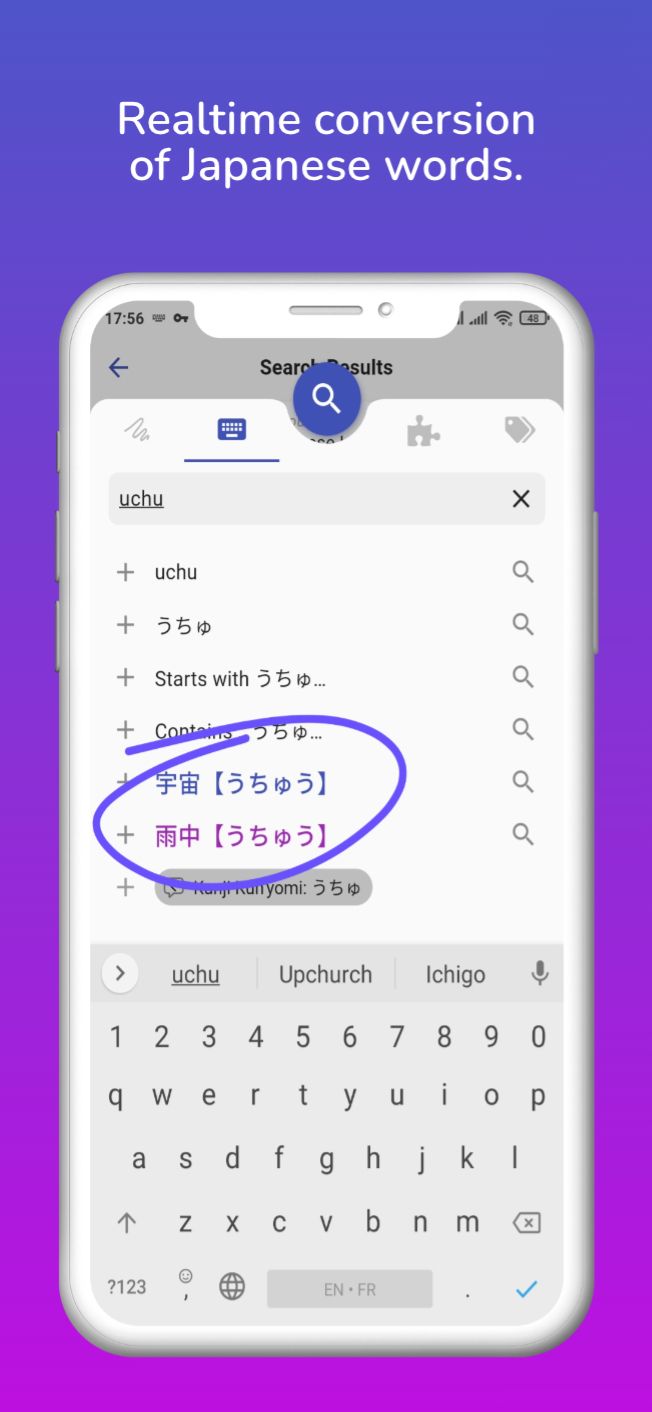
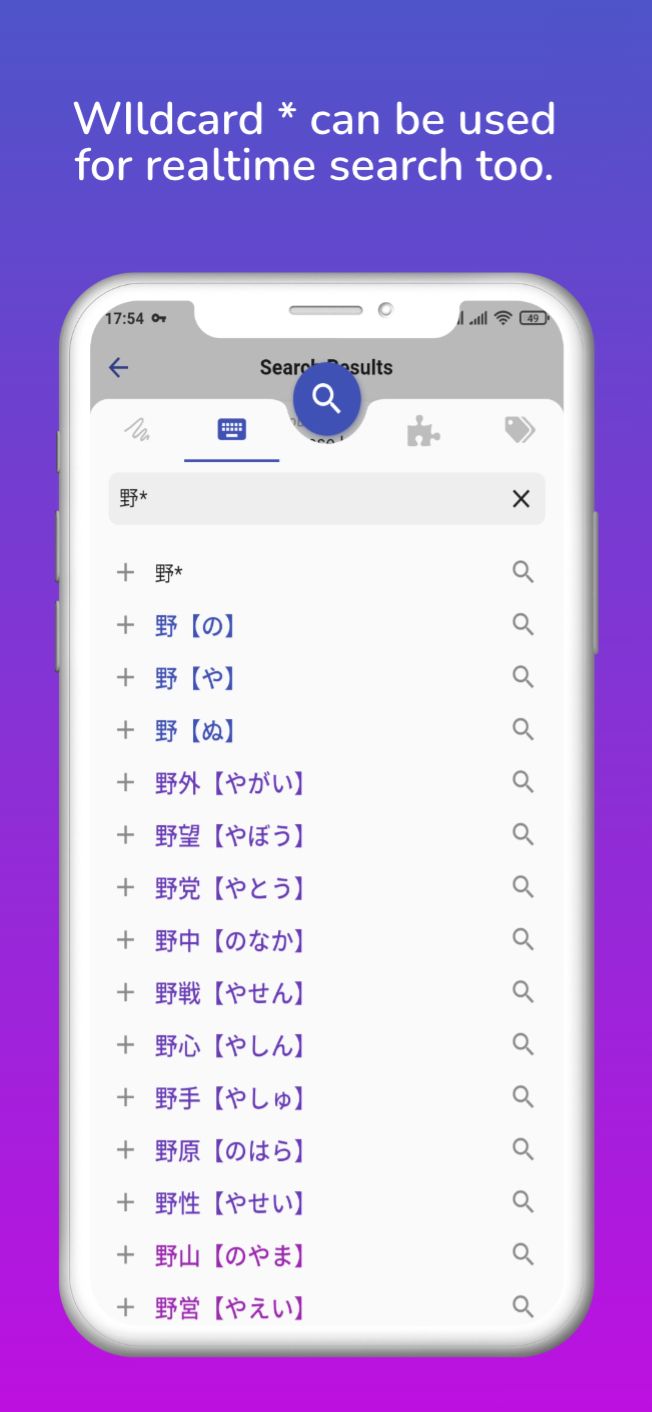
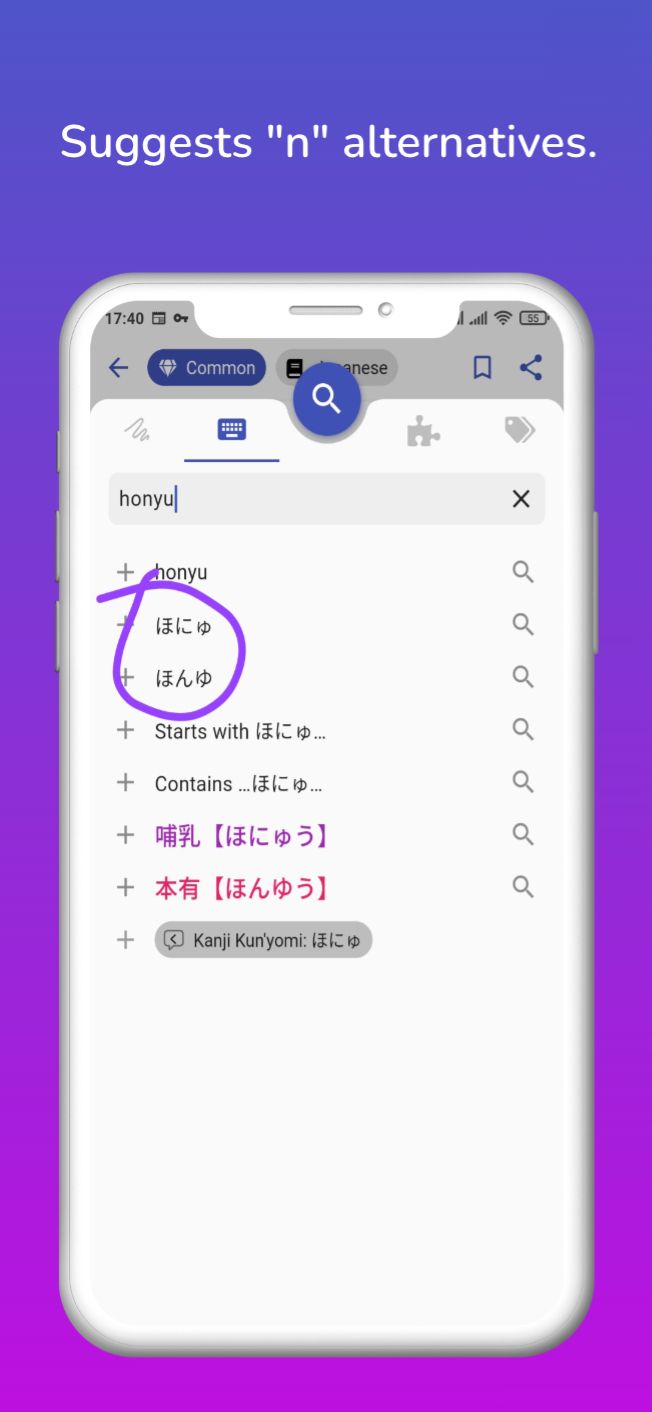
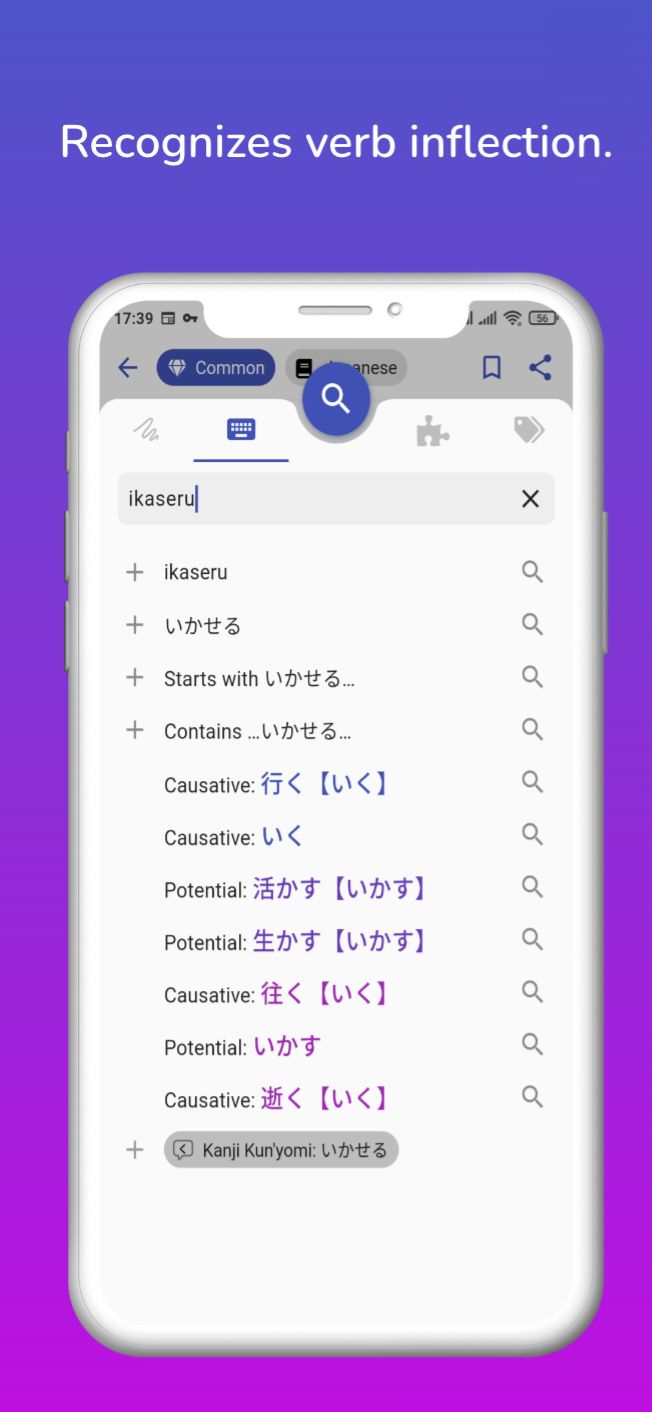
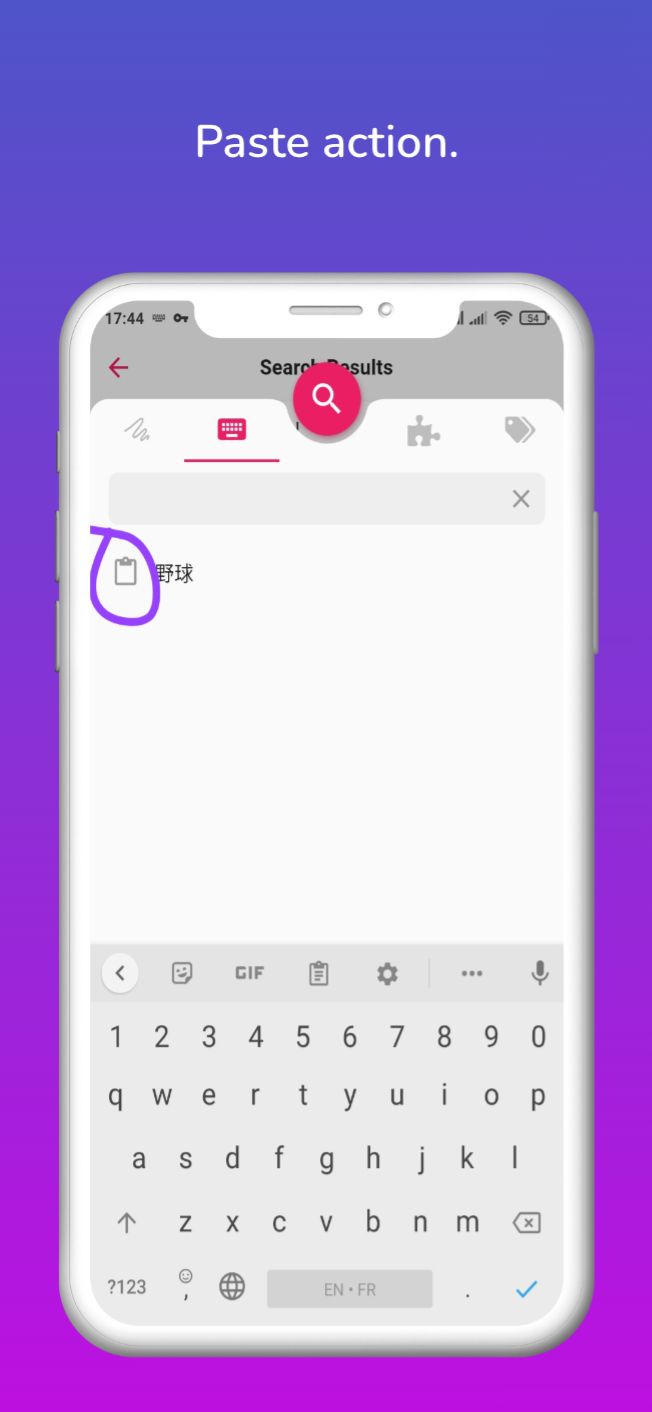
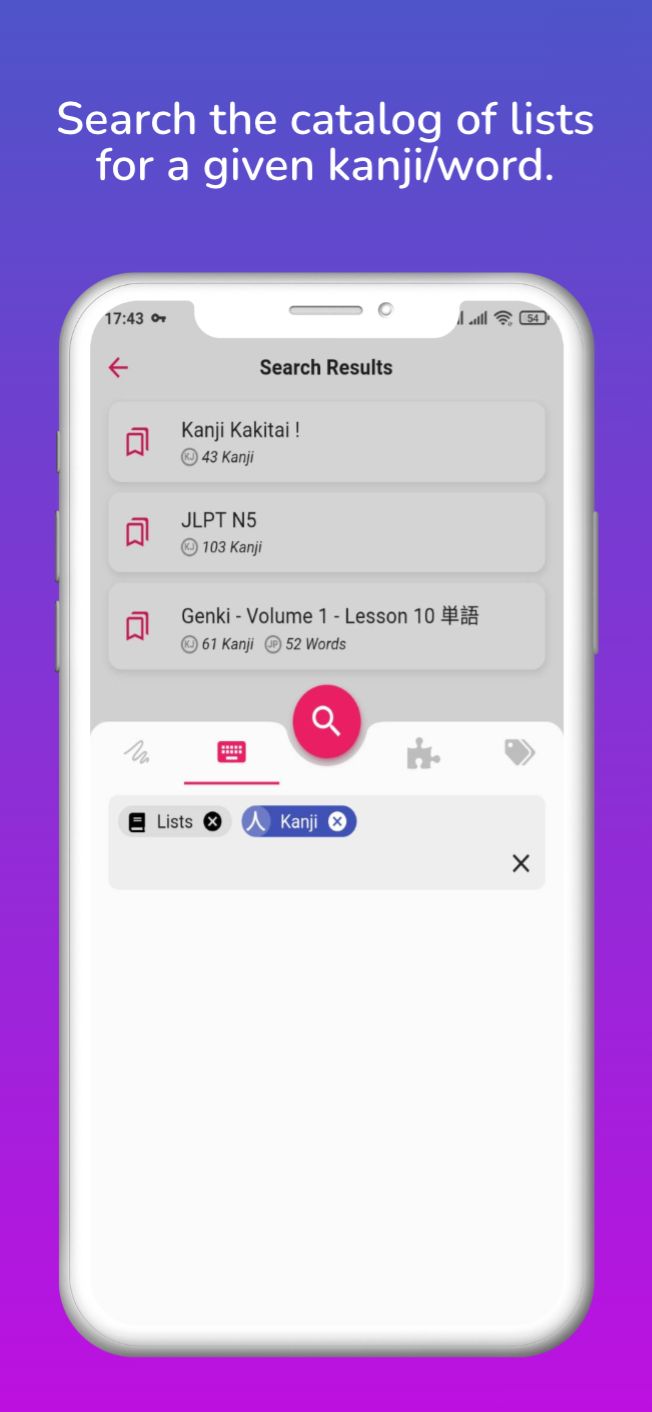
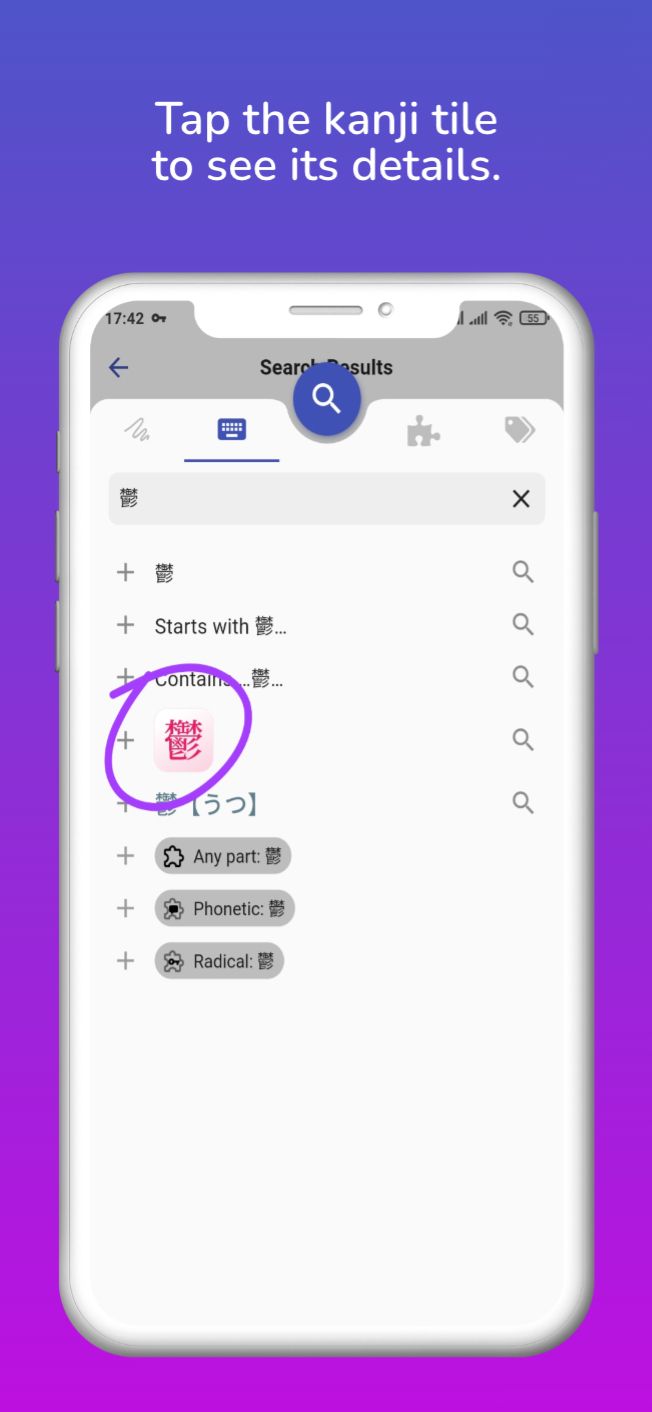
Meet the new search sheet, with one-tap search as default behavior, realtime auto completion/conversion of all Japanese words, and a few other conveniences to help you input Japanese with more ease and search faster:
 Made with Previewed https://previewed.app/template/6942AF31
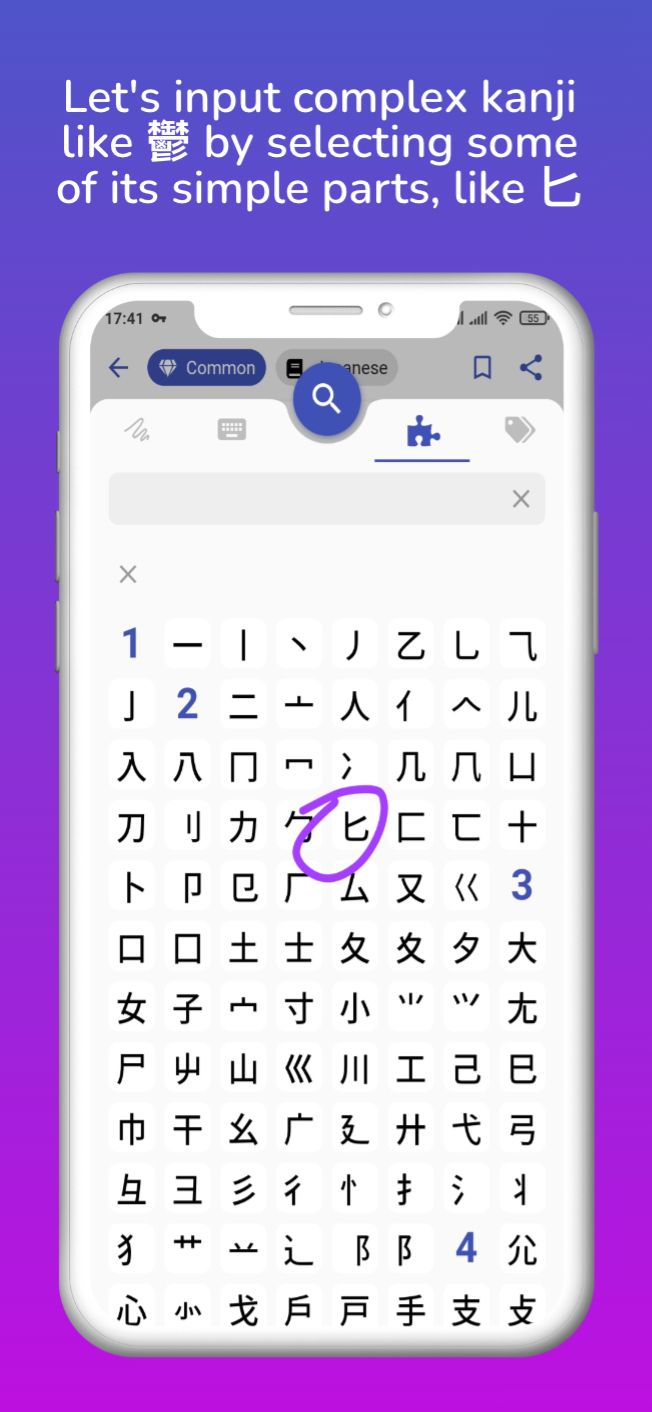
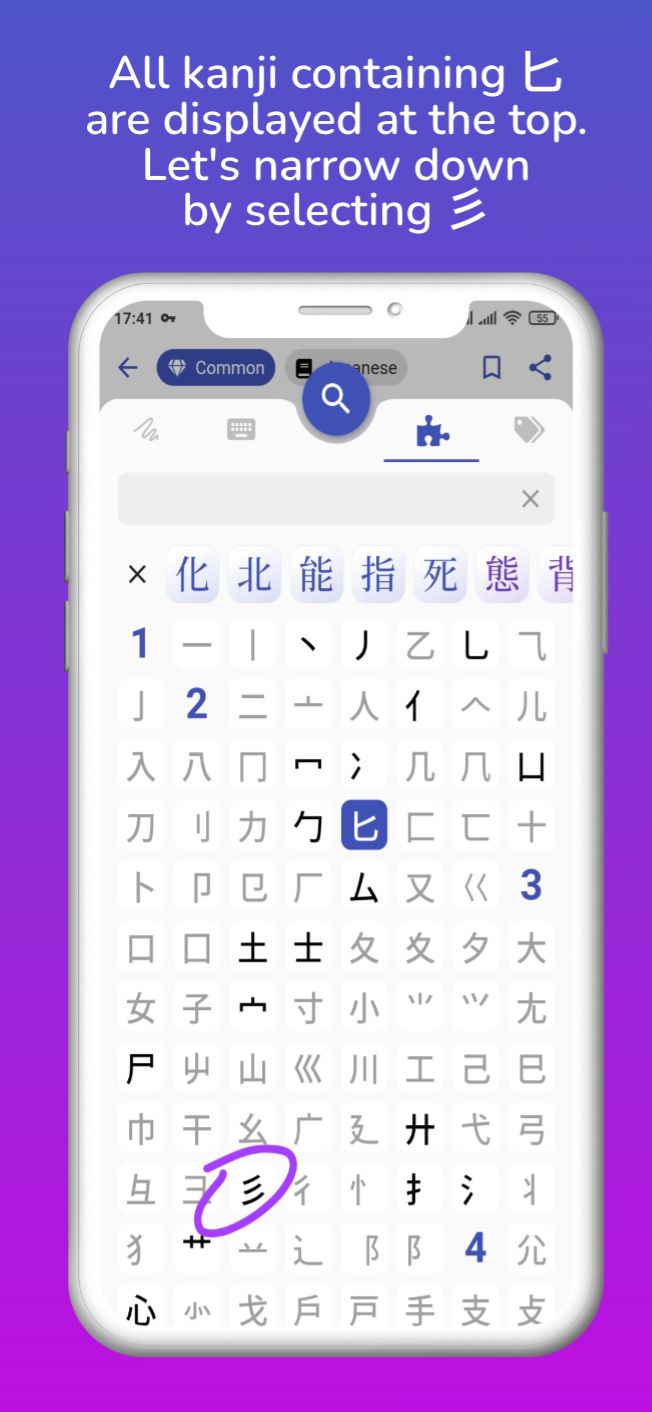
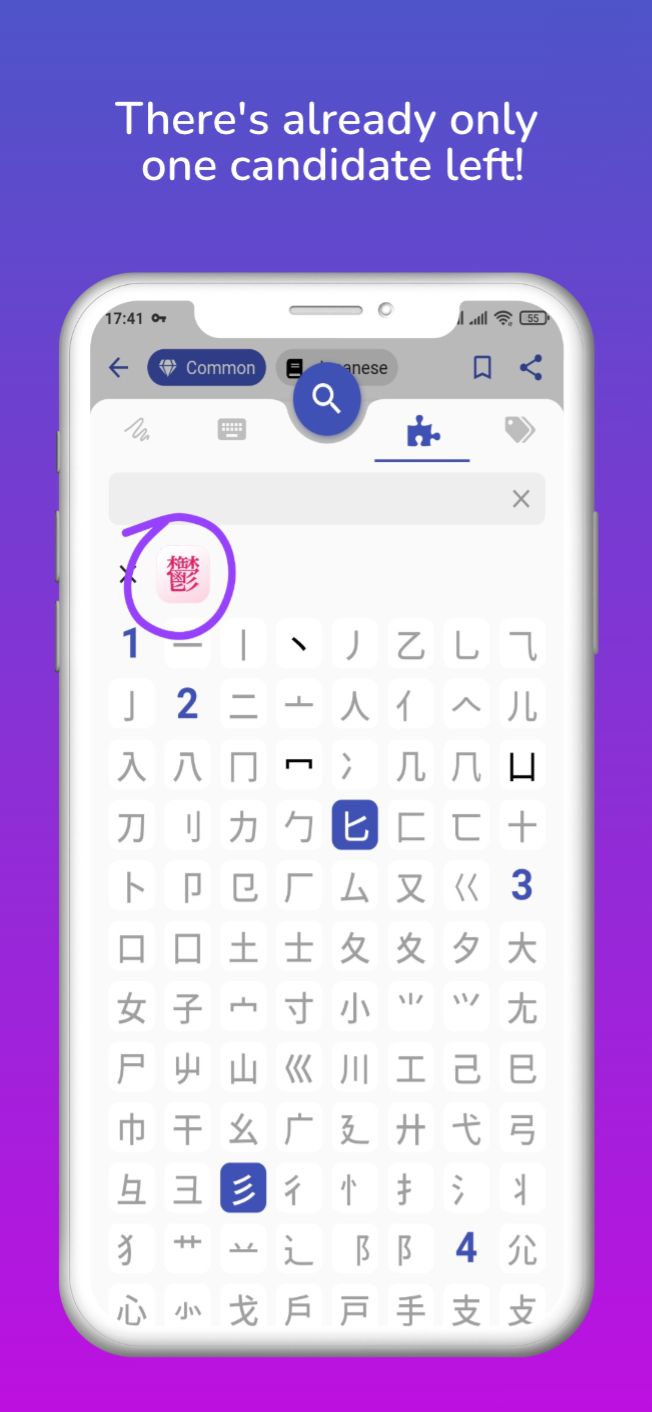
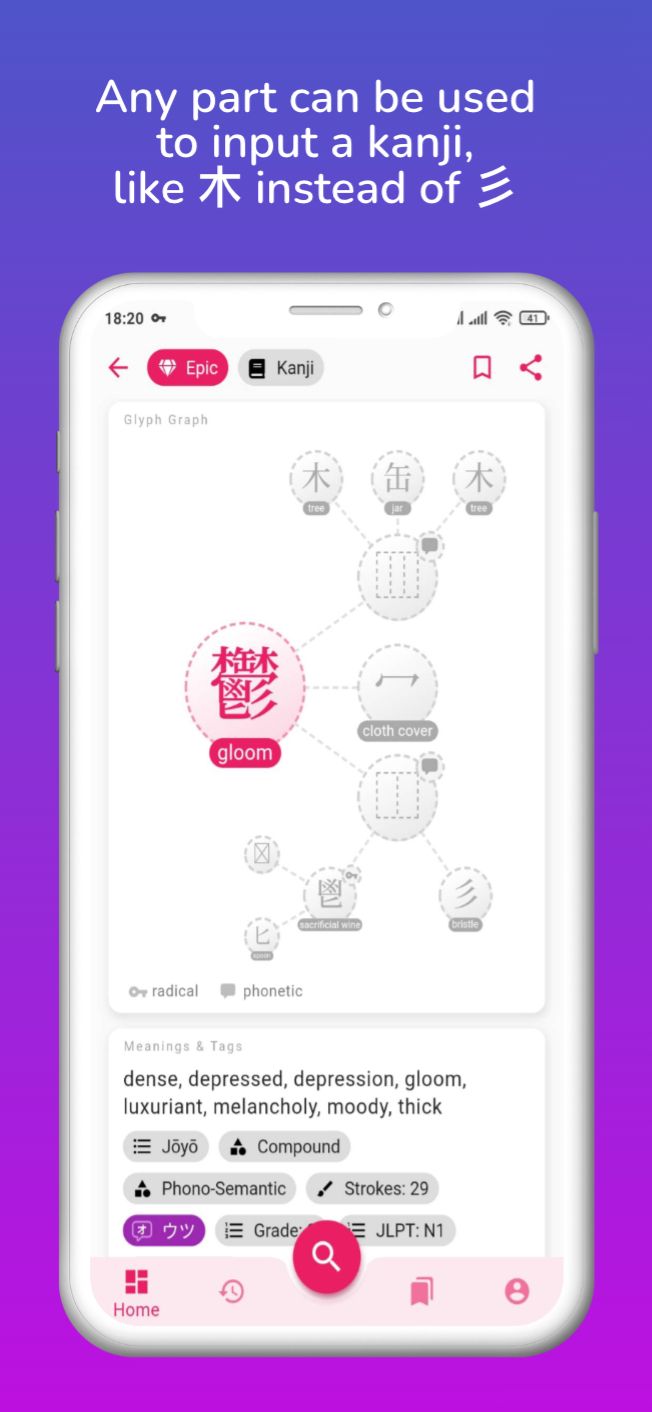
The Search by Radicals/Parts/Components has also been completely redesigned to be used like an input method, with suggestions displayed in realtime as you narrow down your search by selecting kanji parts. This example shows how you can input complex kanji like 鬱 in just 3 taps!
Made with Previewed https://previewed.app/template/6942AF31
The Search by Radicals/Parts/Components has also been completely redesigned to be used like an input method, with suggestions displayed in realtime as you narrow down your search by selecting kanji parts. This example shows how you can input complex kanji like 鬱 in just 3 taps!
 Made with Previewed https://previewed.app/template/6942AF31
I have to admit, this release took much more time than I have anticipated, in part due to a painful migration to Flutter 2 and infrastructure changes, so in the end I had to combine multiple releases into one. The schedule for the next releases should be much shorter, I'm still targeting once every 2 weeks.
Made with Previewed https://previewed.app/template/6942AF31
I have to admit, this release took much more time than I have anticipated, in part due to a painful migration to Flutter 2 and infrastructure changes, so in the end I had to combine multiple releases into one. The schedule for the next releases should be much shorter, I'm still targeting once every 2 weeks.
Detailed list of changes in v0.2.0
General Fixes
- fixes share button not working and broken dynamic links
- fixes Google sign-in crashing on iOS
- fixes feedback-on-shake not working on Android
- allows anonymous feedback on Android, no need to enter email address
- transition animations between tabs are smoother
- fixes app bar tags appearing on top of each other on small screens
- renames 'Word of the Day' to 'Random <Your Level> Word'
- adds kanji official list tag (joyo, etc.) to Kanji Page
Search Sheet
- complete redesign into a quasi fullscreen sheet, with tabs at the top, search bar and suggestions list below, the floating action button is attached to it instead of staying on the main navigation bar
- suggestions are displayed under the search bar like a standard auto completion form, english/japanese word suggestions are displayed as text instead of tags
- Search button is replaced by the same "magnifying glass" button used to open the search sheet
- Clear button is replaced by an X button inside the search bar
- cancelling can be done by taping in the greyed area above the sheet, sliding the sheet down, with the hardware button or OS gesture
- removes katakana suggestion, searching by hiragana will always search for the equivalent katakana (and vice versa)
- adds "Contains" and "Starts with" suggestions, same can be achieve with * wildcards
- suggests both alternative for "n" romaji, for instance typing honyu will propose ほんゆう and ほにゅう, forcing ん can be achieve with an apostrophe after the n according to Hepburn standard, for instance on'yomi converts to おんよみ
- suggests "deinflected" verb form (dictionary form is inferred from its conjugated form) and display the name of the form (passive, causative, etc.)
- suggests "Paste clipboard" action when nothing is typed (the clipboard content is only shown on Android)
- multiple instances of the same category of tags are combined with OR (e.g. tags JLPT:N1 and JLPT:N2 will fetch all kanji that are EITHER in JLPT N1 OR N2), the only exception is for kanji parts (any part, radical, phonetic) that are always combined with AND (e.g. tags 'any part':口 and 'any part':言 will fetch kanji that have BOTH 口 AND 言), different categories of tag are always combined with AND (e.g. JLPT:N1 and radical:言 will only fetch kanji that are at the same time in JLPT N1 AND have 言 as radical)
- fixes backspace to erase the previous tag with the keyboard
- kanji/word tags are colored by their frequency
- does not clear the search text when switching between tabs
Realtime Completion
- suggests Japanese words in realtime (skeleton displayed when fetching, paused while typing)
- if there are exact matches (including romaji/hiragana/katakana variants) only those will be displayed
- if no exact match is found, it will try to deinflect the verbs (remove conjugation), needs to be at least 2 characters long
- if no match is found, it will search for words "starting with" the search term, this behavior can be forced with * wildcards
- results are filtered by the user setting's frequency limit (hides unclassified words), if no match is found it will display rarer words (if any)
- all words are colored by frequency and displayed in kanji with their reading in parenthesis
One-Tap Search™
- tapping a suggestion with a "magnifying glass" icon will directly trigger a search, if instead you want to add the suggestion as a tag, press the + icon
- one-tap search directly opens the page of word/kanji that have color (those retrieved by the realtime autocompletion) unless the same word (exact same kana/kanji and reading) appears on more than one page
- one-tap search is disabled when there is at least one tag in the search query (excluding Collection tags such as Kanji/Japanese/Lists)
- pressing the sheet's main Search button when there is only one word in the search bar as the same effect as pressing the top suggestion in the list
Search by Parts/Radicals/Components (tab with "puzzle piece" icon)
- now acts like a real input method that helps finding a kanji without leaving the page
- kanji parts can be selected/unselected by pressing on them
- kanji "candidates" that contain the selected parts are displayed in realtime in a row at the top of page, sorted and colored by frequency
- parts that are in none of the candidates are greyed out to facilitate narrowing down the search
- pressing one of those candidates will add it to the search bar and bring you back to the suggestion list where you can directly open the page of that kanji or continue inputting your search query
- X button clears the candidate list and unselect all selected parts
Japanese Word Page
- hides the kanji tag list card when there are no kanji
- groups together identical notes (stop displaying multiple times stuff like "contains rare kana")
- fixes JMDict Variants' tiny font size when there are many variants
- fixes missing words in Compound & Affixes card
Search Results Page
- Japanese words are filtered by search term according to the search method used ("exact"/"contains"/"starts with")
- displays one card per word variant even if those words are on the same page (e.g. even if the words 暑い and 熱い are on the same dictionary page, searching for あつい will show two separate cards in the search results)
My Lists
- adds a pull-to-refresh gesture (currently lists are not automatically sync'ed between your devices)
- searching the Lists Catalog now uses the same UI as the kanji/word Search
- searching English words, kanji and (colored) Japanese words will also show the corresponding Lists in the search results along with kanji and words
- adds a Lists tag to restrict a search to the Lists Catalog