
4 posts tagged with "iphone"

View All Tags

Downloadable Japanese Dictionaries

· One min read
Kanjiverse
Kanjiverse

Version v0.4.1 brings us one step closer to a full offline app, you can now pre download dictionaries for Kanji and Japanese words!

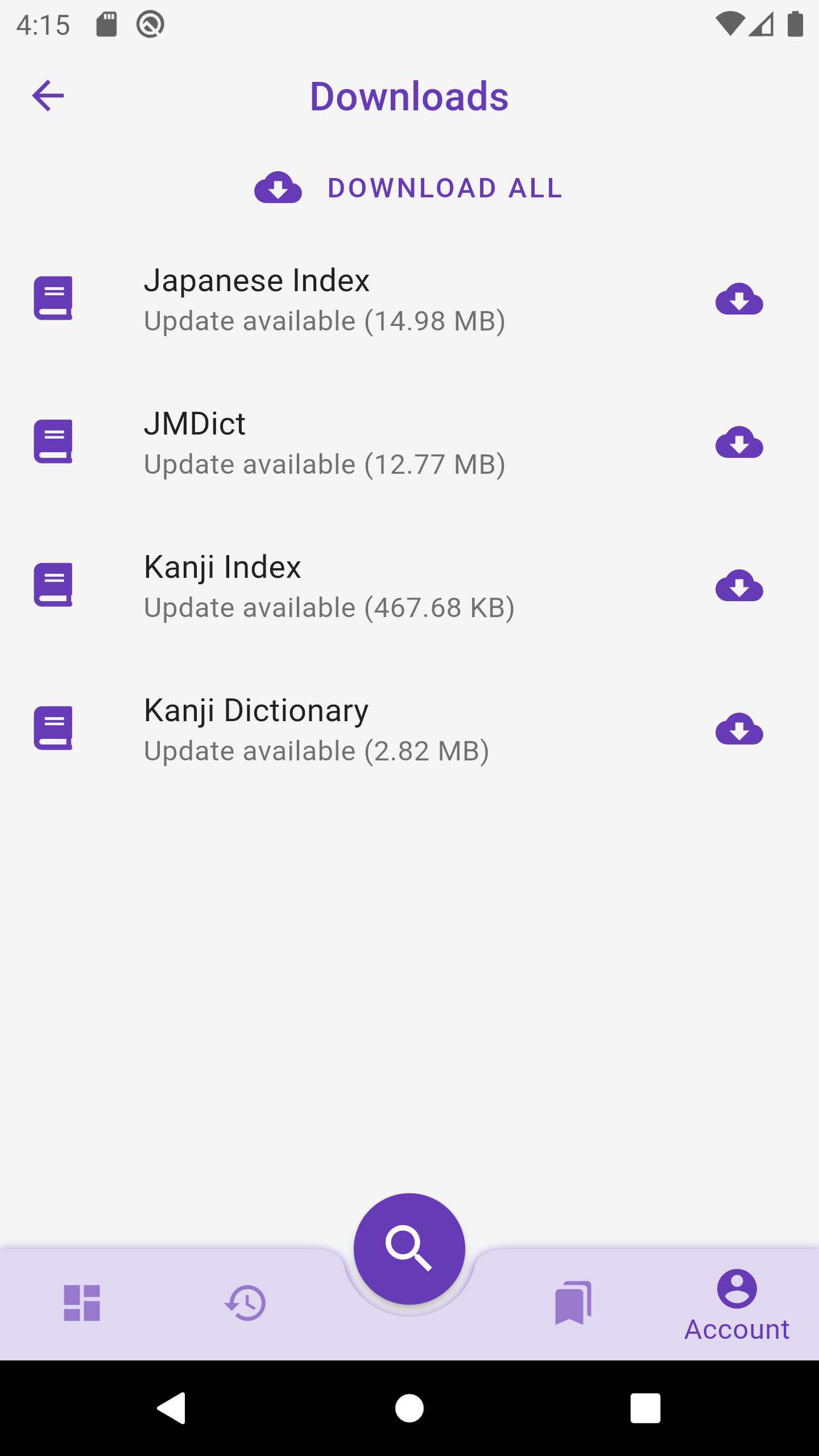
Download kanji and words dictionaries from Account > Downloads. It is recommended to Download All dictionaries to enjoy the following:

  • Faster loading speed and reduced internet data usage.
  • Offline access to most content (sample sentences are not downloadable yet).
  • Instant autocomplete suggestions and offline search, when searching by Japanese word or Kanji parts (search by English word and more complex queries still require internet access).

Changes in version 0.4.1​

  • added Downloads page in Account to manage downloadable dictionaries: Kanji, Japanese Words, and JMDict
    - added Download suggestions in Search Sheet tabs
    - search autocompletion uses Japanese Index dictionary if downloaded
    - search by radical uses Kanji Index dictionary if downloaded
    - removed 500ms delay in search autocompletion
    - fixed Paste Clipboard suggestion not showing preview on iOS
    - added Discard button to "Latest News" card

Cloud Sync and Custom Fonts

· 5 min read
Kanjiverse
Kanjiverse

New beta version 0.3.2 provides full support to save your Preferences, Lists and History to the cloud and sync between your devices. It also let you customize the Japanese fonts.
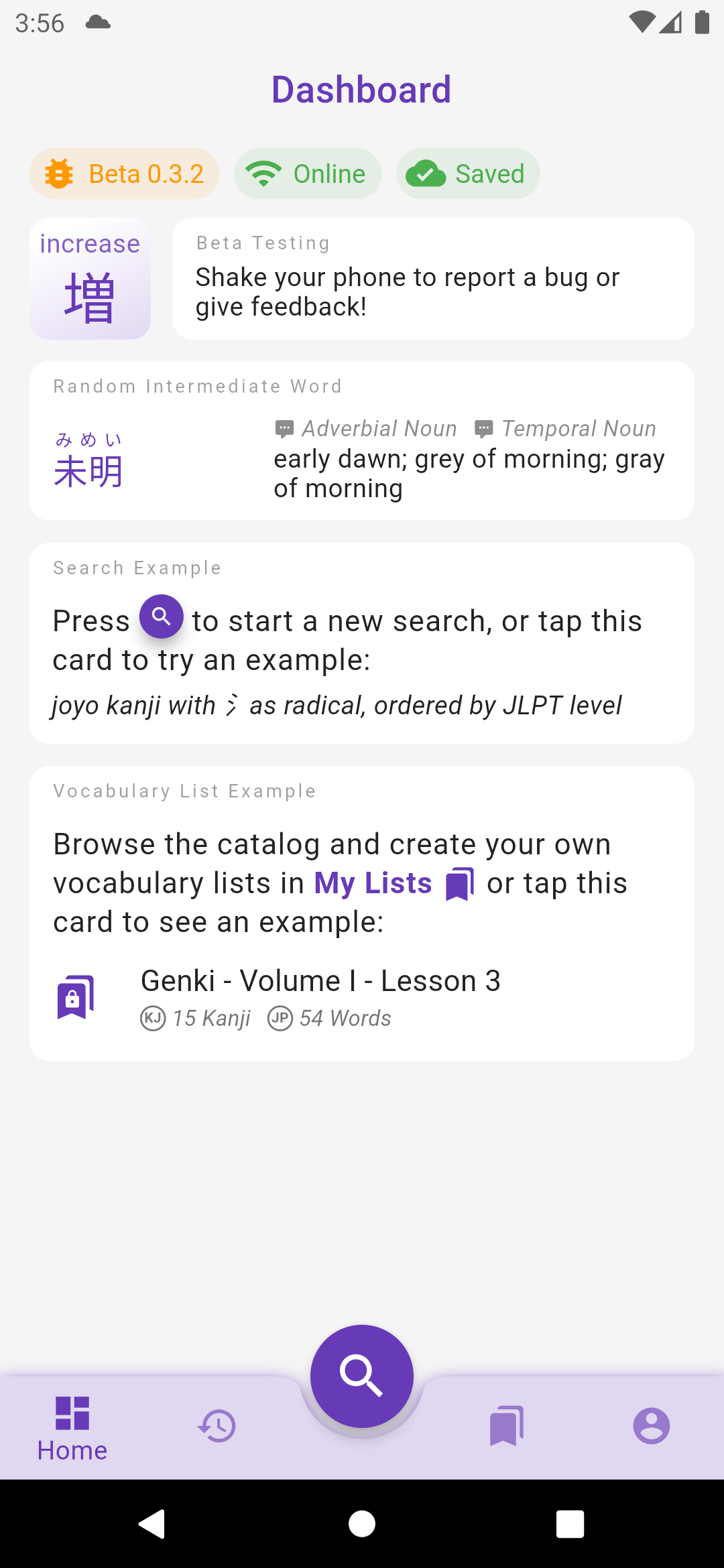
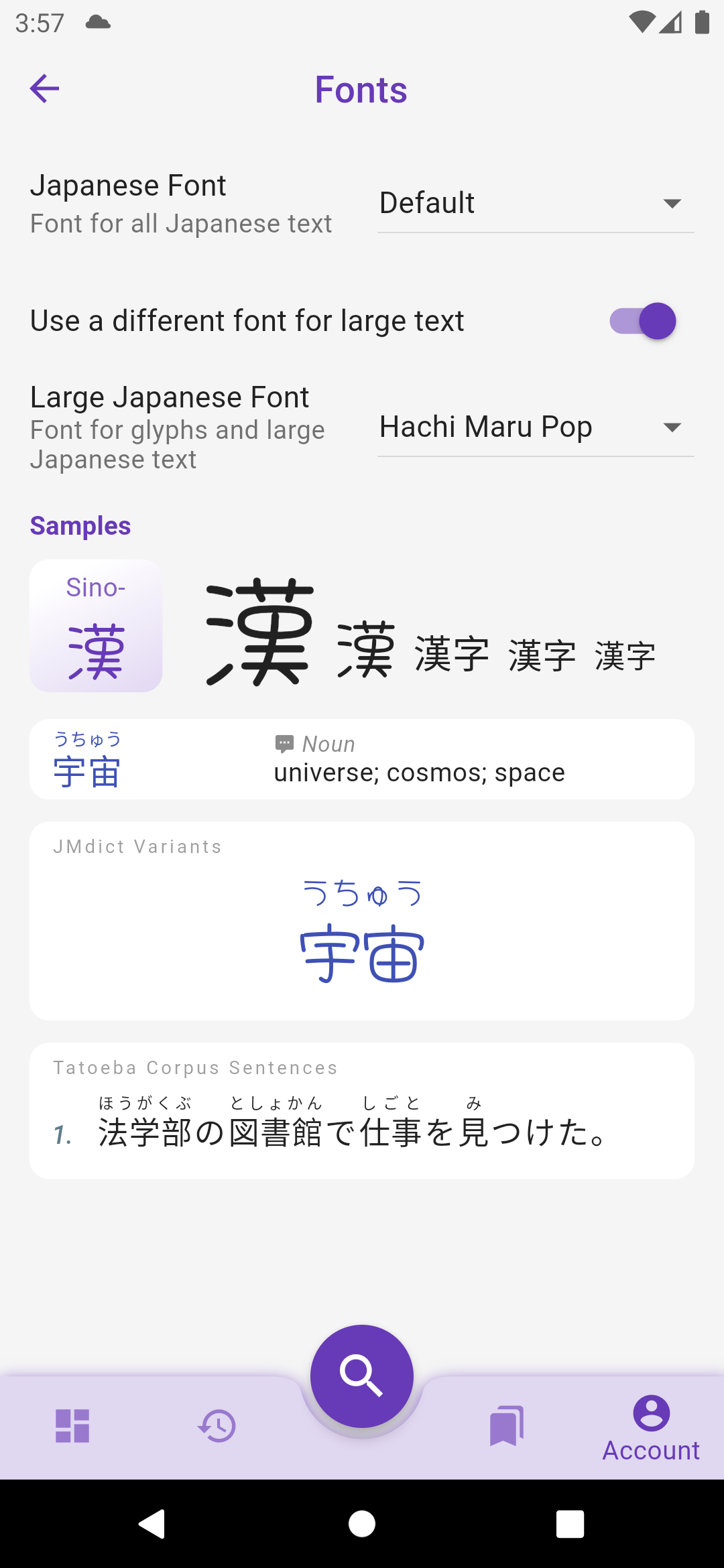
Cloud Sync and (Semi) Offline Cache​

If you are signed-in, all your Preferences are synced to the cloud, along with My Lists and History. Syncing is currently only performed when the app starts up, when you sign in, when internet connection is restored after being offline, or when you manually do a "pull-to-refresh". If you haven't signed in yet but made some changes, they will be preserved when you sign in the first time.

The sync status is displayed at the top of the Dashboard screen:

  • Signed out: you are not signed in, therefore your data are not saved to the cloud.
  • Syncing: your settings/lists are being synced to the cloud.
  • Saved: all your local changes to settings/lists have been saved to the cloud (it doesn't mean that the app is up to date if you have made changes on a different device since syncing is not periodically ran, do a pull-to-refresh manually).
  • Not saved: your local changes to settings/lists have not been saved to the cloud yet, probably because your device is offline.
  • Sync failed: an error occurred when saving local changes to the cloud, long press on the chip to display the reason and error message.

The app can also handle internet disconnections, and changes made to Preferences and Lists while offline are preserved locally (even if the app is restarted) and synced when the app goes back online. Note that the syncing strategy is "last update wins" so for instance if you edit the same List on an offline device A and online device B, the change from B will be saved to the cloud right away but when device A goes back online, it will send its change to the server and override the change from device B.

Custom Japanese Fonts​

Fonts are not prepackaged within the app anymore (reduced the bundle size by 3!) and will instead be downloaded on demand. They can be changed in Account > Preferences > Fonts. It is possible to use a different font for large and small texts.

The default Serif font in previous versions has been removed from Preferences > Japanese > Serif Font for Large Characters, but the same effect can be obtain by checking Preferences > Fonts > Use a different font for large text and choosing Sawarabi Mincho in the dropdown list.

What's Next?​

The biggest changes in these releases were internal, some work I had to do now to facilitate the development of future features:

  • Grouped all design elements into a central Theme to prepare for the implementation of dark mode.
  • Developed an offline-first syncing cache system to enable full sync of user data between devices and with the coming web and desktop apps.
  • The offline-first cache also enables the app to work even without an internet connection. Currently only Preferences and Lists are cached but the next release should also cache all pages (kanji and words) so they can be consulted offline or without fetching them from the server. The next step will be the option to download the whole dictionaries in advance, and with the implementation of a local search feature, the app will be fully operational offline.

Happy testing :)

Other changes to version 0.3.0 to 0.3.2​

Fonts​

  • removed fonts from the app file to reduce its size from 54mb to 22mb
    - uses OS default font (Roboto on Android, San Francisco on iOS) instead of Noto fonts
    - fixed "wiggling" Japanese text on iOS where kanji without furigana were not aligned with kanji with furigana
    - sets font weight according to their size to be a bit thiner and more readable

Preferences​

  • Switch Level screen has a checkbox to let the user decide if preferences must be wiped out or if manually edited changes must be preserved
    - all settings are synced to the cloud if user is signed in
    - all settings and history are saved to the cloud the first time a user signs in
    - when the user signs out, all settings, lists, etc. are cleared from the local app

My Lists​

  • lists stays visible even with no internet connection
    - lists can be updated, kanji/word added to them, even with no internet connection
    - internet connection is still required to create a new list
    - preferences and list changes made without internet connection are preserved even if the app is restarted
    - preferences and list changes are synced to the cloud when the app goes back online

Dashboard​

  • replaced welcome header by "Dashboard"
    - displays status chips at the top: app version, online state, data sync status (signed-out/syncing/saved/not-saved/error)
    - kanji/word of the day are reloaded when the level is changed (if the dashboard is displayed)
    - kanji/word of the day are now selected from all entries in the user's level (instead of just the first 500 entries)
    - word of the day is now only selected among verbs, nouns, adjectives and adverbs (exclude particles, etc.)

UI​

  • bottom navigation bar has a shadow on Android
    - better fits the keyword on kanji small card, makes it smaller or splits it over two lines
    - missing kanji keyword displays ??? instead of being empty and making the kanji bigger
    - denser word card with reduced vertical padding and vertically centered content
    - History app bar's filter buttons resize to fit in the screen width
    - prettier loading animation that looks like a shimmer
    - removed 'feedback-on-shake' gesture on iOS, use the standard 'feedback-on-screenshot' instead
    - moved all switches in Preferences to the right
Sign in with Google / Apple

· 2 min read
Kanjiverse
Kanjiverse

With the latest version available on both Android and iOS, you can now sign in with your Google account or Apple ID instead of the current email+password.

Signing in with Apple/Google will** **carry over everything you have in My Lists if the email address is the same.

If you prefer to continue to sign in with email, you will be asked to verify your email address first, simply follow the link in the email that will be sent to you the first time you try to sign in. The same will now be required for any new account. There is also the option to reset your password from the Sign in with Email sheet.

Happy testing :)

Detailed list of changes in v0.1.14​

  • adds support for Sign in with Google and Apple
    - replaces Sign In buttons with branded buttons
    - improves Sign in with Email security by sending a verification email
    - forces old user accounts to verify their email before signing in again
    - adds Reset Password link in the Sign in with Email sheet
    - adds clear button in the email text field
    - adds visibility button in the password text field
    - fixes keyboard action "next" on Sign in with Email sheet
    - Account page shows user's picture when signed in with Google
    - fixes JMDict Variant text size being too small when there were hidden infrequent variants
    - JMDict Variant text size adapts to the width of the screen if less than 10 characters long


Detailed list of changes in v0.1.13​

  • fixes preferences being reset and "choose your level" screen showing up every time the app restart
    - fixes scaling issues when the user set Accessibility > Large Font in the OS Settings
    - Kanji grid's number of kanji per row adapts to the Accessibility > Large Font
    - shrinks long Japanese words on Word Cards so they are fully visible even when longer than 5 characters
    - shows ellipsis when Part of Speech (grammar) tags overflows on Word Cards
    - fixes tags in the app bar overflowing on small devices
    - improves contrast on iOS with a darker background tint when Search sheet is opened
    - fixes black label on filled buttons in iOS

iOS Beta is Live!

· 3 min read
Kanjiverse
Kanjiverse

It's finally here! This new version is the first one to be released on both Android and iOS at the same time. Invites will be sent by email to anyone enrolled. If you haven't already, you can still enroll on the site.

Version 0.1.12 also adds a bunch of fixes and improvements:

  • long press to copy kanji, words and sentences
  • tap the Home icon to go back to the Dashboard
  • easier to read Sans Serif font for large Japanese text, set by default for Novice/Beginner, can also be set in Account > Preferences > Japanese Collection > Font, Furigana and Limits

Happy testing :)

Detailed Changelog of Version 0.1.12

  • Copy kanji, Japanese word or sentences with a long press
    - Displays large Kanji and Japanese text with an easier to read Sans Serif font
    - Sans Serif font is set by default for Novice/Beginner level
    - Sans Serif font can be set in Preferences > Japanese Collection > Font, Furigana and Limits
    - Go back to Dashboard by tapping on the Home button when already on the Home tab
    - Bookmarking a page without being signed in will first prompt the user to Sign In
    - Removed edit/delete buttons on the List cards, the buttons are now on the app bar when a List is opened
    - Edit List dialog is replaced with a bottom sheet
    - Removed shake bug reporting on ios, use the native testflight screenshot method instead
    - Dashboard shows a Latest News card (triggered remotely with Firebase Remote Config)
    - Dashboard shows an Update Available card when a new version is available
    - Fixed Kanji Readings listing words that do not match the reading
    - Fixed characters spacing in words that have furigana wider than the word itself
    - Fixed keyboard navigation in the Sign In dialog and the Search sheet
    - Fixed background becoming transparent when pressing back on Search Results pages
    - Fixed Bookmark button not working after signing in on pages that were opened before signing in
    - Fixed missing app bar and back button on Search Results pages that have no results
    - Stops automatically opening kanji/word of a List when there is only one item
    - Refreshes the page after updating a List's details
    - Notifies that the Sign In is successful
    - Improves look of navigation bar with color tint and blurred opacity on ios
    - Improves look of Search by Radical Input screen with an ios-style Sliding Segment instead of multiple chips
    - Improves shadows softness
    - Improves toast bar notifications look
    - Adds a scrollbar
    - Makes Search Bottom Sheet taller on Radical and Tag Input tabs
    - Adds gradient on Welcome page's title
    - Adds Firebase crashlytics and performance