3 posts tagged with "Kanjiverse"

View All Tags

History Can Now Repeat Itself

· 3 min read
Kanjiverse
Kanjiverse

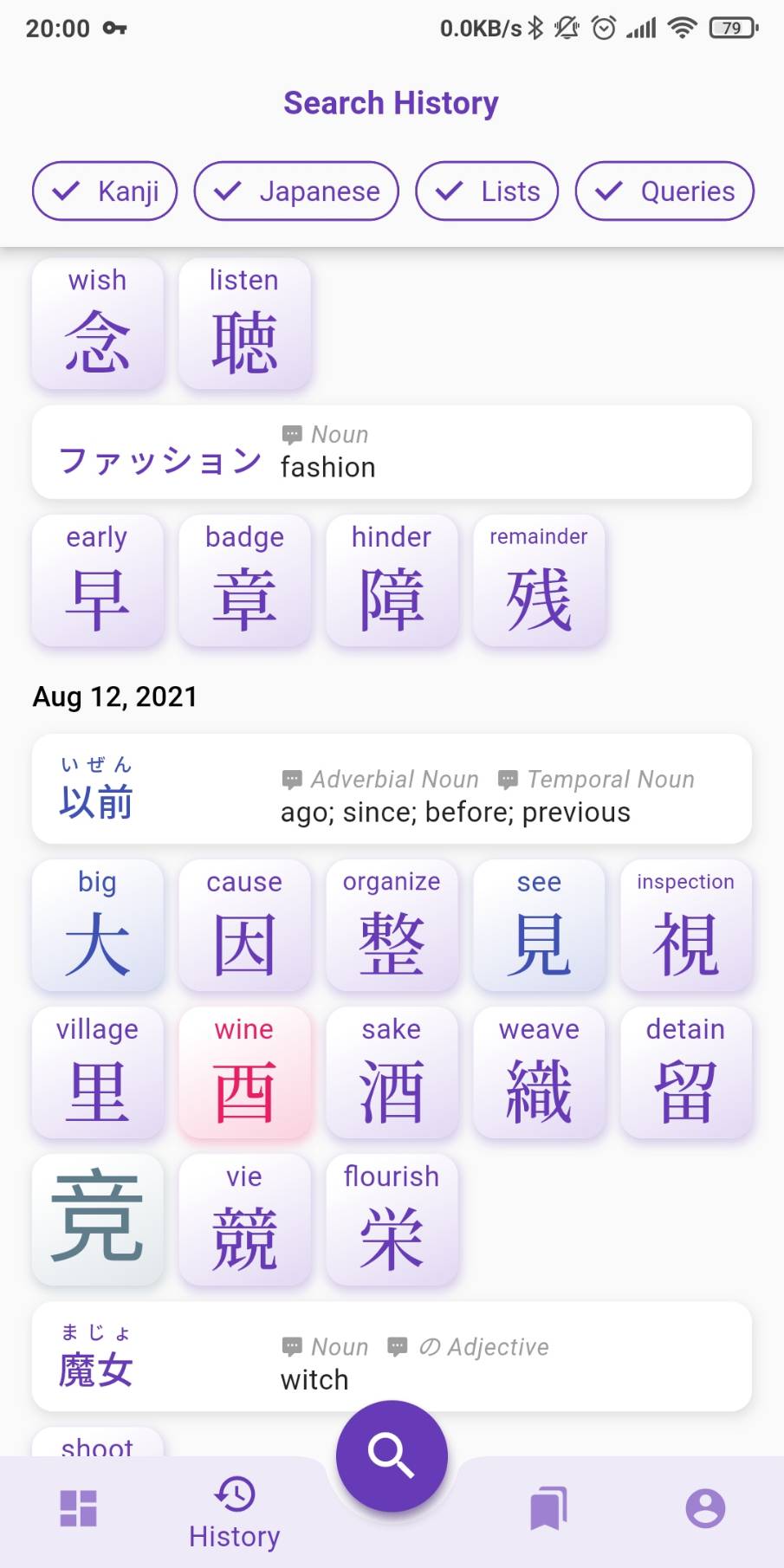
The History tab is finally functional and will keep track of everything you've browsed. On top of that it is sync'ed with your other devices if you are signed in.

Everything you search, every pages you browse, are now saved in the search History tab: kanji, words, vocabulary lists, tag queries, etc. If this is too much information, you can filter it by category with the options located in the app bar. Note that if there are multiple identical items, only the most recent one will be displayed, therefore tapping one item will bring it to the top of the list.
Cloud Sync​

The History is saved to your device but if you are signed in it will also be sync'ed to the cloud and your other devices when the app restarts, you sign in, or your phone is reconnected to the internet. If needed you can force a sync with a pull-to-refresh gesture. Everything searched before signing in is preserved and will be sent to the cloud once you sign in.

Clean Up​

History is cleared on the device when you sign out (and of course restored when you sign in). If you need to clear it manually, it can be done from Account > Preferences > Danger Zone > CLEAR SEARCH HISTORY. This will also clear it on the cloud. If you only need to clear the cache on the device, choose CLEAR CACHES.

Other fixes and changes in v0.2.1​

Bug Fixes
- fixes missing kanji reading examples when the reading has a dash like "おに-", the dash is replaced by a * wildcard
- fixes missing quick search action for Kanji suggestion
- fixes Kanji card's size issue when dense settings is on
- fixes Kanji card's overflowing title during animation
- fixes Word card's text height jumping during animation
- fixes Japanese Word card's font (english and japanese text have their own font)
- fixes Sign Out status not being persisted when app restarts
- fixes kanji level tags (JLPT, kanken, grade) not being retrieved due to case sensitivity issue
- fixes kanji reference tags (RTK, etc.) not being suggested
- fixes My Lists pop over menu (when pressing the bookmark icon) hiding elements with a scrollable view
Enhancements
- Dashboard has a pull-to-refresh gesture to get new random kanji-of-the-day, etc.
- Dashboard's Vocabulary List Example returns a random public list that has at list 2 kanji and 2 words
- Dashboard's cards such as Kanji-of-the-day are disabled with better error messages if they couldn't fetch their data
- Dashboard refreshes itself when the phone comes back online
- Word and Kanji card has a highlight/splash effect corresponding to their frequency color
- missing pages, broken links or pages that returns server error will automatically pop back to the previous page and displays the error via the toaster
- My List tab displays a special message if phone is offline
- displays a nicer message with space invader icon when Search Results or History screen is empty
- vocabulary list loading animation displays the list's name instead "Loading..." and skeletons for the exact number of kanji and words
Other
- adds http metrics to firebase performance (response time and payload size)
Sign in with Google / Apple

· 2 min read
Kanjiverse
Kanjiverse

With the latest version available on both Android and iOS, you can now sign in with your Google account or Apple ID instead of the current email+password.

Signing in with Apple/Google will** **carry over everything you have in My Lists if the email address is the same.

If you prefer to continue to sign in with email, you will be asked to verify your email address first, simply follow the link in the email that will be sent to you the first time you try to sign in. The same will now be required for any new account. There is also the option to reset your password from the Sign in with Email sheet.

Happy testing :)

Detailed list of changes in v0.1.14​

  • adds support for Sign in with Google and Apple
    - replaces Sign In buttons with branded buttons
    - improves Sign in with Email security by sending a verification email
    - forces old user accounts to verify their email before signing in again
    - adds Reset Password link in the Sign in with Email sheet
    - adds clear button in the email text field
    - adds visibility button in the password text field
    - fixes keyboard action "next" on Sign in with Email sheet
    - Account page shows user's picture when signed in with Google
    - fixes JMDict Variant text size being too small when there were hidden infrequent variants
    - JMDict Variant text size adapts to the width of the screen if less than 10 characters long


Detailed list of changes in v0.1.13​

  • fixes preferences being reset and "choose your level" screen showing up every time the app restart
    - fixes scaling issues when the user set Accessibility > Large Font in the OS Settings
    - Kanji grid's number of kanji per row adapts to the Accessibility > Large Font
    - shrinks long Japanese words on Word Cards so they are fully visible even when longer than 5 characters
    - shows ellipsis when Part of Speech (grammar) tags overflows on Word Cards
    - fixes tags in the app bar overflowing on small devices
    - improves contrast on iOS with a darker background tint when Search sheet is opened
    - fixes black label on filled buttons in iOS

Sneak Peek Inside the Private Beta

· 6 min read
Kanjiverse
Kanjiverse

Android users will finally be able to get their hands on the first Private Beta! Here is what you can expect.

Collections and Dictionaries​

Kanjiverse currently supports two types of collection: Kanji and Japanese (words and expressions). Each page of a collection is a series of customizable cards. New cards will added in the future, here is what's available now.

Kanji Collection​

The Kanji Collection contains 13,108 kanji with the following cards:

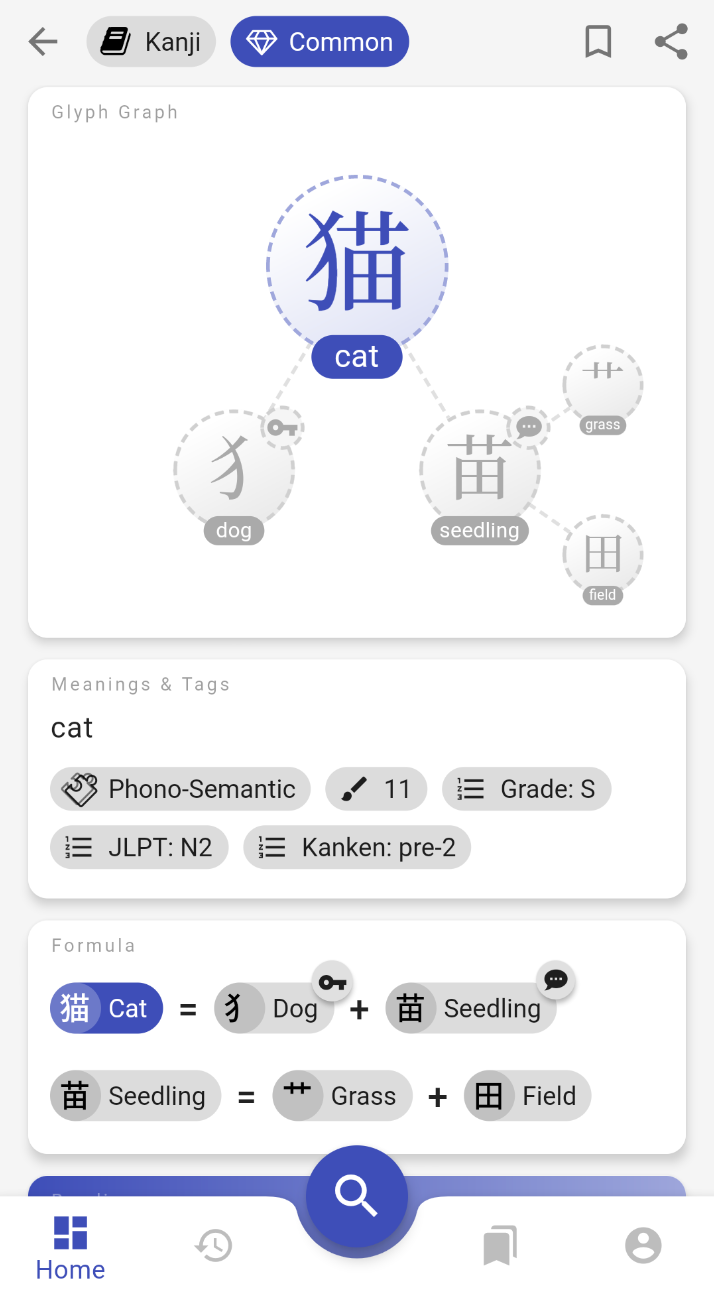
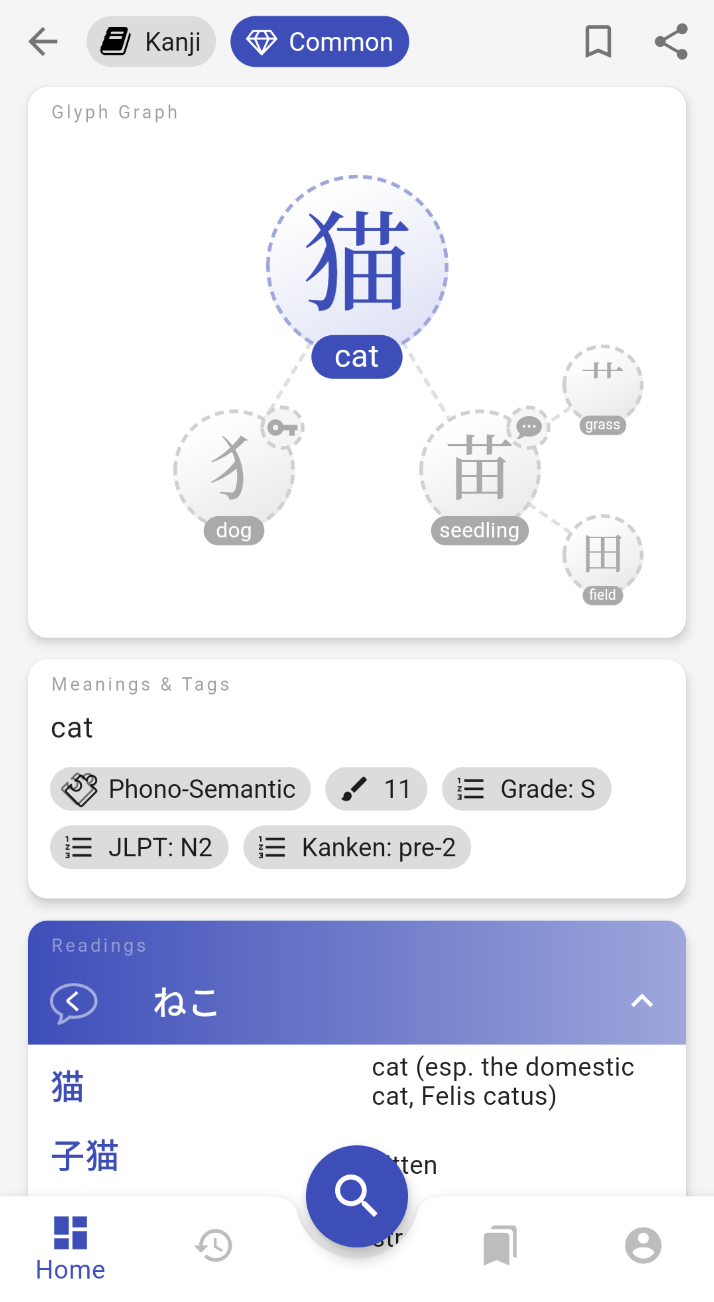
  • Glyph Graph: everyone's favorite, decomposes a kanji into its components and sub-components, tap one of them to zoom in.
  • Formula: a flat version of the Glyph Graph, shows Heisig's Remembering The Kanji (RTK) keyword for each component.
  • Meanings & Tags: various informations about the kanji such as JLPT level, is it a pictogram, is it a joyo, etc. All those tags can be used as filters when doing a search.
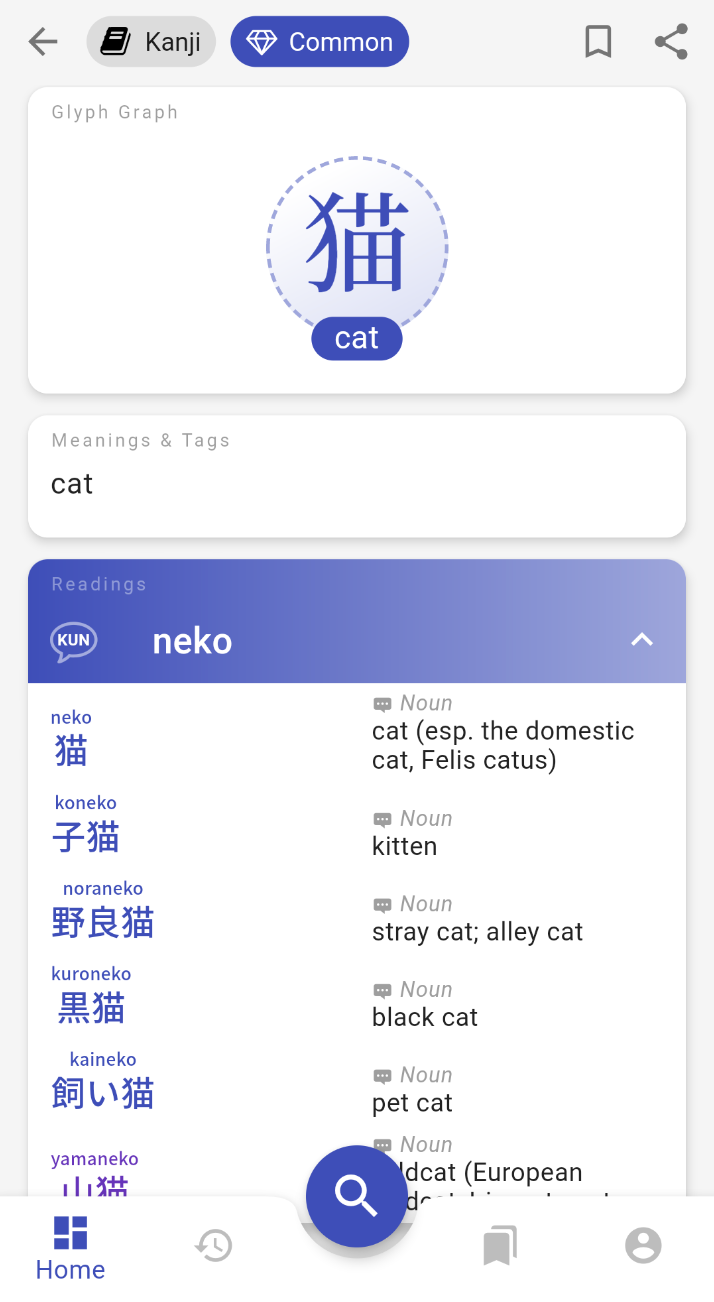
  • Readings: each possible reading of the kanji, sorted and colored by frequency of usage, lists all words that use this reading.

Japanese Collection​

The Japanese Words and Expressions Collection contains* 180,429 entries* with the following cards:

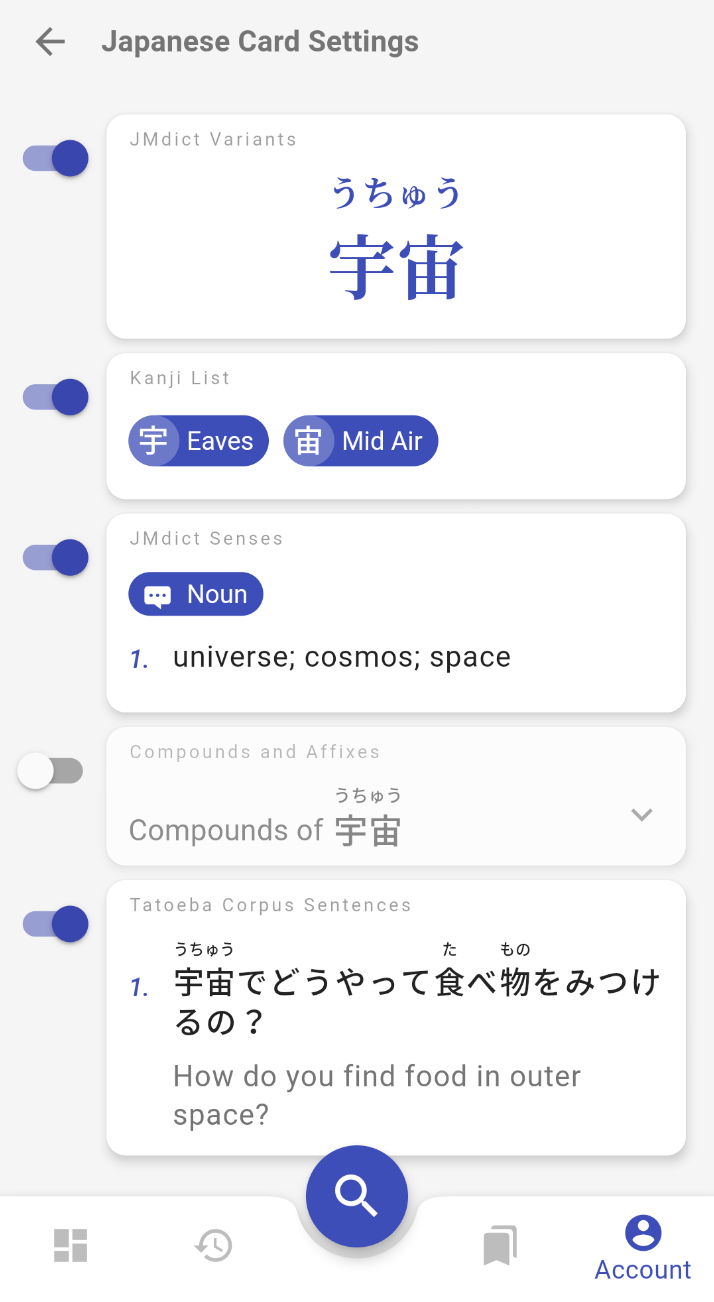
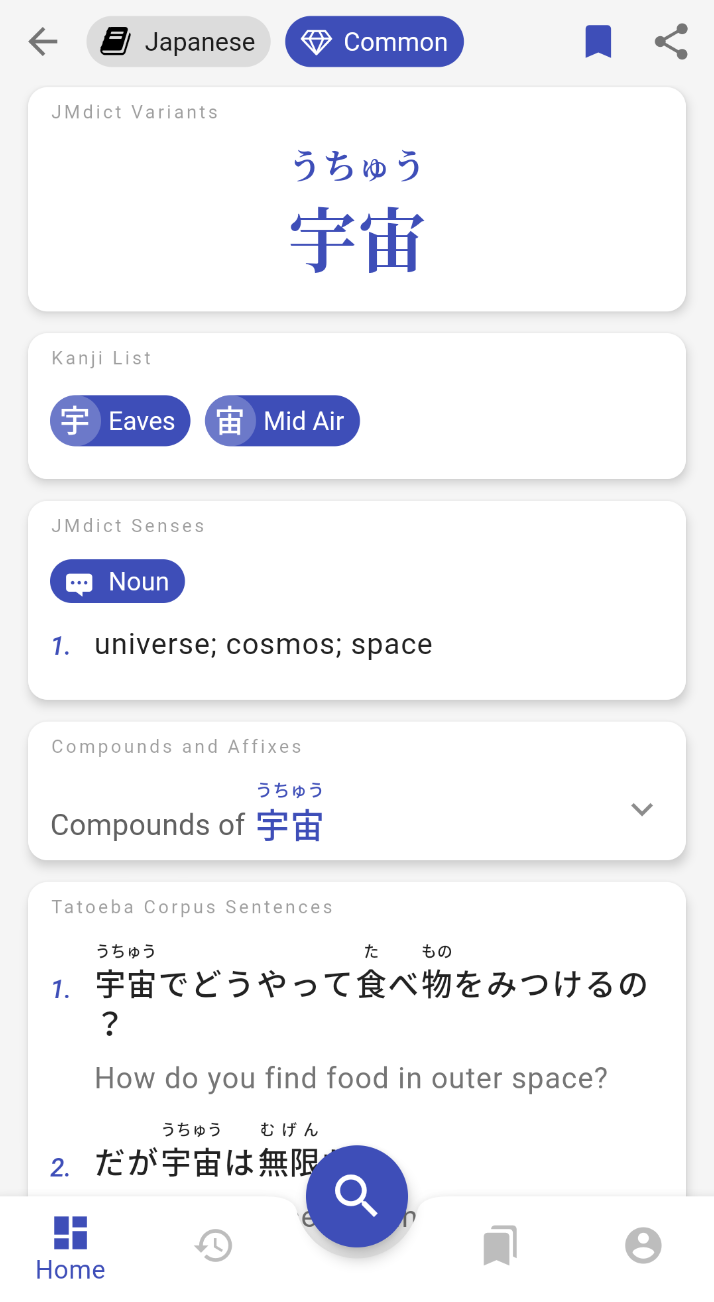
  • JMdict Variants: some Japanese words can be written with different kanji, kana or have different pronunciations, this card shows them all, courtesy of JMdict/Edict.
  • Kanji List: links to Kanji Collection pages for each kanji present in the word/expression.
  • JMdict Senses: list of definitions with tags that can also be used as search filters.
  • Compounds and Affixes: Japanese is an agglutinative language, words can often be part of other longer words.
  • Tatoeba Corpus Sentences: sample sentences with English translations from the Tateoba Corpus.

User Level and Preferences​

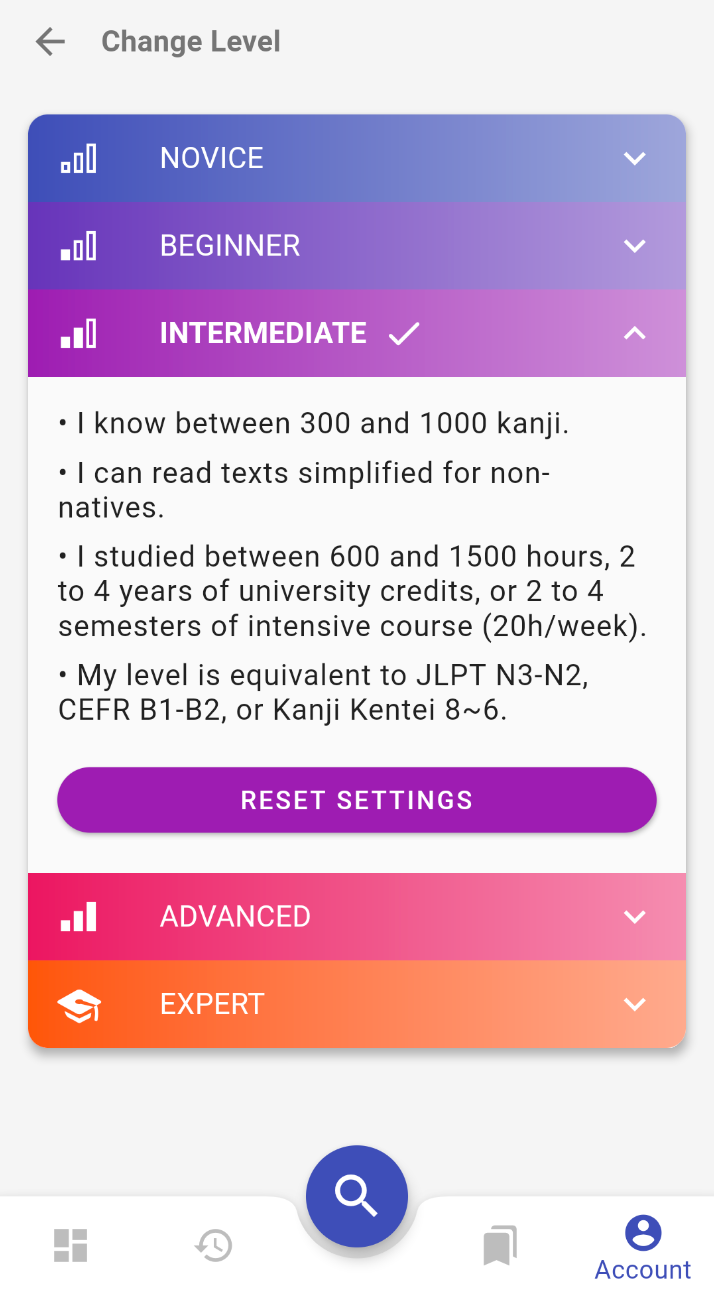
Kanjiverse comes with 5 recommended profiles based on the user's level. You choose the one that matches your level and the interface and content displayed will be adapted to fit your needs.

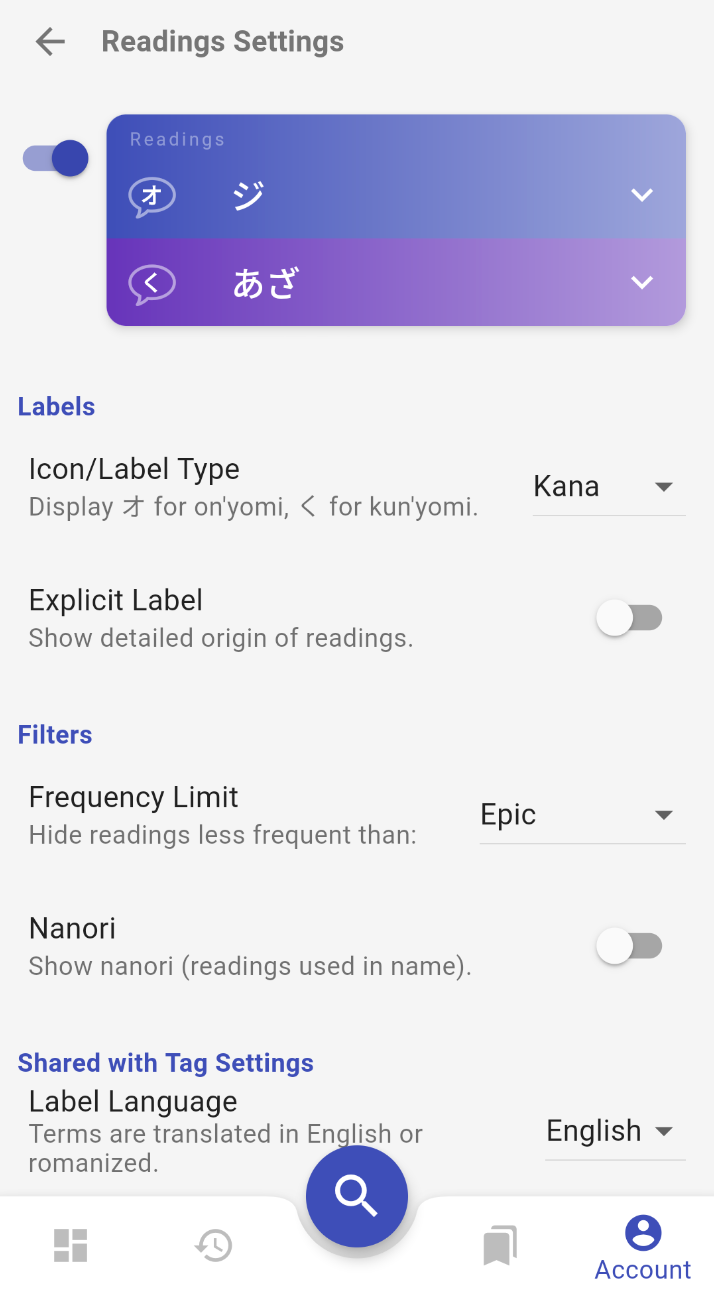
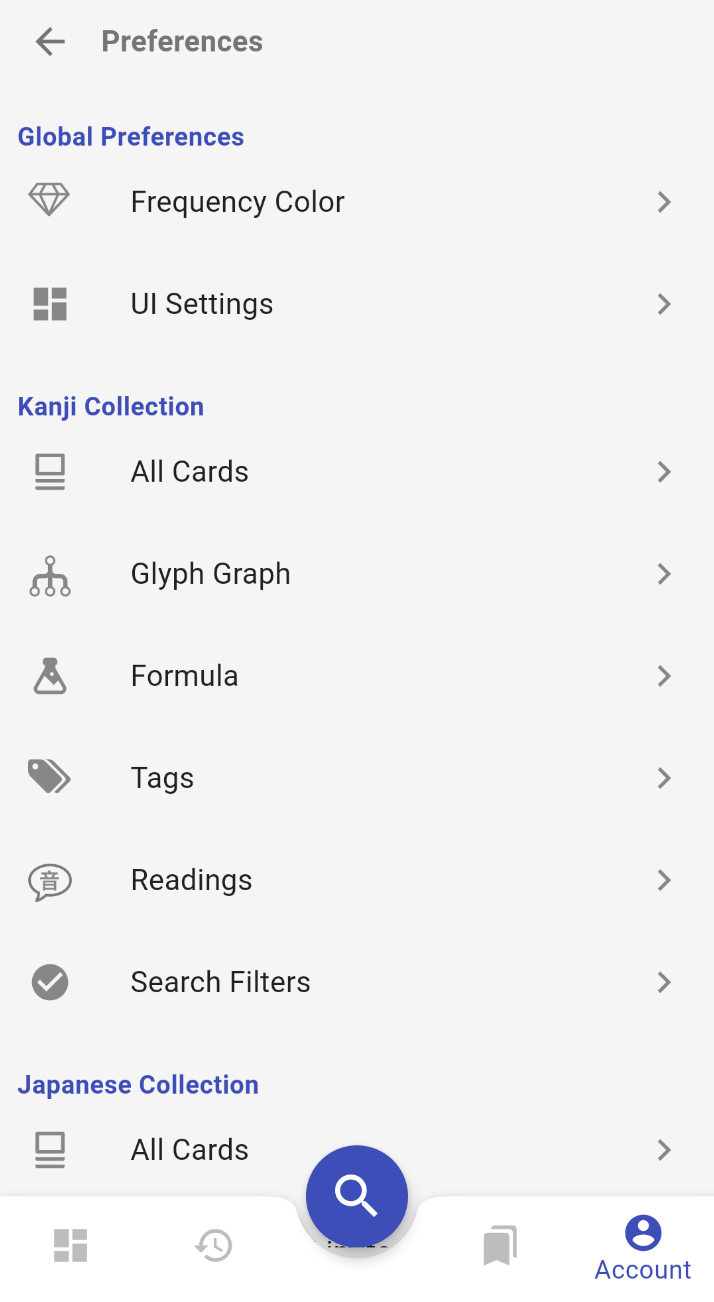
Things that change based on the selected profile: types of card displayed, tag details, furigana, romaji or kana, English or Japanese labels, hiding rare kanji/words, etc.

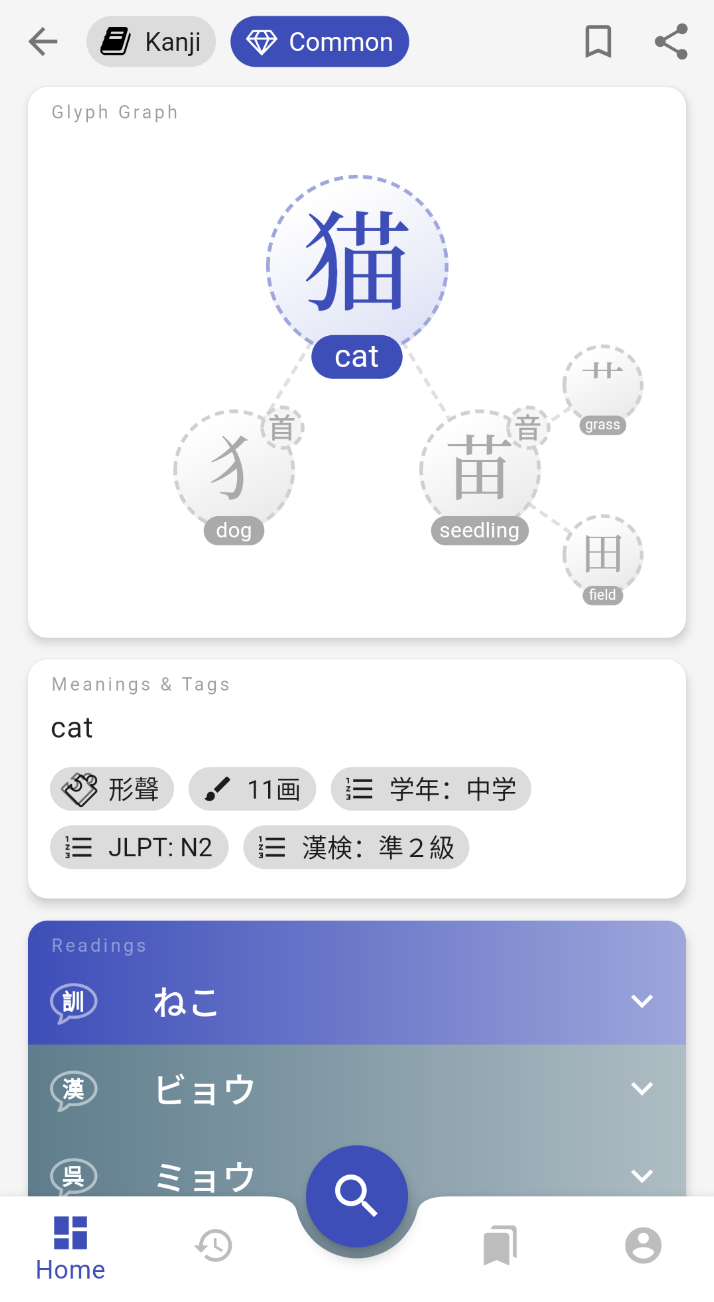
Example of the same page displayed for Novice, Intermediate, and Expert levels: The same page displayed for Novice, Intermediate, and Expert levels. All the settings used in these default profiles can also be fine tuned individually: Some of the Preference screens.
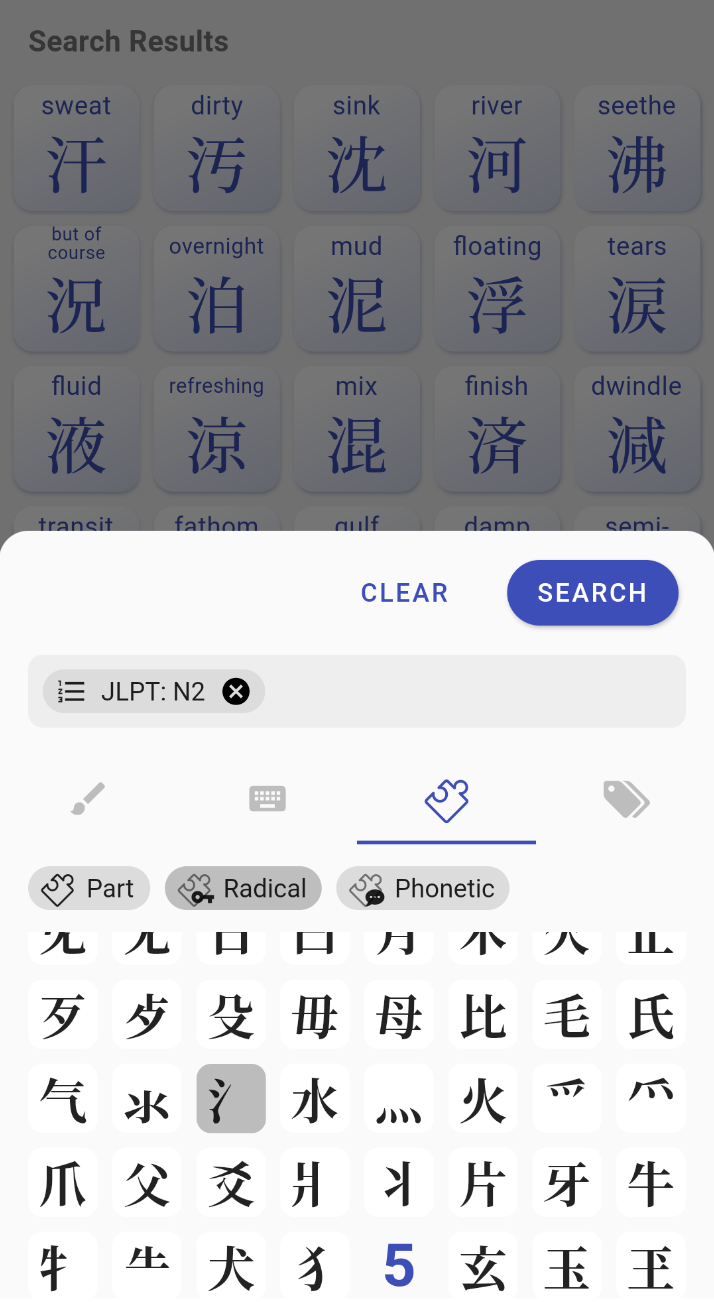
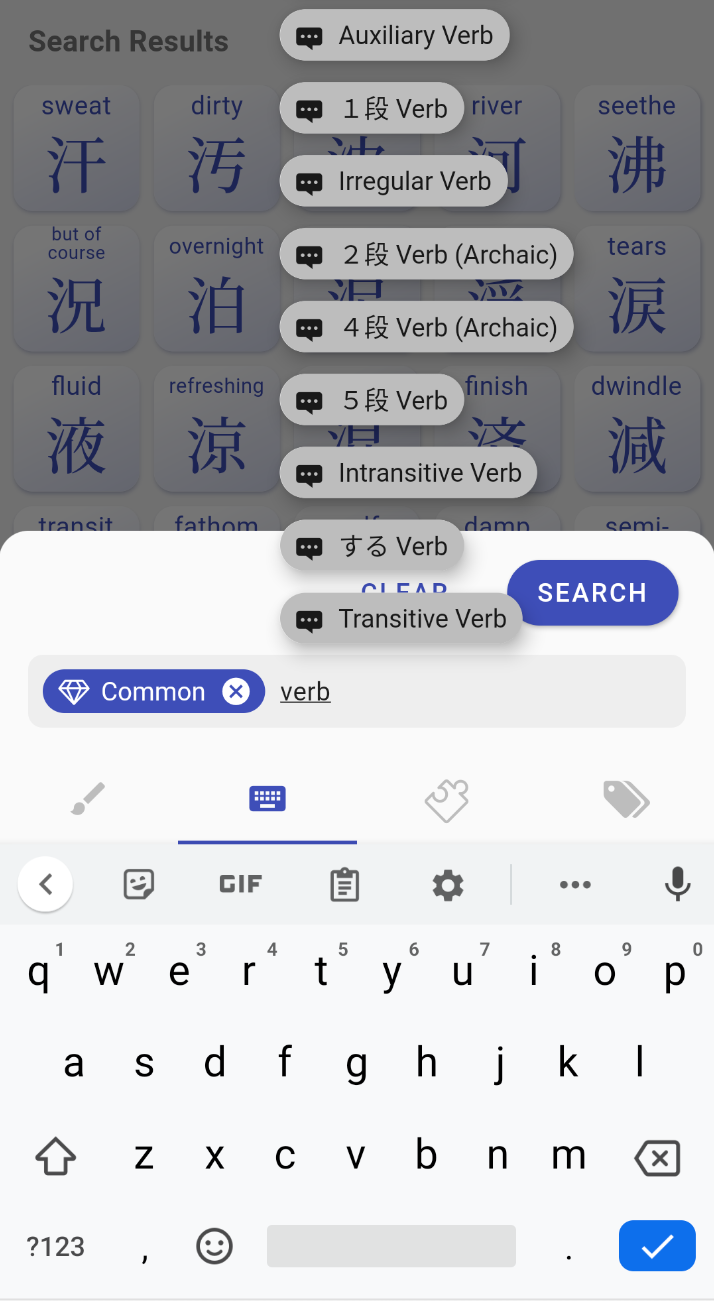
The search bar helps you query all collections at once with different input methods:

  • Keyboard Input: provides suggestions as you type, converts romaji to hiragana and autocompletes all filter tags.
  • Kanji Component Input: search by radical, phonetic component or any part of a character.
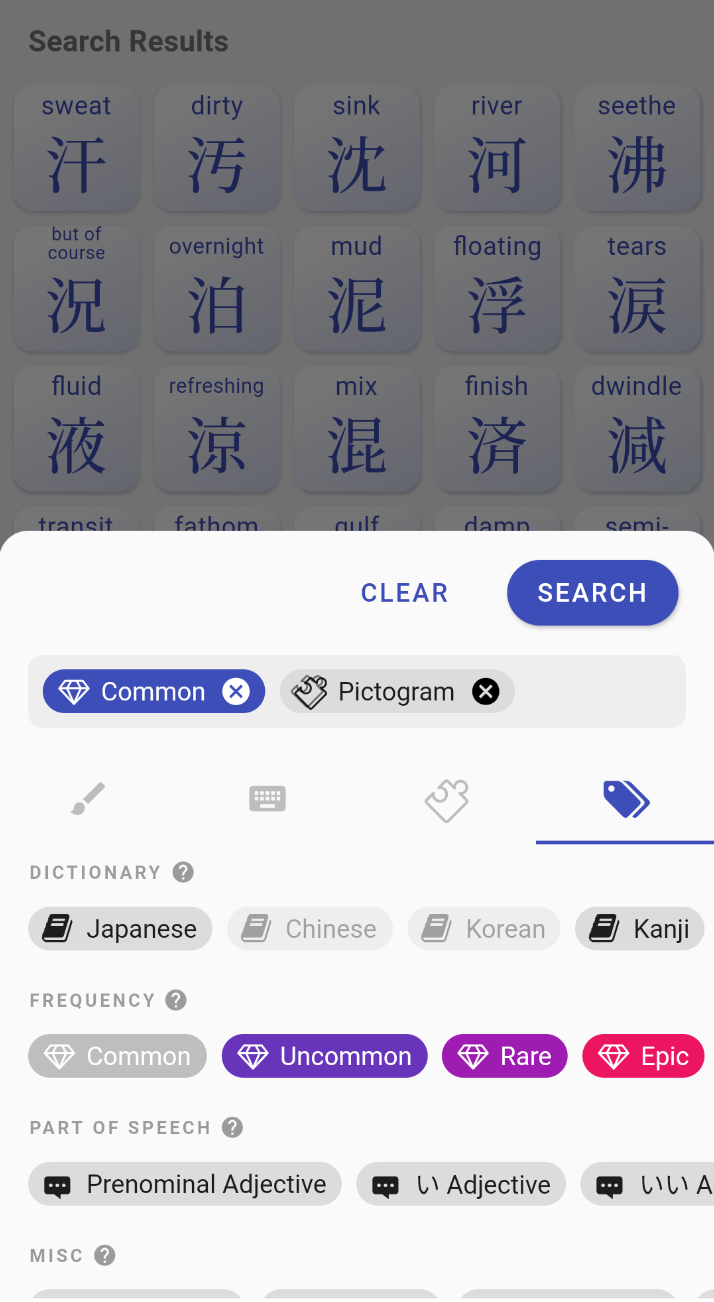
  • Filter Tag Input: every tag present on kanji/word pages can be used as filter. More than a hundred are available such as kanji composition, grammar element, frequency of usage, JLPT levels, etc. Search with different Input Methods.
Vocabulary Lists and Catalog​

You can create your own lists of kanji/words and share them with others. You can also browse the catalog and bookmark any list that others have shared!

To create your own list:​

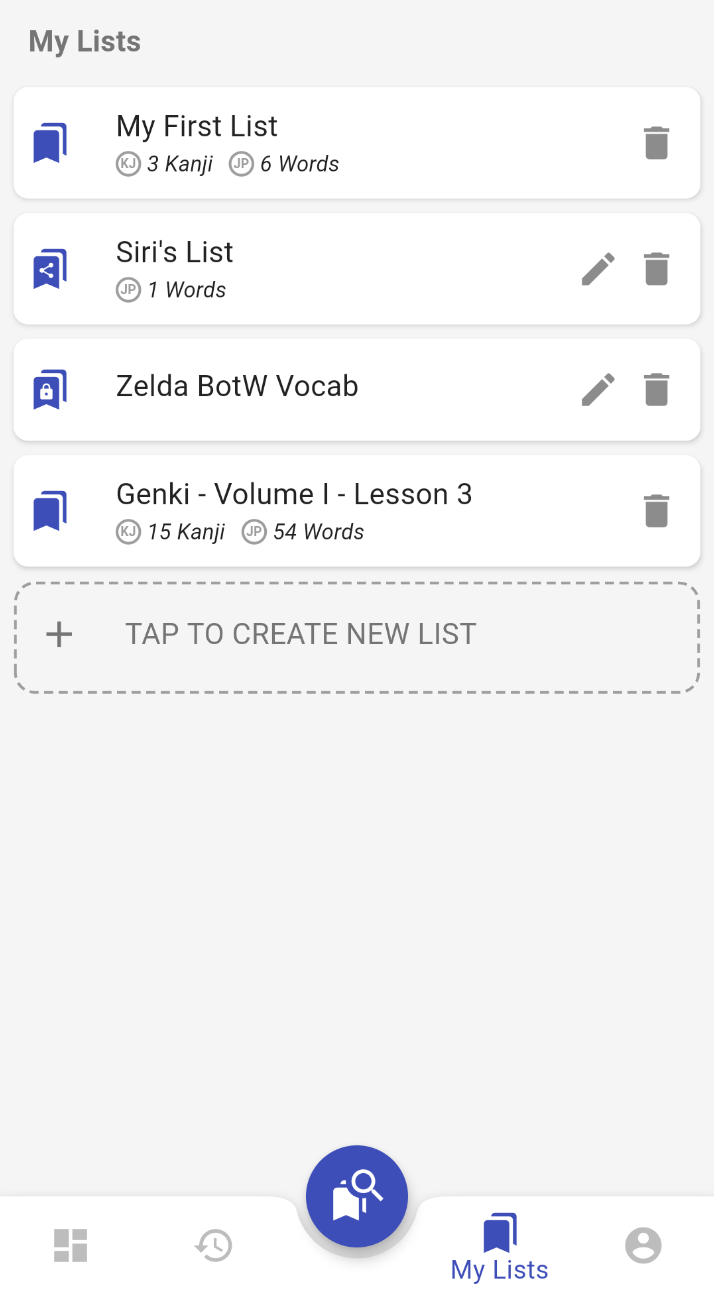
  1. Go to My Lists (tab in the bottom navigation).
  2. Sign In is required (only email sign in is available for now, careful not to forget your password, account reset isn't implemented yet!).
  3. Tap CREATE NEW LIST.
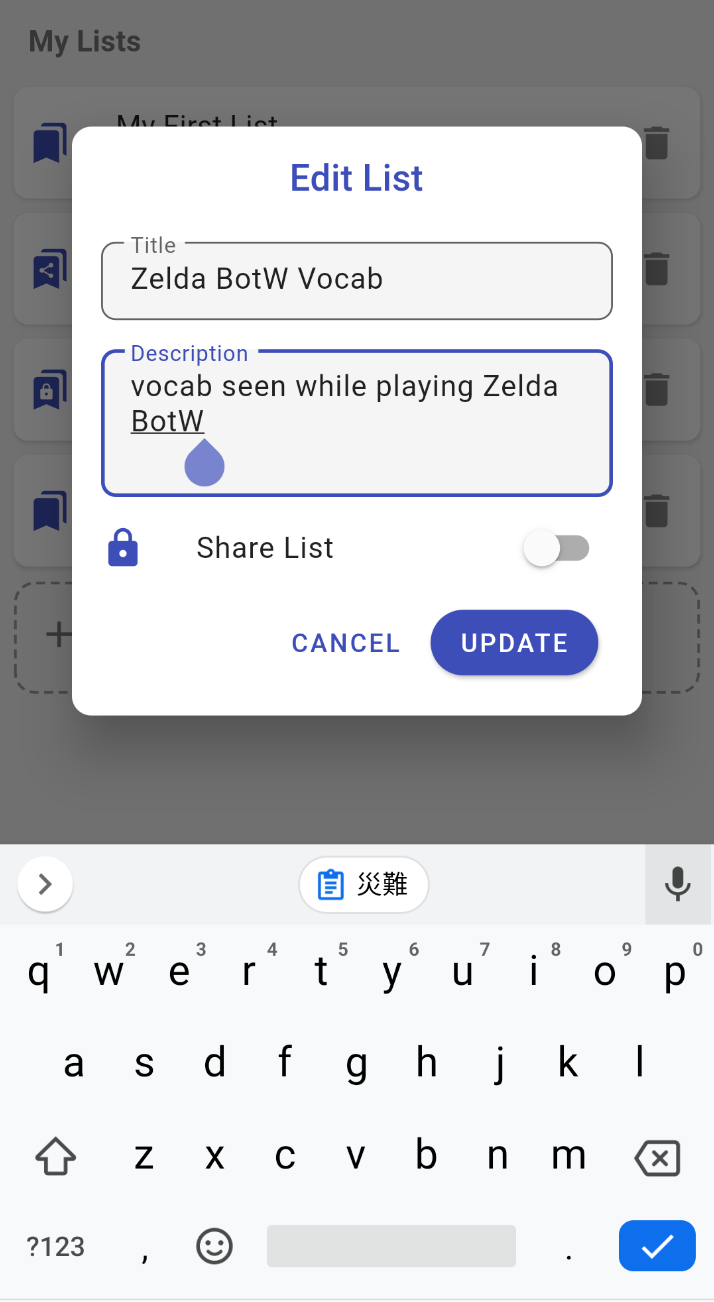
  4. Enter at least a title, description is optional, and check Share List if you want to let other users search and bookmark this list (of course they won't be able to modify its content).
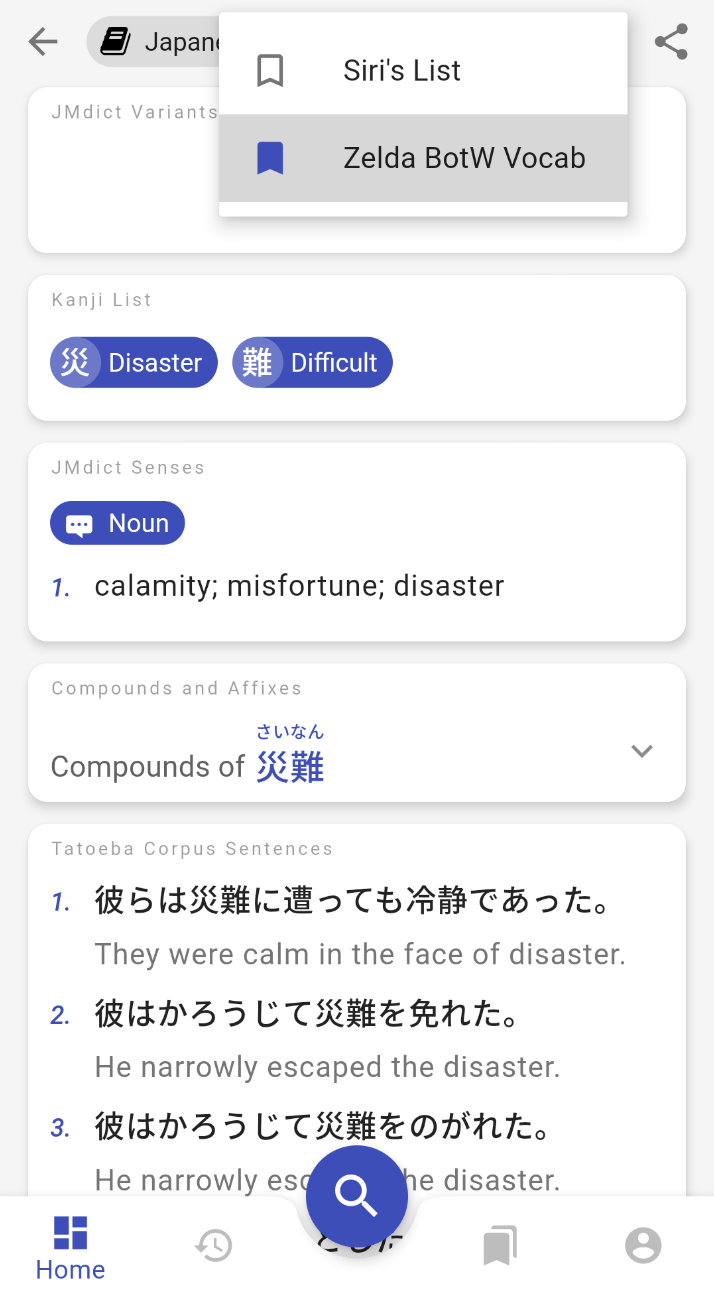
  5. To add a kanji/words to this list, press the bookmark icon on any page, then select the list. Steps to create a custom list and bookmark pages.
To find shared lists:​

Instead of creating a list from scratch, you can search if someone has already shared a list for your textbook or favorite anime:

  1. Go to My Lists tab.
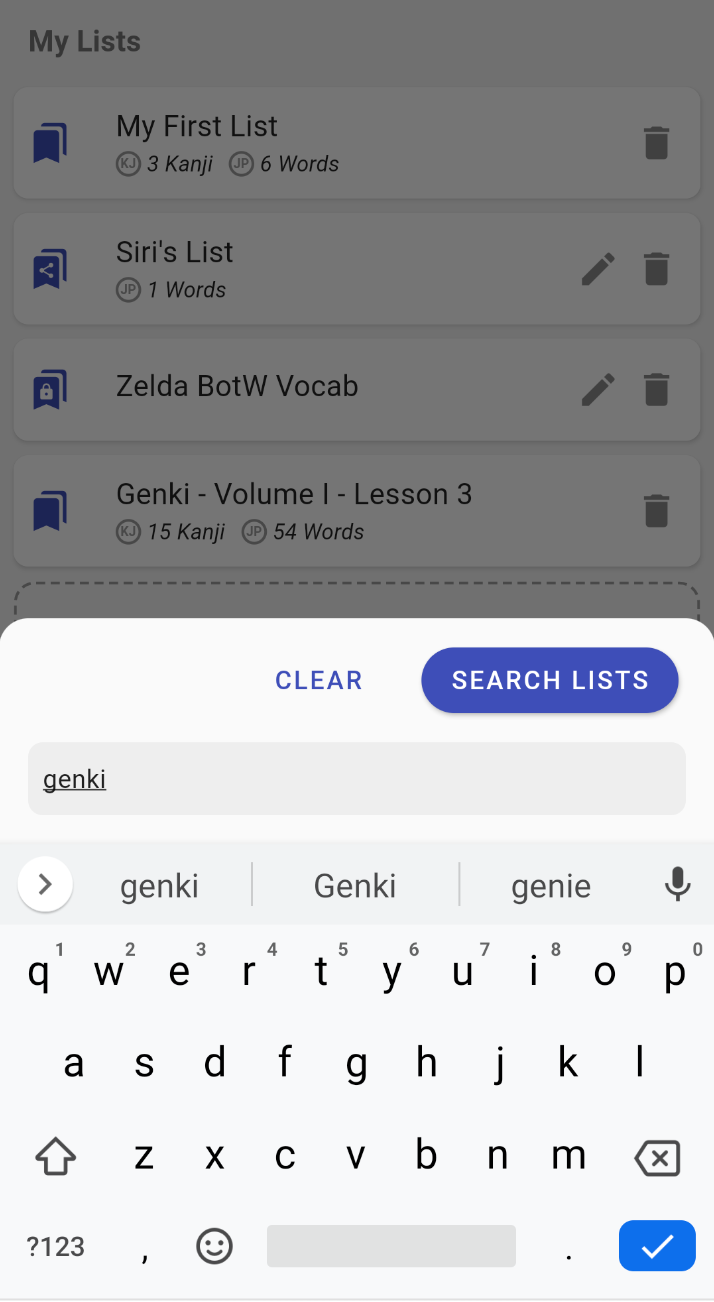
  2. Press the Search button (on this tab it is an icon of a magnifying glass hovering bookmarks).
  3. Type the title you are looking for and press SEARCH.
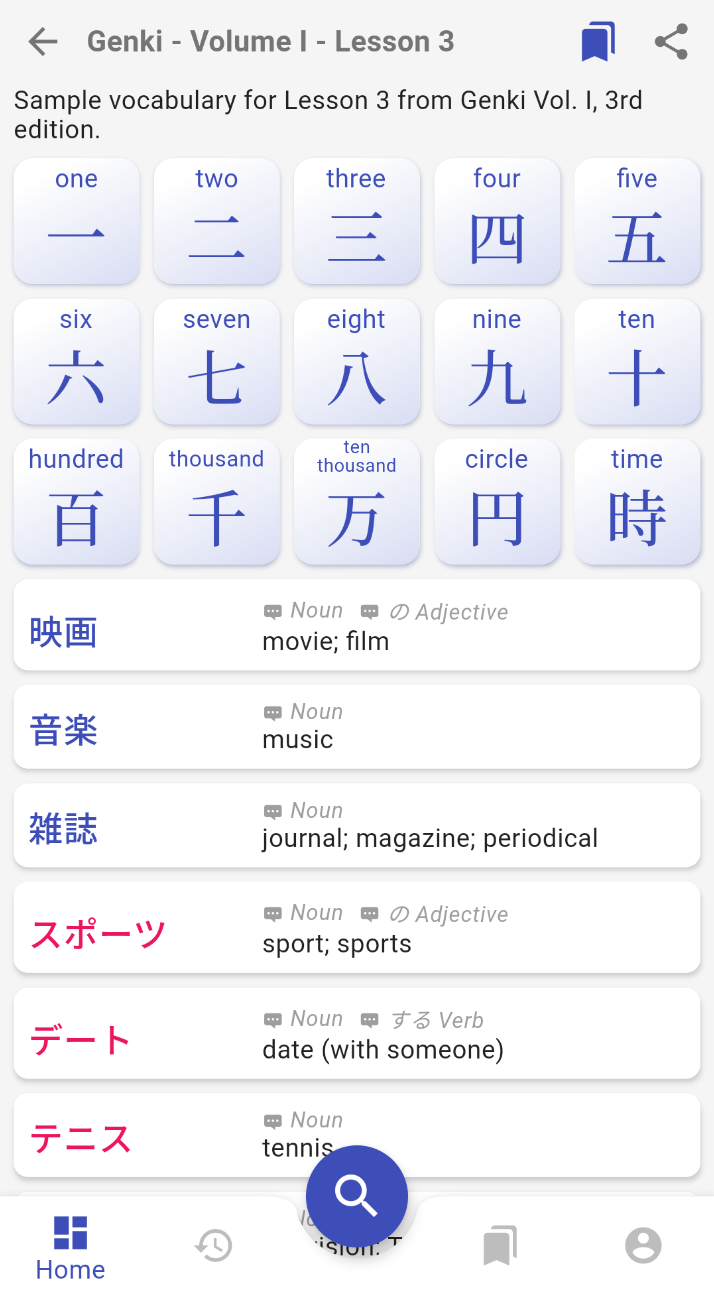
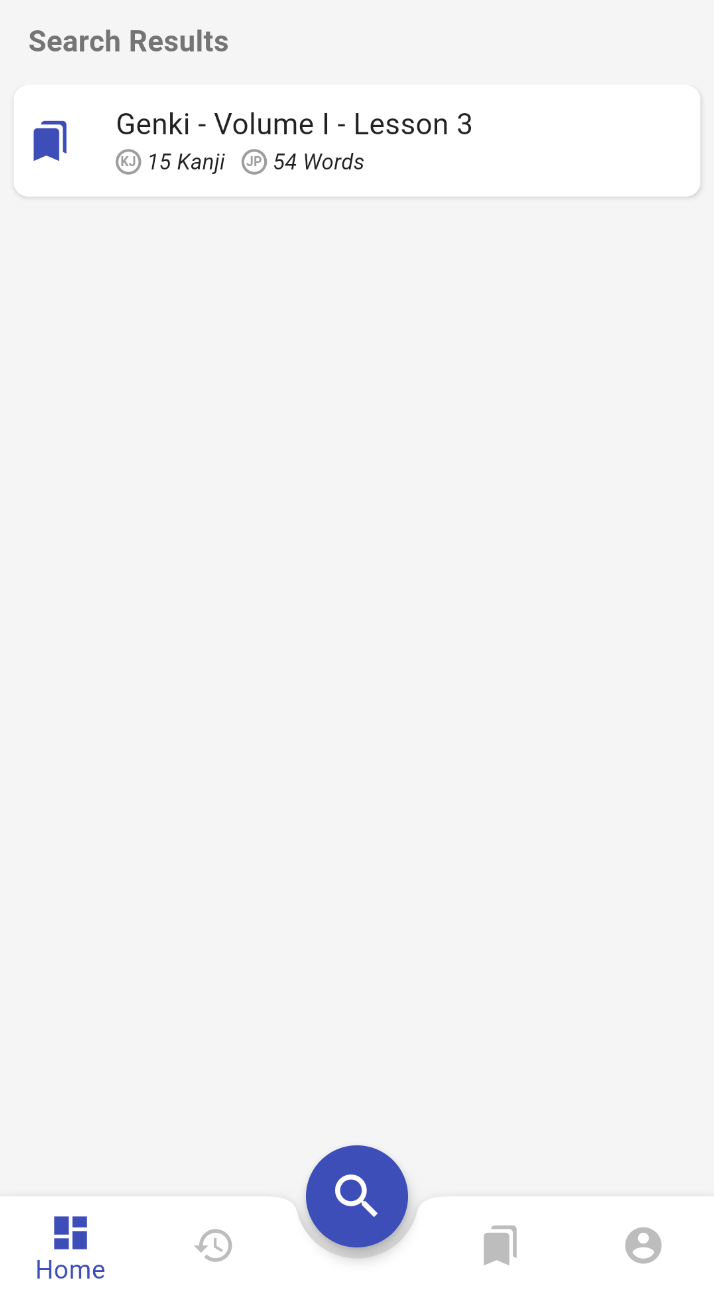
  4. Tap on one of the results to open the list's details.
  5. Press the bookmarks icon to add it to My Lists. Steps to search the catalog of vocabulary lists.

Is that all?​

You might have noticed that not all features announced on the landing page are present in this first beta version, notably:

  • Kanjiverse Corpus (sentences from the real world extracted from anime, drama, etc.): development will continue when the app is stable, for now only Tatoeba Corpus is available.
  • Mnemonic Card: writing and sharing mnemonics to remember kanji will be added soon, meanwhile you can use the Formula Card to see Heisig's Remembering the Kanji (RTK) keywords for each component of a kanji.
  • Share translation and votes: community features are currently limited to creating and sharing vocabulary lists, there is no feature to add content, vote or report either.
  • Handwriting Input: the recommended workaround is to install Gboard.
  • Web app: the quality of the web version isn't good enough yet to provide a satisfying user experience so it will be delayed until it stabilizes.
  • **iPhone version: **the iOS version is ready to meet its beta testers, I am now at the mercy of Apple to allow its distribution... this might take weeks.

Don't be disappointed if a feature you were looking forward to isn't there yet, the development of Kanjiverse is far from over. In order not to delay the access to the private beta any further, I've decided to release a first version with only the features presented on this page. It should already provide beta testers with a usable experience. Further developments will then be prioritized based on the feedback from the community.

If you haven't register yet, go there and enter your email address to receive your invite link. Looking forward to seeing you in the private beta :)